


Battle.net download – Blizzard launcher for WoW, Diablo, and Overwatch
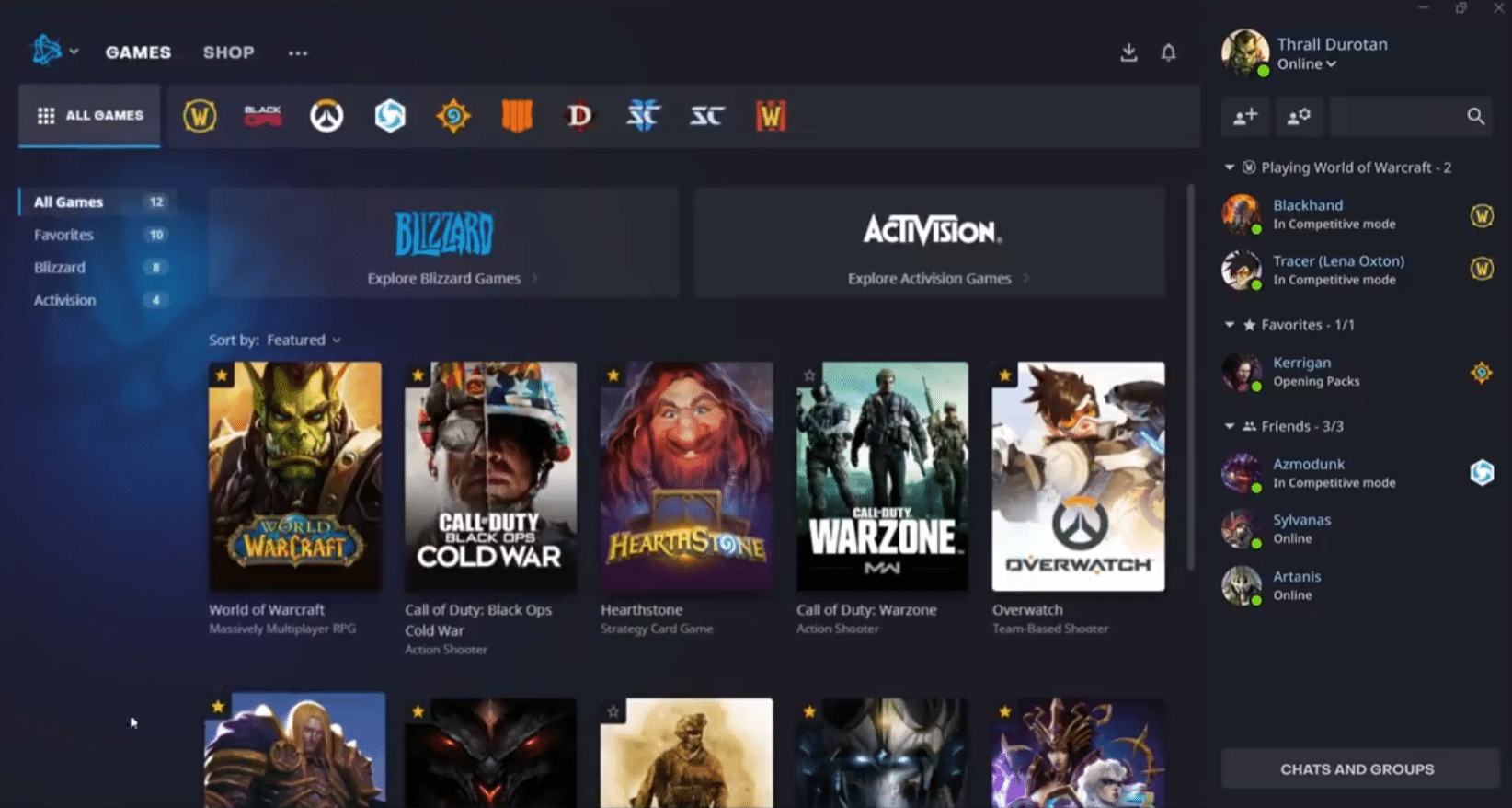
Battle.net is Blizzard’s own game launcher where you install, update, and launch games like World of Warcraft, Diablo, Hearthstone, and Overwatch 2—while keeping friends, chat, and news in one place.
What do you get with Battle.net?

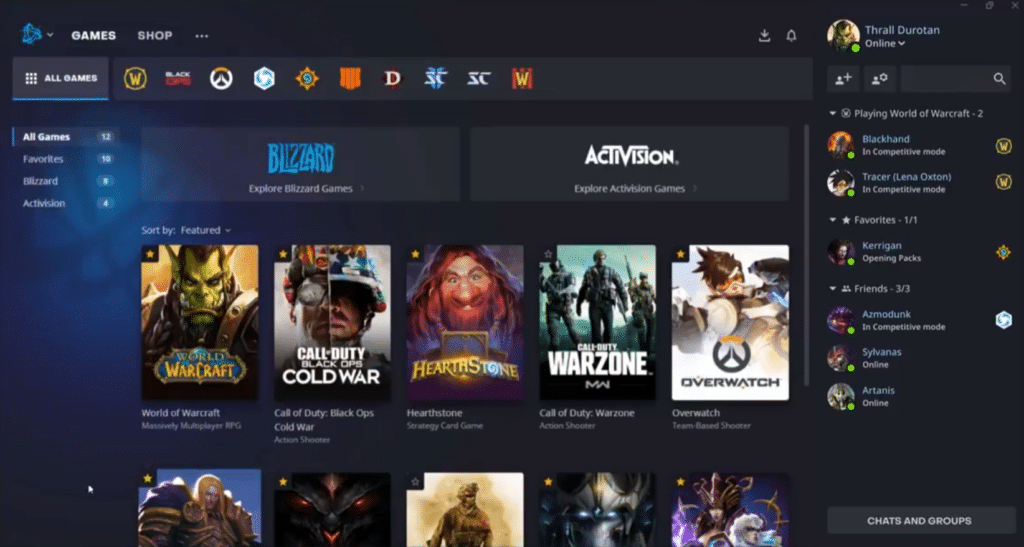
Battle.net works as the hub for Blizzard’s ecosystem. This is where games are patched automatically and where you typically manage login and account security.
In our testing on a standard Windows 11 PC, installation finished quickly, and the client automatically found older Blizzard installations on the drive. It can feel a bit heavy if you only use it for one game, since it also pushes news, the store, and promotions to the front.
Games, store, and social in one place
Battle.net gives you:
- A library of your installed Blizzard games with quick access to download/install
- News, patch notes, and promotions from the Blizzard ecosystem
- Friends list, chat, and voice features to coordinate with friends (depends on settings and region)
- Built-in tools like “Scan and Repair” and “Check for Updates” when a game misbehaves
Performance, updates, and minor annoyances
Battle.net does what it should: keeps your games updated and ready. But it also has a few classic launcher quirks:
- It can chew a bit of RAM in the background, especially if you leave it open all the time
- Auto-updates are great—until they kick in during your workday (fortunately, you can control much of this in Settings)
- If you have multiple games installed, it’s worth learning the download queue and speed controls so it doesn’t hog your entire connection
Battle.net vs Steam, Epic, and Discord
Battle.net isn’t an all-in-one store with everything from indies to AAA. It’s primarily for Blizzard (and a few related titles), which is both its strength and its limitation.
- Steam: A larger store with more community features across games.
- Epic Games Store: Often offers free games, but a smaller social ecosystem than Steam.
- Discord: Not a store/launcher, but clearly the king for chat/voice in many friend groups.
When Battle.net makes sense — and when it doesn’t
If you play WoW, Diablo, Overwatch, or Hearthstone, Battle.net is essentially the key that keeps everything running smoothly. If you mostly play outside the Blizzard ecosystem, Battle.net can end up as just another extra launcher you open once in a while.
Top 5 tips for Battle.net
Top 5 tips for Battle.net
Stop patches from hogging your bandwidth
Go to Settings and control when Battle.net may update and how aggressively it downloads. We set it to update outside peak hours, which removed the classic spikes while we were doing other tasks.
Use “Scan and Repair” before reinstalling
If a game suddenly crashes or won’t start, Scan and Repair is often the quickest fix. It saves you from re-downloading the entire game again.
Move large games to an SSD for noticeably faster loads
WoW, Diablo, and other heavy titles feel much snappier on an SSD. In our testing, zone loads and overall responsiveness were clearly better after the move.
Keep the download queue tidy if you have lots of games
Battle.net can slow down if everything tries to update at once. Prioritize the game you need now, and let the rest wait in the queue.
Boost account security with two-factor authentication
Battle.net accounts are popular targets. Two-factor authentication takes a few minutes to set up and can save you a huge headache later.