


ClickUp download – bring tasks, docs, and teamwork together in one place
ClickUp is a modern project management platform that brings tasks, documents, chat, dashboards, and automation into one system. We tested ClickUp in the browser and the desktop version on Windows 11, and it’s the kind of software where you quickly feel the value if you’re tired of jumping between multiple tools during the workday. ClickUp is available today as a web app, desktop app for Windows, Mac, and Linux, and a mobile app for iPhone and Android.
That makes ClickUp appealing for solo users, small businesses, and larger teams. The official free plan is still available, so you can get started without a credit card, which is a clear advantage in a market where many competitors hide their best features behind a short trial.
How ClickUp is structured in practice


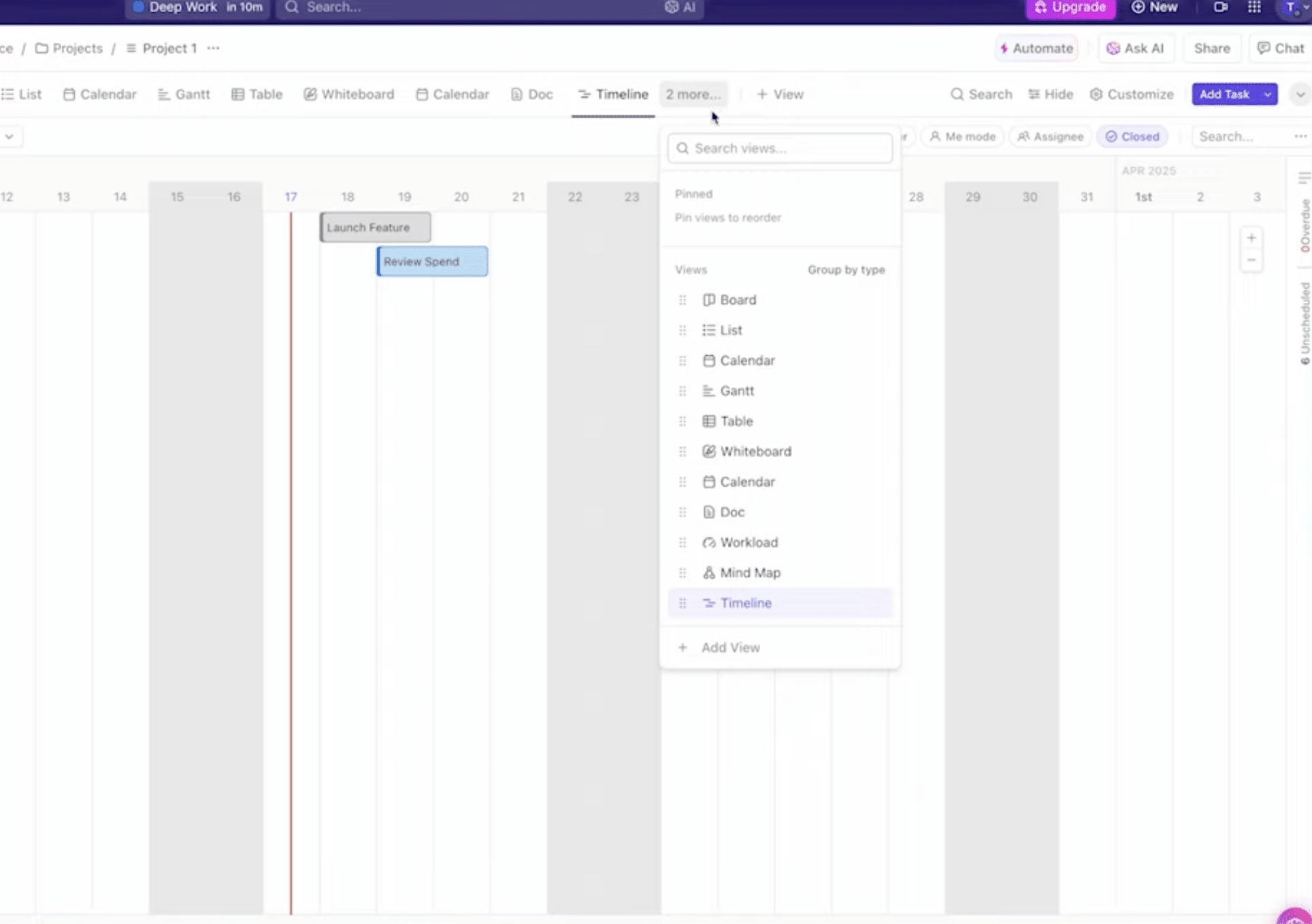
ClickUp is still organized around Workspaces, Spaces, folders, lists, and tasks, so you can structure work across multiple levels. It sounds technical at first, but it quickly makes sense when you want to separate, for example, SEO, sales, content, support, or development. You can also switch between different views and tailor workflows to your team’s needs. ClickUp positions the platform as a single place for tasks, docs, chat, and AI, and the latest generation puts even more emphasis on that unified workspace.
One thing we especially liked during testing was that you don’t have to lock yourself into a single way of working. Some teams will use ClickUp very tightly with status fields, dashboards, and automations, while others mostly want a clean, flexible task list with deadlines and comments.
Docs, chat, and AI make ClickUp more than just a to-do app


ClickUp is no longer just a classic task management app. The platform now includes Docs as an integrated part of the system, so teams can write and store knowledge in the same place as their tasks. ClickUp also highlights chat and AI features as central parts of the new platform experience. The Docs hub is searchable and filterable, and ClickUp 4.0 is explicitly described as a unified workspace where tasks, docs, chat, and AI work together.
In practice, that means ClickUp can actually replace several smaller tools for some companies. Not for everyone, but for more than before. If you currently use one tool for tasks, another for notes, and a third for internal coordination, it’s well worth testing whether ClickUp can bring more of it together.
Import from other systems is a real strength


The old argument that switching project management tools is too much hassle has gotten weaker. ClickUp has official import options from Monday, Jira, Todoist, and spreadsheets like Excel and CSV. That makes migrating much easier, especially if you’re already stuck in a system you’re no longer fully satisfied with.
It’s also worth noting that imports aren’t always perfectly smooth in real life. If your data is very messy, you have many custom fields, or old workflows, you should still expect some cleanup afterward. But ClickUp does more than most to make the actual transition realistic.
Desktop app or browser – what works best?


ClickUp works well in the browser, but we actually had the best experience with the desktop app when the workday got busy. It feels more focused, and ClickUp’s own help documentation also emphasizes that the desktop app is available for Windows, Mac, and Linux, and that newer versions can check for updates themselves. ClickUp also notes that the app isn’t delivered as a traditional MSI installer for Windows, which is useful for some businesses and IT departments.
For everyday users, that’s not a problem. Just download the official version and sign in. If you spend all day in ClickUp, the desktop app makes a lot of sense. If you only check tasks a couple of times daily, the browser version is often plenty.
Where ClickUp shines—and where it can feel a bit heavy
ClickUp is at its best when you want to bring a lot of work into one place and are willing to spend a little time setting it up properly. It’s not the easiest tool on the market from the first minute. On the contrary, new users can be met with many options, many clicks, and quite a few concepts at once.
That’s also our biggest caveat after testing. ClickUp can do an enormous amount, but that also means it doesn’t feel as light and streamlined as the simplest alternatives. For some, that’s a strength. For others, it’s exactly why they end up preferring something more minimalist.
Is ClickUp worth using?
Yes—for a lot of people, the answer is yes. ClickUp is one of the most complete platforms in its category right now, and the free plan makes it easy to try in practice. If you need a place where tasks, documents, collaboration, and structure can live together, ClickUp is still one of the best bets.
We especially recommend ClickUp for teams, freelancers, agencies, and marketers who work across many tasks and easily lose the overview in a mix of notes, email, spreadsheets, and chats. That said, some users will feel that ClickUp simply does too much. That’s not a weakness in itself, but it’s worth being honest about.
Top 5 ClickUp tips
During our Windows 11 test, it worked best to start with a single workspace instead of building your entire company structure on day one. Create the most important tasks first and get the flow right before you add more Spaces, lists, and advanced views. It gives you a much better overview to start with.
ClickUp can do a lot, which is both a strength and a small trap. Our advice is to begin with very simple lists like “To do,” “In progress,” and “Done.” Once the team is comfortable with the basic structure, it becomes much easier to build on more status fields, dashboards, and automations.
If you’ve previously worked in Monday, Jira, Todoist, or Excel, you can save a lot of time by importing your data. It makes the transition to ClickUp far more realistic, especially if you already have many active tasks. We found it gave us a faster start because you don’t have to recreate everything manually.
The browser version works fine, but if you spend many hours a day in ClickUp, the desktop app is worth trying. During our test it felt more focused and a bit more comfortable to keep running as a dedicated work tool—especially if you’re constantly moving between tasks, docs, and comments.
Many users stick to the task side, but ClickUp gets much stronger when you also use Docs actively. Centralize briefings, SOPs, campaign plans, meeting notes, and internal guides in the same place as your tasks. That’s exactly where ClickUp starts to feel like more than just another to-do app.