


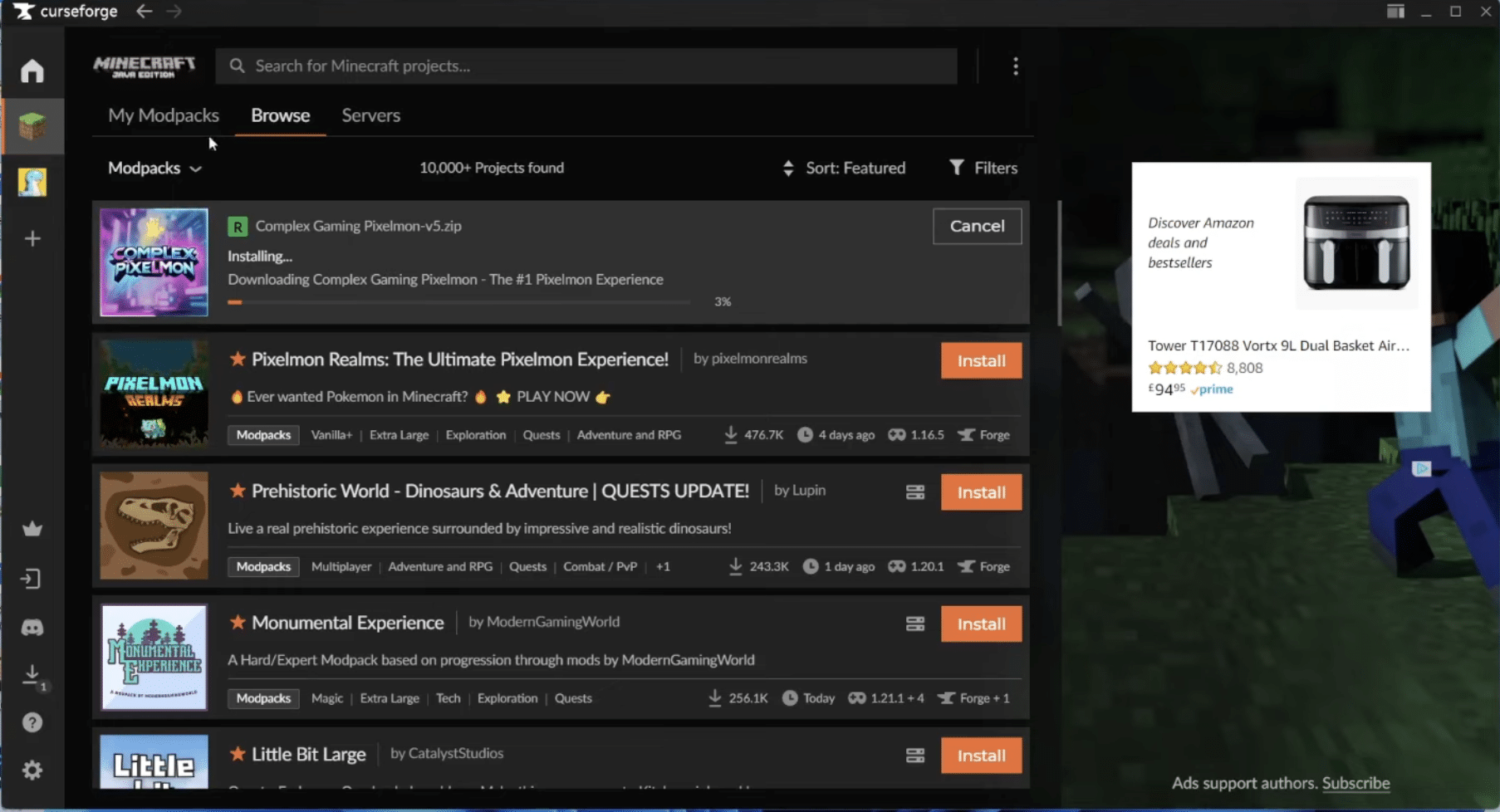
Download CurseForge and install Minecraft mods easily (Windows)
CurseForge is one of the most popular platforms for mods and modpacks—especially for Minecraft, where it makes installing large modpacks pretty much a one-click job without moving files around manually. If you’ve previously wrestled with .jar files, modloaders, and folders, CurseForge feels like getting a solid control panel for the whole process.
We tested CurseForge on a standard Windows 11 PC with a regular Minecraft install, and setup was quick. The longest part wasn’t CurseForge itself—it was choosing the right modloader (Forge vs. Fabric) and giving a heavy modpack enough RAM so it wouldn’t crash on startup.
What is CurseForge, practically speaking?
CurseForge is both a website and an app. For most users, the app is what they mean when they search “curseforge download for windows,” because it works as a launcher to:
- find modpacks (ready-to-play bundles with lots of mods)
- install and update mods without manual file handling
- manage profiles so you can keep multiple setups (vanilla, lightly modded, heavily modded)
If you mostly want to grab a single mod and drop it into the mods folder, you can still do it manually—but once you run modpacks, CurseForge saves you a lot of hassle.
CurseForge for Minecraft: modpacks, profiles, and updates

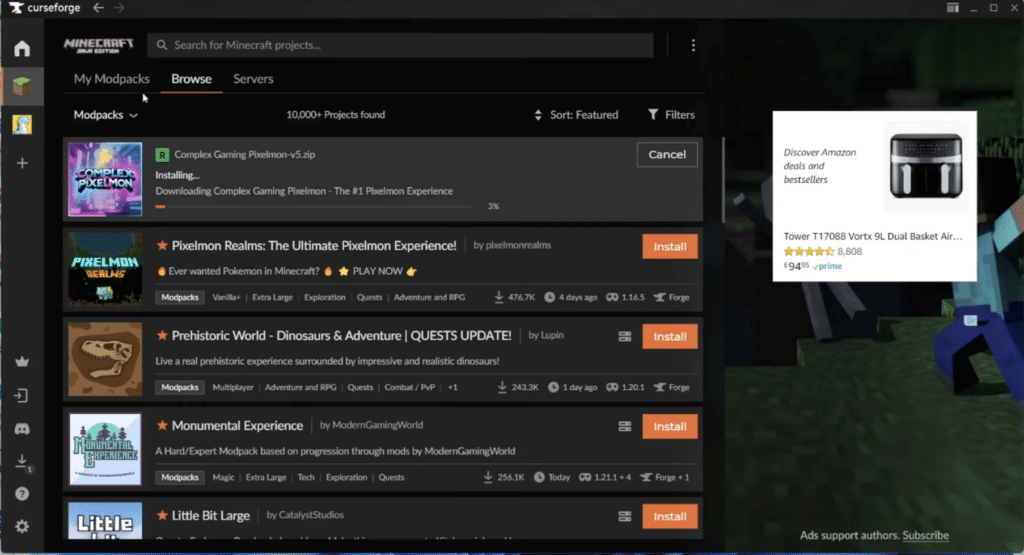
The best part of CurseForge is that it handles the whole stack: the modpack + the correct modloader + often the right dependencies. And when a modpack gets updated, you can update with a click instead of comparing file names.
During testing we noticed two things in particular:
- Small modpacks almost always start without drama.
- Heavy modpacks typically need more RAM allocated in the profile—otherwise you’ll get a freeze on loading or a crash in the menu.
A good tip if you share a PC with others (family or roommates): use separate profiles so you don’t accidentally update each other’s modpacks.
Forge vs. Fabric: the classic pitfall
Many errors come from a simple mismatch: you install a modpack or mod that requires Forge, but you try to run it on Fabric (or the other way around).
As a rule of thumb:
- Forge: huge selection, many large modpacks, often “heavier.”
- Fabric: often more “light and fast,” popular for performance mods and newer setups.
CurseForge helps, but you still have to pick correctly when you download or import things.
When CurseForge acts up on Windows 11
We keep seeing a few recurring issues (and they match long-tail searches like “curseforge not working”):
- CurseForge can’t find Minecraft: usually if Minecraft hasn’t been launched once after installation (launch the game once first).
- Modpack crashes on start: often RAM, the wrong modloader, or a mod conflict after an update.
- Downloads stop or “hang”: could be antivirus/firewall, or you need to restart the CurseForge/Overwolf process.
We hit one case during testing where a modpack update caused crashes—the fix was to make a “copy” of the profile and test the update there first. It’s a small habit that saves your worlds.
CurseForge vs. Modrinth: what makes the most sense?
If you’re a 100% Minecraft tinkerer and care about open source and a more “clean” ecosystem, many look toward Modrinth. But if you want broad compatibility, large modpacks, and a very mainstream way to install, CurseForge is still where you rarely run into “missing file X” problems.
In practice, many end up using both:
- CurseForge for big modpacks and all-in-one profiles
- Modrinth for individual mods (especially performance/utility)
Top 5 CurseForge tips
Top 5 tips: keep CurseForge stable
Quick fixes that usually solve “curseforge not working,” startup crashes, and slow downloads—especially with modpacks.
Launch Minecraft once before linking
Setup
If CurseForge can’t find your Minecraft installation, the fix is often just launching Minecraft once so folders and files are created properly.
Give heavy modpacks more RAM in the profile
Performance
Modpacks can crash or freeze while loading if they don’t get enough memory. Adjust RAM in the CurseForge profile settings before you troubleshoot for hours.
Always check Forge vs. Fabric before installing
Compatibility
Many “won’t start” errors are just the wrong modloader. Read the modpack’s requirements and keep the whole profile on the same loader.
Make a copy of your profile before major updates
Safety
When a modpack updates, conflicts can happen. Copy the profile and test the update there first, so your “main profile” and saves don’t go down with it.
If downloads hang: restart + whitelist in antivirus
Troubleshooting
Stuck downloads are often blocked by security software. Try restarting CurseForge/Overwolf and whitelist the app if it keeps happening.
FAQ: CurseForge download, security, and common problems
FAQ: CurseForge
Answers to the most common questions we see in the US—especially about installation, security, and why modpacks can fail.