


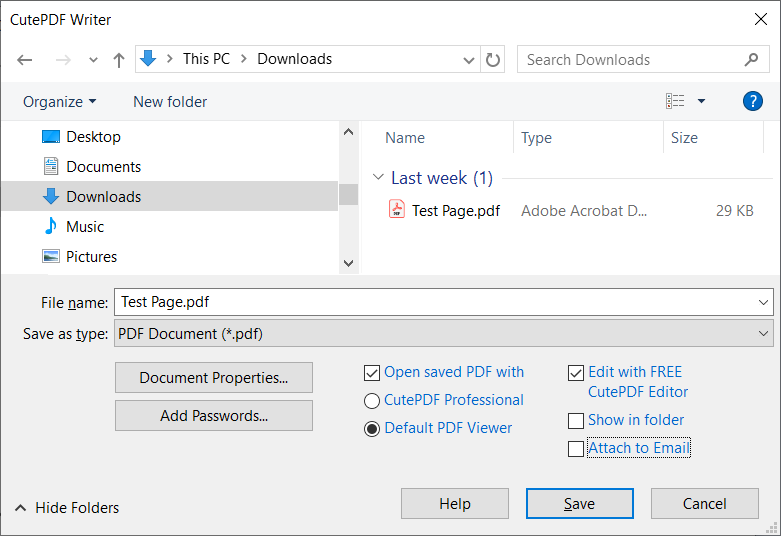
CutePDF lets you convert files to PDF on the go for free. You’ve probably been in a situation where you had to send an important document under a deadline, but forgot to convert it to PDF.
This happens to most people, and for some it happens frequently—almost daily. In these moments, it’s important to quickly and easily fix the issue and convert your document to PDF before the crisis escalates.

You can solve this with the completely free program CutePDF Writer, which you can download from this page. The software is developed by PDF specialists CutePDF, and it has only one function—but it’s the most important one: converting your files to PDF. Because it focuses on a single task, it’s very easy to use once you’ve tried it.
Top 5 tips for CutePDF Writer
Use it as a “virtual printer”
CutePDF Writer works as a printer driver – that means you can select it as a printer in any program (Word, Chrome, Excel, etc.) and save the result as a PDF.
Install Ghostscript correctly
The program requires GPL Ghostscript to work. Make sure to get the latest version from the official site, and install it before or alongside CutePDF Writer.
Decline adware during installation
During setup, you may be offered extra software (e.g., toolbars). Click “Decline” or uncheck boxes to avoid unwanted programs.
Protect PDFs with a password
Enable password protection by clicking “Add Passwords…” in the dialog when you save a PDF. This provides extra security for sensitive documents.
Choose which app opens your PDF
Set CutePDF to open the finished PDF with your preferred PDF reader—e.g., Adobe Reader or Foxit—via the “Open saved PDF with” field. This makes it easier to check the output immediately.
CutePDF Writer is fast and simple
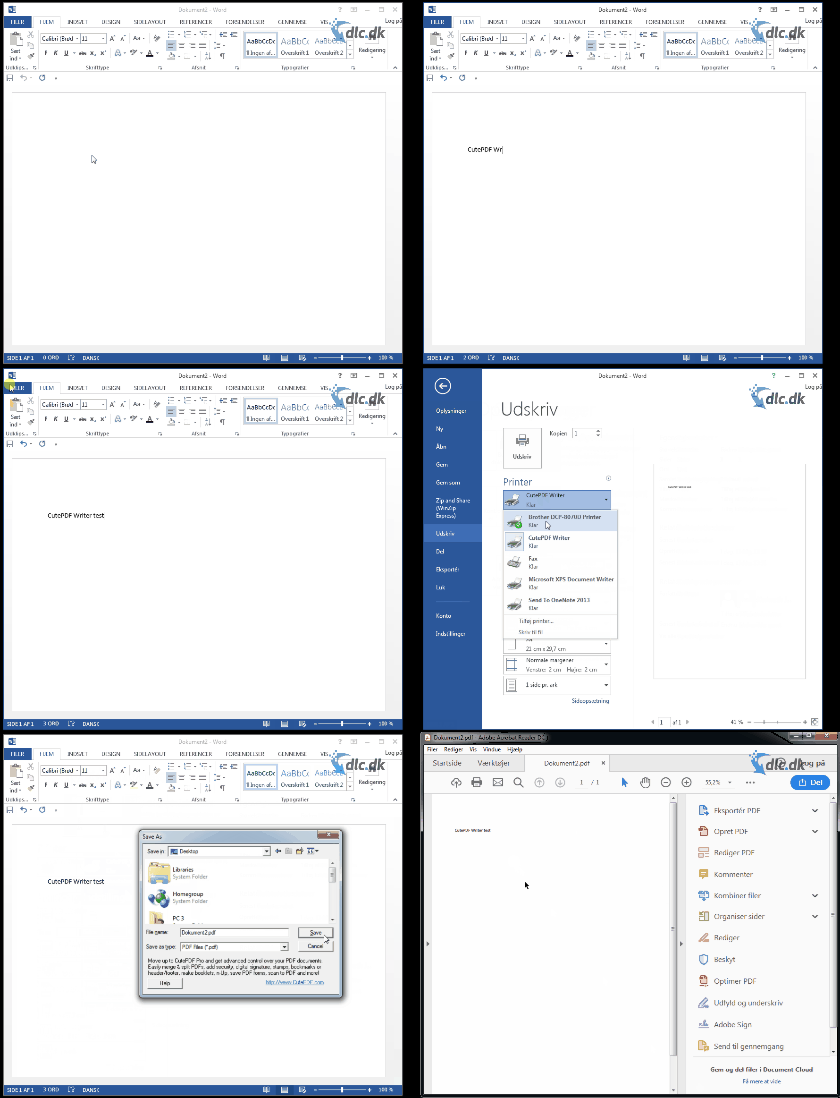
The software is incredibly easy to use, and it’s lightning fast. Saving to PDF with CutePDF Writer works a bit differently than the classic way you save a file. That’s why it’s important to read and understand the instructions before you start.
The unconventional part is that CutePDF Writer installs itself as a printer, which might sound a little odd—but it works. You just need to download and install the program, and you’re ready to go.

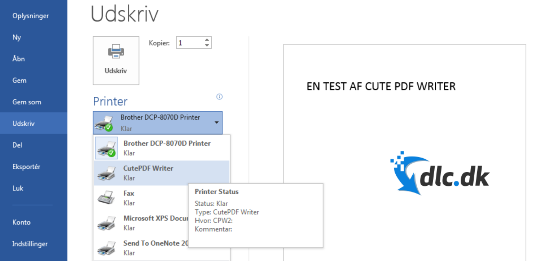
As shown above, you save to PDF with CutePDF Writer by opening the Print function in the document you want to export. Choose CutePDF Writer as your printer, and when you click Print, nothing is actually printed. Instead, you’re prompted to save the document as a PDF. It might sound a little complicated and feel confusing, but it isn’t. Once you’ve tried it once, it’s very straightforward—and super fast.
PDF is essential
In many situations, Portable Document Format (PDF) is necessary when you send documents to others. Whether you’re submitting a university assignment, sending documentation to authorities, or emailing a work report to a colleague, PDF is the standard—and it’s expected. That’s why problems can arise if you forget to convert in a time crunch. Here, CutePDF Writer is the lifesaver that quickly and simply solves the problem for you.
The difference is the price
There are many different PDF converters you can download across the internet. Most of them cost money and try to do a lot more than convert files to PDF. These tools often become complicated and end up creating more panic when you need a quick PDF conversion. CutePDF Writer is completely free and focuses solely on converting to PDF—making it fast and incredibly easy. It’s perfect if all you want is a free PDF converter.
CutePDF Writer installs in seconds
CutePDF Writer is not a large program. Because it serves a single purpose as a converter, it doesn’t require much space on your computer. It’s also very quick to download and install. It only takes a few seconds, and you’re ready to convert.
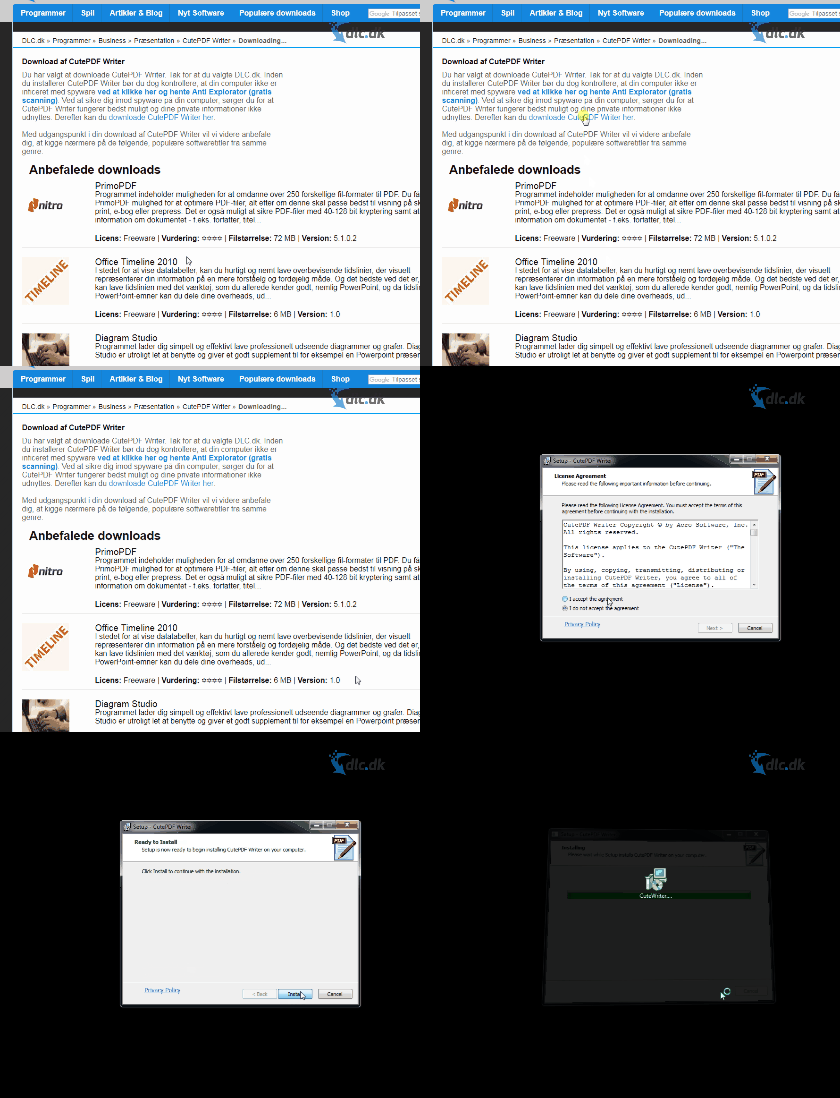
After the program is installed, as shown above, a browser window from the developer’s website pops up. It explains how CutePDF Writer works and which steps you need to follow to convert your document to PDF. The instructions are crystal clear, so anyone can understand them. That’s why we recommend this program to anyone who needs a free tool to convert files to PDF.
Alternatives to CutePDF Writer
CutePDF Writer isn’t the only PDF conversion tool on the market. If you’re looking for alternative PDF converters, PrimoPDF is highly recommended. With PrimoPDF, you can convert to PDF from over 250 different file formats, and you can also optimize the file based on how you plan to distribute it. PrimoPDF is, like CutePDF Writer, completely free, and you can find PrimoPDF by clicking right here.
Is CutePDF Writer worth the download time?
If you need a program to convert your files to PDF quickly without paying a cent, CutePDF Writer is the perfect piece of software for you. The program focuses solely on making PDF conversion as easy and fast as possible. It works a bit unconventionally: CutePDF Writer installs as a printer, and when you try to print using CutePDF Writer, you’ll instead get the option to save the document as a PDF. Therefore, it’s important to read the instructions before you use it, as it may seem confusing even though it’s actually very simple and straightforward. The program installs in no time and is compatible with all Windows operating systems.
There are other free PDF converters as well, so it’s a good idea to review them before deciding which one suits you best. For example, take a look at PrimoPDF right here. Like CutePDF Writer, PrimoPDF is fast and completely free. Unlike many other converters you’ll find online, CutePDF Writer is entirely free. Those other programs often cost far too much considering that all you need is a tool to convert your files to PDF. That’s why CutePDF Writer is the optimal choice if you don’t want a lot of extra features that only add confusion.