


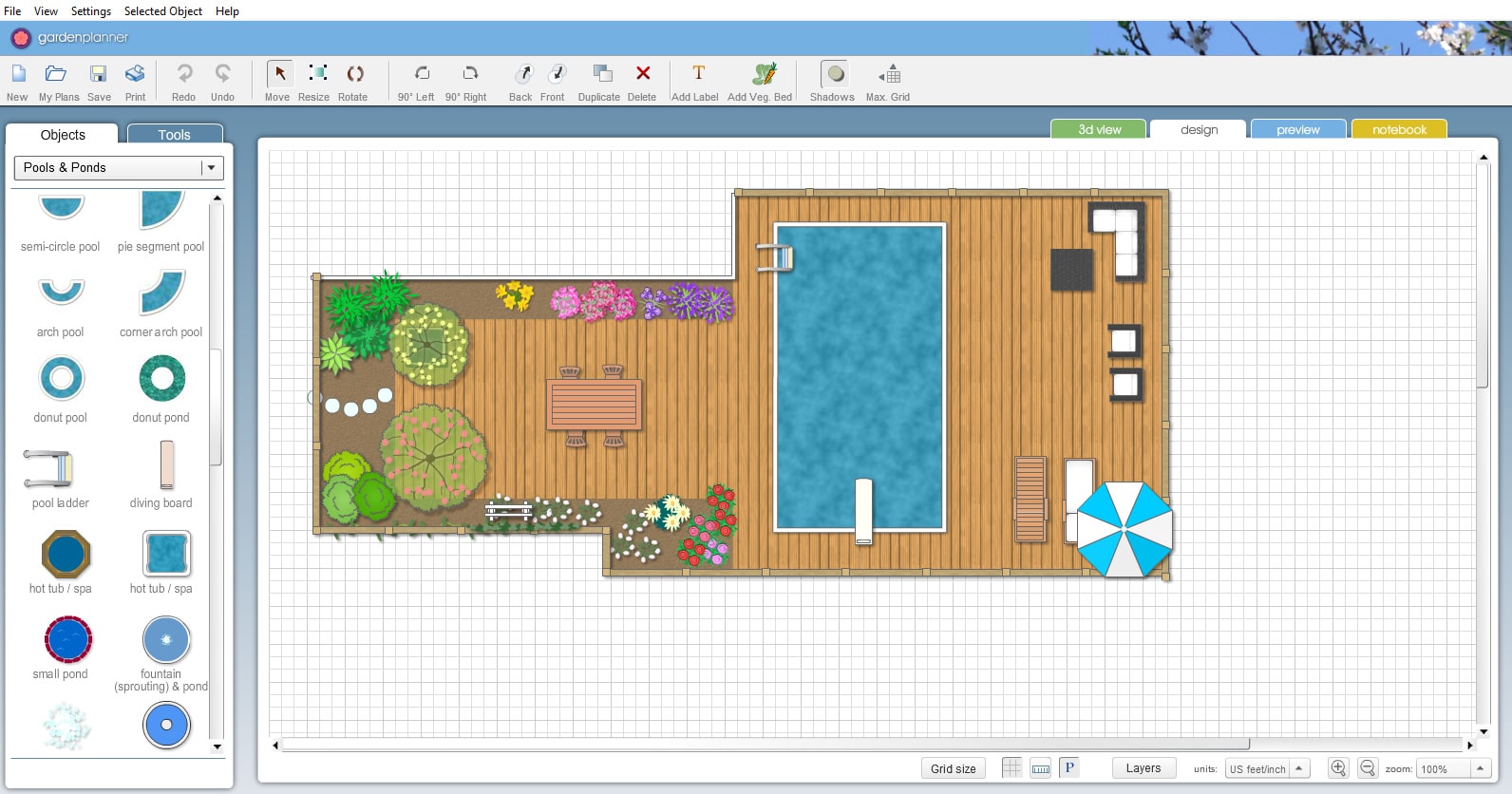
Design your dream garden with Garden Planner
Garden Planner is an intuitive and visual garden design software that makes it easy for both beginners and experienced homeowners to design their own green oasis right on the computer. With drag-and-drop functionality, customizable elements, and the option to print your designs, it’s one of the most accessible tools in its category.
User-friendly, visual planning
Garden Planner offers a clean interface where you can start building your garden with just a few clicks. Begin with a blank plan and fill it with:
- Trees and shrubs
- Flowers and flower beds
- Fences, paths, and patios
- Furniture, structures, and ponds
Everything is placed with drag-and-drop, and you can rotate, resize, and change colors on objects. The software isn’t a 3D tool, but it provides a clear, easy-to-read bird’s-eye view that most homeowners will find more than sufficient for planning.
Features to help you succeed

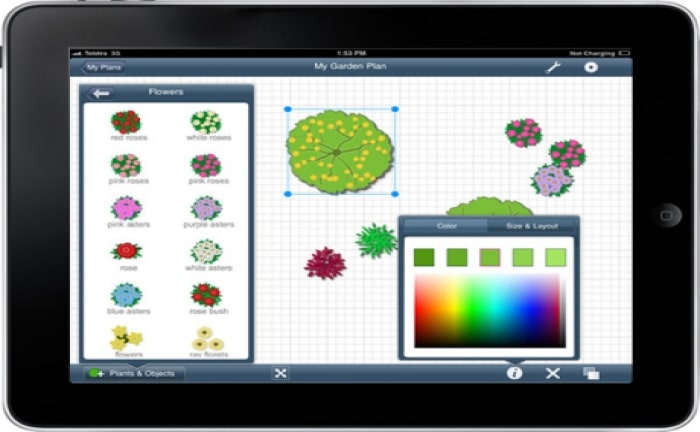
Beyond the large library of objects and symbols, Garden Planner also offers:
- Note feature: Add notes and comments to specific elements (e.g., “lavender — blooms June–Aug”).
- Layers and depth: Move elements forward and backward to create realistic overlap.
- Zoom and scale: Adjust the view so you can create detailed plans as well as whole-garden overviews.
- Custom images: Upload photos of your lot or inspiration and place them on the canvas.
- Printing: Print din plan i fuld size and bring it to a home improvement store or garden center.
Ideal for homeowners and professionals
Garden Planner er velegnet til:
- New homeowners planning a yard from scratch.
- Homeowners looking to redesign parts of the yard.
- Landscape architects and contractors who need to visualisere projekter.
- Hobby gardeners who love planning and optimizing their green spaces.
The software requires no technical expertise, and many users find they can create a working base plan in under an hour.
Top 5 tips for Garden Planner
Start with a base plan
Draw accurate measurements for the house, property lines, and existing elements so you can plan realistically. It’s important to have actual dimensions in place — e.g., the sun’s path during the day, slope/grade, and any fixed installations like sheds, greenhouses, or raised beds. The more precise your base plan, the easier it is to make good decisions later. If possible, use a copy of a digital plat map or property survey as a background.
Use layers for clarity
Work in layers (for example, “trees,” “beds,” “hardscape”) so you can edit without disturbing everything else. This lets you hide or show certain parts of the yard depending on what you’re working on. You can focus on paths and pavers in one layer while another shows only plants and flowers. It’s especially useful if you’re testing multiple designs or prefer a structured, efficient workflow.
Experiment with colors
Color-coding helps you visualize bloom periods, plant groups, or materials. For example, use one color for spring bloomers, another for summer perennials, and a third for fall interest. This quickly reveals where seasonal color might be missing. You can also use grays for fixed elements and bolder colors for temporary or flexible choices.
Create multiple versions
Save different ideas before deciding, so you can compare solutions. Try one version with a minimalist design and another with abundant color and planting, and see what best fits your needs and ambitions. It’s also smart to plan your yard in phases — e.g., a version for year 1 and another for the finished dream garden after 3 years.
Use notes actively
Create checklists directly on the plan — for fertilizing, pruning, or bloom cycles. Notes can also capture specific varieties, desired colors, or plant names you haven’t purchased yet. They’re especially handy if you’re collaborating with others (a partner, landscaper, or family) so everyone can follow along. Notes print with your plan, so you can take them into the yard or to the garden center.