


GeoGebra download: free math tool for graphs and geometry
GeoGebra is a free math program that makes it easier to understand graphs, geometry, equations, and statistics—especially if you learn best visually. It’s no coincidence that it’s become a standard in many schools: you can move points, change values in real time, and see the math update itself as you work.
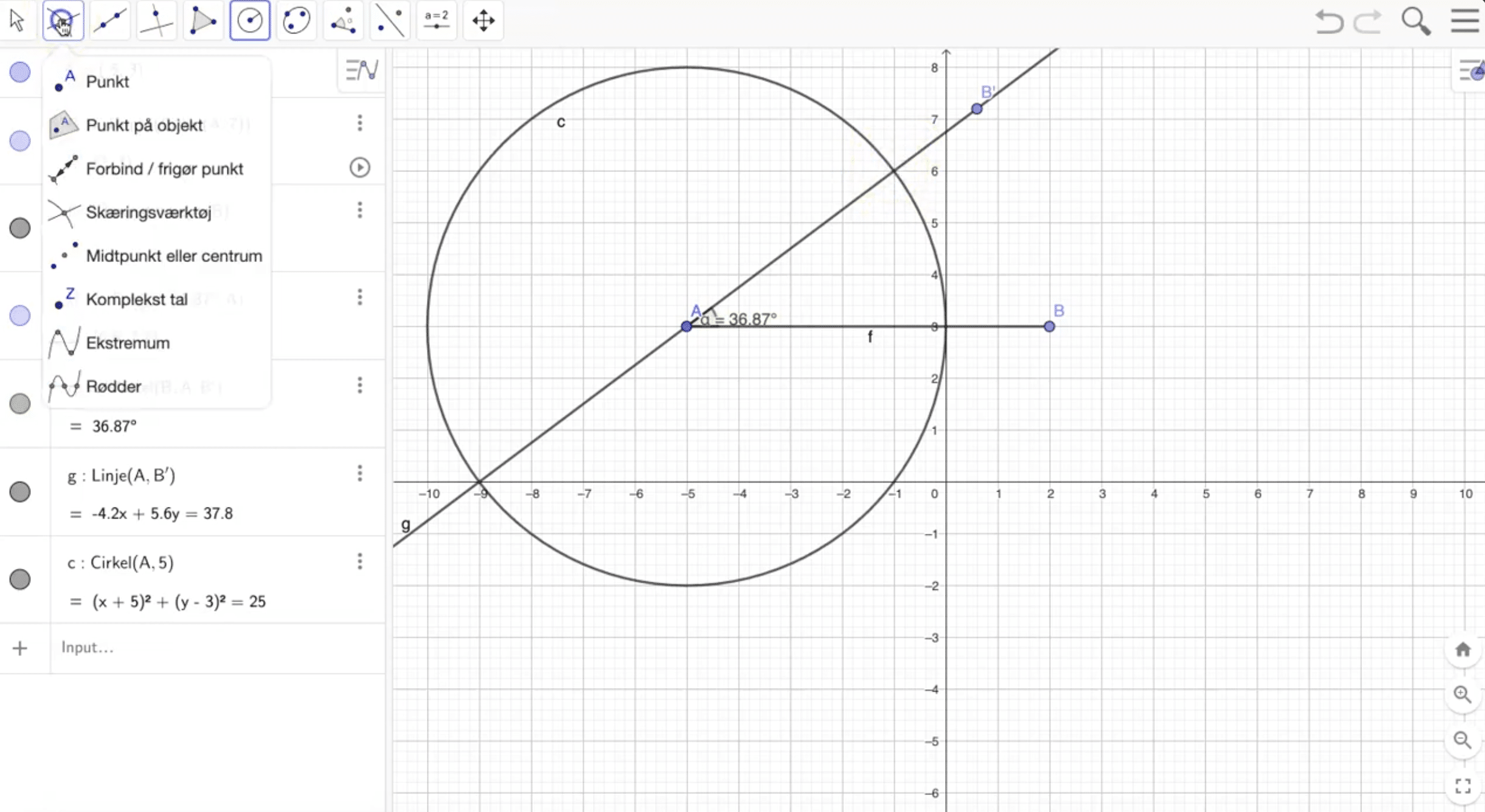
During our test on a standard Windows 11 PC, we were up and running in minutes. The biggest plus is that GeoGebra feels like a tool you can experiment with—and that really helps when you’re stuck on turning points (vertices), intersections, or the equation of a line.


Why GeoGebra is so popular in the classroom
GeoGebra is built for teaching without feeling heavy. You typically work with multiple views at once (graph, algebra, and geometry). When you change one thing, the others follow—and that’s exactly what makes the program so strong for learning.
In practice, we found GeoGebra is especially great for:
✅ plotting graphs and quickly reading intersections
✅ building geometric constructions and getting precise measurements instantly
✅ testing “what‑if” scenarios (change a, b, or c and see the effect immediately)
✅ running regression on data and getting a best‑fit line/curve without hassle
If you’re searching for “GeoGebra download,” you probably have a specific assignment on your plate. That’s where GeoGebra shines: you can get started quickly, and you can use it both online and offline.
GeoGebra Classic vs. GeoGebra app: which should you choose?
Many people look for GeoGebra Classic (also known as “Classic 5”) because it’s the version they know from school.
Choose GeoGebra Classic if you want the “school version”
Classic is usually the best choice if you:
✅ want everything in one place (graph + geometry + algebra)
✅ work with the typical assignments in middle/high school
✅ want a layout that matches what the teacher shows on the board
Choose GeoGebra apps if you want a more modular workflow
GeoGebra is also available as separate apps/tools (e.g., 3D, CAS, Geometry). That makes sense if you:
✅ primarily focus on one discipline at a time
✅ use a tablet/Chromebook and want to keep it simple
✅ jump between devices and use cloud/online materials a lot
Our rule of thumb: If in doubt, start with Classic—it’s the version most students and teachers expect.
Features and tools you get in GeoGebra

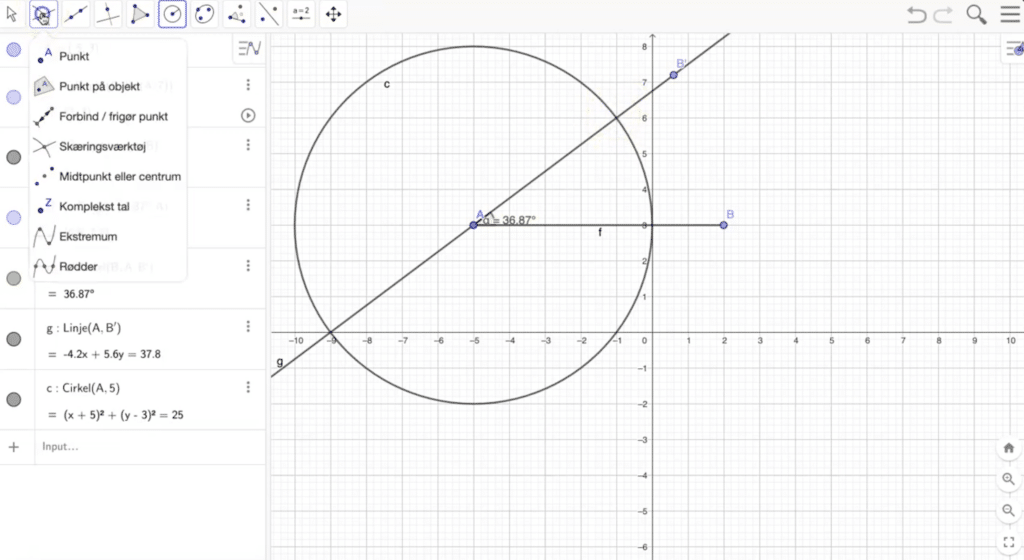
GeoGebra covers a surprising amount without feeling overwhelming once you know the key tools.
Graphing and function analysis
You can plot functions, change parameters, and quickly read:
✅ zeros
✅ intersections
✅ vertices/turning points (with the right commands)
✅ slope and derivatives (depending on setup/tool)
Geometry and constructions
Perfect for triangles, circles, angles, and “classic” constructions. We used it to check whether a construction still holds when you move a point—and that’s a very effective way to catch mistakes.
CAS and algebra
In some setups, you can solve equations and work more symbolically. This is especially relevant at high‑school level and beyond.
Statistics and regression
If you have a scatter plot or dataset, GeoGebra helps with regression and visualization. It’s one of those areas where the program feels almost like a cheat (in a good way) once you learn it.
Our test: what GeoGebra feels like in practice

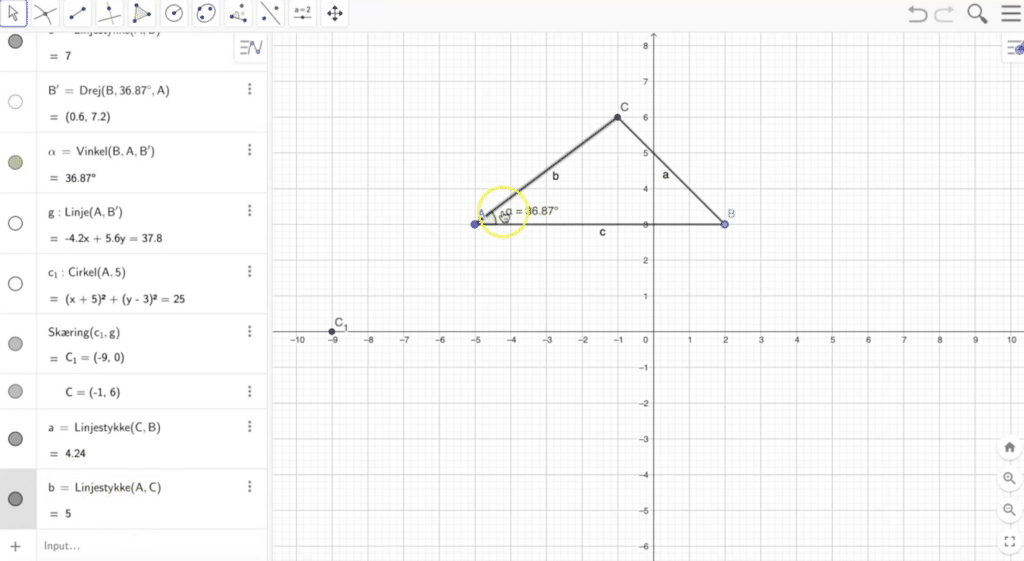
We tested GeoGebra on typical school tasks: plotting graphs, reading intersections, simple geometric constructions, and a quick regression on a dataset.
Getting started was fast, but there’s one thing many overlook: GeoGebra becomes truly powerful once you learn 5–10 go‑to moves (e.g., how to create points, name them, and use the most important commands). Once that clicks, the program feels like a calculator + drawing board in one.
The only downside we noticed is that some functions can be a bit “hidden” if you don’t know where to look—especially when switching between Classic and the newer apps. Expect a couple of minutes of confusion the first few times.
Alternatives to GeoGebra
If GeoGebra isn’t the right fit, here are the alternatives people most often compare it with:
✅ Desmos – super‑easy graphing, but typically without the same breadth in geometry/CAS
✅ Wolfram|Alpha – a powerful engine, but it feels more like an “answer machine” than a learning tool
✅ TI‑Nspire – powerful, but often tied to a license/ecosystem and not nearly as accessible for free
Top 6 tips for GeoGebra
Top 6 tips for GeoGebra
Name points from the start (A, B, C) to avoid clutter later
In our test, constructions and commands were much easier when points and lines had clear names. It also makes your submission easier to read.
Create sliders for a, b, and c to understand parabolas in minutes
Create sliders and enter a function like f(x)=a*x^2+b*x+c. Drag the sliders to see instantly what moves the graph and why.
Use tools for zeros and intersections instead of guessing
It’s tempting to eyeball the graph, but GeoGebra can return exact points. That saves time and eliminates common small errors in results.
Find the vertex with one click when working with quadratics
Instead of zooming and estimating, use the vertex tool/command. We use it especially in tasks where you must state the vertex as precise coordinates.
Regression: add your data as points and let the model do the work
If you have a dataset, create a scatter plot and use regression to find a best‑fit line/curve. It’s gold in statistics units when you need to explain relationships.
Use GeoGebra Classic if you’re following a teacher’s step‑by‑step walkthrough
Many guides and classroom materials are based on the Classic layout. To minimize confusion, Classic is often the most frictionless choice.