


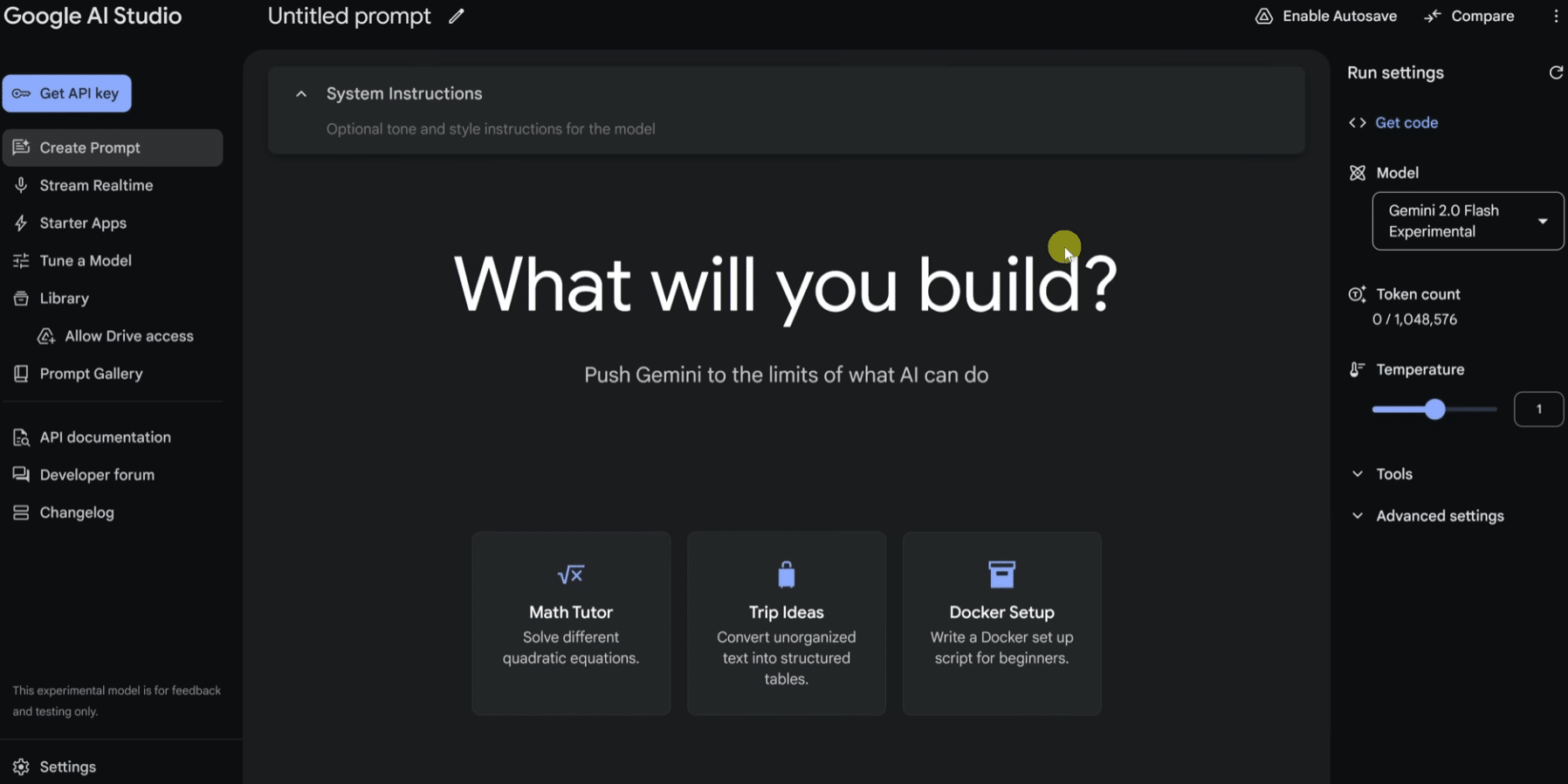
Google AI Studio makes Gemini practical for developers
Google AI Studio is Google’s web-based developer tool for testing prompts, creating Gemini API keys, and building prototypes with Google’s latest AI models directly in the browser. It’s not a traditional app you install on Windows or Mac—instead, you sign in with your Google account and work online in a clean, fairly technical, yet surprisingly fast interface.
We tested Google AI Studio on a Windows 11 PC in Chrome, where the tool stood out for quick prompt tests, code experiments, and comparing different Gemini models. It feels less consumer-oriented than the Gemini chat and more like a workbench for developers, marketers, SEOs, and curious users who want to understand what the Gemini API can actually do.
Google itself describes AI Studio as the fastest way to get started with the Gemini API and Google’s multimodal generative AI models. You can test prompts, manage API keys, monitor usage, and build prototypes.
What can you use Google AI Studio for?

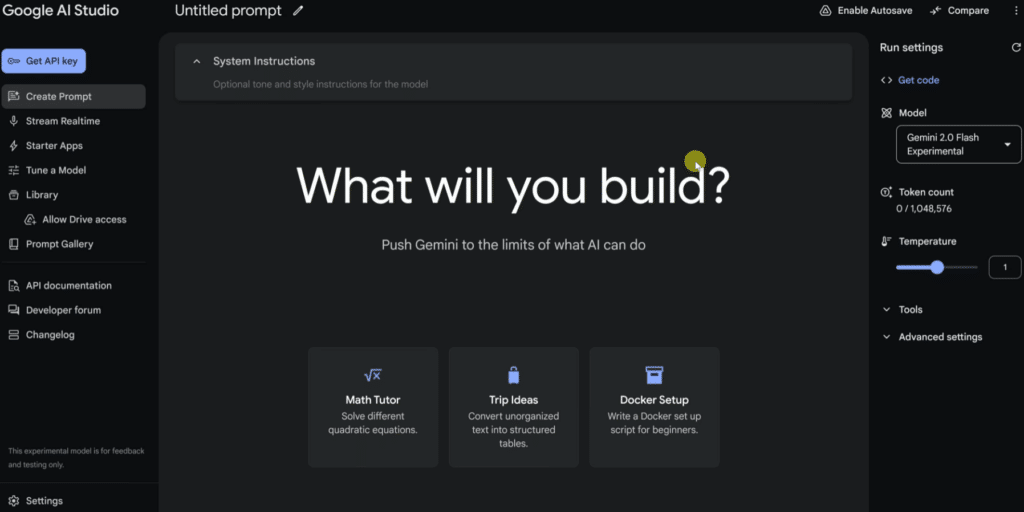
Google AI Studio is especially useful if you want to experiment with AI without spinning up a full development environment. You can write prompts, upload files, test different model types, and quickly see how Gemini responds to text, code, images, and other input types.
In practice, we used it for three things during testing: first to write and refine prompts, then to try small coding ideas, and finally to create an API key that can be used in our own projects. That last part makes the tool particularly relevant for developers, but also for U.S. businesses that want to integrate AI into internal systems, customer support, content production, or automation.
Google AI Studio provides access to models like Gemini Pro, Flash, and Flash-Lite variants, with different focuses on advanced reasoning, speed, and efficiency. Google also highlights features like code execution, file search, grounding with Google Search, and URL context for selected models.
Google AI Studio vs Gemini – what’s the difference?
The short version: Gemini is best for everyday chat and general use, while Google AI Studio is built to build, test, and develop with Gemini.
Gemini feels like an AI assistant. Google AI Studio feels more like a workshop. Here you can control model selection, system instructions, temperature, output, and API-related settings in a way typical users rarely need—but developers quickly miss in a normal chatbot.
That makes Google AI Studio more demanding, but also more flexible. Where Gemini is great for quick answers, ideas, and everyday help, AI Studio is better when you want to test something, iterate, measure it, and maybe later use it in a real project.
Is Google AI Studio free?
Google AI Studio can be used for free to get started, but production API usage can cost money depending on consumption, model, and limits. Google’s own pricing page outlines a free starting tier along with paid scaling for production use.
This is an important distinction. The tool itself is easy to open and try, but if you start using the Gemini API in an app, website, or automated workflow with many calls, you need to watch usage and pricing. Fortunately, that’s exactly what Google AI Studio makes straightforward, since it’s tightly connected to API keys and usage insights.
Our impressions on Windows 11

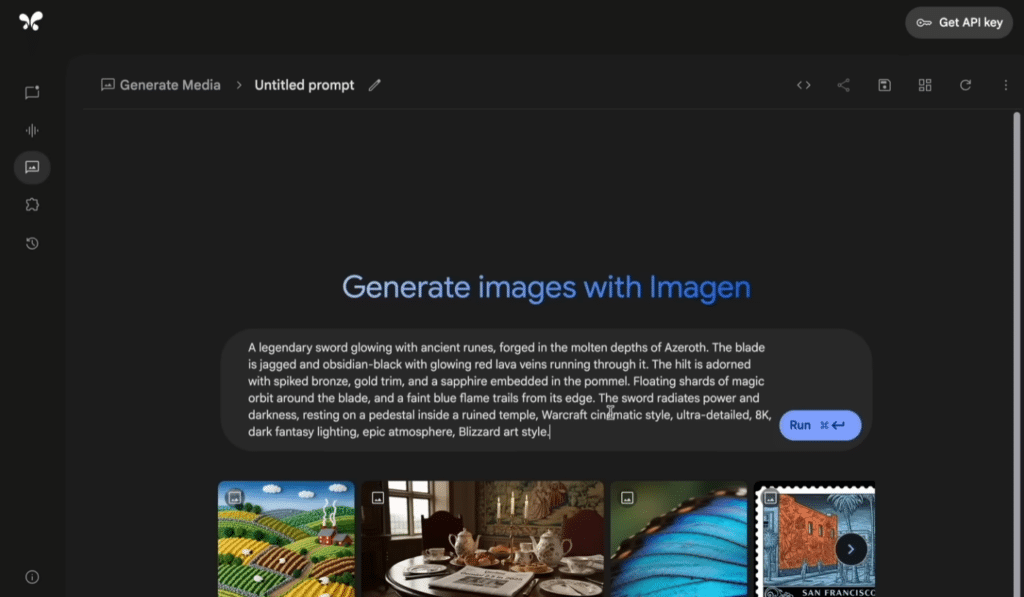
In our testing, Google AI Studio was quick to start using, but it requires some patience if you haven’t worked with APIs or model settings before. The interface is clean and modern, but it isn’t quite as self-explanatory as classic Windows programs or typical AI chatbots.
The best part is how fast you can go from idea to working test. We could write a prompt, adjust instructions, and try different model types without opening a code editor. On the flip side, you can tell the tool is primarily built for people who already know a bit about AI, tokens, API keys, and model selection.
For American users, it’s especially useful that you can test prompts in English and see how Gemini handles tone, punctuation, translations, and localized phrasing. That makes Google AI Studio relevant for everything from software development and SEO to customer support, education, and internal knowledge sharing.
Security and privacy
Use Google AI Studio thoughtfully. Don’t paste sensitive personal data, customer information, passwords, or internal documents without first understanding data handling, account type, and Google’s current terms. This is especially important in a business setting.
For private testing, prompt development, and learning, however, it works very well. We found it to be one of the most direct tools for understanding what the Gemini models can do before moving on to full API integration.
Best alternatives to Google AI Studio
Google AI Studio is strongest if you specifically want to work with the Gemini API. If you just want to chat with AI, Gemini or ChatGPT are easier to get started with. If you want to build apps with many AI features, the OpenAI platform, Anthropic Console, or Microsoft Azure AI Foundry are also relevant alternatives.
For pure prompt testing and Gemini development, though, Google AI Studio is hard to beat. It’s fast, official, and tightly connected to Google’s own models and documentation.
Top 5 tips for Google AI Studio
1PromptStart with small prompts before you build big
Google AI Studio works best when you test one thing at a time. Start with a short prompt, review the answer, then add more requirements. It makes it much easier to see whether the issue is in the prompt, the model, or your instructions.
2Model selectionTry multiple Gemini models on the same task
Use the same prompt across different models and compare results. Some are faster; others handle complex instructions, code, or longer context better. That gives a more realistic picture than testing just one model.
3APIStore your API keys securely
If you create an API key, treat it like a password. Don’t share it in screenshots, code samples, or public GitHub projects. A leaked key can quickly rack up unwanted usage.
4LocalizationTest localized phrasing directly
If you plan to use AI for English content, support, or keyword research, test in English from the start. Our experience is that small changes in tone and context can make a big difference in whether the output sounds natural or too mechanical.
5CostWatch usage before moving to production
Google AI Studio is great for experimentation, but API usage in real projects can cost money. Check pricing, quotas, and usage before you connect AI to a website, app, or automation with many users.