


ImgBurn – A free and efficient disc burning program for Windows
ImgBurn is a free disc burning tool for Windows that makes it easy to burn CDs, DVDs, Blu-ray and HD DVDs. While many people use USB drives and cloud storage today, there’s still strong demand for software like ImgBurn for backups and creating bootable discs—especially among IT enthusiasts and technicians.
Features and ease of use

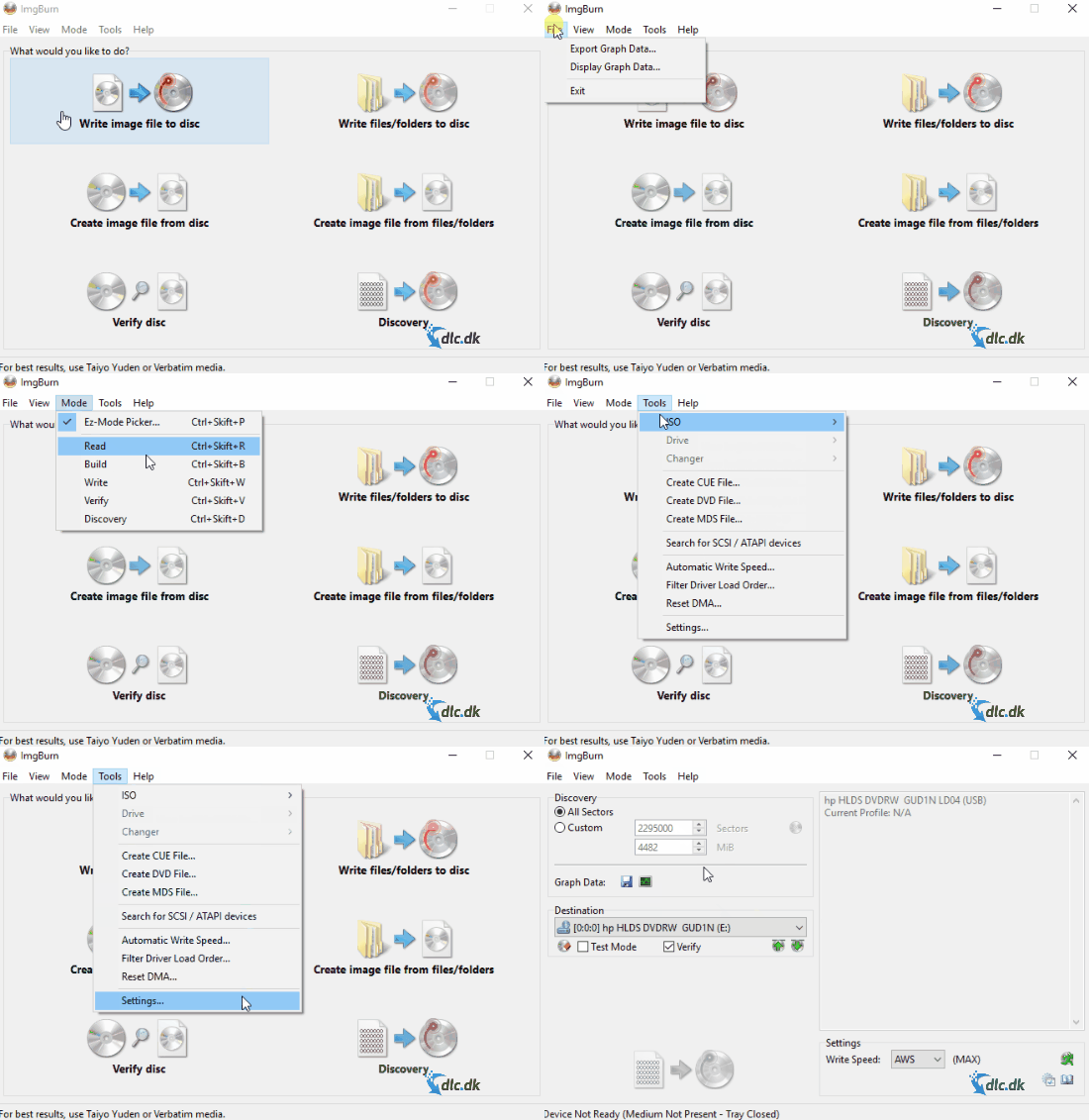
ImgBurn is known for its minimalist interface and powerful functionality. The program offers six primary features:
- Burn files and folders to disc
- Create image files from discs
- Write image files (ISO, BIN, IMG, NRG, etc.) to disc
- Verify burned discs
- Create image files from files and folders
- Test drive and burn speed
The interface may look old-school, but that’s one of its strengths: you get exactly what you need—without unnecessary bloat. ImgBurn is especially known for burning ISO files precisely and quickly.
The program is available in Danish, making it easy to get started—even for beginners.
Compatibility and system requirements

ImgBurn works on the following operating systems:
- Windows XP
- Windows Vista
- Windows 7
- Windows 8
- Windows 10
- Also works on Windows 11 in compatibility mode (tested, but without official support)
The program is lightweight and requires only a few megabytes of storage.
Why use a disc burning program in 2025?

Although USB and streaming have taken over many tasks, burned discs are still used for:
- Car stereos with CD players
- Archiving documents
- Bootable system tools for troubleshooting
- Sharing movies/music in offline environments
- Installing operating systems on older machines
ImgBurn excels at creating bootable ISOs, making it ideal for Windows installation media or Linux distributions.
Alternatives to ImgBurn
If ImgBurn doesn’t meet your needs, consider:
- CDBurnerXP — also free with a modern interface
- BurnAware Free — intuitive and actively updated burning software
- Express Burn (Mac) — a good alternative for Mac users
Top 5 tips for ImgBurn
Burn ISO files correctly
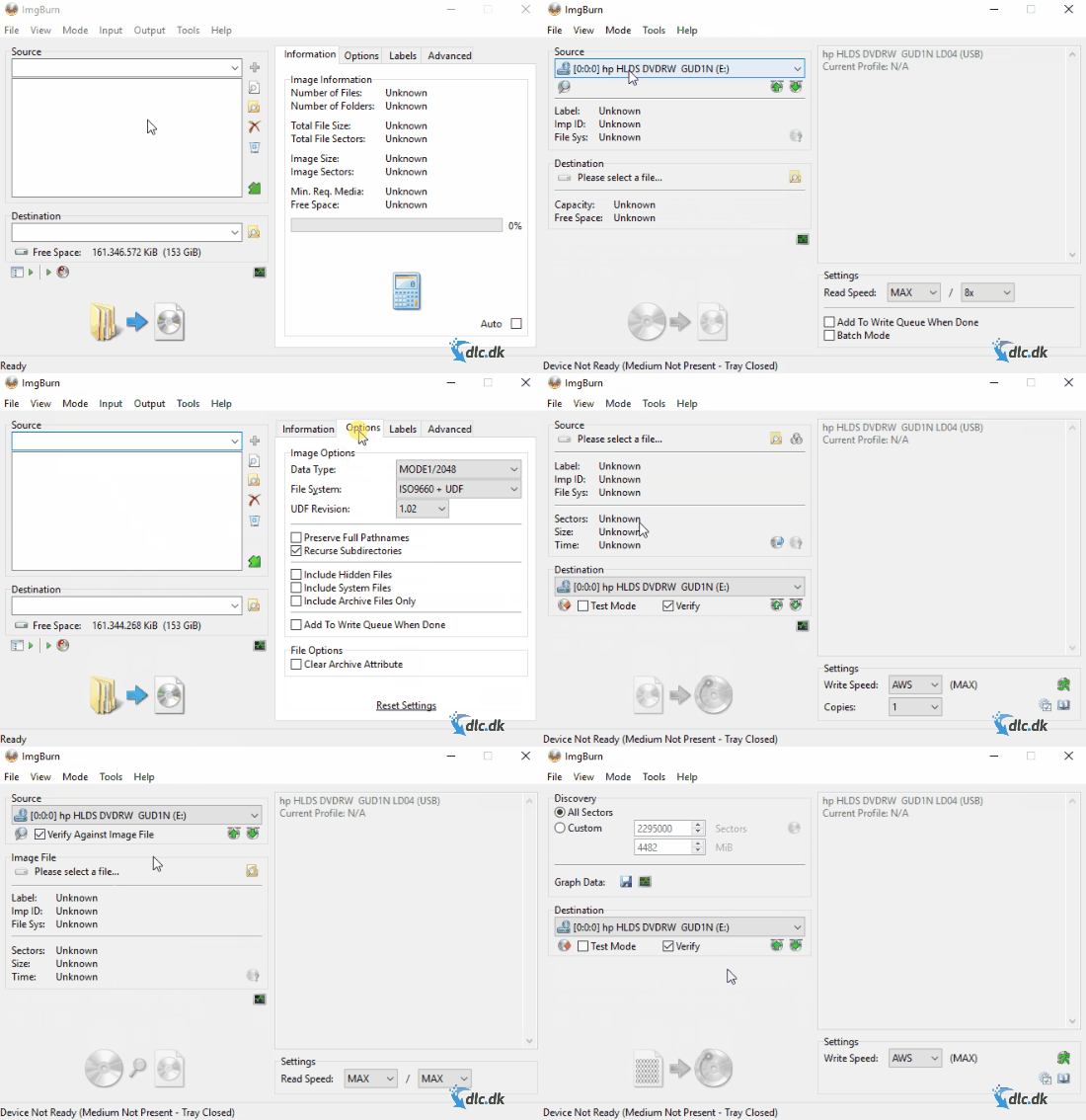
When you need to burn an ISO file to a CD, DVD or Blu-ray, always choose the “Write image file to disc” function. To avoid errors and ensure optimal readability—especially on older drives and players—use the lowest possible burn speed, e.g., 4x instead of 16x. It takes a bit longer but produces more stable, reliable results.
Verify your discs
After burning, always use “Verify disc.” ImgBurn compares the burned disc to the original source file to check that everything was written correctly. This ensures your backups and installation media actually work when you need them.
Create your own ISOs
With “Create image file from files/folders,” you can package your own files and folders into a single ISO file. This is perfect for backups, sending files in a structured format, or preparing an ISO for later burning. ImgBurn also lets you choose the file system (ISO9660, UDF), set a volume label and add tags.
Use the Danish language pack
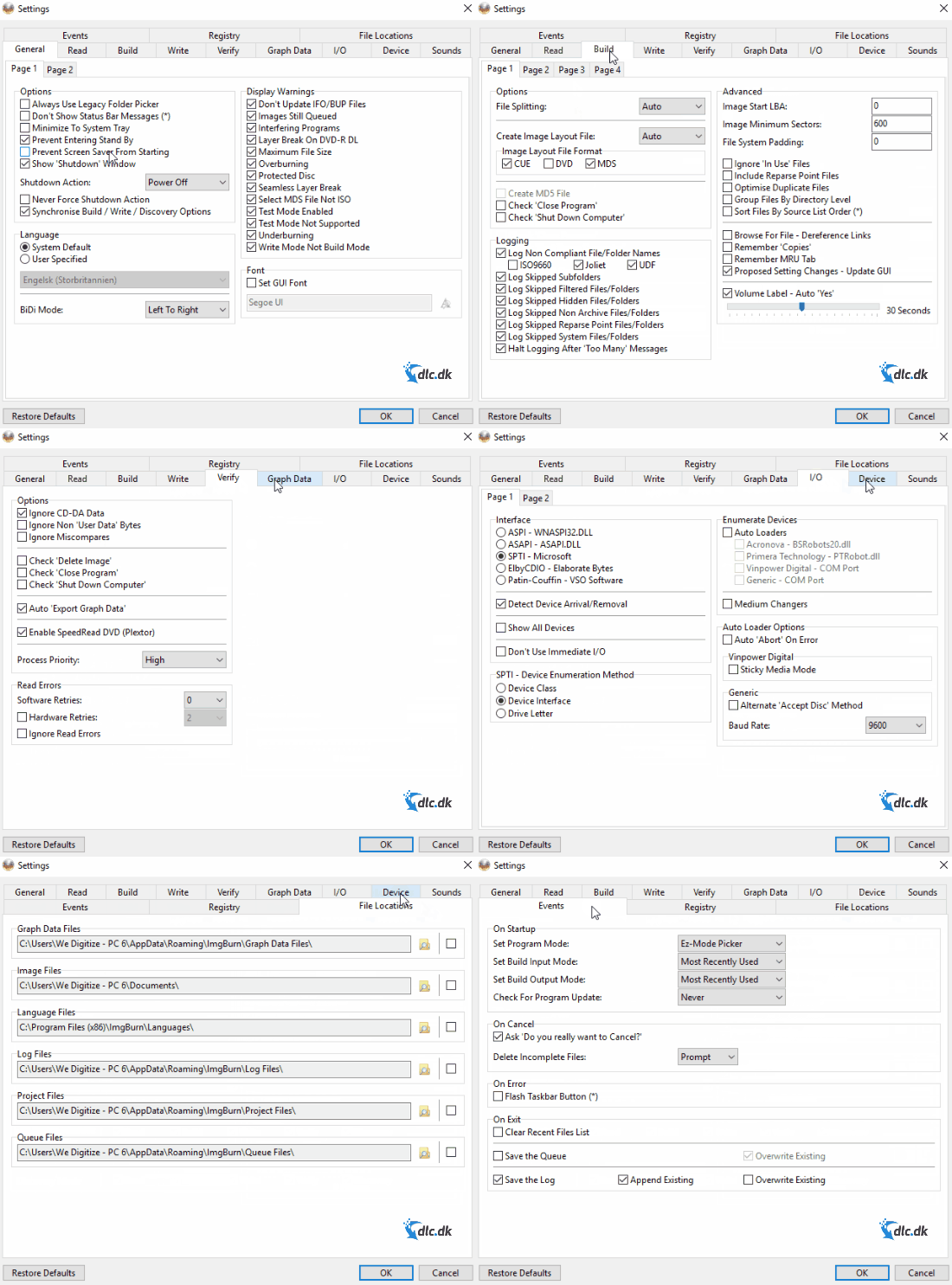
ImgBurn supports Danish, which makes the program more accessible—especially for new users. You can select Danish during installation, or change the language later under Tools > Settings > Language. You may need to restart the program for the language change to take effect.
Create bootable discs
If you need to create a bootable disc—for installing Windows, Linux or other system tools—ImgBurn supports this via boot sectors. When burning an ISO, you can select “Make Image Bootable” and add a boot image file (.bin). ImgBurn supports multiple formats and gives you full control over boot settings, so you can easily create your own installation media.