


JRiver Media Center – advanced media player for audio and video
JRiver Media Center is a powerful and versatile media hub that lets you organize, play, and manage virtually any type of media file from a single platform. It’s especially appealing to users who want full control of their music, movies, photos, and even TV recordings.
We tested JRiver Media Center on a standard Windows 11 PC, and it quickly became clear that the software can do far more than a traditional media player—though it does require a bit of a learning curve to unlock its full potential.
Audio, video, and photos in one place
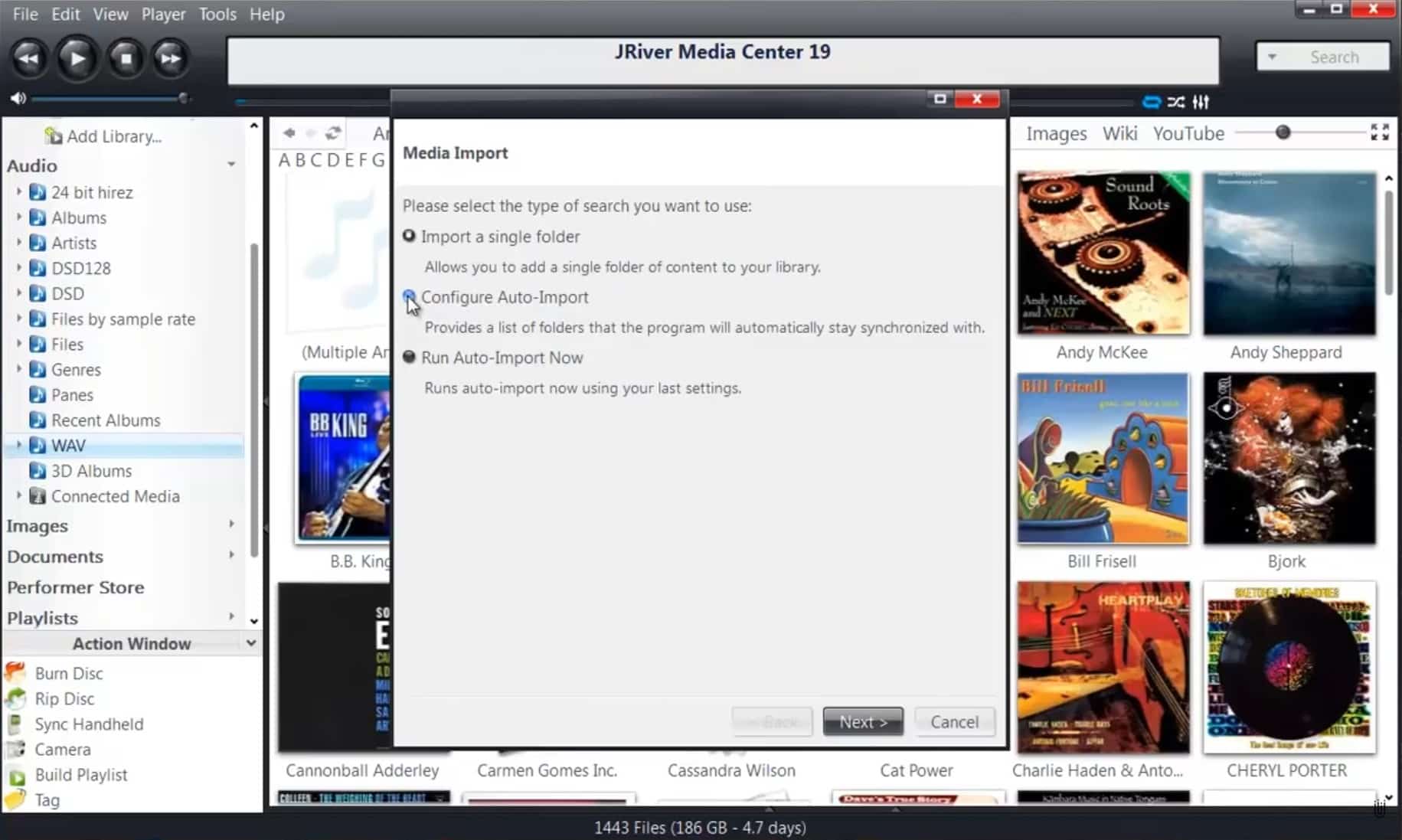
JRiver Media Center supports nearly all popular audio and video formats and serves as both a player and a library. The software scans your folders automatically and builds a detailed media library with metadata, cover art, and technical information.
For music playback, JRiver is especially popular among audiophiles, as it supports advanced audio settings, bit-perfect playback, and DSP features. On the video side, the program handles both standard movie files and more demanding formats without issues.
Advanced organization and customization


What sets JRiver Media Center apart from simpler alternatives is the level of customization. The interface can be significantly modified, smart views can be created, and rules can be used to automatically sort content.
It’s also possible to:
- control playback from your phone or another computer
- stream content to network devices
- record and play TV (requires compatible hardware)
- use the app as a central media hub at home
All of this makes JRiver an obvious choice if you have a large media library or an advanced home theater setup.
Learning curve and user experience
JRiver Media Center isn’t a “click and play” app in the same way as, for example, VLC. The interface can feel complex at first, and many features are tucked away in menus and settings.
Once you get it configured correctly, you’re rewarded. The software feels stable, fast, and extremely flexible in daily use.
Top 5 tips for JRiver Media Center
Use Views to tailor your library
Create custom views for genres, resolution, artists, or media types—it makes navigation much faster.
Enable advanced audio settings
If you use an external DAC or hi‑fi gear, take a closer look at DSP Studio and the audio output settings.
Leverage automatic metadata
JRiver excels at tags and metadata—spend time fixing them once, and your library will work perfectly going forward.
Remove features you don’t use
Simplify the interface by hiding modules you don’t need—it makes the program easier to navigate.
Use mobile remote control
With JRiver’s networking features, you can control playback from the couch using your phone or tablet.