


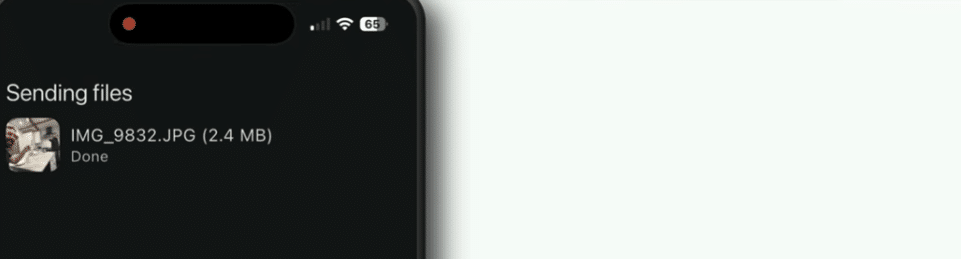
LocalSend – send files between your phone and computer
LocalSend is a free app for quickly transferring files between computers, phones, and tablets on the same local network. It works a bit like Apple’s AirDrop, but the big difference is that LocalSend can also send files between Android, Windows, macOS, Linux, and iPhone.
We tested LocalSend between a Windows 11 PC and an Android phone. Setup was almost suspiciously simple: install the app on both devices and they appeared for each other automatically. No account to create, no email to enter, and nothing to upload to cloud storage.
Send files without cables or cloud storage

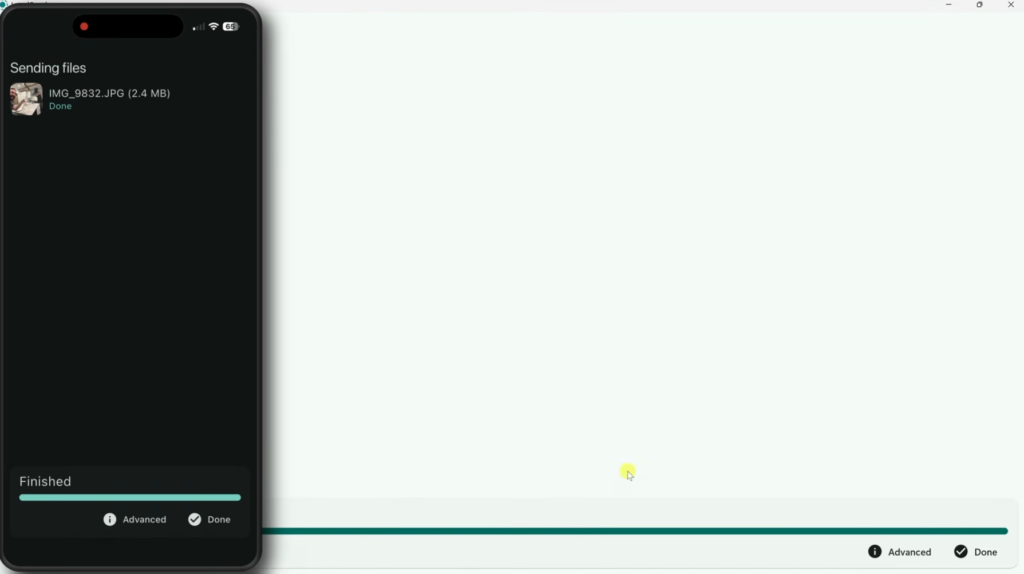
LocalSend transfers files directly over your local Wi‑Fi. That means photos, videos, and documents don’t go out to the internet first and then back down again.
This is especially handy if you often move photos from your phone to your computer, or if you need to send a large video to another device at home. Speeds depend on your local network, but on a modern Wi‑Fi connection LocalSend can be much faster than emailing files or uploading them to Google Drive.
The app supports all common file types. You can also send folders, links, and plain text, which is great when you need to move a long URL from your computer to your phone.
How to use LocalSend
LocalSend needs to be installed on both the device that sends and the device that receives the files.
When you open the app, each device automatically gets a temporary name. On the Send tab, choose photos, files, folders, or text, then tap the recipient’s device name. The recipient must approve the transfer unless auto‑accept is enabled.
Received files are saved to your device’s Downloads folder by default, but you can change the location in Settings. On a computer, it’s worth switching to a dedicated LocalSend folder if you want transfers kept separate.
LocalSend in English
LocalSend is available with an English interface (and many other languages). The core menus and settings are straightforward and easy to navigate.
The interface is split into just a few clear areas for receiving, sending, history, and settings. The design isn’t flashy, but it fits an app you open, use for one task, and close again.
We never felt like we needed a tutorial. Most people will be able to send their first file without reading a guide.
Is LocalSend secure?
LocalSend is open source and, according to the developers, contains no ads or tracking tools. Files are sent directly between devices and generally don’t leave your local network.
Transfers use HTTPS encryption, and you can enable PIN confirmation for extra protection. The app doesn’t require a user account, which limits how much personal information you need to provide.
Even so, you should primarily use LocalSend on networks you trust. Auto‑accept is convenient at home, but it shouldn’t necessarily be enabled on shared networks such as public Wi‑Fi, hotels, schools, or offices. You can restrict auto‑accept to devices marked as favorites.
When LocalSend can’t find a device
If LocalSend can’t find your phone or computer, it’s often a network issue rather than the app itself. Both devices normally need to be on the same local network and able to communicate with each other.
Double‑check the following:
- Both devices are connected to the same Wi‑Fi.
- LocalSend is open on both devices.
- Windows Firewall allows LocalSend on private networks.
- A VPN connection isn’t blocking local network traffic.
- The router’s guest network may isolate devices from each other.
- Wi‑Fi and cellular data aren’t mixing in a way that puts devices on different networks.
You can also add a device manually via its IP address. That’s especially useful on Ubuntu, Linux, and more advanced networks where automatic discovery doesn’t always work as expected.
LocalSend as an alternative to AirDrop and Quick Share
AirDrop works great between Apple devices, while Google’s Quick Share is aimed primarily at Android and Windows. LocalSend’s advantage is that it doesn’t lock you into a single ecosystem.
For example, if you use an iPhone, a Windows PC, and an Android tablet, LocalSend works across all three. That makes it one of the most flexible AirDrop alternatives we’ve tried.
Unlike AirDrop, LocalSend isn’t deeply integrated into the operating systems. The app typically needs to be installed and active before devices can find each other. It’s a small extra step, but the broad platform support makes up for it.
Recent improvements in LocalSend
The developers have continually improved both speed and security. Recent changes include faster sending via a Rust‑based HTTP client and multithreading, better auto‑receive from favorites, and easier multi‑select of photos on mobile devices.
A previous path issue was fixed in version 1.17.0. It’s a good idea to download the current release from the official website rather than using an old installer from a third‑party mirror.
A small app that solves an annoying problem
LocalSend is one of those apps you discover after getting tired of emailing photos to yourself or waiting on a cloud service. It’s fast, free, and refreshingly simple.
Its biggest strength is support for nearly all relevant platforms. If you have a mix of Windows, Android, and Apple devices at home, LocalSend is a very practical solution for local file transfers.
Top 5 tips for LocalSend
1. Rename your devices
Give your computer and phone recognizable names in Settings. It’s far easier than remembering LocalSend’s randomly generated device names.
2. Mark your own devices as favorites
Favorites make it quicker to find the devices you send to most. You can also limit auto‑receive so it only applies to trusted favorites.
3. Create a dedicated receive folder
Change the default location from Downloads to a dedicated LocalSend folder. That way photos and documents don’t get mixed with installers and other downloads.
4. Send text and links directly
LocalSend isn’t just for files. Use the text feature to move addresses, notes, and long links between phone and computer without emailing yourself.
5. Check the firewall if a device is missing
If a Windows PC doesn’t appear, make sure LocalSend is allowed through Windows Firewall on private networks. Also verify both devices use the same Wi‑Fi and not an isolated guest network.