


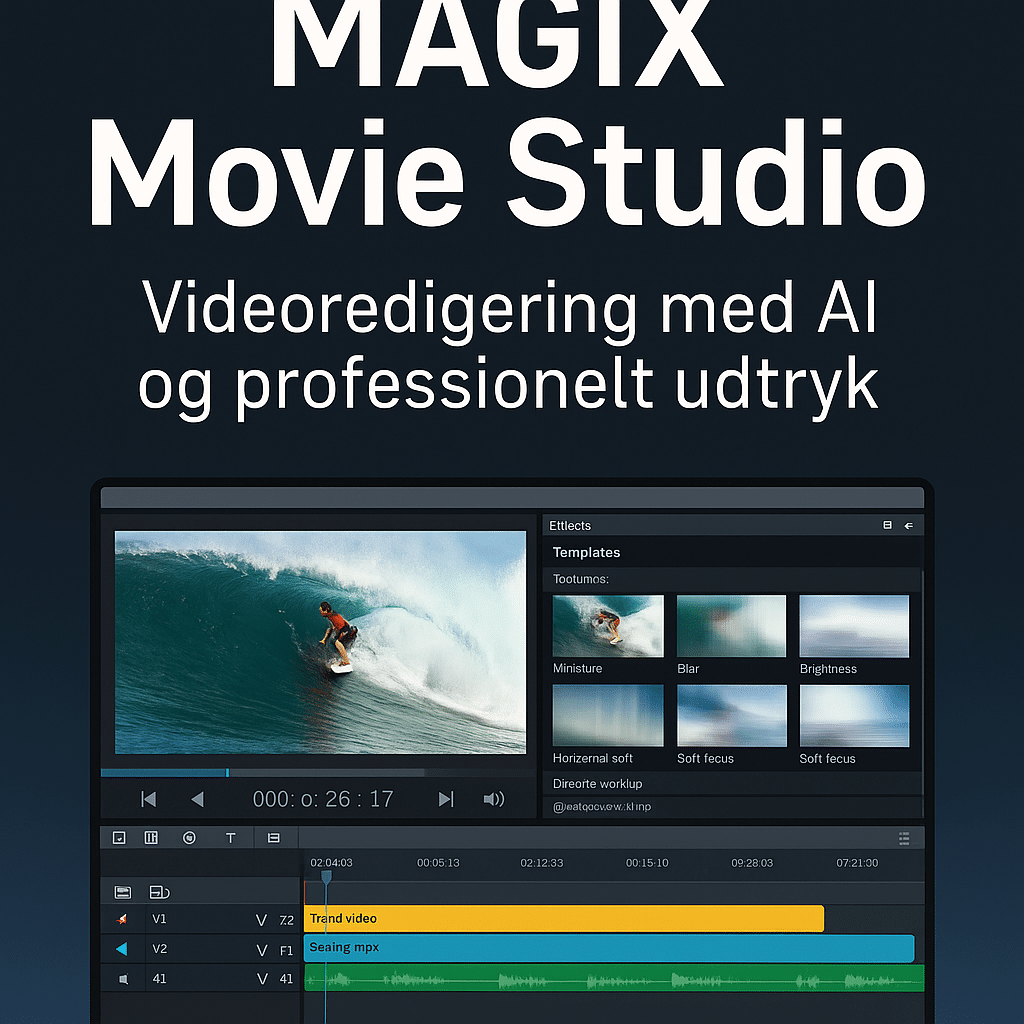
MAGIX Movie Studio – AI-powered video editing with a professional look.
MAGIX Movie Studio is the latest version of MAGIX’s popular video editor and the successor to the former Movie Edit Pro Plus. With intelligent AI support, tons of visual effects, and an optimized workflow, it’s a smart choice for creating professional videos on your Windows PC—great for both beginners and experienced users.
What is MAGIX Movie Studio?
MAGIX Movie Studio (2025 version) is built to make video editing faster, easier, and smarter. The software combines classic tools with new AI features that help with tasks like automatic subtitles and voice-overs.
It’s one of the most accessible alternatives to Adobe Premiere and DaVinci Resolve—especially if you prefer working offline on Windows.
Features and editing options
With MAGIX Movie Studio you get:
- 🎬 AI-assisted video editing—like automatic captions and scene detection
- 🎨 Over 1,500 effects, transitions, and templates for creative editing
- 🎧 Advanced audio mixing with Dolby Digital 5.1 support
- 🎥 Support for 4K, UHD, and HDR video
- 🎞️ Multicam editing: edit footage from up to 4 cameras at once
- 🗺️ Travel animation tool for visual storytelling on maps
- 🚀 Hardware acceleration for faster preview and export
- 📲 Direct upload to YouTube and Facebook
Ease of use and interface
The interface has been updated with intuitive drag-and-drop functionality that makes it easy to get started—even if you’re new to video editing. The most important tools are easy to access, while advanced options sit in tabs you can explore as your projects grow.
One of the biggest improvements in the 2025 version is the preview window and timeline, which are now more responsive and adapt better to your workflow.
Who should choose MAGIX Movie Studio?
- ✅ YouTubers and content creators who want speed and quality
- ✅ Educators and businesses that need instructional videos
- ✅ Families editing vacations and special events in high quality
- ✅ Anyone who wants to edit video without a subscription
The software is particularly strong for offline video editing if you’d rather avoid cloud-based tools like Canva Video or Clipchamp.
What’s new in the 2025 version
Faster rendering and preview, especially for large 4K files
AI-generated voice-overs and subtitles
Improved color correction and HDR tone mapping
New templates and effects, updated regularly
Top 5 tips for MAGIX Movie Studio
1. Use the AI tools actively
MAGIX Movie Studio 2025 includes smart AI features that can help you:
- Generate subtitles automatically (perfect for social media)
- Create automatic voice-overs
- Quickly split scenes
➡️ Save time and give your videos a more professional feel—without needing to be an expert.
2. Make the most of templates and effects
The software includes over 1,500 templates and transitions to help you:
- Edit with style
- Add intros and outros
- Give your videos a modern look with a single click
➡️ Perfect for YouTube, teaching, and presentations—especially if you don’t want to start from scratch.
3. Customize your workspace and shortcuts
Click “View” → “Layout” to tailor the interface to your needs. You can also:
- Move and save custom layouts
- Enable/disable audio mixers, preview windows, and more
- Learn keyboard shortcuts like
Ctrl + Shift + Efor quick export
➡️ Speed up your editing and make it more enjoyable.
4. Use the Multicam feature
Working with multiple angles (e.g., from a phone and a camera)? Use Multicam Editing to:
- Sync up to 4 video sources
- Switch between them with a single click
- Perfect for interviews, events, and vlog setups
➡️ Get professional results without complex workflows.
5. Export for the right platform
When your video is ready, use the export menu wisely:
- Select “Export to YouTube” for automatic upload
- Use MP4 (H.264) for best quality and compatibility
- For Facebook/Instagram: follow their recommended resolutions
➡️ Avoid pixelation, delays, and unexpected formats.