


NetLimiter – full control over your internet connection
NetLimiter is an advanced Windows tool for controlling and monitoring internet traffic. It lets you decide which apps can use your bandwidth — and exactly how much — for both downloads and uploads. That makes NetLimiter especially useful when you want to stop one app from hogging your connection while you work, game, or stream.
During our test, we installed NetLimiter on a standard Windows 11 PC with a fiber internet connection. The setup was quick and hassle‑free, and within minutes we had a complete, real‑time overview of all active network traffic.
Overview and traffic management in action


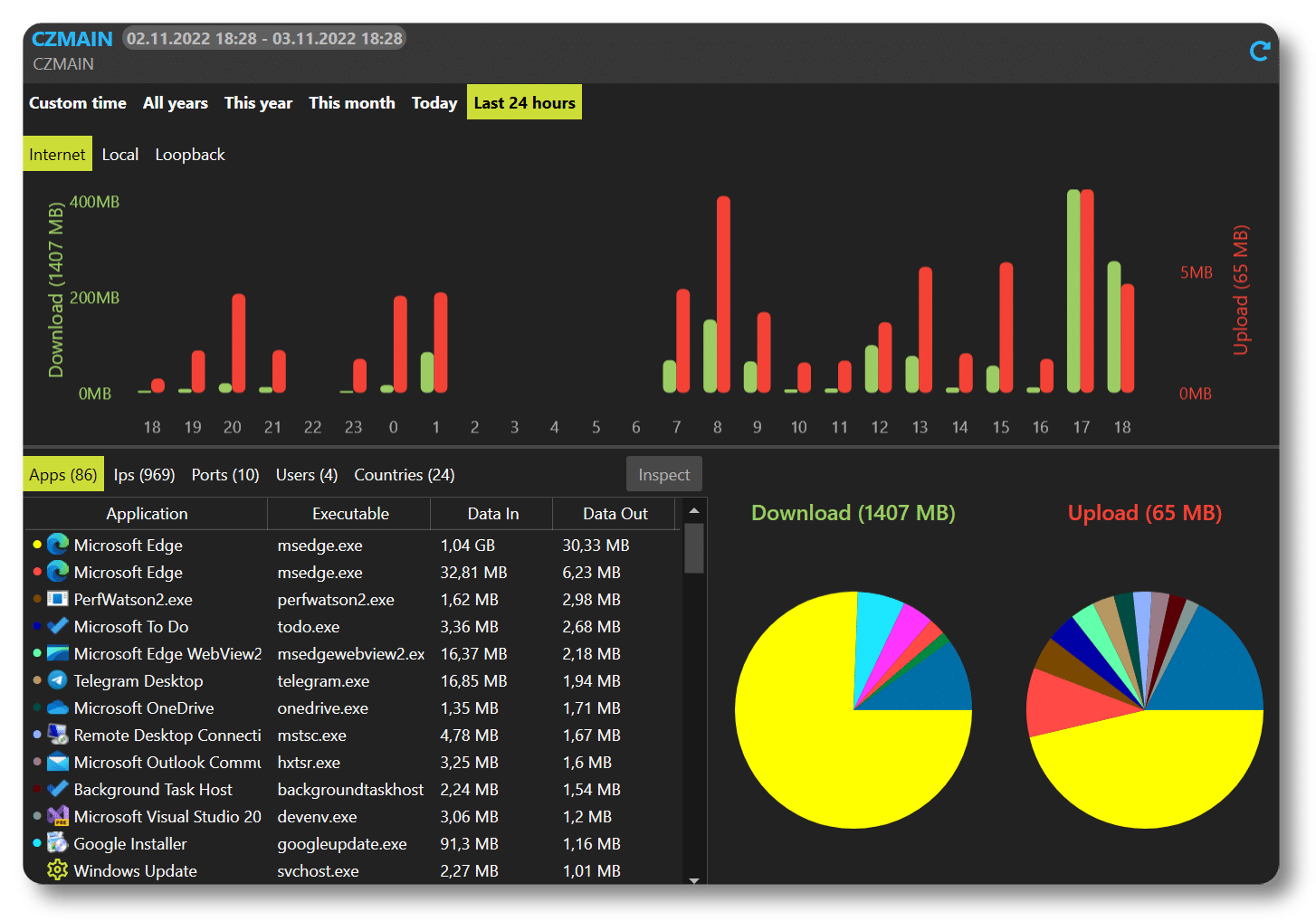
One of the first things you notice about NetLimiter is its clean, easy‑to‑read interface. All active apps are listed with a clear view of their current download and upload speeds.
In testing, we set a fixed download limit on one browser, while another app had unrestricted access to the connection. The changes applied instantly — no restart or delay. That makes NetLimiter extremely effective when you need to prioritize bandwidth on the fly.
You can, for example:
- Limit speed per app
- Create rules for specific connections
- Prioritize important traffic over background processes
- Block network access entirely for selected apps
Detailed stats and monitoring
NetLimiter isn’t just a bandwidth limiter — it’s also a powerful monitoring tool. It collects detailed statistics about your internet usage that you can view by hour, day, week, or month.
During our test, we used the stats to identify a background app consuming an unexpectedly large amount of upload bandwidth. Insights like this are invaluable, especially if your connection feels unstable and you don’t know why.
You can filter statistics by app, IP address, and connection type, making it easy to drill down into specific issues.
Advanced rules and security
For more technical users, NetLimiter offers advanced rules that let you define exactly how network traffic should be handled. For example, you can create rules that automatically throttle speed when certain conditions are met.
The app also includes a simple firewall‑like feature that lets you allow or block traffic based on rules. It’s not a replacement for a full firewall, but it adds a useful extra layer of control.
Who is NetLimiter best for?
NetLimiter is especially useful for:
- Users with limited bandwidth
- Gamers who want to avoid lag from background downloads
- Streamers and remote workers
- Power users who want full insight into network traffic
In the United States, we often see NetLimiter used in households with many devices, where a single PC might otherwise hog the connection.
Top 5 NetLimiter tips
Use prioritization instead of hard limits
Often you’ll get a better experience by prioritizing traffic rather than setting strict speed ceilings.
Monitor upload — not just download
Many people overlook upload, but high upload usage can cause lag and slow browsing.
Create profiles for work and personal use
Set different rules depending on whether you’re working, gaming, or streaming.
Watch background apps
NetLimiter quickly exposes hidden processes that use the network without you noticing.
Use stats for troubleshooting
If your connection feels slow, check the history — the culprit often hides there.