


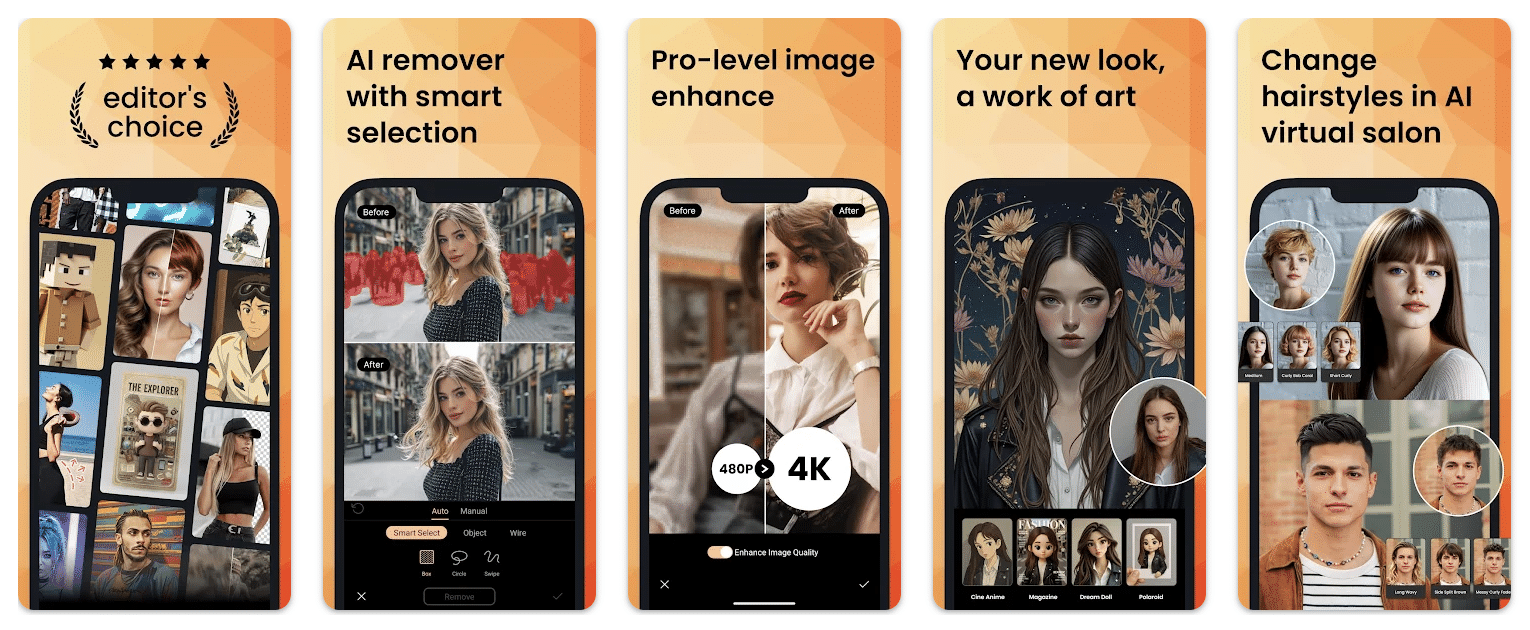
Create stunning photos fast with the PhotoDirector App
The PhotoDirector App is a mobile photo editor from CyberLink that combines classic photo editing with AI tools, effects, collages, and quick one‑tap enhancements. The app is available for both Android and iPhone, and CyberLink highlights features like AI Removal, AI Replace, AI Background, collages, effects, and creative templates.
That gives PhotoDirector broad appeal. It’s great if you just want to sharpen vacation photos, and just as useful if you’re playing with social media posts, portraits, product images, or creative designs. The mobile‑first focus matters here, because many users in the U.S. now edit directly on their phones instead of moving photos to a PC.
AI features and editing on mobile


The biggest strength in the current version is that PhotoDirector is no longer just a classic editor for light, contrast, and color. The app now puts strong emphasis on AI features like object removal, element replacement, background changes, image enhancement, and creative AI tools. On Google Play, it’s described with AI Removal, AI Replace, AI Expand, AI Background, and AI Enhance.
At the same time, the more traditional tools are still an important part of the package. CyberLink’s own product page highlights photo animation, lighting effects, cutout/compose, and collage features, which makes the app more versatile than many simple filter‑only apps.
For many users, it’s the combination that makes the app compelling: you can do quick fixes and more creative edits without switching between five different apps.
Is PhotoDirector good for beginners?
Yes—among beginner‑friendly apps, it’s one of the more approachable options. CyberLink markets PhotoDirector as a creative mobile editor, and the features are built around fast adjustments, templates, and visual effects rather than heavy, technical image processing.
It also matches how many people actually edit photos in 2026: quickly, directly on the phone, often focused on social media, portraits, collages, and AI effects. It’s not necessarily the app for the most purist photographers who want maximum manual control at desktop level, but as a mobile app it’s broad, fun, and easy to get started with.
Free version vs. Premium
PhotoDirector is free to download, but like many mobile apps, a lot of the value sits in the premium tier and in‑app purchases. Google Play lists both ads and in‑app purchases, and the app description notes that premium unlocks more effects, backgrounds, filters, and higher export quality like Ultra HD/4K.
That also means the free edition may feel a bit limited if you quickly fall for the more advanced AI features. It’s worth mentioning because this is often where mobile apps win or lose users: not on the editing itself, but on how much sits behind a subscription or credits.
How PhotoDirector performs in practice
PhotoDirector shines if you want a mobile photo app that can both enhance images and create more attention‑grabbing content. It’s especially well‑suited for:
✅ quick edits for social media
✅ removing small distracting objects
✅ collages and creative effects
✅ AI‑powered experiments with portraits and backgrounds
✅ users who prefer editing everything right on the phone
On the other hand, don’t choose the app solely on the promise of “professional photo editing” if what you really need is a heavy RAW workflow, deep color management, or a more photographer‑oriented desktop setup. Here, PhotoDirector is first and foremost strong as a modern mobile app.
Top 5 tips for the PhotoDirector App
1. Use AI removal on small distractions first
PhotoDirector works best when you use object removal on small things like wires, background trash, or people far away. Large elements in the center of the subject are less likely to look completely natural.
2. Don’t overdo HDR and effects
The app offers many creative options, but images can quickly look over‑edited. Start with small tweaks to exposure, contrast, and color, then layer effects on top.
3. Make collages with photos in the same style
The collage feature looks best when the photos share a similar color tone or theme. Don’t mix too many very different images if you want a clean, polished result.
4. Use background tools for product and profile photos
If you create images for selling products, social media, or LinkedIn, background changes are among the most useful tools. PhotoDirector can save you time compared to manual cutouts.
5. Test the free version before you commit
It’s worth trying PhotoDirector for free first. That way you can see whether your must-have features are in the free tier or premium before committing to a subscription.