


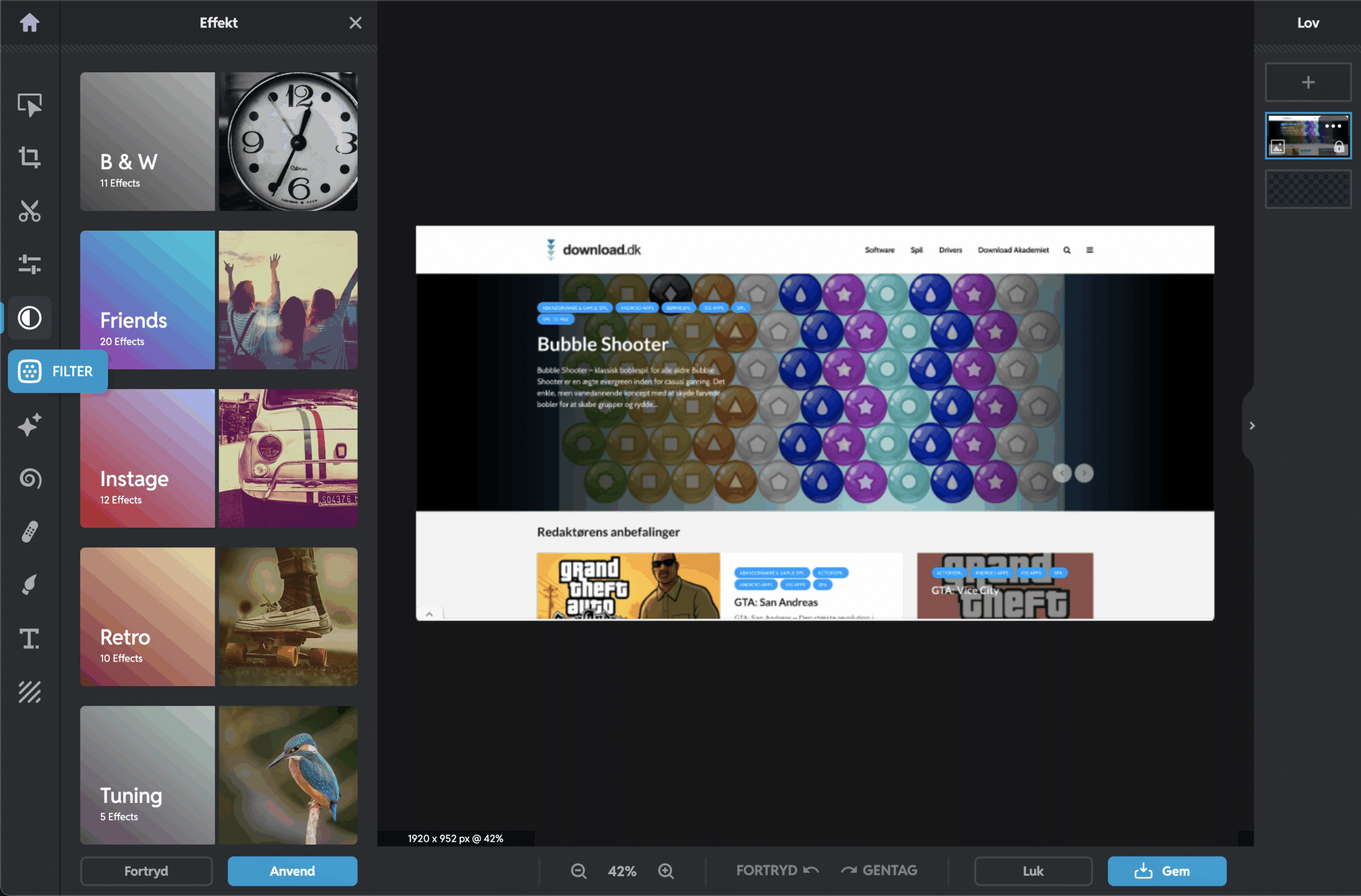
Pixlr – Advanced photo editing right in your browser
Pixlr is a free and powerful photo editing platform that lets you edit images directly in your browser—no installation, login, or heavy software required. With both a simple and an advanced editor (Pixlr X and Pixlr E), Pixlr suits everyone, from beginners who just want to crop a picture to semi-professionals who need layers, masks, and effects.
Pixlr is a strong alternative to tools like Photoshop, especially if you want to edit quickly, for free, and flexibly—on desktop, tablet, and mobile.
What does Pixlr offer?
Pixlr includes two main editors:
🎨 Pixlr X – For beginners and quick edits
- Drag & drop, cropping, filters, and auto adjustments
- Intuitive interface with preset sizes
- Perfect for social media, school assignments, and simple graphic tasks
🧰 Pixlr E – For experienced users and designers
- Layers, masks, transparency, and advanced tools
- Edit directly in PSD files and images with transparency (PNG)
- Use shading, blend modes, and non-destructive editing
Both tools are web-based and only require a modern browser.


Features and highlights
- ✔️ Supports PSD, JPEG, PNG, WebP, and SVG files
- ✔️ Layer-based editing
- ✔️ AI tools such as background remover and auto adjustment
- ✔️ Thousands of templates, fonts, and overlays
- ✔️ No account required for basic features
- ✔️ Mobile-friendly and touch-compatible interface
Tips and tricks for Pixlr
Want to get the most out of Pixlr—whether you’re making quick adjustments or advanced graphic work? Here are valuable tips that make your photo editing faster, easier, and more professional:
🧰 Use Pixlr E if you know layers and masks
Pixlr X is perfect for quick edits, but Pixlr E is the advanced tool for anyone who knows layers, masks, transparency, and blend modes. Here you can work with images at a semi-professional level directly in your browser—almost like in Photoshop. You can add shadows, apply filters to individual layers, and adjust color balance with high precision.
💡 Pro tip: If you have experience with GIMP, Affinity, or Photoshop, you’ll feel at home in Pixlr E.
✂️ Try the free AI background remover
Pixlr’s AI Cutout tool (background remover) is one of the platform’s most popular features. With one click, the background is removed from your image—no manual clipping required. It’s especially useful for:
- Profile pictures with a neutral background
- Product photos for e-commerce stores
- Thumbnails for YouTube and social media
🎨 The result can be saved as a PNG with a transparent background—ready to use.
🌐 Open images directly from a URL
You can insert an image directly from the web by selecting “Open URL” in the start menu. It’s a huge advantage if you work with images from Google, Wikipedia, or image hosting services—and don’t want to save and upload manually.
🔗 Example: Find an image online, copy its direct URL (often ending in .jpg or .png), and open it in Pixlr right away.
💾 Save as WebP for smaller file sizes without quality loss
The WebP format (developed by Google) compresses images efficiently without visible quality loss—and Pixlr fully supports it. It’s especially useful when you work with:
- Web-optimized images for fast page loading
- Blog posts and articles where image size matters
- Mobile-optimized graphics
🧠 Remember: WebP is supported by all modern browsers and CMSs like WordPress.
🧠 Pixlr remembers your recent files
If you accidentally close the Pixlr tab, you don’t necessarily lose your work. Pixlr remembers your recently used files in local browser storage, and you’ll often be asked if you want to reopen them the next time you start.
🔄 That applies to both imported images and changes you haven’t saved yet—as long as you use the same device and browser.
🎨 Bonus: Use Pixlr’s templates and elements
Pixlr offers a large library of free templates, overlays, and graphic elements that you can easily drag into your projects. You’ll find, for example:
- Instagram Stories and Facebook covers
- Resume templates and posters
- Logo components and text designs
📌 This makes it possible to produce social media graphics in minutes—without being a designer.
With these tips you won’t just edit your photos—you’ll work faster, smarter, and more professionally. Pixlr isn’t just a tool—it’s a modern photo editing platform that can replace many paid alternatives if you use it right.