


qBittorrent – fast, ad-free BitTorrent client in 2026
qBittorrent is one of the most popular BitTorrent clients worldwide and a great choice for US users who want a free, ad-free, and efficient torrent client. It pairs a classic layout with modern features and continues to be actively developed, keeping it highly relevant in 2026.
We tested qBittorrent on a standard Windows 11 PC and experienced quick installation, stable performance, and consistently high download speeds — even with large torrents.
Features and interface

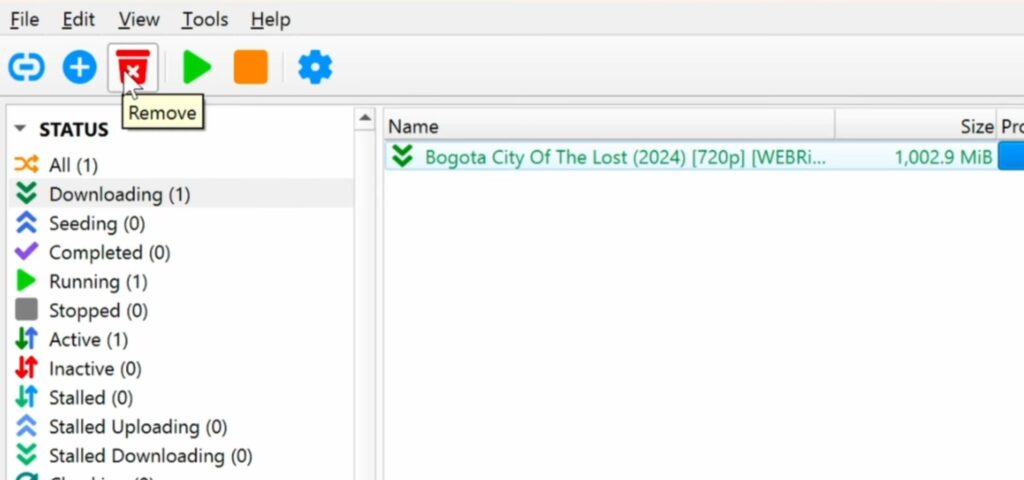
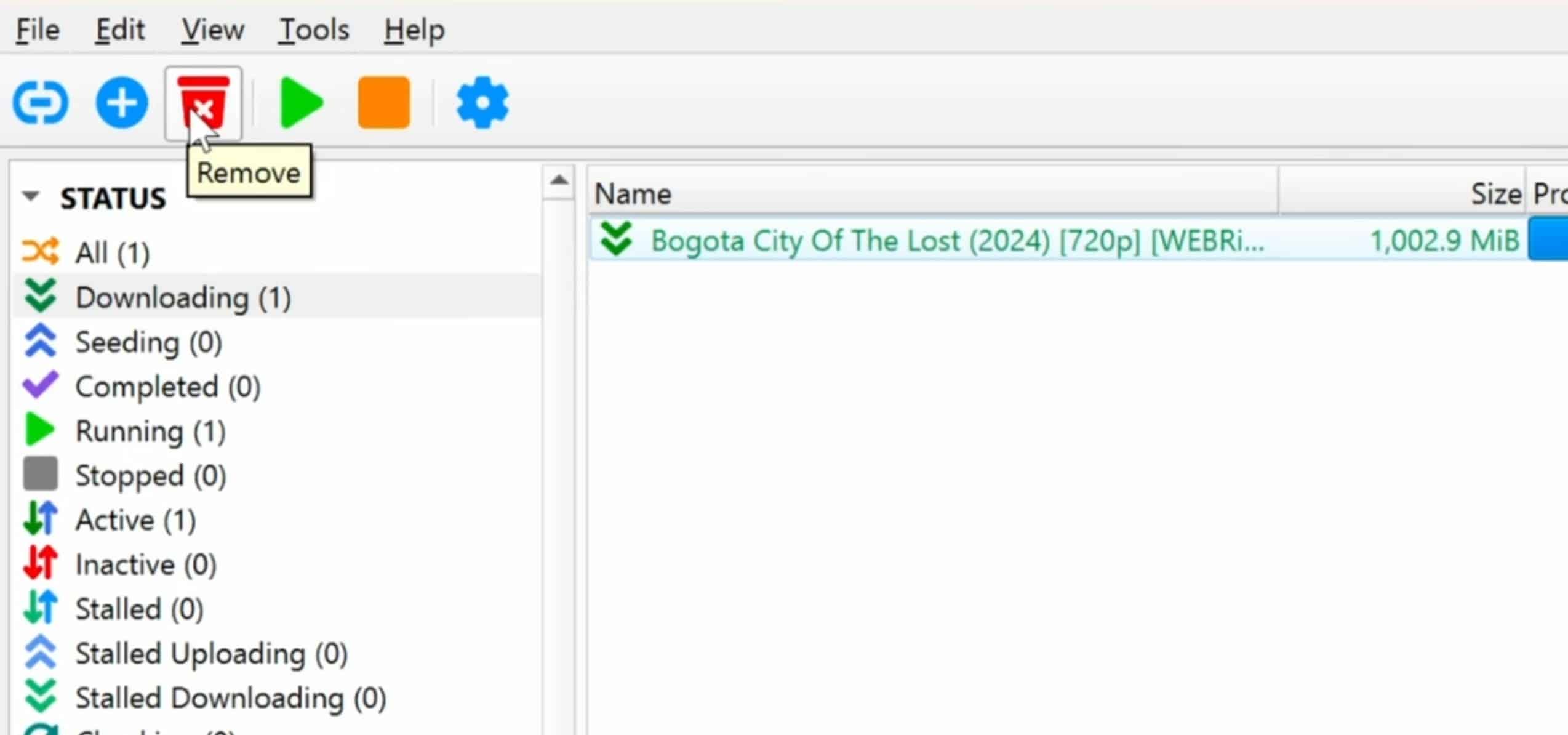
The qBittorrent interface is intentionally reminiscent of the older, ad-free version of uTorrent, which will feel familiar to many users. At the same time, its features are far more advanced.
Highlights include:
Built-in torrent search via plugins
Categories and tags for organizing downloads
RSS feeds for automatic torrent downloads
IP filtering and blocking unwanted peers
Scheduling upload and download speeds
Web interface for remote control via a browser
Full support for magnet links, DHT, PEX, and LSD
Everything is highly customizable without being overwhelming — even for new users.
Built-in search and plugins
One of qBittorrent’s biggest strengths is its built-in torrent search, which you can enable via plugins. Once set up, you can search for torrents directly in the app without visiting external websites.
In our testing, search worked reliably, but it requires:
- installing Python
- enabling search plugins in Settings
With that in place, qBittorrent becomes significantly more efficient — especially if you often download Linux distributions, open-source projects, or other legal content.
Speed and performance


qBittorrent is known for being lightweight, and that still holds true in 2026. It runs smoothly on both new and older computers and uses minimal CPU and RAM.
Download and upload speeds are stable, and with proper configuration (ports, connections, and peers), qBittorrent can easily compete with — and often outperform — uTorrent and Transmission.
Security, privacy, and VPN
Privacy is a key concern for many torrent users, and qBittorrent performs very well here.
The app supports:
- encrypted connections
- IP filtering
- binding to a specific network interface
The last one is especially important if you use a VPN. We tested binding to a VPN interface, and it ensures qBittorrent won’t download or upload without the VPN connection — even if it disconnects.
Common issues — and how to fix them
Although qBittorrent is stable, some users encounter issues:
Stalled downloads (torrents not moving)
If your torrents get stuck on “Stalled” or never start, it’s usually due to external factors rather than the app itself. The most common cause is a lack of active seeders or your connection not allowing incoming connections.
First, check whether the torrent actually has seeders. If there are none or very few, qBittorrent can’t receive data regardless of your settings. Next, verify that the port qBittorrent uses is open on your router and not blocked by a firewall or VPN. If you use a VPN, choose a server that supports port forwarding — otherwise, many torrents will remain stalled.
Slow download or upload speeds
If you see very low speeds even on popular torrents, it’s often an issue with your configuration. Many users set upload limits too low, which can also reduce download speeds because the torrent network prioritizes peers who share.
Open Settings and check:
- that upload isn’t capped too low
- that speed limits via the scheduler aren’t active
- that the number of connections per torrent and globally isn’t too low
Also, missing port forwarding in your router can significantly hurt speeds, especially when downloading from many peers at once.
Search not working in qBittorrent
The built-in search is one of qBittorrent’s strongest features, but it requires proper setup. If no results appear, it’s almost always because Python is missing or installed incorrectly.
Make sure:
- Python is installed correctly on your system
- qBittorrent can find the Python installation
- search plugins are installed and up to date
If plugins are outdated, search can stop working overnight. In most cases, updating or reinstalling plugins directly in qBittorrent solves the issue.
In the vast majority of cases, these problems can be fixed directly in Settings without extra software.
Top 5 qBittorrent tips
Enable search correctly in qBittorrent
The built-in search can save you a lot of time, but it only works optimally if set up correctly. First, install Python on your computer, as the search modules depend on it. Once Python is installed, enable search in qBittorrent’s settings and add the relevant search plugins.
Use only maintained plugins, because outdated engines often stop working without warning. If search suddenly returns no results, it’s usually a sign that a plugin needs to be updated or replaced.
Use speed scheduling
qBittorrent includes a scheduler that lets you adjust upload and download speeds based on the time of day. This is especially useful if you share an internet connection with others in your household.
By lowering speeds during peak hours — for example, in the evening — you can avoid impacting streaming, gaming, or remote work. Then you can allow full speed at night when the connection is often idle.
Set up RSS rules for automatic downloads
qBittorrent’s RSS feature is ideal if you download the same types of files repeatedly. That could be Linux distributions, podcasts, or other content released on a regular basis.
With RSS rules, qBittorrent can automatically fetch new files as soon as they appear in the feed. You can filter by keywords, quality, and categories, making it easy to keep downloads organized without manual effort.
Bind qBittorrent to the VPN interface
If you use a VPN with qBittorrent, always bind the app to the VPN’s network interface. This ensures qBittorrent only uses the VPN and doesn’t fall back to your regular internet connection.
We tested this in practice, and it’s effective at preventing IP leaks if the VPN disconnects temporarily. It’s a simple setting, but one of the most important for privacy and security.
Enable the Web UI for remote control
The Web UI lets you control qBittorrent directly from a browser — on your phone, tablet, or other computers on the network. Once enabled, you can start, stop, and monitor downloads without direct access to your PC.
This is especially handy if qBittorrent runs on a desktop PC or a home server. Be sure to protect the Web UI with a username and password so unauthorized users can’t gain access.
Why qBittorrent is still a top pick in 2026
qBittorrent proves you don’t need ads or paid subscriptions to deliver a powerful torrent client. Ongoing development, high stability, and a strong focus on privacy make it an excellent choice for both new and experienced users in 2026.