


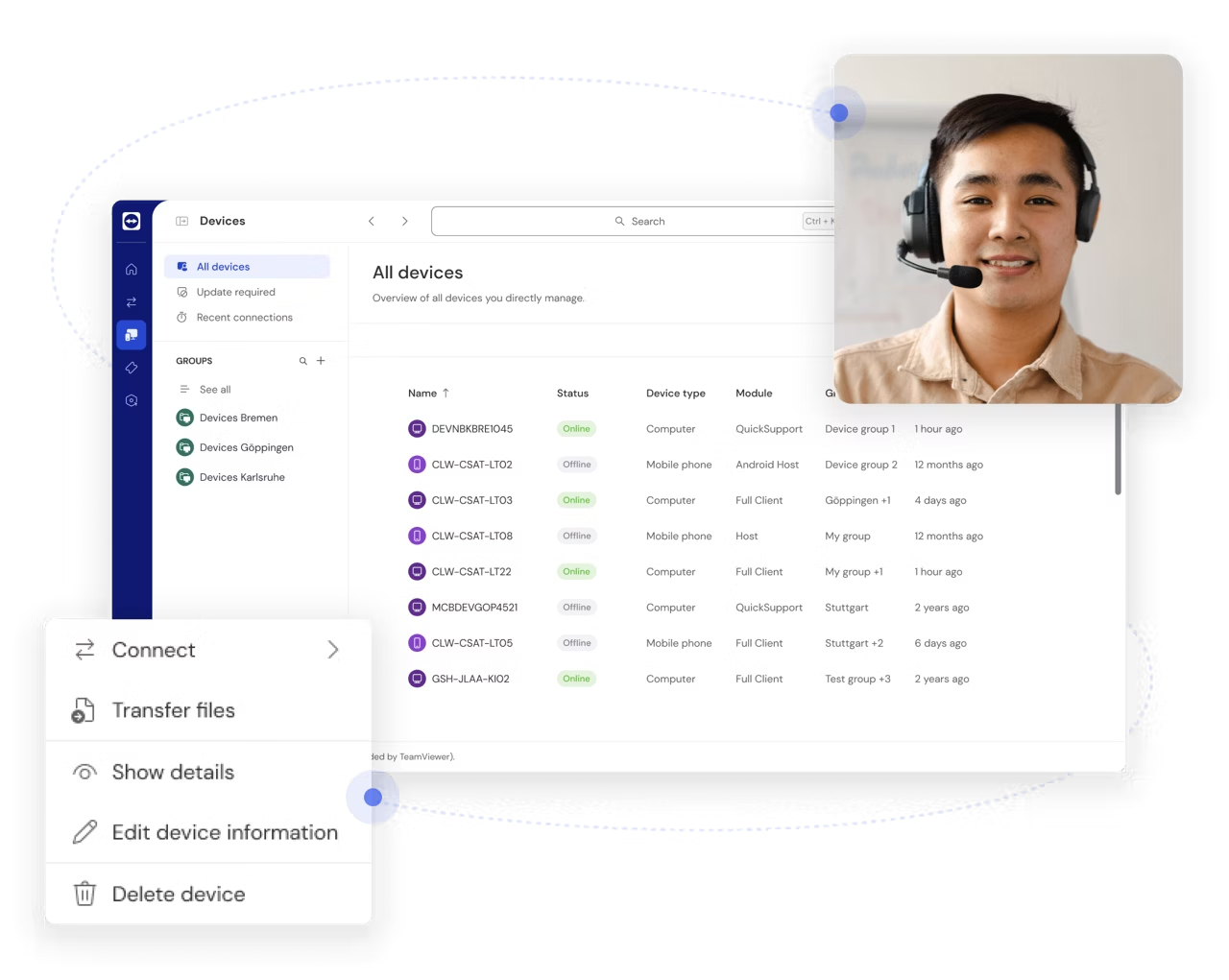
Your Ultimate Solution for Remote Access and Collaboration
We tested TeamViewer for both quick remote support and everyday remote access, and it remains one of the most reliable tools when you need to help someone from afar or log into your own PC from another device. It works across Windows, Mac, Linux, and mobile, and you can get started in minutes with an ID and a one-time passcode—perfect for everything from “can you fix my printer?” to full-on IT support in a business.


What is TeamViewer?
TeamViewer lets you remotely control a computer or mobile device as if you were sitting right in front of it—whether you’re on the couch at home or on the go. It started as a Windows tool, but today you can use it on just about anything (Mac, Linux, iPhone/iPad, and Android), which is why it has become a go-to lifeline for both home users and IT departments. We’ve used it ourselves for the classic “can you help me real quick?” support, and it still feels like the fastest way to jump in and fix the issue without 20 explanations over the phone.
Key features
Remote access
Access your own PC from anywhere or help others troubleshoot—with full control of mouse and keyboard.
Screen sharing
Share your screen for meetings, presentations, or step-by-step guidance (often easier than explaining).
Secure connection
Connections are encrypted, and you can boost security with options like two-factor authentication and device approval.
Works across devices
Switch between computer, tablet, and phone. It’s especially handy if you need to hop onto a PC from your phone to grab a file or check something quickly.
TeamViewer Q&A (quick and practical)
Here are the most common things US users ask when getting started with TeamViewer for remote support, remote control, and access on the go.
What is TeamViewer and what is it used for?
TeamViewer is a remote access tool that lets you view and control another computer or device over the internet. In practice, it’s most often used for remote support (helping family/coworkers), accessing your own PC from anywhere, and collaborating while pointing at the same screen.
How does a TeamViewer session actually work?
The person who needs help opens TeamViewer and shares an ID plus a temporary password. You enter those details, and a secure connection is created. Tip: For quick support, TeamViewer QuickSupport is often the easiest because it runs without heavy setup.
Is TeamViewer free, or do you end up paying?
TeamViewer is typically free for personal use, while commercial use requires a license. If you use it frequently in work-like scenarios, the app may prompt you to upgrade. For home help and occasional remote access, the free version is usually enough.
Is TeamViewer secure (and what should I enable)?
It’s secure if you use it correctly. Enable two-factor authentication, use strong passwords, and only grant access to people you trust. Also use “confirm before control” so you can interrupt if anything seems off during a support session.
Can I access my PC at home without anyone at the computer?
Yes, with unattended access. You’ll set a permanent password and typically sign in to an account so the device is recognized. It’s great for grabbing files or launching an app from home—just make sure to use 2FA and a strong password.
Can both people control the computer and record the session?
Yes, both parties can usually use the mouse and keyboard at the same time, which makes teaching and collaboration easier. TeamViewer can also record sessions—handy for documentation or to replay troubleshooting steps later.
Getting started with TeamViewer
It’s easy to install and use TeamViewer, even for beginners. Follow these steps:
- Download and install: Install the app on both computers or devices.
- Share unique code: The computer you want to access shares a unique ID and password.
- Connect: Enter the code on the controlling device to create a secure, encrypted connection.
- Take control: You now have full access to the other computer or device as if you were in front of it.


What can you use TeamViewer for?
1. Technical support:
TeamViewer is ideal for providing remote support to friends, family, or coworkers. If someone is having computer issues, you can help without being physically present. IT teams also use TeamViewer to resolve issues quickly and efficiently.
2. Work and collaboration:
TeamViewer makes cross-team collaboration easy no matter where people are. Share screens, co-work on projects in real time, and use the built-in chat to communicate as you go.
3. Remote access to your own computer:
Forgot an important file or need to run an app from your home PC? TeamViewer lets you access your own computer from virtually any device.
4. Teaching and presentations:
Perfect for online classes or remote presentations where you can share your screen and demonstrate concepts in real time.


Security and privacy
Security is often the biggest concern with remote access, and TeamViewer takes it seriously:
- Encryption: All communication between devices is protected with advanced encryption so your data stays private.
- One-time codes: Each session requires a unique code, protecting you against unauthorized access.
- Two-factor authentication: An extra layer of protection for mission-critical access.
Availability and updates
TeamViewer is available on a wide range of platforms:
- Windows, Mac, and Linux.
- Tablets and smartphones (iOS and Android).
- Browser-based access with no installation required.
The app is updated regularly to improve performance and add new features. Updates install automatically so you always have the latest version.


Ease of use
TeamViewer has an intuitive interface that’s easy to navigate for both beginners and power users. It’s available in English and many other languages, making it accessible for US users.
- Built-in chat: Stay in touch with the other user during remote control.
- Session recording: Record sessions directly in the app for later review or sharing.
- Logs: Save logs for better documentation and analysis—especially useful for businesses.


High level of security
TeamViewer is a versatile, user-friendly app that makes remote access and collaboration easy and efficient. With strong security, an intuitive interface, and a broad feature set, it’s an essential tool for both individuals and businesses. The fact that it’s free for personal use makes it even more appealing.