


Want to translate text, documents, PDFs, or entire websites — quickly and for free? You’re in the right place. In this guide, we show you how to translate everything from an English Word document to a German PDF into English, without paying for expensive translation services. We cover online tools, apps, and browser extensions — and guide you to the best free methods in 2025.
Translate text online – the best free tools

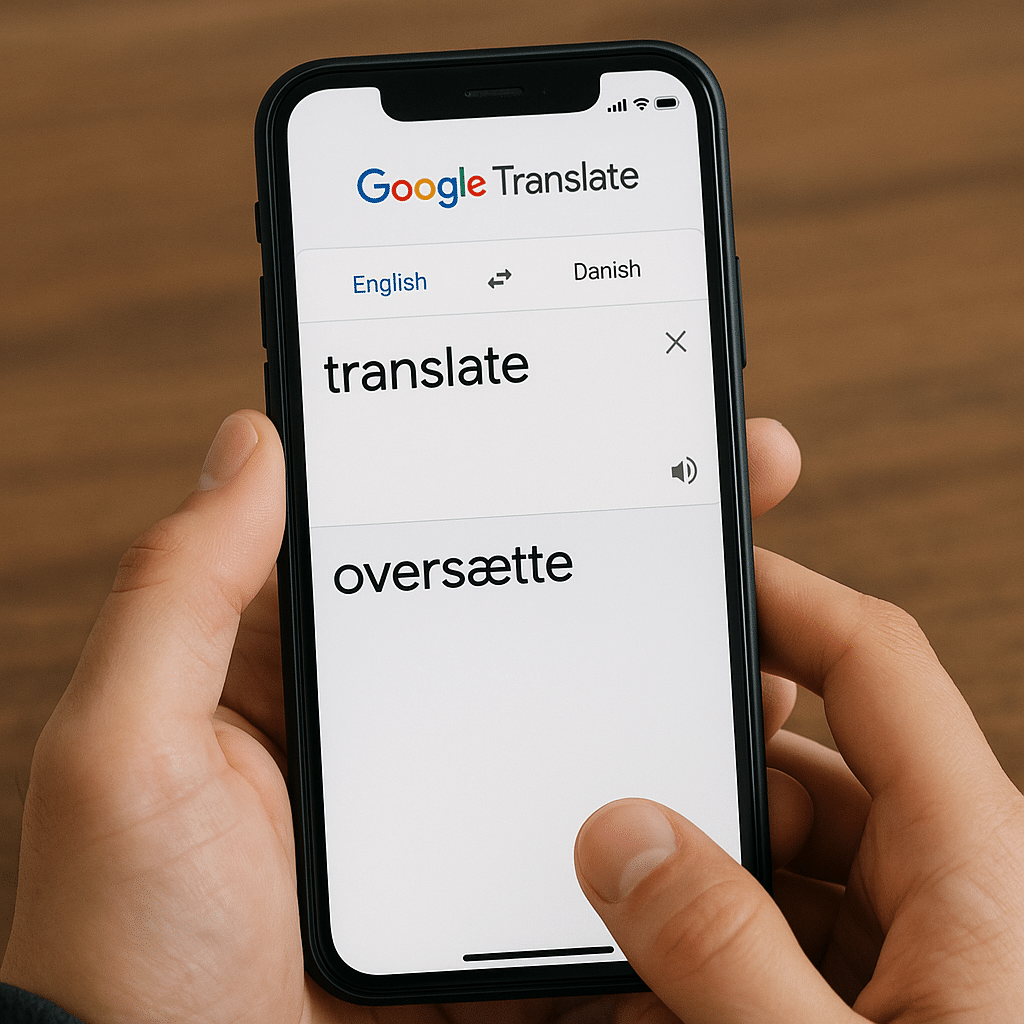
If you need to quickly translate a plain text, several free online services will do the job in a few clicks:
- Google Translate – still the most popular and easiest service. Type, paste, or speak your text, and choose the language direction.
- DeepL – better translation quality, especially for full sentences and documents. Now supports Danish and many EU languages.
- Microsoft Bing Translate – a clean and fast translator that works well right in the browser.
These services run directly in your browser — just paste your text and get a translation in seconds.
Translate PDF documents without losing formatting
PDF files can be tricky to translate, especially if you want to preserve layout and design. Here are two smart solutions:
- Use DeepL or Google Translate’s document feature — upload the PDF directly and get a translated document back (this typically requires a text-based file, not a scanned image).
- Convert PDF to Word with, for example, Smallpdf or iLovePDF, then use translation tools on the converted document.
Note: If your PDF is scanned as an image, first use an OCR tool like 1 or AnyTXT Searcher.
Translate websites automatically with your browser
If you want to translate entire websites, your browser offers smart features and extensions for that:
- Chrome users automatically get an offer to translate via Google Translate when visiting foreign-language pages.
- Firefox and Edge offer similar features via built-in translators or extensions like Mate Translate.
- You can also use https://translate.google.com and paste the URL directly to translate a full page.
Translation on the go – apps for mobile and tablet
If you need to translate something in the grocery store, on vacation, or in a message, there are excellent apps:
- Google Translate app (iOS and Android): Supports camera scanning, voice translation, and offline use.
- DeepL app: Very user-friendly and accurate, but requires an internet connection.
- Microsoft Translator: Great for speech and group conversations across languages.
Many of these apps work offline if you download the language packs in advance.
Live voice translation right from your phone – here’s how
Google Translate offers live voice translation via both the app and the mobile browser. That means you can speak in one language, and the app translates automatically into another — and vice versa.
The feature uses your phone’s microphone and simply requires opening Google Translate in your browser or using the app.
How to use the feature:
- Go to translate.google.com or open the app.
- Choose your languages (e.g., Danish → English).
- Tap the microphone icon or select Conversation in the app.
- Speak — and hear the instant translation.
You can also hold a two-way conversation where both languages are translated in real time. Perfect for travel, the workplace, or school assignments.
DeepL vs. Google Translate – which translator is best?
In general, Google Translate is best for quick lookups and broad language support, while DeepL often delivers more natural and grammatically correct translations — especially for longer texts. If you need to translate a formal document, DeepL is usually the best choice.
Top 5 tips to translate smarter
If you have an image or a scanned PDF, use an OCR tool like AnyTXT or Adobe Acrobat to convert it to text first.
Services like DeepL and Google Translate can translate whole documents (.docx, .pptx, .pdf) without you having to copy and paste.
Especially in Chrome and Edge, you can translate full websites automatically — it’s fast and requires no extra apps.
Many apps like Google Translate let you save or export translations, so you can easily reuse them later.
For technical documentation, DeepL is often better. For conversations, Microsoft Translator is usually more suitable.