


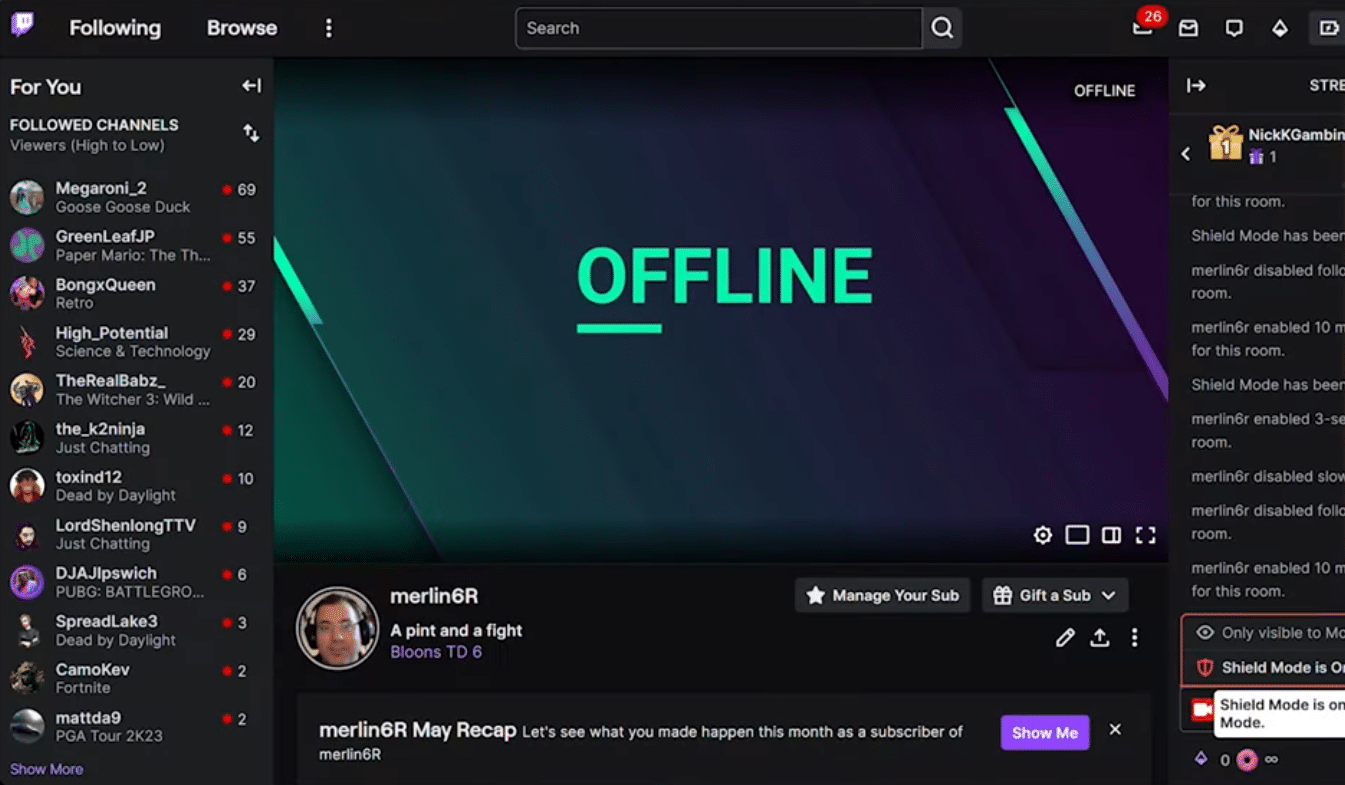
Twitch download – watch livestreams and chat on PC and mobile
Twitch is the world’s largest platform for livestreaming gaming, esports, creative content and “Just Chatting” — and for many Americans it’s a regular habit to jump into a stream, drop a message in chat, and catch live moments you won’t get on YouTube in quite the same way.
We tested the Twitch app on a standard Windows 11 PC and on mobile, and the experience is generally fast and stable — but there are a few classic pain points (especially notifications, chat delay, and browser vs. app) you can avoid if you set it up correctly from the start.
Watch Twitch on PC: app vs. browser (what’s best?)

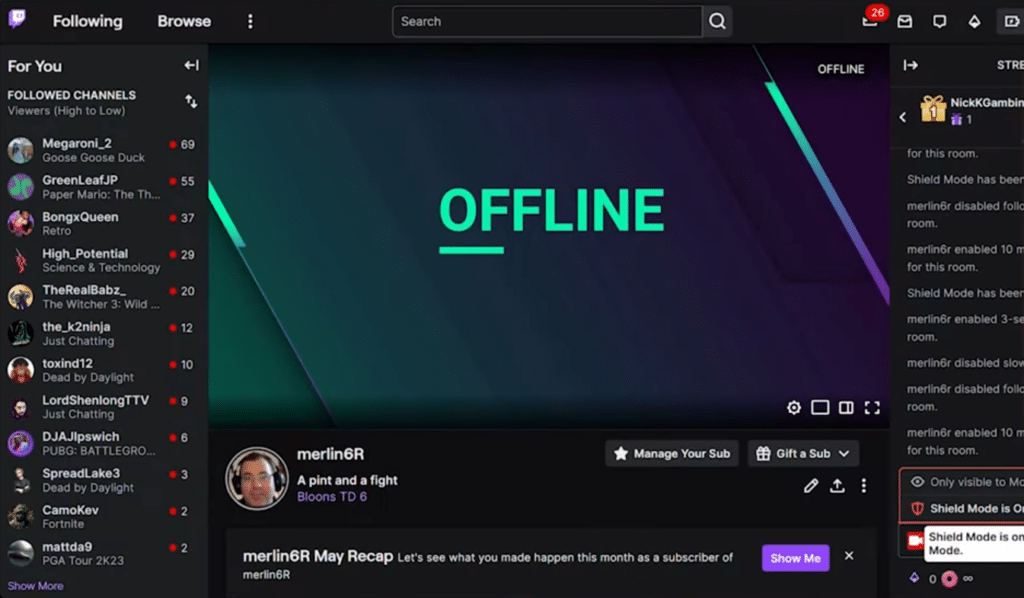
If you mainly watch streams and chat, the browser works fine — but in our testing there were two reasons we ended up preferring the app on Windows:
- The app felt more “locked in” to Twitch (fewer distractions, fewer tabs, more focus).
- Notifications and quick switching between channels seemed more consistent than in the browser.
On the other hand, if you use an ad blocker, PiP (picture-in-picture), extensions, or want very precise control over quality/latency, the browser can still be the most flexible solution.
Streaming, chat and quality: what matters in practice

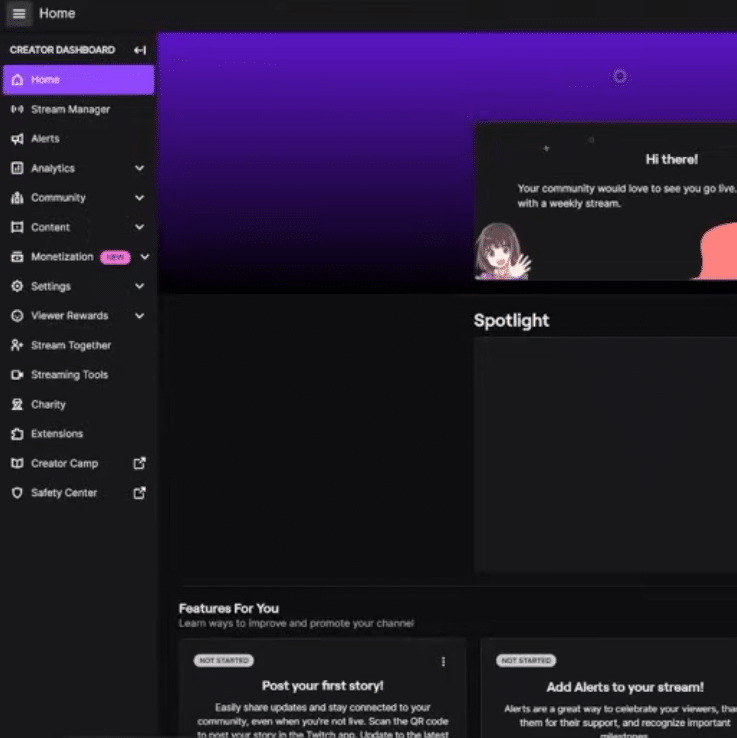
Twitch really comes down to three things: stream quality, the chat experience, and how closely you’re “in sync” with what’s happening live.
On Windows 11 we tested both “Auto” and manual quality choices. When your connection wobbles (common during prime time), Auto can get too aggressive and switch quality often. If you want a steady picture, it’s worth locking the quality manually — especially if you watch esports where small details matter.
Chat is Twitch’s superpower, but it can also be noise. We found some channels much easier to follow after turning off certain chat badges and emotes, and by using follow-only chat on the biggest streams. It makes a real difference to readability.
Account, security and privacy (so you won’t be annoyed later)
If you use Twitch more than “once in a while,” do yourself a favor:
- Enable two-factor authentication (2FA). It takes 2 minutes — and helps you avoid the classic “my account got hijacked” story.
- Review notifications. Twitch can spam you if you follow lots of channels.
- Check privacy settings: who can send you whispers, and what data do you share with third parties?
In our testing, notifications were the first thing to get overwhelming on mobile — and it’s one of the things people end up “hating” Twitch for, even though you can fix it with a couple of taps.
Common Twitch issues (and quick fixes)
If Twitch is acting up, it’s often something simple:
- The stream stutters but your internet is fine: lock the quality manually and try toggling Low Latency off/on.
- Chat is behind: reload the chat or switch to the browser/app depending on where you’re watching.
- Audio is low or odd: check Windows’ volume mixer (Twitch can be set lower than the rest).
- You can’t sign in: clear cache/cookies in your browser — or sign out and in again in the app.
We hit a small chat “hang” ourselves after leaving the app open for a long time — restarting the app fixed it immediately.
Top 5 Twitch tips
Turn on 2FA right away
If you follow channels, have subs, or reuse the same password, 2FA is the best value-for-effort step you can take. It prevents most account issues before they happen.
Lock stream quality if the picture jumps
Auto quality can switch too aggressively on a fluctuating connection. Choose a fixed quality (e.g., 720p) so you avoid constant shifts mid-match or during a raid.
Make chat readable on huge streams
On massive channels the chat is often a “wall of text.” Try hiding certain badges/emotes, use slow mode if you stream yourself, and consider follow-only to reduce spam.
Check Windows’ volume mixer if audio is low
On PC, Twitch (app or browser) can have its own volume level. We’ve seen Twitch set lower than system audio, making the stream seem mysteriously quiet.
Use the browser if your PC is struggling
On older PCs, the browser can sometimes run lighter than the app — especially if you close heavy tabs and disable unnecessary extensions. Test both and pick what feels most stable for you.