


UPDF makes PDF editing a lot easier
UPDF is a modern PDF editor for Windows, Mac, iOS, and Android that lets you edit, convert, annotate, organize, and work with PDFs with help from AI.
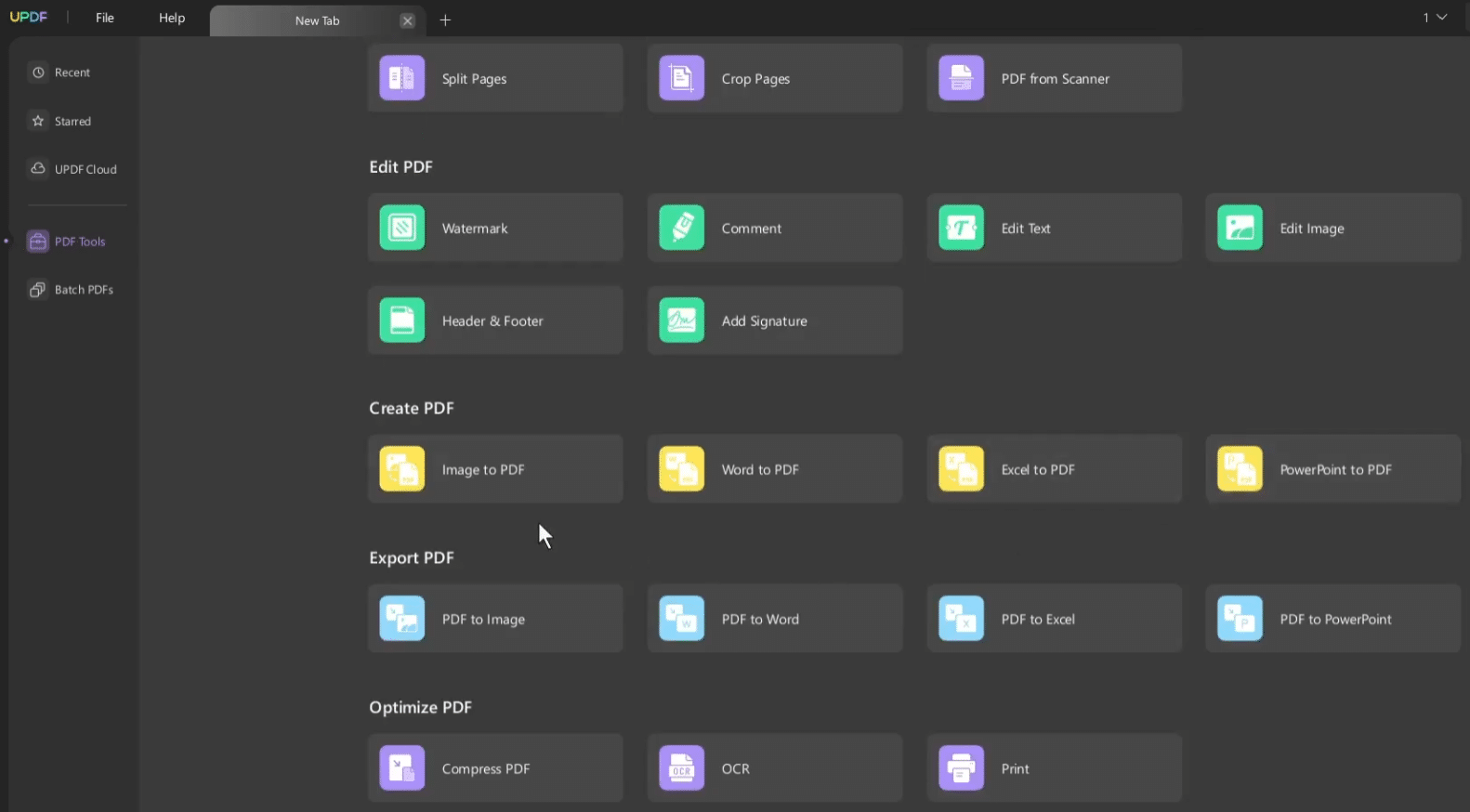
We tested UPDF on a Windows 11 PC with a mix of invoices, scanned documents, forms, and longer PDFs. Our first impression is that UPDF feels more like a modern desktop app than the classic, somewhat heavy PDF tools many still associate with editing. It opens quickly, the menus are easy to navigate, and editing text and images in existing PDFs feels more natural than you might expect.
It’s not a completely free miracle tool, and the most interesting features typically require payment. But as an alternative to pricier PDF software, UPDF hits a compelling sweet spot: it’s simple enough for everyday users, yet has enough features for students, freelancers, office workers, and anyone who regularly receives PDFs that “just need a quick fix.”
A PDF editor that feels lighter than many alternatives

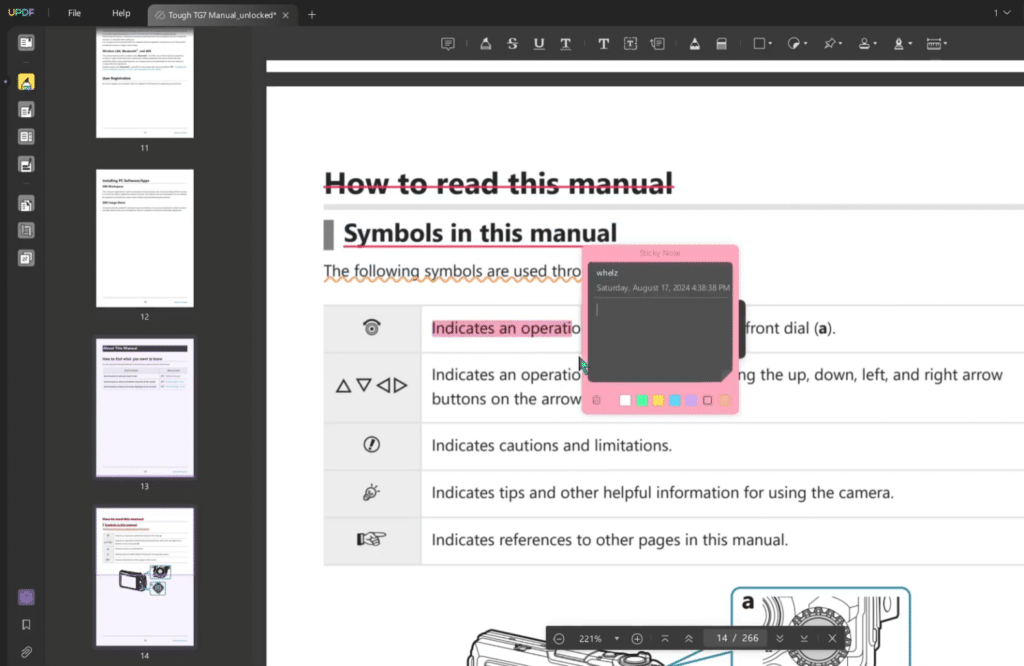
The best part about UPDF is that it doesn’t drown you in technical submenus from the first click. You can open a PDF, select text, add comments, insert notes, fix existing text, and reorder pages without hunting around.
In our tests, this was especially handy when an invoice or document had a small typo in text, a date, or the layout. Instead of digging up the original Word file, we could edit the PDF directly. It’s the kind of feature that quickly saves time in a typical workday.
UPDF also works well as a PDF reader, and the experience is clean and pleasant. You can highlight text, draw, add shapes, use stickers, insert signatures, and export comments. That makes it great for proofreading, studying, and collaborating on documents.
UPDF AI is especially useful for long PDFs
The AI features are one of the things that set UPDF apart from more traditional PDF tools. You can use AI to summarize documents, translate text, ask questions about the content, and get help understanding long or technical PDFs.
It might sound like a gimmick, but in practice it makes sense. We tried it on a long, multi-page PDF and it was noticeably faster to get an overview via AI than to skim the entire document manually. This is especially relevant if you work with reports, user manuals, contracts, academic texts, or large appendices.
That said, you still need to use common sense. AI summaries can be helpful, but they shouldn’t stand alone if the document concerns law, finance, or other areas where precision is critical. UPDF works best as an assistant—not a replacement for reading the most important sections yourself.
OCR, conversion, and page organization

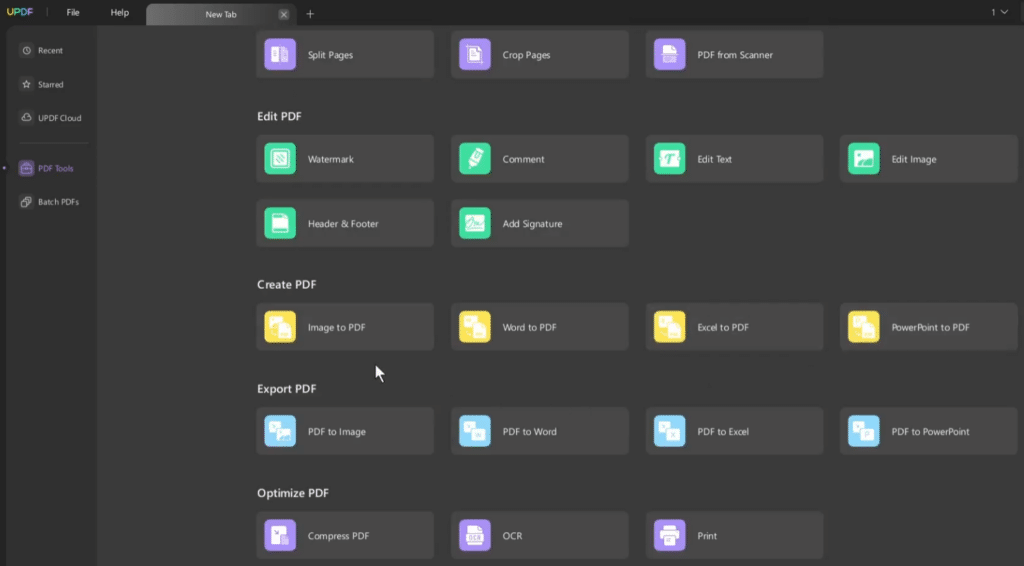
One feature many people look for in a PDF editor is OCR. That means text in scanned documents can be recognized so you can search it or keep working with the content. UPDF supports OCR, which makes it far more useful if you have old receipts, paper scans, or PDFs where the text would otherwise just be an image.
You can also convert PDFs to other formats, organize pages, rotate documents, extract single pages, split PDFs, and combine files. These features may sound boring, but they’re exactly why a good PDF editor is hard to live without.
During our tests, page management was one of the more pleasant parts of the app. It’s easy to get an overview of pages, and recent updates have made working with tabs and page actions faster—which you’ll notice if you keep multiple PDFs open at once.
UPDF for Windows, Mac, iPhone, iPad, and Android
UPDF works across all major platforms. That makes it especially appealing if you move between computer and phone. On desktop it shines for heavier editing, OCR, and conversion, while the mobile version is particularly handy for reading, comments, quick fixes, and documents on the go.
It’s also worth noting that one of UPDF’s big strengths is its modern, cross-platform approach. Many PDF tools still feel like they were built primarily for an office PC. UPDF better fits how people work today, with documents moving between laptop, phone, tablet, cloud, and email.
Who should choose UPDF?
UPDF is a great choice if you work with PDFs often but don’t want to pay for a heavy enterprise solution. Students can use it for notes, highlights, and summaries. Freelancers can use it for invoices, quotes, contracts, and forms. Regular home users can use it for everything from mortgage paperwork to insurance documents.
It’s not necessarily the best pick if you only open a PDF a few times a year—then a simple PDF reader might be enough. But if you often think “I wish I could just edit this PDF directly,” UPDF is worth a try.
Top 5 tips for UPDF
Top 5 tips for UPDF
1Editing
Use UPDF for small fixes instead of recreating the whole document
If you only need to fix a date, a line of text, or an image in a PDF, it’s often faster to do it directly in UPDF than to locate the original file. Always save a copy first so you can revert if the layout changes.
2AI
Let AI give you the overview before reading a long PDF
For lengthy reports, manuals, and agreements, use UPDF’s AI features to summarize the content first. It makes it easier to find the sections you actually need to read closely.
3OCR
Run OCR on scanned documents before you archive them
If you have old receipts, letters, or paper documents as PDFs, use the OCR feature. The text becomes searchable, making it far easier to find the document later.
4Workflow
Use tabs when working with multiple PDFs at once
UPDF works best when you lean on tabs. It’s especially useful if you’re comparing quotes, contracts, manuals, or attachments and need to switch quickly between files.
5Security
Double-check sensitive documents before using AI
AI features are smart, but use them carefully with contracts, personal data, and financial documents. Always review UPDF’s current terms and privacy settings if you’re handling sensitive material.
A solid alternative to heavy PDF software
UPDF strikes a strong balance between ease of use and features. It isn’t perfect, and some users will miss the most advanced professional tools from the priciest PDF suites. But for most people in the U.S. who want to read, edit, comment on, convert, and understand PDFs faster, UPDF is a powerful choice.
That’s especially true now that PDFs aren’t just static documents anymore. They’re used for school, work, accounting, support, home buying, applications, and sharing knowledge. UPDF gives you a more modern way to work with them—especially if you take advantage of the AI features instead of using it as a basic PDF reader.