Site icon Holyfile.com – Free Software, Drivers, and Games

Windows 10 Home

Modern desktop with Windows 10 Home open on a large screen, surrounded by office equipment in a bright room with natural light.

Download Windows 10 Home – the popular Microsoft operating system for everyday use and gaming

We tested Windows 10 Home on a standard Windows PC, performing both a clean installation from ISO and an in-place upgrade using Microsoft’s tool. The download process is straightforward, and it’s clear why Windows 10 Home is still popular with home users and gamers: it runs stably, feels familiar, and gives you access to everything most people actually use day to day.

In practice you get Microsoft Store, DirectX 12 for games, and a bunch of everyday features like Night light, Focus assist, and a workflow that still feels like classic Windows. But in 2026 it’s important to know that Windows 10 no longer receives regular security updates after October 2025. That’s why Windows 10 Home usually makes the most sense as a transitional solution — for example on older hardware, for compatibility, or as a clean install before you later switch to Windows 11.


Windows 10 Home download in 2026: ISO, USB setup, and what to know before you start

Windows 10 Home on a laptop — a classic Windows version still used by many for older PCs, reinstalls, and USB installation via Microsoft’s official tools.
  1. The Start menu is still Windows 10’s biggest comfort feature
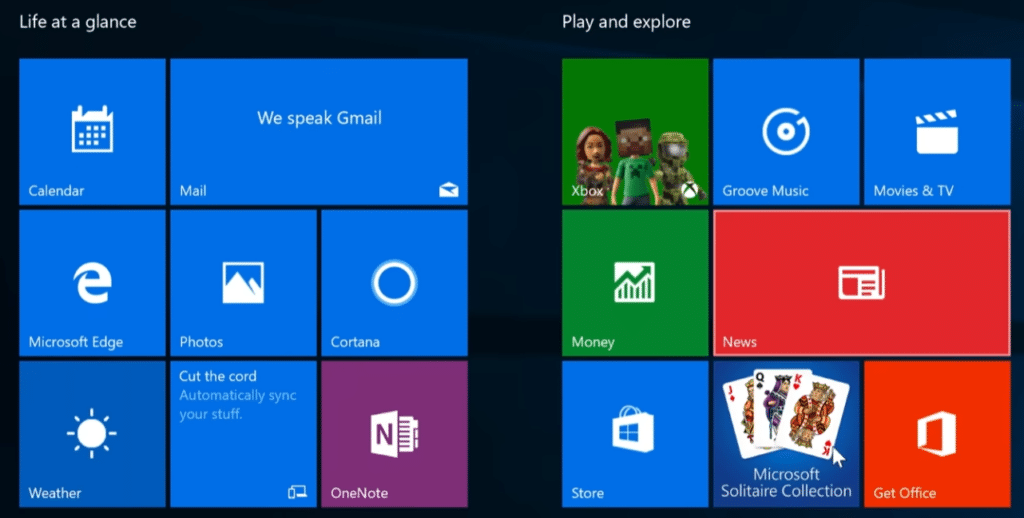
    The Start menu in Windows 10 Home is where the OS feels most familiar — especially if you’re coming from Windows 7 or just prefer a classic layout. In our testing, it took only minutes to clean up, remove unnecessary tiles, and pin our most-used apps so the menu became quick to navigate. It’s exactly the kind of everyday detail that makes Windows 10 easy to live with.
  2. Navigation, notifications, and quick settings in one “hub”
    Windows 10 Home is built so you can do common tasks fast: switch networks, toggle Bluetooth, adjust brightness, enable Night light, and see notifications — all via Action Center. In practice it speeds up your workflow because you don’t have to jump through menus. We especially noticed the benefit on laptops where you often switch power modes and display settings.
  3. Important in 2026: Windows 10 is no longer in regular support
    Here’s the honest status: Windows 10 no longer receives regular security updates after October 2025. In 2026 you should see Windows 10 Home as a transitional solution — typically if you have older hardware, or software/peripherals that don’t yet play perfectly with Windows 11. If your PC can upgrade to Windows 11, that’s usually the safest and most future-proof option.

How to download, install, and activate Windows 10 Home

During our Windows 10 Home test install, the setup window showed the option to keep files, apps, and settings before starting the installation.

Download Windows 10 from Microsoft (ISO or Media Creation Tool)

Go to Microsoft’s official Windows 10 download page. You can download the Media Creation Tool (easiest) or choose the ISO if you want a clean installation via USB.

Create installation media: USB (8 GB+) or ISO for later use

Open the Media Creation Tool and choose Create installation media (USB flash drive, DVD, or ISO file). Use a USB drive with at least 8 GB. Choose English (United States), Windows 10, and 64‑bit (most PCs).

Pro tip from our testing: Creating a USB directly with the tool causes the fewest issues. ISO is handy if you want to save the file and make multiple USBs later.

How much space does Windows 10 Home need?

The core installation doesn’t require much space, but in practice you should keep plenty of free room on your system drive because updates, drivers, and built-in apps add up. Our rule of thumb: the more free space, the fewer odd errors and the more stable your PC over time.

Install Windows 10 Home from USB (boot from USB)

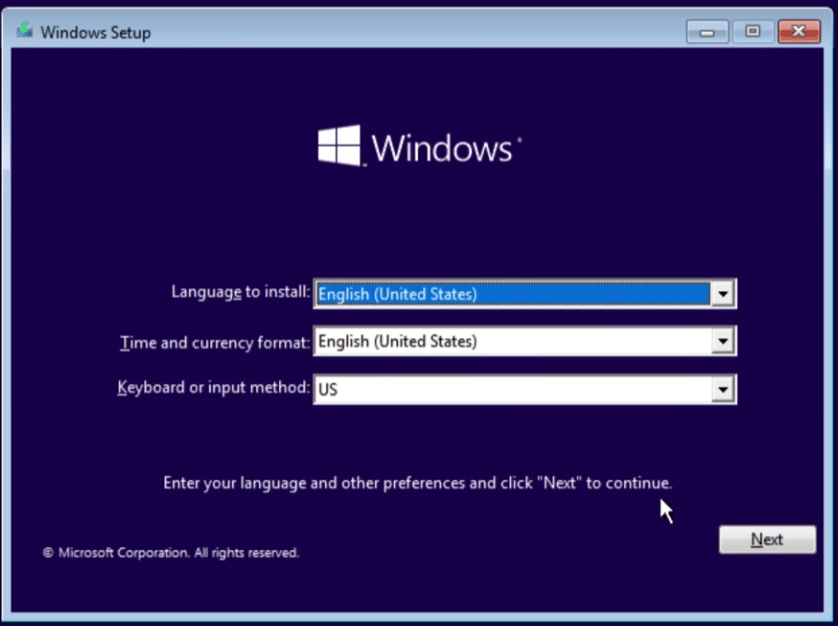
Insert the USB drive, restart, and boot from USB (often F12, ESC, or DEL — varies by brand). Choose Install now and follow the wizard.

For a clean install: choose Custom and make sure you select the correct disk/partition.

Product key during setup — or skip for now

If you have a product key (25 characters), enter it during setup. If not, choose I don’t have a product key. Windows will still install and can be activated later.

Activate Windows 10 Home after installation (fastest method)

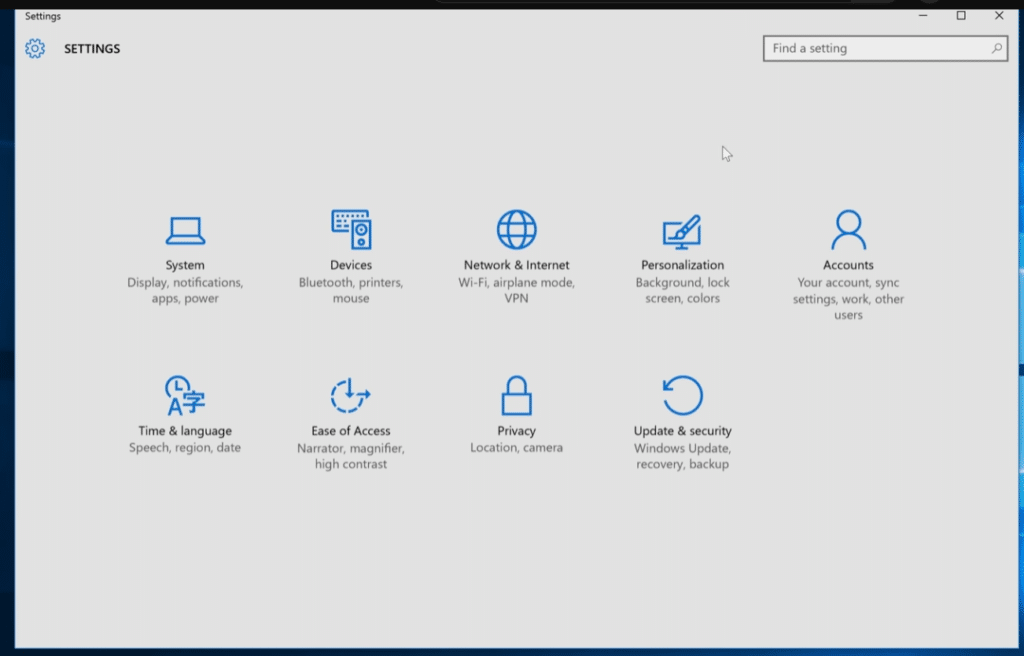
Go to Settings → Update & Security → Activation. Enter your key here if you skipped it earlier.

On many PCs, Windows will also activate automatically if the machine previously had a digital license, or if you sign in with a Microsoft account linked to the license.


Top 5 tips for Windows 10 Home

Top 5 tips for Windows 10 Home (faster, more private, more secure)

1Performance

Make Windows 10 Home faster without extra software

Open Task Manager by right‑clicking the taskbar → Task Manager → Startup tab, and disable apps you don’t need at boot. Also run Disk Cleanup and enable Storage Sense to clear temporary files. On our test PC this led to a lighter startup and fewer small stutters in daily use.

2Appearance

Use Windows 10 Home’s Dark Mode

Go to Settings → Personalization → Colors and choose Dark under default app mode. It’s especially nice at night and gives a more modern look. Common search: how to enable dark mode in Windows 10 Home.

3Privacy

Hide files and folders in Windows 10 Home without extra software

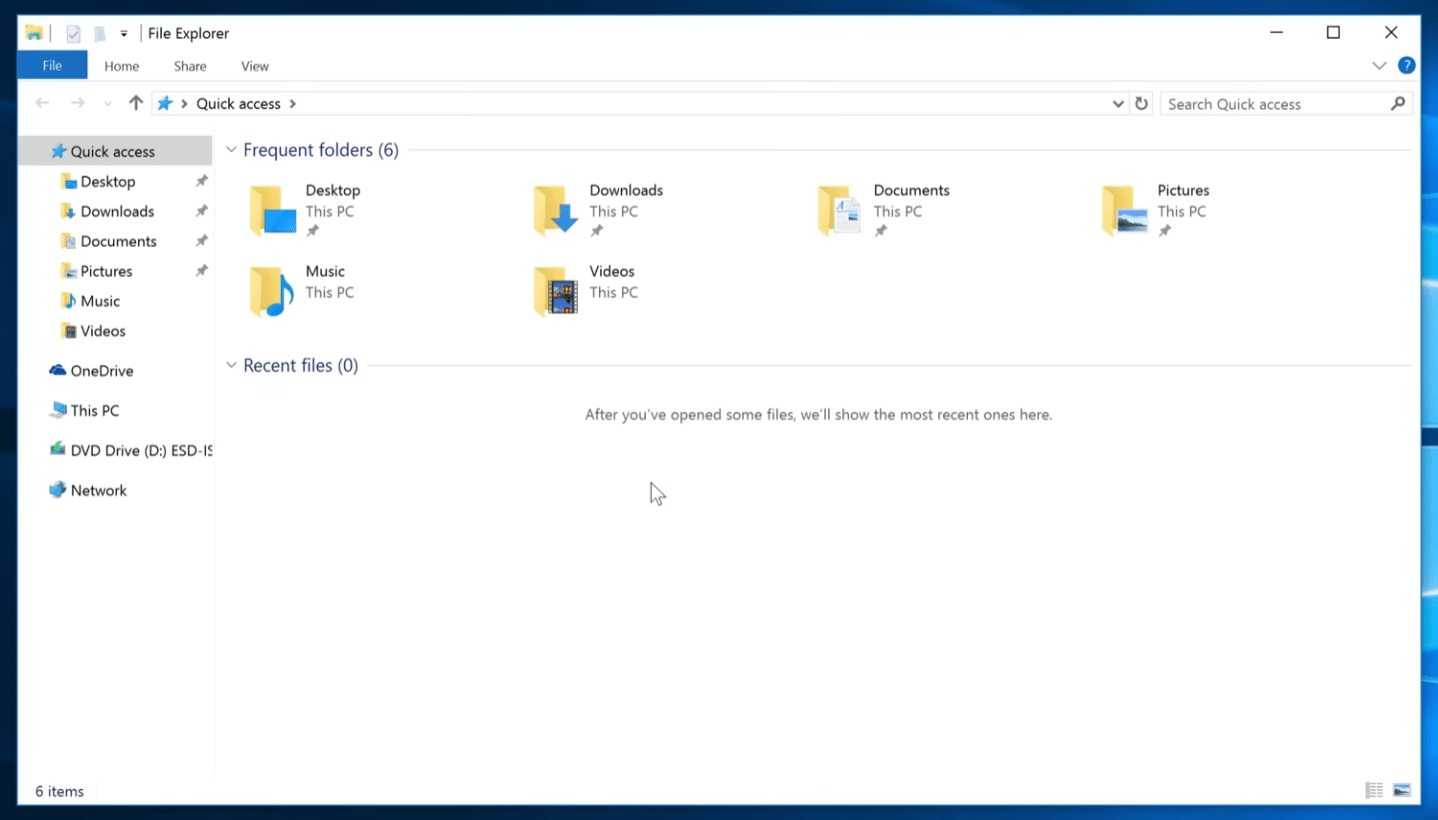
Right‑click the file or folder → Properties → check Hidden. To keep them out of sight, turn off Show hidden files in File Explorer (View → Options). It’s a simple way to reduce clutter. Search: hide files in Windows 10 Home.

4Accounts

Create a local account without a Microsoft sign‑in

Go to Settings → Accounts → Family & other users. Choose Add someone else to this PC → I don’t have this person’s sign‑in information → Add a user without a Microsoft account. Great for a kid’s profile, a guest account, or if you want to minimize sync and tracking.

5Security

Use Windows Security as free antivirus in Windows 10 Home

Windows Security is built in and sufficient for most people. Check status in Settings → Update & Security → Windows Security, and run a quick scan if you’re unsure. Common search: is Windows Defender enough for Windows 10 Home. In our test it detected sample files quickly without slowing the PC.


Comparison: Windows 10 Home vs. Windows 10 Pro

Read our Windows 10 Professional review or download it here.

Feature Windows 10 Home Windows 10 Pro
BitLocker drive encryption ❌ Not included ✅ Yes
Remote Desktop ❌ Client only ✅ Full host access
Group Policy (gpedit.msc) ❌ No ✅ Yes
Hyper‑V (virtual machine) ❌ No ✅ Yes
Update control ❌ No ✅ Defer and manage
Azure AD / Domain Join ❌ No ✅ Yes
Price ✅ Cheaper ❌ More expensive
Target audience Home use / gaming Business, power users

Windows 10 Home in 2026: who is it right for?

Windows 10 Home can still be a solid choice if you have an older PC, or if you use software and peripherals that work better on Windows 10 than on Windows 11. In our testing the system ran stably and felt snappy day to day — especially with mouse and keyboard, where Windows 10 still has a workflow many prefer.

But because Windows 10 is no longer in regular support, it should be seen as a transitional solution in 2026. If your PC can upgrade to Windows 11, that’s typically the smartest path for security and future updates.


Windows 10 vs Windows 11 –Should you upgrade?

Microsoft launched Windows 11 as the successor to Windows 10 in October 2021. While both systems share much of the same technical foundation, there are key differences — especially in design, performance optimizations, and hardware requirements.

Interface and design:
Windows 11 offers a more modern, rounded design with a centered taskbar, new animations, and better integration for touch and hybrid devices. Windows 10 keeps a more classic layout that many still prefer with mouse and keyboard.

Performance and gaming:
Windows 11 includes optimizations for newer hardware and technologies like DirectStorage and AutoHDR, which can notably improve gaming — but only if you have modern hardware. Windows 10 still performs quickly and reliably on both older and newer machines.

System requirements and compatibility:
Windows 11 requires TPM 2.0, Secure Boot, and newer CPUs (Intel 8th gen and up, AMD Ryzen 2000 and up). Many older PCs that run Windows 10 just fine cannot officially install Windows 11.

Features and updates:
When we compared Windows 11 Home with Windows 10 Home, it was clear the core experience is very similar — but Windows 11 feels more streamlined in daily use. You get smarter multitasking with Snap Layouts, widgets (some love them, others turn them off), and a Microsoft Store that’s more reliable than before.

Most important: In 2026, Windows 10 is no longer in regular support because standard security updates ended on October 14, 2025. If you continue running Windows 10, it should be as a temporary solution with a plan (for example, upgrading to Windows 11 on supported PCs or using Extended Security Updates, if relevant).

When should you upgrade to Windows 11?

Windows 10 Home reached its official end date for free support on October 14, 2025.
This means a standard Windows 10 installation no longer receives new security updates unless the PC is enrolled in ESU (Extended Security Updates).

In practice, the rule of thumb looks like this:

💡 Upgrade to Windows 11 now if:

✅ Your PC can upgrade officially (TPM 2.0 / Secure Boot / supported CPU) and you want long‑term security
✅ You game or handle heavy workloads and want newer security and performance improvements
✅ You don’t want to deal with “temporary workarounds” and special requirements to stay on Windows 10

🚫 Stay on Windows 10 only if:

❌ You have critical hardware/software that still works best on Windows 10
❌ You’re willing to use ESU so you continue receiving security updates during a transition period
❌ You use the PC offline or very limited and accept the security risk (not recommended for everyday use)

Important note for 2026

If you want to run Windows 10 as safely as possible in 2026, you should be on Windows 10 version 22H2 and enrolled in Windows 10 ESU, which can extend security updates beyond October 2025.


Buy a Windows 10 license directly from Microsoft

If you don’t already have a digital license or a product key for Windows 10, you can easily and safely purchase one directly from Microsoft through their official platform. This ensures you get a genuine license and avoid potential risks from third‑party sellers, where fake or invalid licenses can unfortunately be an issue.

Benefits of buying your license directly from Microsoft

  1. Authenticity and security:
    Buying through Microsoft Store guarantees a genuine Windows 10 license. This eliminates the risk of ending up with an invalid or fake product key, which can cause activation or update problems.
  2. Easy activation:
    When you buy directly from Microsoft, your license activates automatically, so you avoid manual key entry hassles.
  3. Direct integration:
    Microsoft’s purchase flow is integrated into Windows 10, making the process simple and fast without third‑party software or services.

How to buy a license through Microsoft Store

  1. Click the Start button in the lower‑left corner of the screen.
  2. Go to Settings and choose Update & Security.
  3. Click Activation in the left menu.
  4. Select Go to Store.
  5. The Microsoft Store app opens, where you can purchase a digital Windows 10 license.

Why avoid third‑party sellers?

Although some third‑party websites and sellers offer Windows 10 licenses at low prices, there’s a risk these licenses aren’t genuine. Fake licenses can lead to:

Take the safe route

If you want to avoid activation problems and questionable keys, Microsoft Store is the safest route. Just remember that in 2026, Windows 10 should primarily be seen as a transitional solution because regular security updates ended in 2025. If your PC can run Windows 11, that’s typically the most future‑proof plan.

How much does Windows 10 Home cost?

Pricing varies depending on where you buy and whether you already have a digital license tied to your PC. So it makes sense to first check if your machine can activate automatically before purchasing anything new.

If you just need a product key, first check whether your PC already has a digital license (Settings → Activation) — that saved us a purchase on one of our test machines.

Exit mobile version