

 Martin Jørgensen
Acer Touchpad Driver – Optimize your touchpad performance.
Why is the Acer Touchpad Driver important?
The Acer Touchpad Driver is an essential software component that ensures your laptop’s touchpad works at its best. Without the correct driver installed or updated, you may experience issues like no response, jittery movement, or missing support for multi-touch features.
An up-to-date touchpad driver delivers a smoother, more accurate experience, improves precision, and ensures compatibility with the latest Windows updates and gesture features. This is especially important if you often navigate without an external mouse.
Top 5 tips for updating your Acer touchpad driver
1. Acer touchpad not working after an update
If your Acer touchpad stops working after a Windows update, the driver may have been overwritten. Go to Acer’s support site, enter your model, and reinstall the latest Acer touchpad driver manually.
2. Install the Acer touchpad driver for Windows 11 correctly
Many users run into errors by installing a driver for the wrong Windows version. Make sure you choose Windows 11 in Acer’s drop-down menu and download the driver listed under “Touchpad.” Always restart after installation.
3. Use msinfo32 to find your exact model
To find the exact model (e.g., “Aspire 5 A515-56”), press Windows + R, type msinfo32, and check the System Model field. This matters because the Acer touchpad driver download only works if you pick the exact model.
4. Touchpad works, but no multi‑touch? Update the driver
If the touchpad only works partially—no two‑finger scroll or gestures—it’s usually a sign of an outdated driver. Visit Acer’s official site and get the newest version for your exact model and Windows version.
5. Acer touchpad driver not working? Try ELAN or Synaptics manually
If the standard driver doesn’t work, try installing an ELAN or Synaptics driver manually via Device Manager. Right‑click the touchpad device and choose “Update driver” > “Browse my computer” > “Let me pick from a list.”
How to find the right Acer touchpad driver
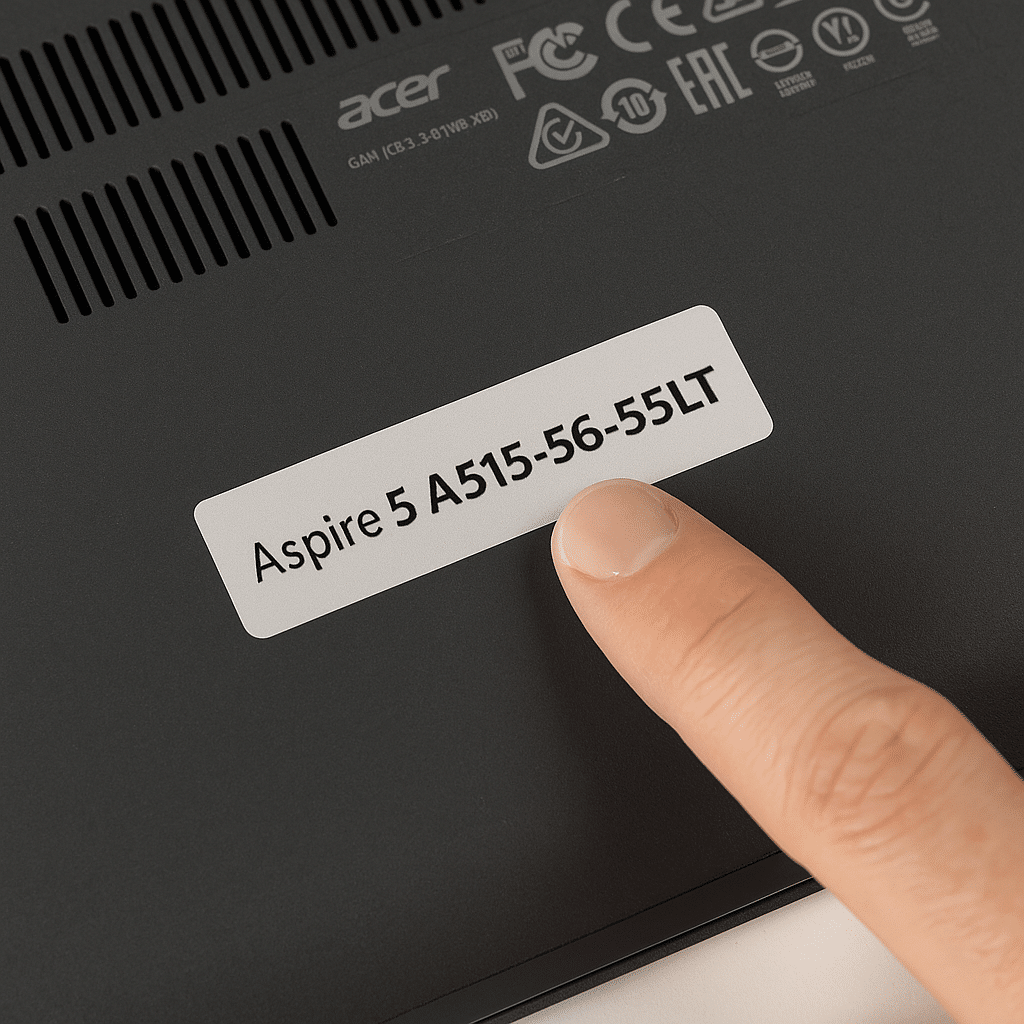
For your touchpad to work properly, it’s important to install the exact driver for your Acer model and Windows version. Follow this step-by-step guide:
- Find your model name
- Check the bottom of your laptop—the model name is often on a label, e.g.:
Aspire 5 A515-56-55LTorSwift 3 SF314-43. - Alternatively, press
Windows key + R, typemsinfo32, and find it under “System Model.”
- Check the bottom of your laptop—the model name is often on a label, e.g.:
- Go to Acer’s driver section
- Visit Acer’s official driver portal here:
👉 https://www.acer.com/us-en/support/drivers-and-manuals
- Visit Acer’s official driver portal here:
- Enter your model and choose the operating system
- Type your model name in the search field and pick the correct match from the dropdown.
- Then select the right operating system (Windows 10 or Windows 11).
- Download the touchpad driver
- Find the “Touchpad” category in the driver list.
- Click Download and open the installer once it’s finished.
- Restart your computer
- When installation is complete, your touchpad should work again after a restart.
💡 Note: If you have multiple drivers under “Touchpad,” choose the newest, or the one that matches “ELAN” or “Synaptics,” depending on your hardware.
Benefits of updating your Acer Touchpad Driver
- Improved precision – Makes the touchpad more sensitive and responsive, delivering smoother, more accurate navigation. This is especially useful for precision tasks like photo editing or document work.
- Multi-touch support – Enables features like two‑finger scrolling and pinch‑to‑zoom for better navigation and interaction. Newer updates can also add advanced gestures that make it easier to manage multiple windows and apps.
- Stability and bug fixes – Reduces the risk of freezes and errors that lead to a frustrating experience. Updated drivers resolve known issues that can cause poor response or inconsistent sensitivity.
- Compatibility – Supports the latest Windows updates and features, ensuring optimal performance with the newest software. Newer drivers can also improve power usage so the touchpad doesn’t drain your battery unnecessarily.
- Improved precision – Makes the touchpad more sensitive and responsive.
- Multi-touch support – Enables features like two‑finger scrolling and pinch‑to‑zoom.
- Stability and bug fixes – Reduces the risk of freezes and errors.
- Compatibility – Supports the latest Windows updates and features.
How to download and install Acer Touchpad Driver
Follow these steps to ensure optimal touchpad performance:
- Find your Acer model
- Open the Start menu and type “System Information” to see your exact model.
- Alternatively, you can find the model number on your device or in the BIOS.
- Download the latest Acer Touchpad Driver
- Visit Acer’s official drivers page and enter your model.
- Select Touchpad Driver from the list of available downloads.
- Click Download and save the file to your computer.
- Install the driver
- Extract ZIP-filen (if needed).
- Run the installer (Setup.exe or similar).
- Follow the on-screen instructions and restart your computer when the installation finishes.
Troubleshooting: Problems with Acer Touchpad Driver?
If you experience issues with your touchpad after installation, try the following:
- Check Windows Device Manager
- Press Win + X and choose Device Manager.
- Find Mice and other pointing devices, right‑click your touchpad driver, and select Update driver.
- Reinstall the driver
- Uninstall the driver via Device Manager and restart your PC. Windows will try to reinstall it automatically.
- Download the driver directly from the manufacturer
- If your Acer device uses a Synaptics or ELAN touchpad, you can find updated drivers here:
- Check Windows settings
- Go to Settings > Devices > Touchpad and make sure touchpad features are enabled.
Optimize your touchpad with the latest drivers
Keeping your Acer Touchpad Driver up to date ensures a smooth and accurate experience. An updated driver enhances touchpad functionality, enables new gestures, and reduces errors—making your laptop more efficient and comfortable to use.
Whether you use your touchpad for everyday navigation, productivity, or creative work, an optimized driver improves response time and minimizes frustrating issues like lag or accidental movements. A well‑tuned touchpad also makes it easier to work without an external mouse—perfect when you’re on the go.
Additionally, an updated driver can improve power management so your touchpad doesn’t consume unnecessary battery, resulting in longer battery life. Check for updates regularly so your Acer device always performs at its best and supports the latest technologies.
FAQ about Acer Touchpad Drivers
How do I reinstall the Acer touchpad driver correctly?
First remove the old driver via Device Manager. Restart your PC, go to Acer’s driver section, select your model and Windows version, and install the newest touchpad driver manually.
Does the Acer touchpad driver work with both Windows 10 and Windows 11?
Yes—Acer supports both Windows 10 and 11 on most newer models. Be sure to select the correct operating system in the driver list to avoid compatibility issues.
What’s the difference between ELAN and Synaptics touchpad drivers?
ELAN and Synaptics are different touchpad hardware vendors. Your Acer laptop typically supports only one—use the driver that matches your hardware. The correct one appears on Acer’s download page.
My touchpad still doesn’t work—what can I do?
First check that the touchpad isn’t disabled via an Fn key (e.g., Fn + F7). Then check the BIOS to ensure it’s enabled there. If everything looks right, roll back to a previous driver or run Windows’ troubleshooting tool.
Should I use Acer’s driver, or will Windows’ standard touchpad driver work?
Windows’ standard driver often works for basic use, but it lacks features like gestures, multi‑touch, and precision. For full functionality, the official Acer touchpad driver is recommended.


