 Martin Jørgensen
Ollama – run AI models locally on your own computer
Ollama is a free AI tool for Windows, Mac, and Linux that lets you download and run AI models directly on your own computer. You get far more control over models, data, and privacy than with typical browser-based AI services.
We primarily tested Ollama on a Windows 11 PC to see whether local AI is still mostly for developers or if curious everyday users can jump in too.
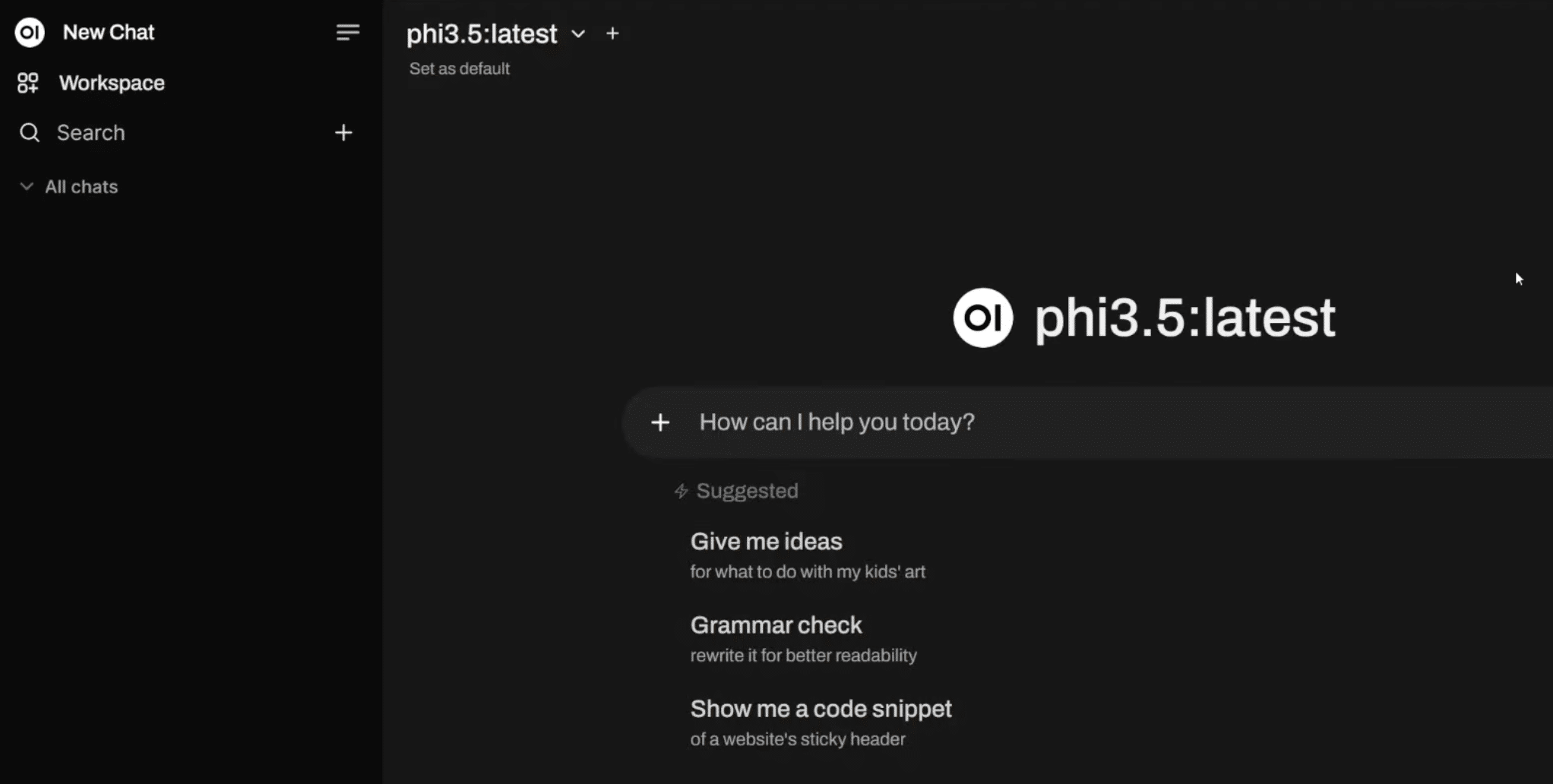
Our first impression actually surprised us a bit. Ollama is still more technical than ChatGPT, Claude, and Gemini, but it has become much easier to get started. On Windows and Mac you now get a true desktop app where you can download models and chat with them, while the terminal is still there if you want to dig deeper.
Throughout our test we used both the app and the terminal, and the differences between models quickly became clear. Smaller models can feel surprisingly fast, while large models can make even a capable computer work hard.
That’s also what makes Ollama interesting: You decide whether you want a small, speedy model, a bigger model with stronger capabilities, or even Ollama’s cloud models for tasks your own machine can’t handle.
What is Ollama?
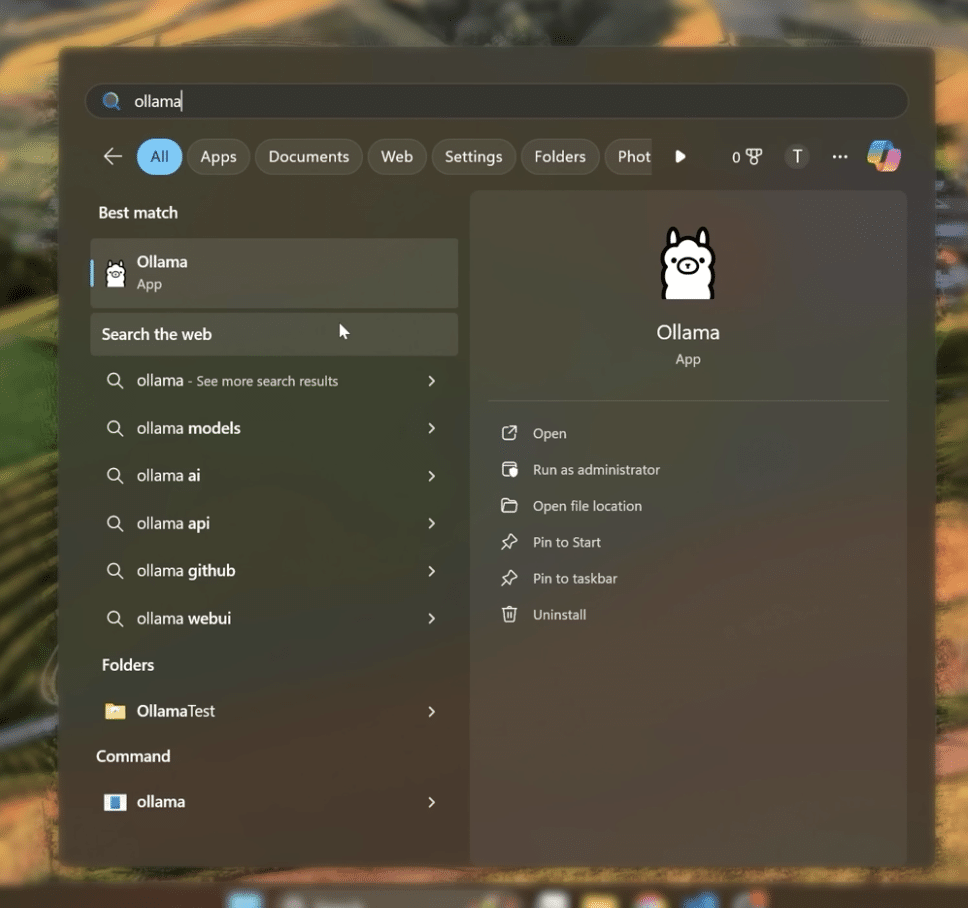
At its core, Ollama is a platform for running so‑called Large Language Models (LLMs) locally.
Normally, services like ChatGPT run in large data centers. You enter a prompt, it’s sent over the internet, the model processes it, and the answer comes back.
With Ollama, the entire process can happen on your own computer instead.
That means you can:
- run compatible AI models locally
- chat with AI without a constant internet connection
- use local documents and files
- choose from many different AI models
- connect other apps to Ollama via its API
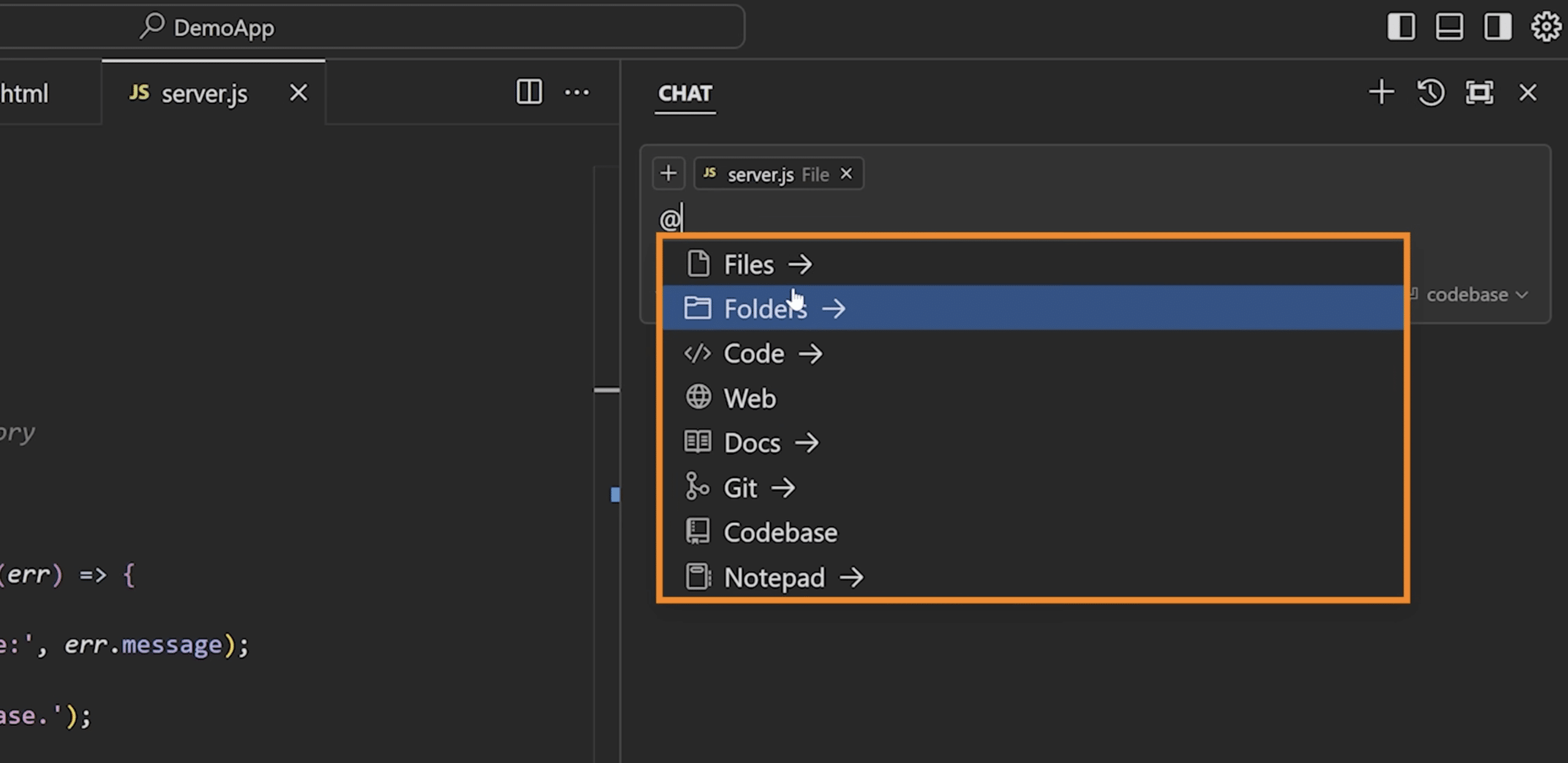
- use Ollama with coding tools and AI agents
- build your own local AI solution
During testing, the standout difference was the feeling of having the model stored on your machine.
It won’t be better for every task, but if privacy, on‑device processing, or the freedom to pick your own model matters to you, the concept makes a lot of sense.
Our experience with Ollama on Windows 11
Installing on Windows 11 isn’t much harder than installing any regular Windows program.
Once installed, the Ollama service runs in the background. You can use both the desktop app and the ollama command from Windows Terminal or PowerShell. Ollama’s local API listens on port 11434 by default. The Windows version supports both NVIDIA and AMD Radeon GPUs.
For new users, we’d definitely start with the desktop app.
It’s simply easier to understand what’s going on when you can download a model and start chatting without remembering terminal commands. Once you grasp the basics, though, the terminal makes a lot of sense.
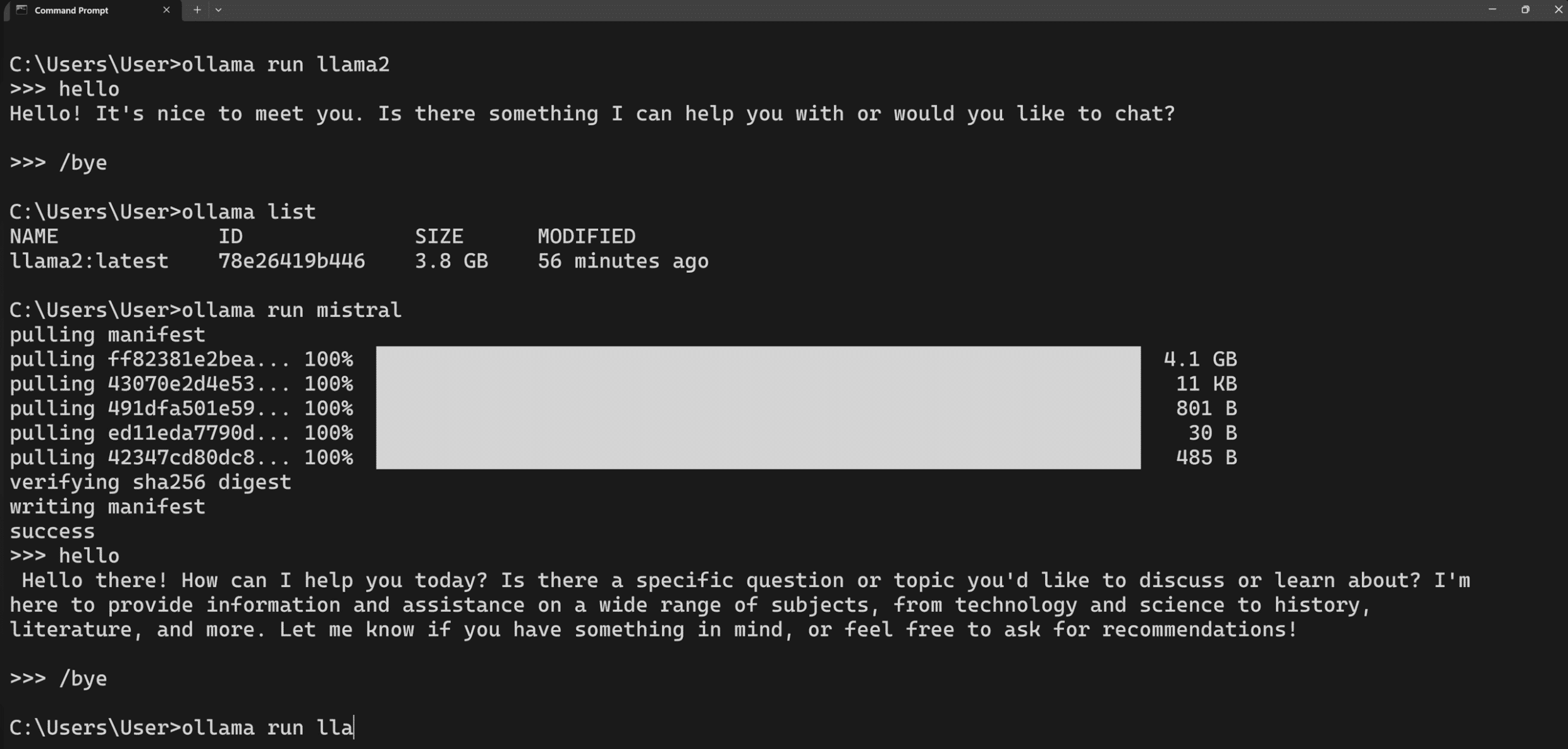
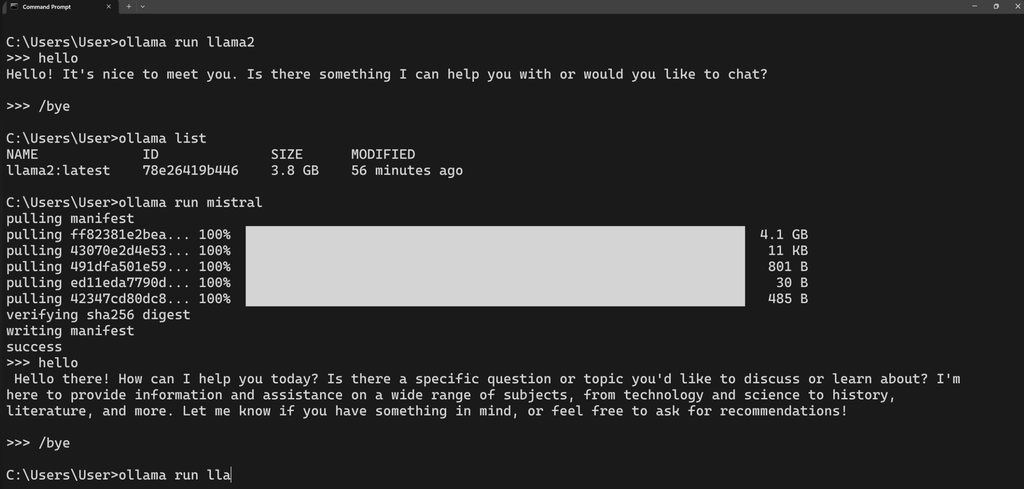
A typical command might look like this:
ollama run qwen3:8bIf the model isn’t already on your computer, it’ll download first.
And here’s something we noticed right away: AI models take up space.
It’s a bit like a Steam library. You don’t think much about the first download, but after trying five or six models, a decent chunk of your SSD can disappear.
Ollama notes that your model collection can range from tens to hundreds of gigabytes, and you can change the storage location if you have more room on another drive.
Ollama models – which AI model should you choose?
One of Ollama’s biggest strengths is that you’re not locked to a single AI model.
You’ll find models from or around Qwen, Google Gemma, DeepSeek, and OpenAI’s open‑weight gpt‑oss family, plus models aimed at coding, reasoning, images, and AI agents. The catalog changes quickly, and new models are added all the time.
That’s great — but it’s also one of the most confusing parts of Ollama.
During testing, it was tempting to just pick a bigger model because it should be better on paper. That’s not always the best strategy.
A smaller model can start faster, use less memory, and deliver answers much more quickly. A large model may be more capable, but if your PC constantly runs out of memory, that extra intelligence gets overshadowed by wait times.
Our advice: start smaller than you think.
If the model runs fast and stable, you can always try a bigger one afterward.
How much RAM does Ollama need?
There isn’t one correct RAM requirement — it depends heavily on the model, quantization, and the context length you work with.
As a very rough rule of thumb, we’d look at it like this:
| RAM | Our take |
|---|---|
| 8 GB | Best for smaller models and experiments. |
| 16 GB | A sensible starting point for local AI. |
| 32 GB | Much more freedom to try different models. |
| 64 GB+ | Good for larger models and more serious local AI. |
These are not official minimum requirements, and a strong GPU can change the equation significantly.
On Apple Silicon, memory is shared between CPU and GPU, which makes newer Macs attractive for local AI. Ollama has also invested heavily in Apple’s MLX framework in 2026 to improve both speed and memory usage on Apple Silicon.
Ollama on Mac, Windows, and Linux
Ollama is available for all three major desktop platforms, but the experience differs slightly.
Ollama on Windows
Ollama currently requires Windows 10 22H2 or newer. It installs like a regular Windows application, runs in the background, and also provides CLI access.
The Windows build can accelerate models with compatible NVIDIA and AMD Radeon GPUs.
Ollama on Mac
On Mac, you’ll need macOS Sonoma 14 or newer.
Apple Silicon supports both CPU and GPU acceleration, while Intel‑based Macs are CPU‑only. That makes newer MacBooks and Mac desktops with plenty of unified memory especially compelling for Ollama.
Ollama on Linux
Linux is ideal if you want to run Ollama on a server, in a home lab, or as a backend for other apps.
It might not be the setup we’d recommend for absolute beginners, but the flexibility is enormous.
Privacy is one of Ollama’s biggest strengths
This was one of the areas we were most interested in during testing.
When Ollama runs a model locally, the developers state clearly that they don’t see your prompts or data. That distinguishes local model execution from many cloud‑based AI services.
Ollama does offer cloud features today, so it’s important to understand the difference.
If you use a cloud model, your prompt and response are processed on external servers. Ollama says the content isn’t stored or logged and isn’t used for training. You can also disable cloud features entirely if you want to keep Ollama strictly local.
We think that last option is a very good detail.
If you’re installing Ollama specifically for local AI, you can turn cloud options off completely to avoid accidentally choosing a cloud model.
Common sense still applies, though. Ollama can connect to other apps and extensions, and they can of course have their own data and privacy policies.
Ollama vs. LM Studio – which is better?
It’s one of the most relevant comparisons, in our view.
Both Ollama and LM Studio let you download and run AI models locally, but they don’t feel identical.
LM Studio is easier for the first 10 minutes, in our opinion. Its interface is very much a classic desktop experience: find a model, download it, and start chatting.
Ollama asks for a bit more curiosity.
But the deeper we went, the more Ollama clicked. Once you discover the API, terminal commands, Docker, and the ability to connect Ollama to other AI apps, it’s clear why developers love it.
| Feature | Ollama | LM Studio |
|---|---|---|
| Local AI | ✅ | ✅ |
| Graphical interface | ✅ | ✅ |
| Easy for beginners | Good | Very good |
| CLI and automation | Very strong | Good |
| API | ✅ | ✅ |
| Docker | ✅ | Less central |
| Our pick for simple local chat | Good | LM Studio |
| Our pick for integrations | Ollama | Good |
If your goal is simply to download a model and chat locally, we lean slightly toward LM Studio.
If you’re already thinking, “Can I hook this into my other apps?”, we’d choose Ollama.
And of course, there’s nothing wrong with installing both.
Ollama Docker – for servers and home labs
Docker probably isn’t the first feature most readers will need, but it says a lot about what Ollama can do.
There’s an official Docker container, and you can run it CPU‑only or with GPU acceleration on compatible NVIDIA and AMD systems.
The basic setup looks like this:
docker run -d -v ollama:/root/.ollama -p 11434:11434 --name ollama ollama/ollamaLooking deeper at the Docker side also shows why Ollama is interesting for home servers.
For example, you can run Ollama on a single powerful machine and use the model from other apps on your network. That way, the AI model doesn’t have to live on the computer in front of you.
It opens the door to much more interesting use cases than just another chatbot.
Ollama’s API makes the app far more useful
Ollama’s local API is, in our opinion, one of the biggest reasons to choose it.
Instead of Ollama itself being your main interface, another app can send questions to Ollama and receive answers from the local model.
There’s also compatibility with parts of the OpenAI API, which makes it easier to get existing apps and developer tools working with Ollama.
This is where Ollama goes from “fun local chatbot” to something you can truly build on.
AI agents and coding are now a major focus
Ollama is evolving quickly, and AI agents and programming play a much bigger role than before.
With the ollama launch command, Ollama can help set up tools like Claude Code, OpenCode, and Codex with local or cloud‑based models. Introduced in early 2026, this feature removes a lot of manual configuration that used to be required.
You don’t need this to benefit from Ollama.
But it shows the direction: Ollama is increasingly about giving other apps access to AI models, not just chatting with AI.
Ollama is evolving extremely fast in 2026
One thing to be aware of: Ollama definitely isn’t standing still.
As of August 2026, Ollama is in the 0.32 series, and GitHub releases land at a brisk pace. Recent versions have expanded model support, focused on Qwen models, and improved compatibility with OpenAI‑style APIs.
Earlier this year, Ollama 0.30 improved GGUF compatibility via llama.cpp, while MLX work boosted performance on Apple Silicon.
The upside is that new AI models are supported quickly.
The downside is that Ollama guides can get outdated surprisingly fast. If a command or model behaves differently than in an older guide, check Ollama’s current documentation.
Top 5 tips for Ollama
1. Start with a smaller AI model
This was one of the most important lessons from our test. The biggest model isn’t necessarily the best on your computer. Smaller models start faster, use less memory, and can feel much better in practice. Start small and work your way up if your PC or Mac has the headroom.
2. Watch how much SSD space models consume
It’s surprisingly easy to collect models. It almost feels like a Steam library: you try “just one more,” and suddenly many gigabytes are gone. If space is tight, move the model library to another drive via OLLAMA_MODELS.
3. Check whether Ollama is actually using your GPU
If a model feels slower than expected, run ollama ps in the terminal. Among other things, you can see whether the model is running on CPU or GPU. It’s a simple check that explains why two Ollama PCs can feel very different.
4. Don’t crank context length higher than needed
A larger context window lets the model work with more text at once, but it also uses more memory. For everyday questions there’s rarely a reason to max it out. Save that extra capacity for long documents, codebases, and tasks that truly need it.
5. Try Ollama with other apps
Ollama really shines once you move beyond simple chat. Hook it up to a separate AI front‑end, a coding tool, or any app that supports Ollama’s local API. Then it starts to feel like a local AI platform rather than just another chatbot.
Ollama FAQ
Is Ollama free?
Yes. Ollama is free to download, and you can run local AI models on your own computer without paying per prompt. Ollama also offers cloud features and paid plans, but they aren’t required if you only want to run AI locally.
Can I use Ollama without the internet?
Yes. Once Ollama and your chosen model are downloaded, a local model works offline. You’ll need to be online to fetch new models or use Ollama’s cloud features.
Does Ollama send my prompts to the internet?
Not when you use a local model — processing happens on your machine. If you choose a cloud model, the task is handled remotely. You can fully disable cloud features if you prefer a purely local setup.
Can I use Ollama on Windows 11?
Yes. We tested Ollama on Windows 11 and the installation is straightforward. Ollama supports Windows 10 22H2 and newer, as well as macOS and Linux.
Do I need a GPU to use Ollama?
No. Ollama can run models on your CPU, but a compatible GPU can make a huge difference in speed — especially with larger models.
How much RAM does Ollama require?
It depends primarily on the model you choose. Smaller models run on fairly typical computers, while larger ones can quickly demand 32, 64 GB of RAM or more. In our testing, starting with a smaller model was best.
What’s the difference between Ollama and ChatGPT?
ChatGPT is a finished AI service where models usually run on OpenAI’s servers. Ollama is a tool that lets you download and run different AI models locally. It takes a bit more setup, but gives you much more control over models and data.
Is Ollama better than LM Studio?
It depends on your use case. We find LM Studio a bit easier if your main goal is to download a model and chat in a GUI. Ollama is our pick if you also want an API, Docker, automation, development, or integrations with other AI apps.
Where does Ollama store its models?
It varies by operating system. If models start filling your system drive, change the location with the OLLAMA_MODELS environment variable and store them on a larger SSD.
Is Ollama safe to use?
Ollama is open source, and local models can run without sending your prompts to Ollama. We recommend downloading the app from the official Ollama website and checking the license and origin of any models you install.