
 Martin Jørgensen
Ashampoo Photo Optimizer – quick, intelligent one-click photo enhancement
Ashampoo Photo Optimizer is an easy-to-use photo editor that automatically enhances your photos with a single click. It’s ideal if you want sharper, more vibrant, and cleaner images—without wrestling with complex tools like Photoshop.
We tested Ashampoo Photo Optimizer on a Windows 11 PC with 16 GB RAM, and the results impressed us: even large images were optimized in seconds with no noticeable wait. The interface is clean, available in English, and completely ad-free—perfect for both beginners and hobby photographers.
One-click automatic photo enhancements
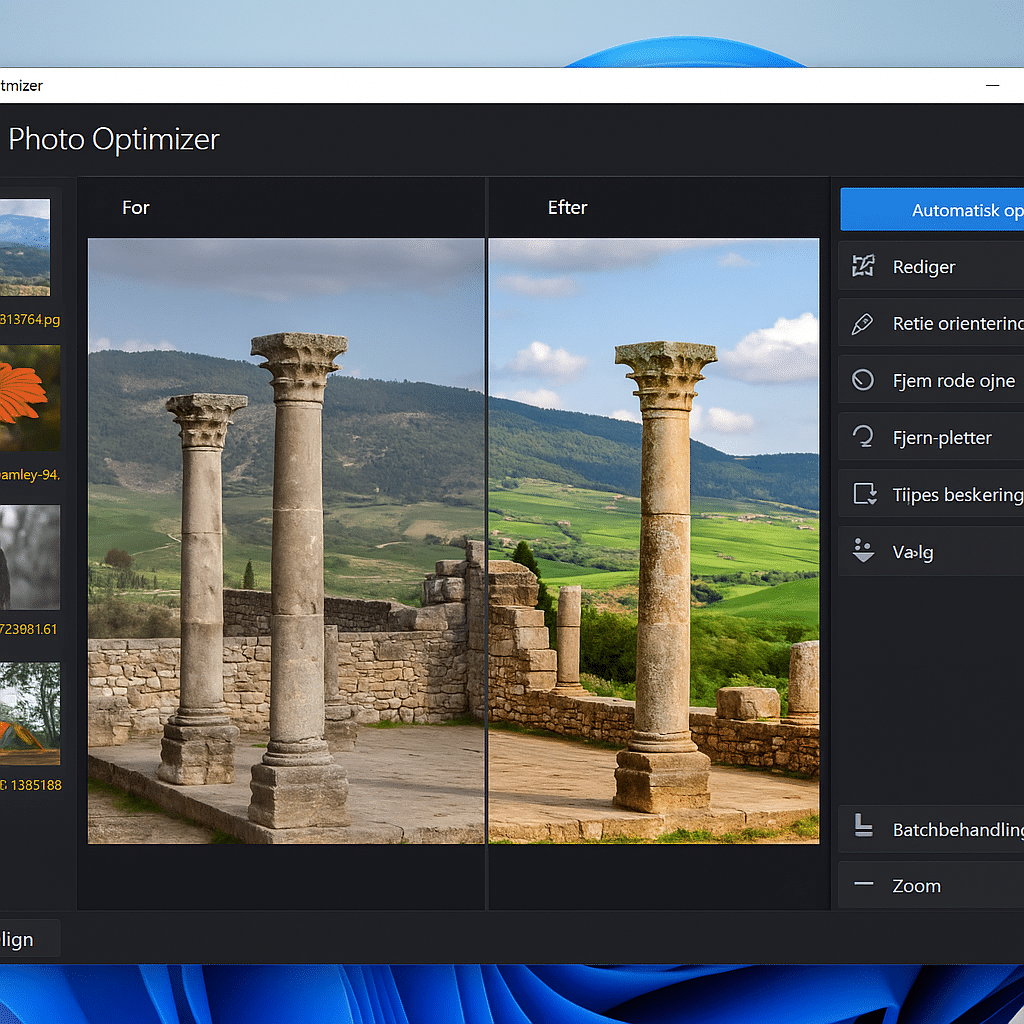
The software’s biggest strength is its automatic optimization. It analyzes your photo’s colors, contrast, and lighting and adjusts them intelligently so the results look natural and vibrant. That makes it easy to rescue vacation shots, portraits, or old scans without manual tweaking.
If you want full control, you can still fine-tune sharpness, saturation, brightness, and white balance manually. You can also edit specific areas and compare before/after with a single click.
Design and ease of use
Ashampoo Photo Optimizer features a modern, streamlined design with everything in a single main window. Menus are easy to understand, and the program supports drag-and-drop so you can quickly add multiple images at once.
It also offers batch editing, letting you enhance hundreds of photos automatically—perfect for large photo albums.
In our testing, the app felt surprisingly fast, even with RAW files. Most changes appear instantly, and you can undo or reset everything with a single click.
Features that make a difference
- Automatic photo enhancement
- Manual adjustments for contrast, exposure, and color
- Batch editing for many photos at once
- Straighten crooked photos
- Red-eye and blemish removal
- RAW and JPG support
- Built-in before/after view
What we found in testing
We tested Photo Optimizer on portraits, landscapes, and mobile photos. The automatic tool often delivered impressive results—especially on shots with poor lighting. In a few cases, saturation was a bit strong, but that’s easy to dial back manually.
Overall, the program felt extremely stable and fast—a clear improvement over earlier versions.
Frequently asked questions
Yes, there’s a free version of Ashampoo Photo Optimizer that covers most everyday enhancement needs. The paid version unlocks advanced tools and faster batch processing.
Yes. Ashampoo Photo Optimizer can open and edit RAW files from most popular cameras. Results are typically very accurate, and conversion is quick.
Yes, the Ashampoo Photo Optimizer interface is fully available in English, including menus, buttons, and guides—so it’s easy to get started.
Yes. The program supports batch editing, so you can optimize entire folders automatically. It’s a big time-saver after a vacation or event.
No, it’s only available for Windows. Mac users can try alternatives like Luminar Neo or Adobe Lightroom.
Top 5 tips for Ashampoo Photo Optimizer
Leverage the Auto feature
Let the app scan an entire folder of photos—you can undo the few that look over-adjusted.
Always save a copy
When experimenting, save edits as a new file to preserve the original.
Use batch editing for large albums
Perfect after a trip—you can optimize 200 photos in under a minute.
Fine-tune color after Auto
The Auto tool is usually spot on, but a slight reduction in saturation can yield a more natural look.
Compare before and after
Click the comparison icon to see changes instantly—it helps you understand exactly what Photo Optimizer adjusts.



