
 Martin Jørgensen
Ashampoo Snap – screen recording, screenshots, and GIFs in one tool
Need a program that can record your screen, edit screenshots, and create GIFs without messing with complex settings? Ashampoo Snap is a versatile Windows screen recorder that combines ease of use with an impressive range of features.
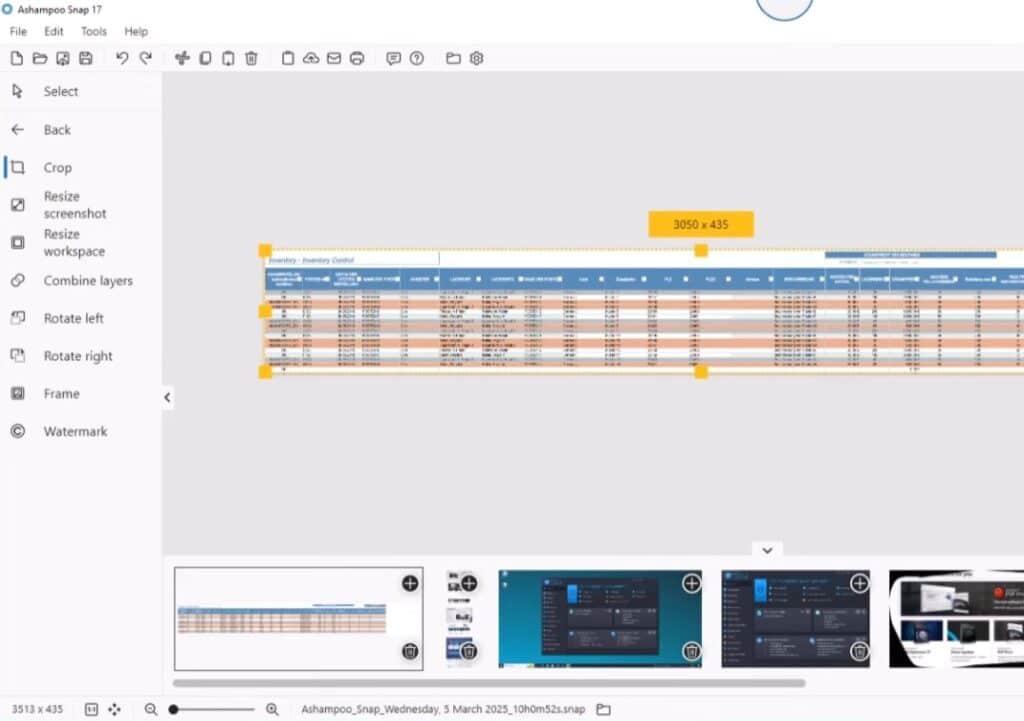
We tested Ashampoo Snap on a standard Windows 11 PC, and installation took under two minutes. On first launch, you’re greeted by a quick tour that highlights the key features — perfect if you’re new to screen recording.
Capture Bar – the heart of Ashampoo Snap
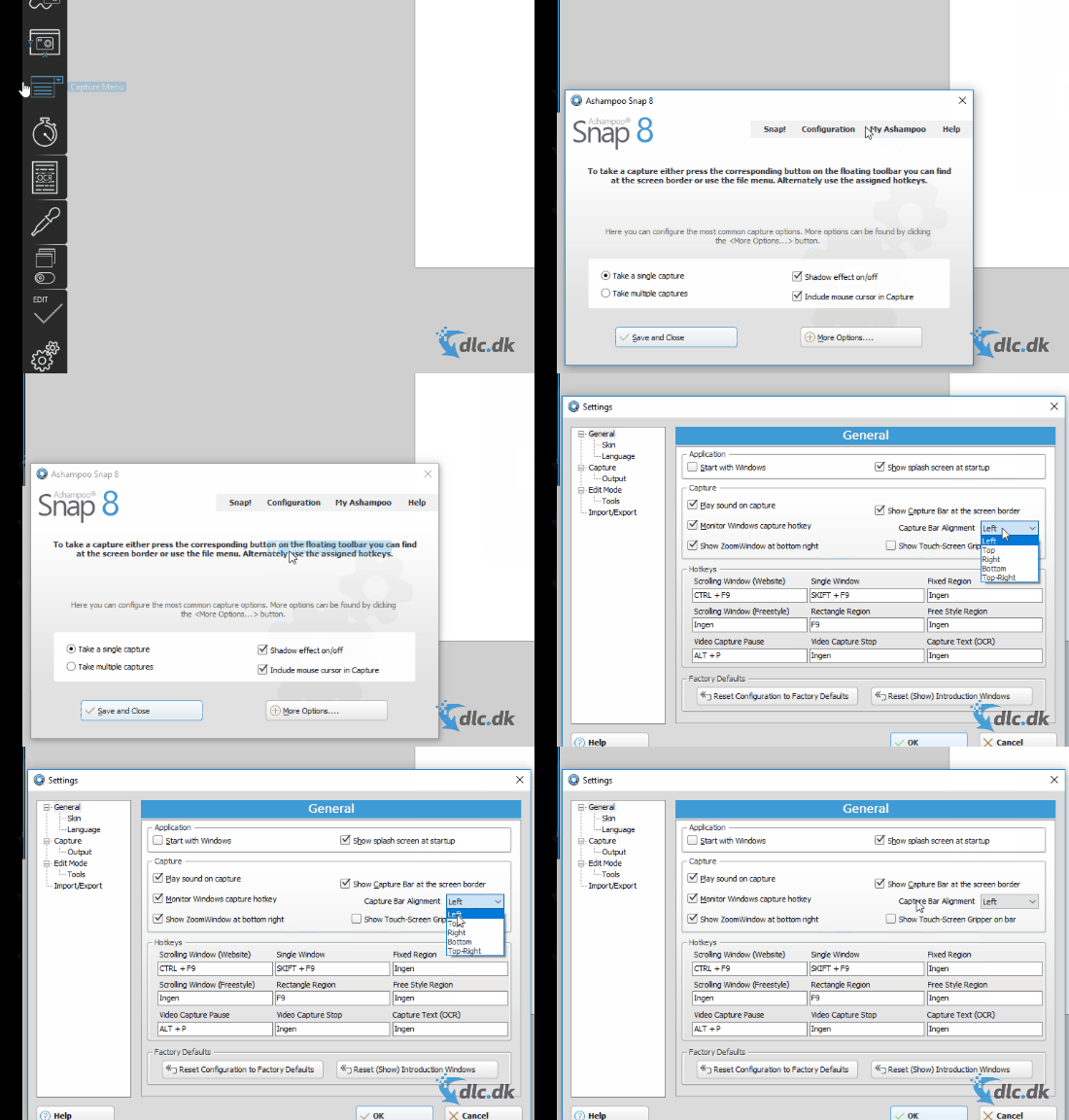
One of the program’s biggest strengths is the Capture Bar — the black, movable toolbar that’s always ready on your screen. From here you can:
• Record the entire screen
• Record a single window
• Select a custom area
• Take screenshots or start video recording
• Open settings and shortcuts
You can freely move the Capture Bar so it never gets in the way — a small detail you quickly learn to appreciate in daily use.
Editing video, images, and GIFs
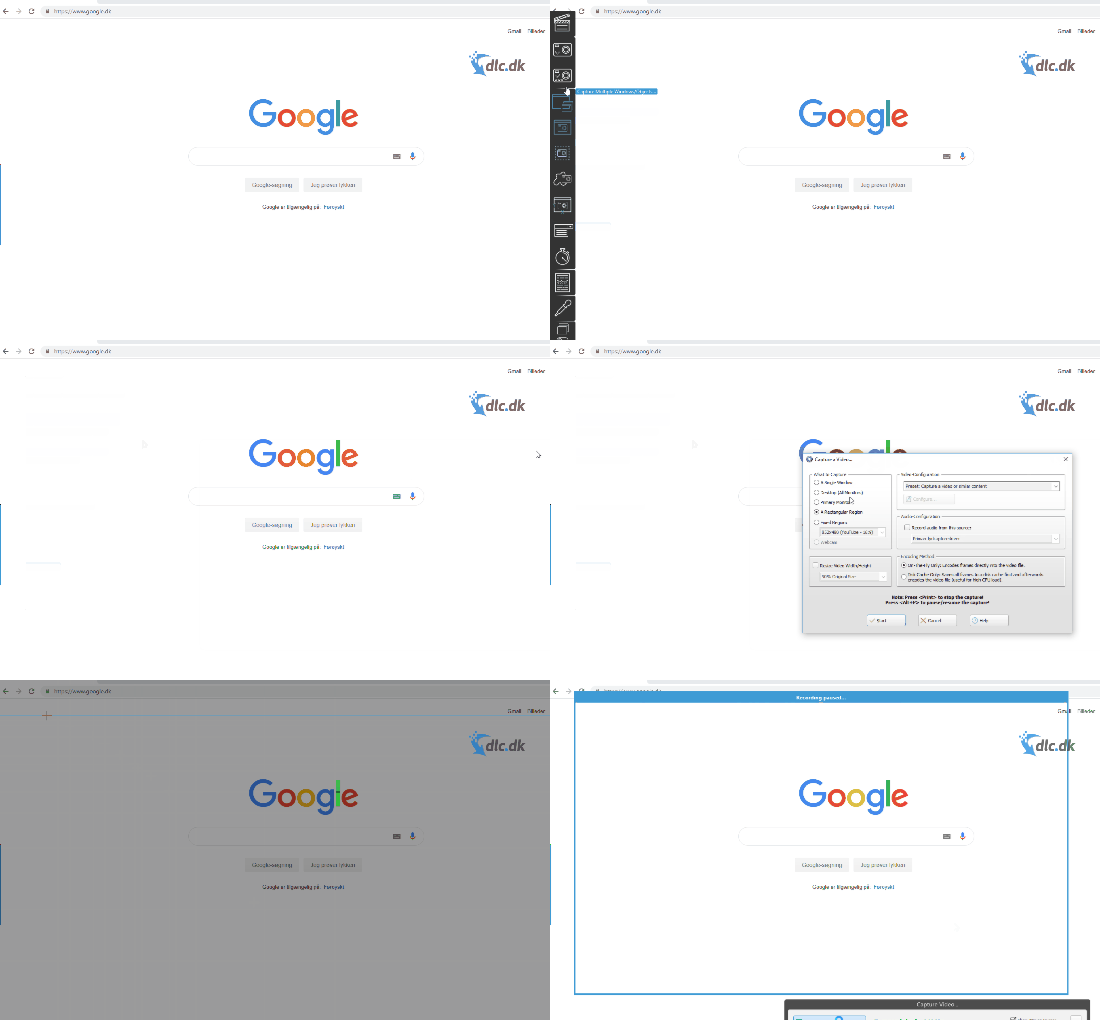
After recording, Ashampoo Snap’s built-in editor opens automatically. Here you can:
• Trim videos
• Add text, arrows, and highlights
• Blur sensitive content
• Draw directly on the image
• Export as video or GIF
The GIF feature is especially handy for tutorials, support materials, or social media. It’s clear that Ashampoo prioritized workflows over just raw feature lists.
High-quality recording – up to 4K
Ashampoo Snap supports screen recording up to 4K resolution — something many competitors limit or hide behind pricey subscriptions. In our tests, recording was stable, even when capturing YouTube playback, with no noticeable drop in quality.
User-friendly – even for beginners
 Edit
Edit
Even with a lot of features, the app never feels heavy. The built-in guides can be toggled on or off as needed, and each feature is explained in plain language.
The interface is available in English, with clear icons and short explanations that make the program easy to use — even if your technical experience is limited.
Alternatives to Ashampoo Snap
If you only need to record GIFs, ScreenToGif is a simple, free alternative. However, it offers far fewer editing options and can’t replace Ashampoo Snap as an all-in-one solution.
Availability and compatibility
Ashampoo Snap is built for Windows only and isn’t available for macOS or Linux. On the plus side, it runs reliably on both Windows 10 and Windows 11.



