
 Martin Jørgensen
DVD Shrink – Rip your DVDs and create backups with ease.
DVD Shrink is a free and popular tool that lets you rip and compress DVD content directly to your computer’s hard drive. In our testing, we were especially impressed by its ease of use, efficiency, and ability to handle copy-protected DVDs, making it one of the best tools we’ve tried in the category of movies and video content.
With DVD Shrink, you can create digital backups of your DVD movies, so you can store them on your computer, an external drive, or a cloud storage service. This is particularly useful if you have a large DVD collection taking up shelf space—or if you simply want to avoid scratches and damage to your discs.
Although DVD Shrink was originally developed for Windows XP, it still runs reliably on newer versions like Windows 10 and 11, often just by using compatibility mode. We tested DVD Shrink—software we’ve used since the XP days—on Windows 11 in compatibility mode. That makes it a long-lasting and still relevant tool in a digital era where physical media are fading, yet continue to hold sentimental and collector value.
Whether you want to rescue old home recordings, compress DVDs to save space, or simply build a secure digital archive of your favorite films, DVD Shrink remains one of the best and most accessible free options available today.
What can DVD Shrink do?
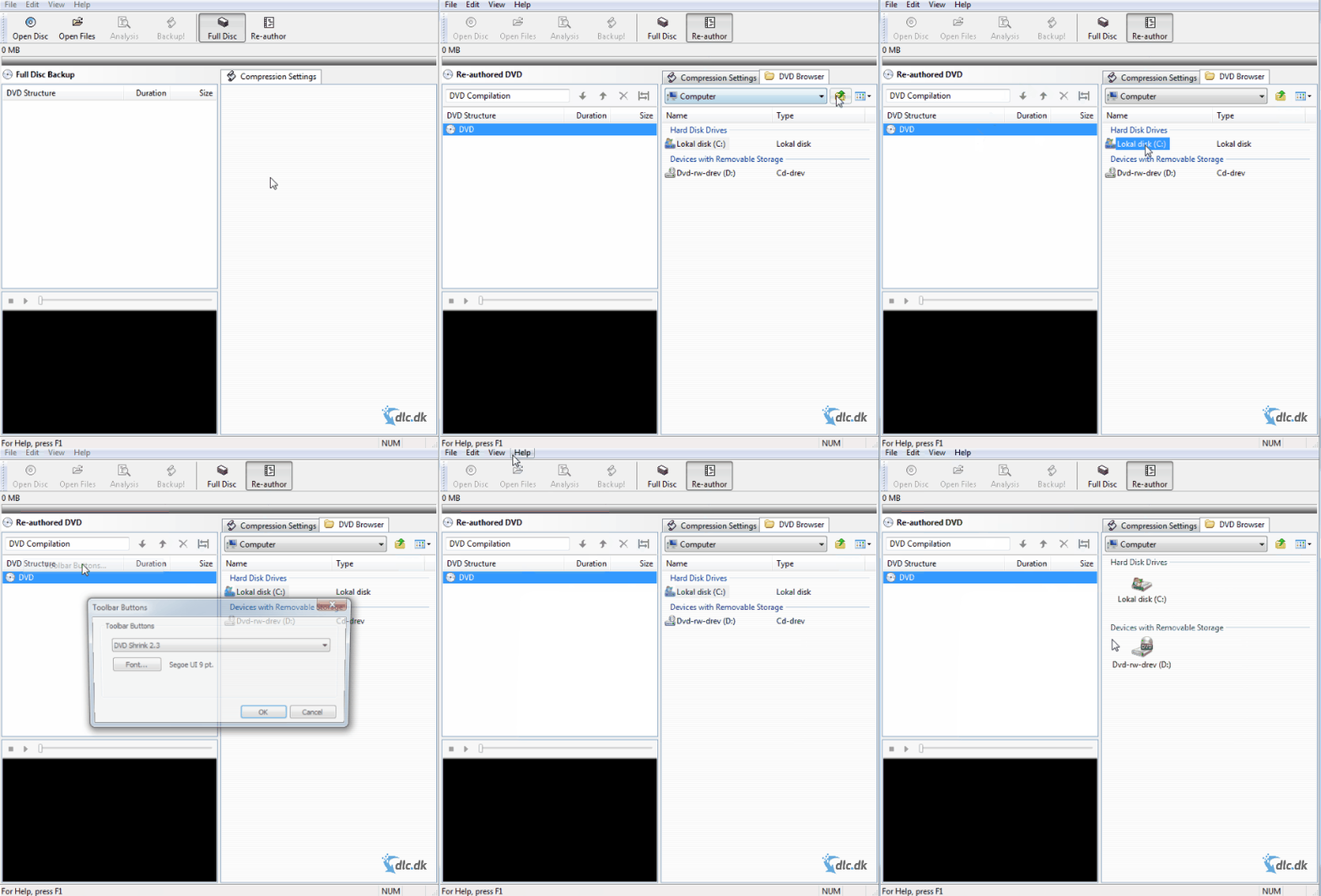
With DVD Shrink, you can:
- Rip entire DVDs or only selected chapters
You don’t have to copy the whole movie or all bonus material—you can keep exactly the parts you want. That gives you full control over the content and makes it easy to remove, for example, long credits or ads. - Compress video so it takes up less space
With the built-in compression feature, you can reduce the size of the files without losing noticeable picture quality. This is especially useful if storage is limited or you want to keep many movies on one device. - Remove unwanted audio tracks or subtitles
If you only need a specific language track—or just the original audio—you can remove extra audio and subtitle tracks in a few clicks. This makes the file smaller and playback simpler. - Create ISO files or VIDEO_TS folders, ready to burn
You can save the ripped content as an ISO image (a complete disc image) or as a VIDEO_TS folder, which most DVD burning tools can use directly. That gives you maximum flexibility based on your needs. - Decrypt copy‑protected DVDs (where legal in your country)
Many DVDs use region codes or copy protection, and DVD Shrink can sometimes decrypt them automatically so you can still create a backup. Always check your local laws to ensure it’s permitted where you live.
In other words, it’s a very versatile and powerful tool for both beginners and advanced users. Whether you’re backing up favorite movies, editing your own DVD projects, or freeing up space at home, DVD Shrink gives you everything you need in one compact, easy-to-understand app—in short, a complete tool for backing up DVD movies without unnecessary complexity.
Usability front and center
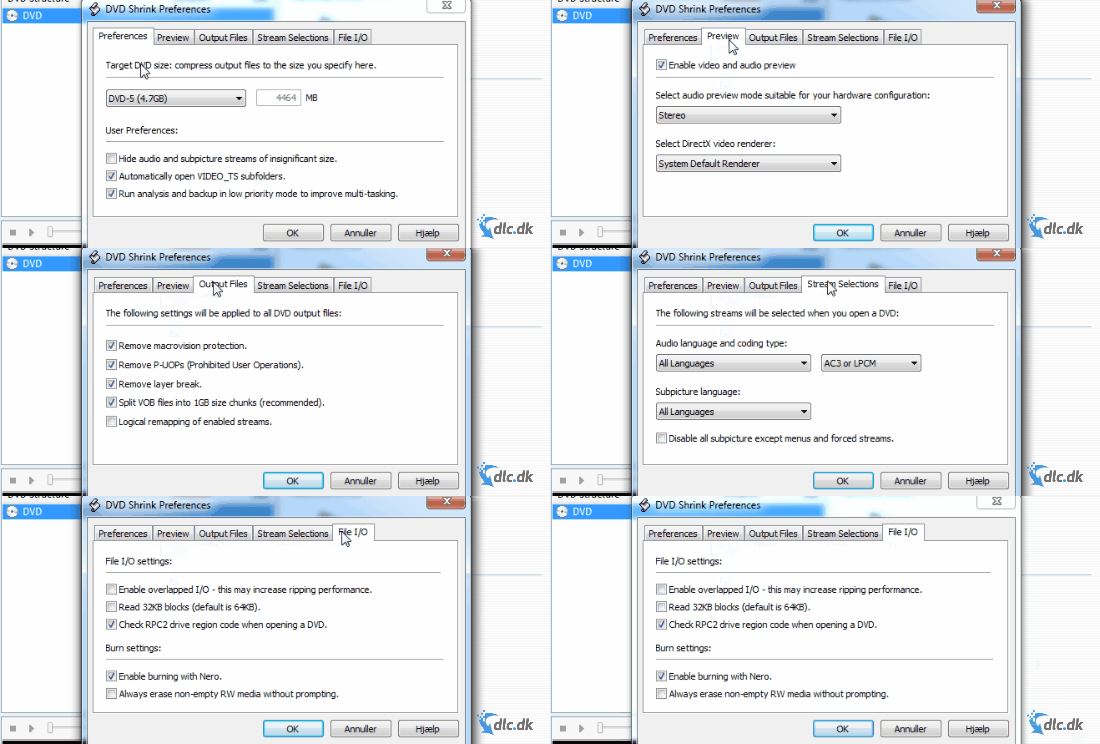
One of DVD Shrink’s biggest strengths is how easy it is to use—and that’s exactly why the program has stayed popular for over 20 years. You don’t need to be a tech expert to make your own DVD backups—everything is designed with user-friendliness in mind.
With just a few clicks, you can:
- Load a DVD
When you insert a disc, DVD Shrink analyzes the content and shows an overview of the main movie, bonus features, audio tracks, and subtitles. - Choose what to keep
Decide whether to keep the full movie or only the most important chapters. Want to skip trailers, behind‑the‑scenes clips, or extra language tracks? No problem—simply uncheck them in the list. - Select the compression level
Use the built‑in compression slider to match your available space. A percentage indicator shows how much compression is applied, helping you balance file size and picture quality. - Start the ripping process
When you’re ready, start ripping with one click. The DVD is converted and compressed to your chosen format (ISO or VIDEO_TS) and saved directly to your drive.
The program also offers a visual preview feature so you can confirm scenes and content before ripping—a smart way to avoid mistakes. Its intuitive interface and logical layout make navigation easy, even if you’ve never ripped a DVD before.
All of this makes DVD Shrink ideal for beginners and intermediate users alike who want a fast, safe, and free way to safeguard their DVD collection digitally.
Perfect companion to disc-burning software
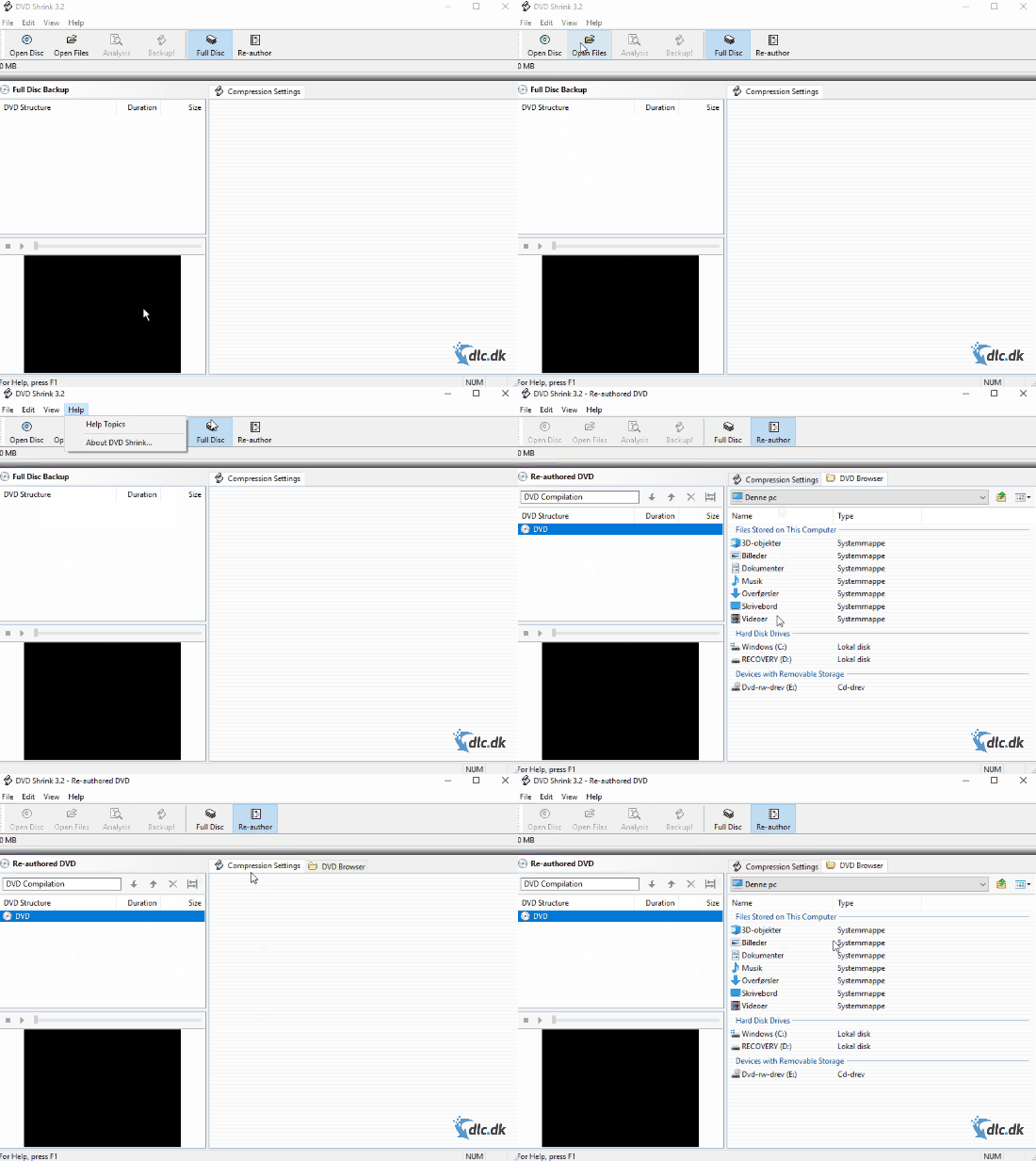
DVD Shrink isn’t a disc‑burning program by itself, but it works especially well with tools like CDBurnerXP or ImgBurn, both of which are free and easy to use. That means you can easily integrate DVD Shrink into a complete workflow for backing up and restoring your DVDs.
In practice, you can:
- Tweak and edit your DVD structure in DVD Shrink
Before saving, remove unwanted elements like extra audio tracks, subtitles, or trailers. You can also control how the menu behaves and remove region codes to make the disc region‑free. - Save everything as an ISO file
Once you’re happy, save the entire DVD as an ISO image—a 1:1 copy of the full disc—perfect for archiving and later burning. The ISO format is compatible with virtually all burning and media tools. - Burn it with your preferred app afterwards
With your ISO or VIDEO_TS folder ready, use a free tool like ImgBurn or CDBurnerXP to burn it to a new DVD. This gives you a complete copy of your original disc—either for use in a DVD player or for archival purposes.
This two‑step process—ripping and editing in DVD Shrink, then burning with a separate program—gives you maximum flexibility and better control over the entire DVD workflow. You can pick the software you prefer for each step and tailor the result to your needs.
Whether you’re restoring a damaged disc, sharing family home videos, or making a travel copy of your movie collection, DVD Shrink makes it simple—and works smoothly with the most popular free burning tools.
Support and availability
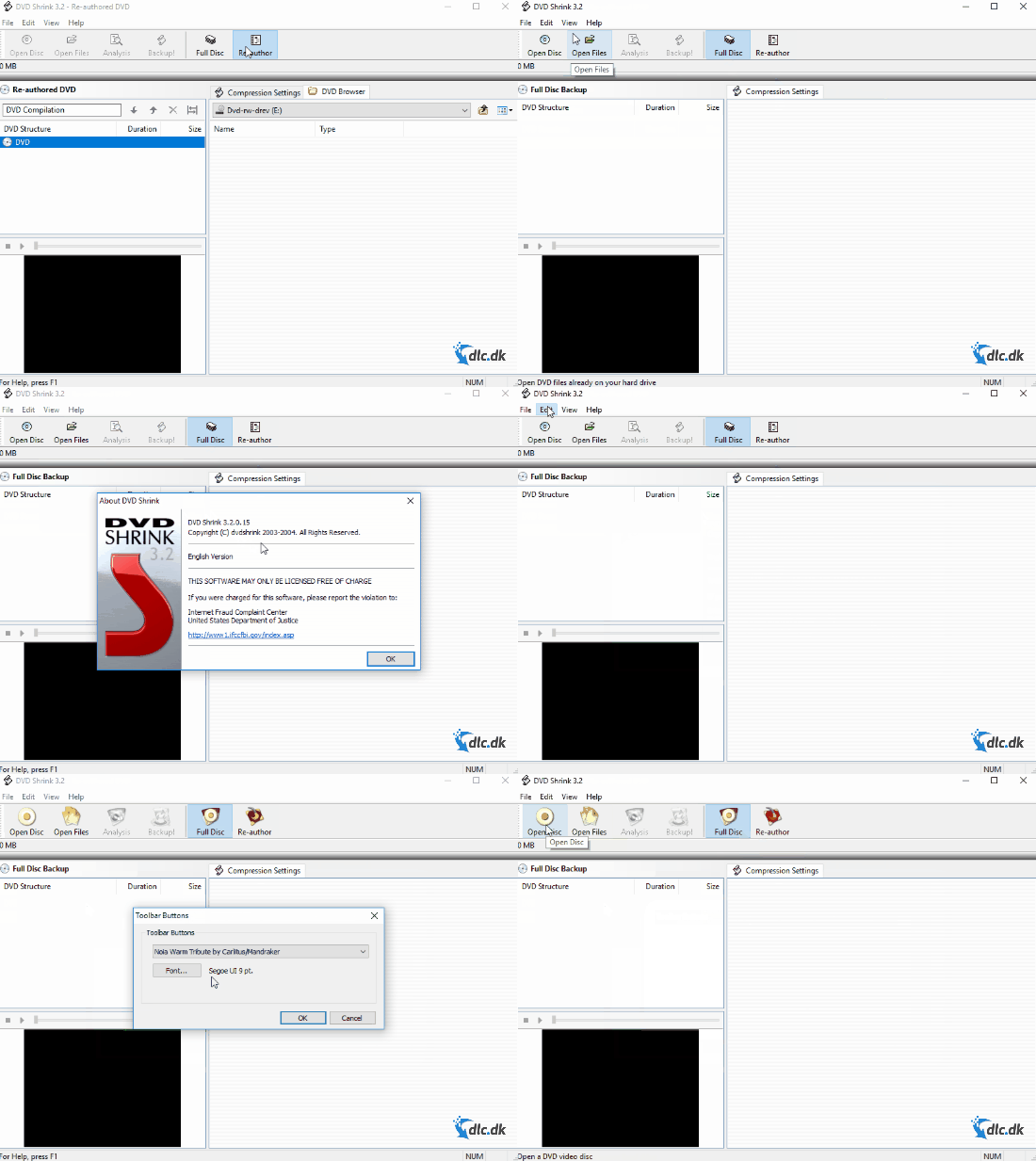
Although development of DVD Shrink has ended, you can still find:
- An official support page with FAQs
- Step‑by‑step tutorials online
- Community forums for tips and troubleshooting
Top 5 Q&A about DVD Shrink
Yes, DVD Shrink is completely free. Development has stopped, but the program still runs reliably on newer versions of Windows.
We tested DVD Shrink on Windows 11, where it ran fine in compatibility mode. You may need small tweaks, but it still works on modern systems.
DVD Shrink can often handle region codes and simple copy protection. Advanced DRM may require additional software. Always check the laws in your country.
You can save your backups as ISO files or as a VIDEO_TS folder. Both formats are easy to burn to DVD with tools like ImgBurn or CDBurnerXP.
In our test, it took about 15 minutes to rip and compress a 7 GB movie to 4.5 GB. The time depends on your computer’s speed and the size of the DVD.



