
 Martin Jørgensen
EaseUS Disk Copy – Safe and easy cloning of hard drives
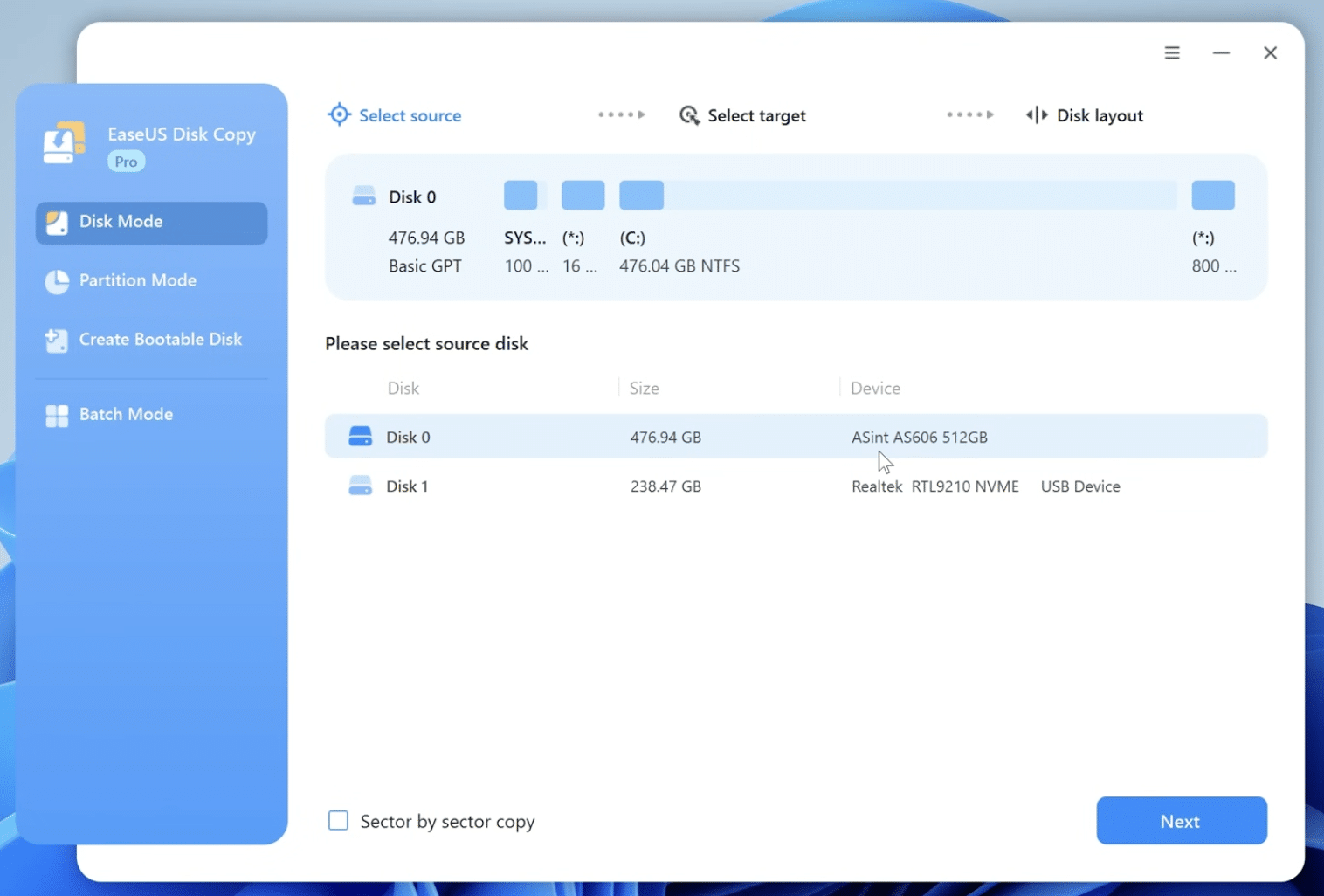
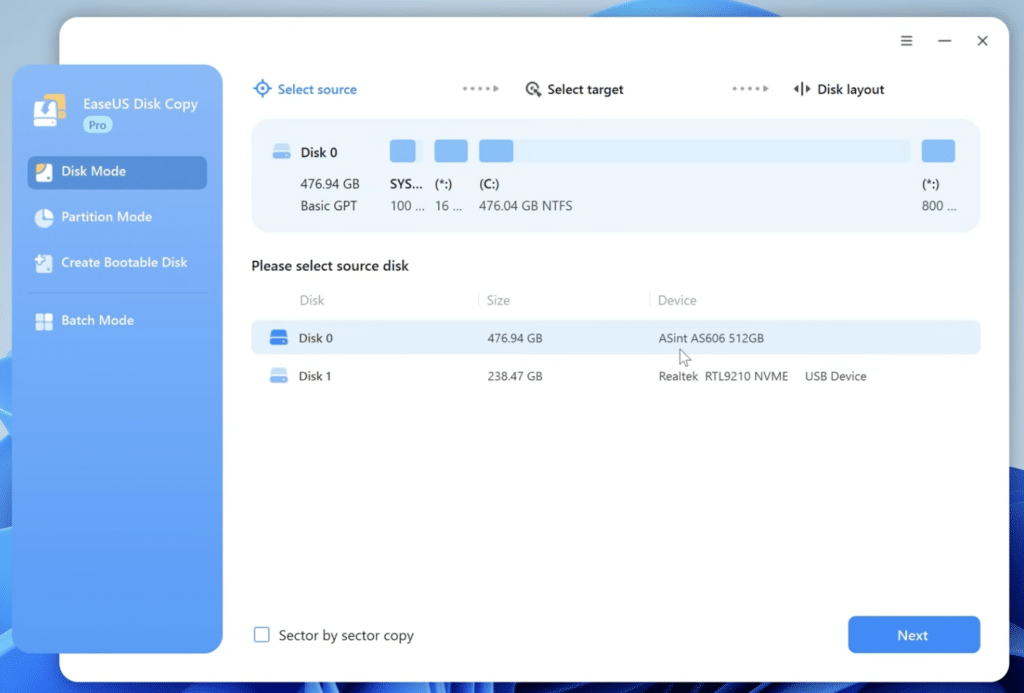
EaseUS Disk Copy is a reliable solution when you need to upgrade or replace your hard drive without reinstalling Windows, apps, or data.
With just a few clicks, you can create a complete, identical copy of your existing drive—perfect for disk upgrades, backup, or recovery after drive issues.
The program requires the new drive to be installed directly in the system (external USB and FireWire drives are not supported during cloning).
Features in EaseUS Disk Copy
✅ Diskkloning ved opgradering eller backup
Quickly and safely copy your entire hard drive to a new drive without starting from scratch.
✅ Data cloning for all types of hard drives
Recover data through direct cloning—compatible with both traditional HDDs and SSDs.
✅ Sector-by-sector copy
Ensures a completely identical copy of the original, including hidden partitions and system files.
✅ Partition and disk copying
Supports cloning entire disks or individual partitions.
✅ Broad hardware support
Compatible with SATA I, SATA II, SCSI, FireWire (IEEE 1394), and USB-connected hard drives.
✅ Cloning inaccessible disks
Option to clone drives that cannot be accessed directly from Windows.
✅ Disk space handling
Intelligent data transfer if the target drive has less space than the original.
✅ Supports hard drives up to 1 TB
Ideal for both older and modern systems.
✅ Built-in CD/DVD burning software
Create bootable cloning tools directly on CD/DVD.
✅ User-friendly graphical interface
Clear, intuitive design that makes cloning quick and easy.
Ease of use and compatibility
EaseUS Disk Copy features a very simple, user-friendly graphical setup that lets you complete a full disk clone without advanced technical knowledge.
The software is recommended for Windows users and works best with internal drives installed via SATA, SCSI, or similar interfaces.
Download EASEUS Disk Copy
Top five tips and tricks for EaseUS Disk Copy
1. Use sector-by-sector copying if you want a 1:1 clone
If you want to be absolutely sure all data—including hidden partitions and system files—is copied exactly, choose sector-by-sector copying. It takes longer but ensures a 100% identical result.
2. Make sure the target drive is the same size or larger
EaseUS Disk Copy can handle smaller target drives, but you may run into issues if there isn’t enough space. For a trouble-free clone, the target drive should generally match or exceed the source drive’s capacity.
3. Always create a fresh backup before you start
Although EaseUS Disk Copy is reliable, it’s always wise to make a separate backup of important files before cloning—just in case.
4. Connect the target drive internally, not via USB
For the best stability and compatibility, the new hard drive should be connected directly to the motherboard via SATA or SCSI. External USB or FireWire drives are not supported during the cloning process.
5. Use the burning feature to create a bootable disc
If you need to clone a system drive where Windows shouldn’t be active during copying, use EaseUS’ built-in burning software to create a bootable CD/DVD and start the cloning process outside of Windows.
FAQ about EaseUS Disk Copy
Can I clone a larger drive to a smaller SSD?
Yes, EaseUS Disk Copy can clone from a larger hard drive to a smaller SSD, as long as the actual data fits on the new drive. During cloning, you can automatically adjust partitions so everything fits.
Can I clone Windows without reinstalling?
Yes. With EaseUS Disk Copy, you can clone your entire Windows installation—including system files, programs, and settings—so you won’t need to reinstall anything manually.
Do both the source and target drives need to be installed internally?
Yes. To ensure a stable and efficient clone, EaseUS Disk Copy requires both the source and target drives to be connected directly to the motherboard (e.g., via SATA). External USB and FireWire drives are not supported during cloning.
Is sector-by-sector copying necessary?
Only if you want an exact, bit-for-bit copy of the entire hard drive, including hidden partitions. For everyday use, standard cloning is often faster and sufficient.
Does EaseUS Disk Copy support drives larger than 1 TB?
Newer versions do, yes! Older editions may have limitations, so we recommend using the latest version if you’re working with large hard drives or modern SSDs.



