
 Martin Jørgensen
Download Folder Guard – protect folders and system features in Windows
Folder Guard is a Windows security tool that gives you full control over who can access your files, folders, and selected system features. It’s especially useful if multiple people share the same PC, or if you want to hide and protect private data from prying eyes.
We tested Folder Guard on a standard Windows 11 PC. Installation took under two minutes, and the program was ready to use without a reboot. The initial setup requires a bit of thought, but the features are very flexible.
What can you use Folder Guard for?
Folder Guard differs from traditional antivirus by focusing on access control rather than malware. It works as an extra layer of security on top of Windows’ own permissions.
You can, for example:
• Password-protect folders and files
• Hide folders completely so they don’t appear in File Explorer
• Block access to Control Panel, Settings, and system tools
• Prevent the installation or running of specific programs
• Lock external drives and USB devices
During testing, we used the program to hide a private folder with documents. The folder was completely invisible until the correct password was entered — even via search and shortcuts.
Interface and setup
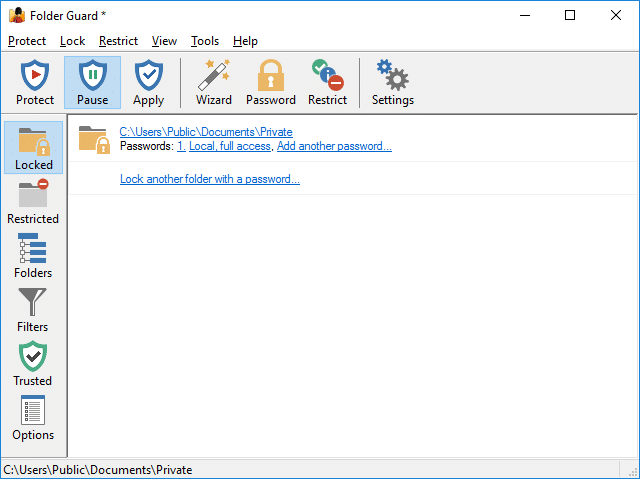
The interface is classic, Windows-style and a bit technical in its look. It isn’t as modern as newer security suites, but everything is functional and logically organized.
There are predefined protection levels, making it easy to get started. Advanced users can fine-tune rules down to the smallest detail.
Important: If you forget your password, regaining access can be difficult. Folder Guard is uncompromising on this point — which is both a strength and a potential pitfall.
Folder Guard vs Windows’ built-in features
Windows already has basic user permissions, but Folder Guard goes much further.
Where Windows often requires separate user accounts, Folder Guard can manage access within the same account. That makes it especially useful for families, office PCs, and shared computers.
We also found Folder Guard more effective at hiding folders than Windows’ built-in “hidden files,” which can easily be revealed again.
Who should use Folder Guard?
Folder Guard isn’t for everyone, but it serves a very clear audience:
• Users of a shared Windows PC
• Parents who want to limit kids’ access
• Small offices without domain management
• Users who need local data protection
• Older systems where modern enterprise solutions are overkill
However, it’s not a replacement for encryption or full disk security — BitLocker or similar is still the better choice.
Top 5 tips for Folder Guard
Use “Read-only” before fully locking
Test folders as read-only first so you don’t accidentally lock yourself out.
Hide folders instead of locking them
Hidden folders draw less attention than folders that prompt for a password.
Protect system tools on shared PCs
Block access to Control Panel and Settings to prevent unwanted changes.
Create a safe backup before setup
If something goes wrong, it’s good to have your files available elsewhere.
Use different profiles for different needs
Folder Guard supports multiple protection profiles — useful if your needs change over time.



