
 Martin Jørgensen
gPhotoShow Free – Create your own photo slideshows as a screensaver
gPhotoShow Free is a free Windows program that lets you create personalized photo slideshows that automatically play as your screensaver. It’s designed for users who want more control and flexibility than Windows’ built-in screensaver options provide.
We tested gPhotoShow Free on a standard Windows 11 PC, and installation was quick with no bundled offers or annoying steps. The program is very let at gå and only requires you to choose one or more image folders—the rest it handles automatically.
Features and capabilities
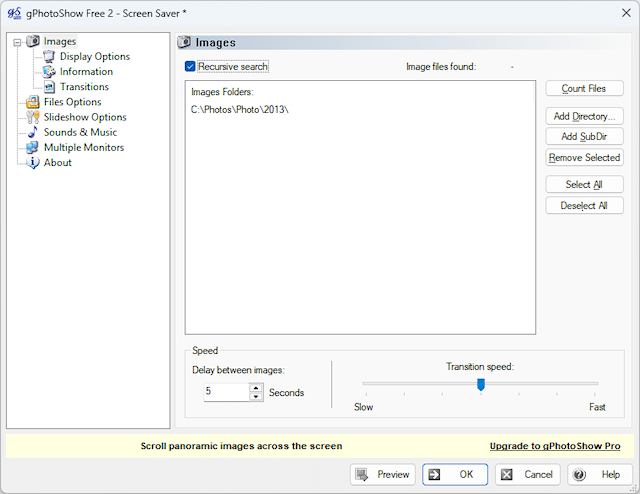
gPhotoShow Free supports the most common image formats and can hente billeder from local folders, network drives, and external storage devices. You can choose whether images display sequentially or at random, and adjust transitions, zoom effects, and display time.
It’s clear the program focuses on function over unnecessary design. The interface is simple yet intuitive, and you can find your way around quickly—even if you’ve never used similar software.
Everyday use as a screensaver
One of gPhotoShow Free’s strengths is that it integrates directly with Windows’ screensaver settings. That means once it’s set up, it runs automatically in the background.
In practice, it works well as a digital photo frame—for example, on a home PC, office computer, or information display. In our tests, the screensaver ran smoothly with no stutter and low resource usage.
Limitations in the free version
As freeware, gPhotoShow Free is intentionally streamlined. Advanced features and extra effects are limited compared to more full-featured slideshow programs. For most users, however, the free version will be more than sufficient.
Top 5 tips for gPhotoShow Free
Use separate folders for different slideshows
Create multiple image folders so you can easily switch between, for example, vacation photos, family, or nature shots.
Adjust the display time per image
A longer display time creates a calmer slideshow—especially suitable for office use.
Enable random order
It adds variety so the screensaver doesn’t feel the same every time.
Use high-resolution images
This delivers the best results on modern displays and larger monitors.
Manually test the screensaver
Use Windows’ preview to make sure everything displays correctly.



