
 Martin Jørgensen
Open-Shell: Bring the classic Windows look back to your Start menu.
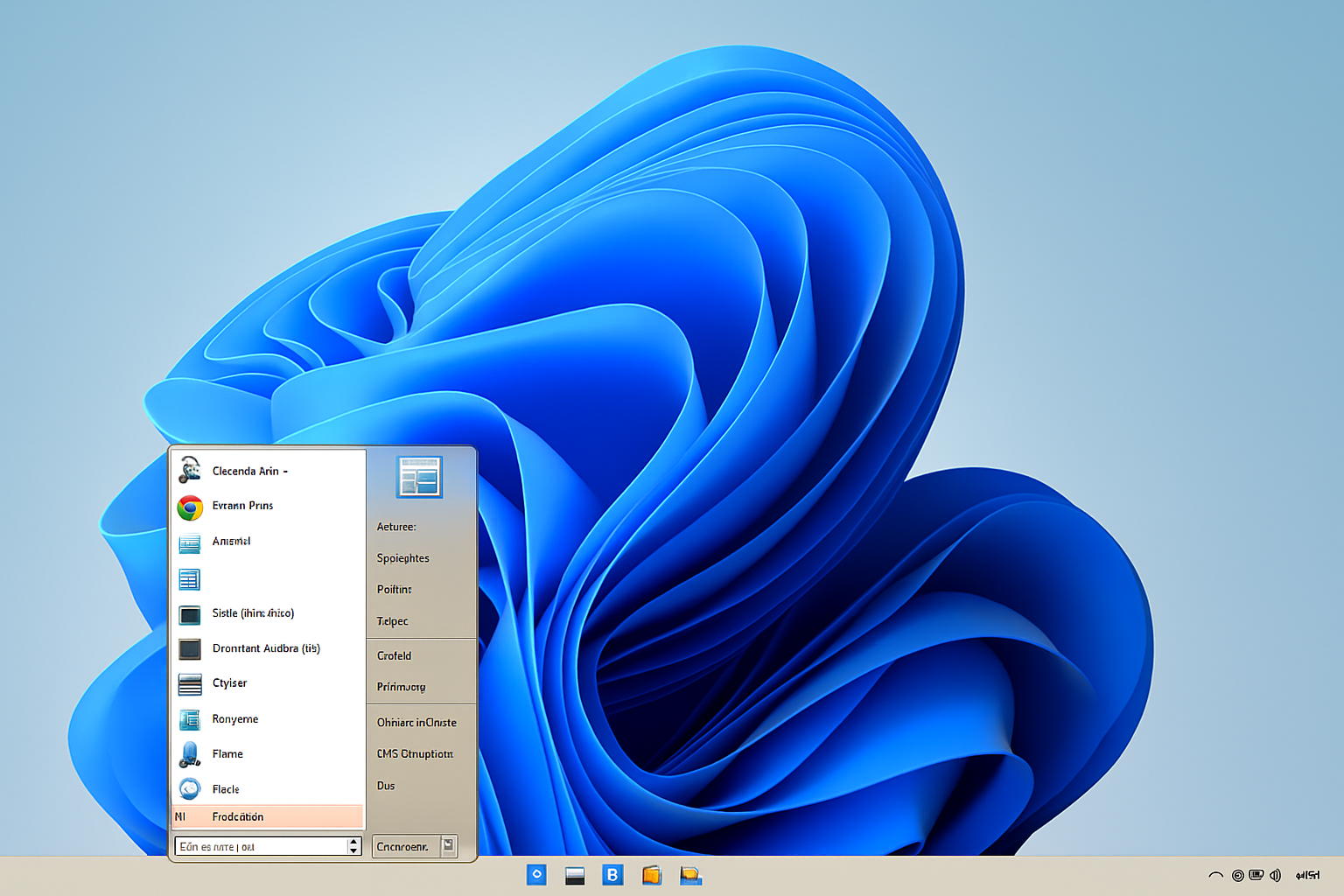
Open-Shell (formerly known as Classic Shell) is a free, open-source program for Windows that restores the classic Start menu from earlier versions of Windows. It’s especially popular with users who aren’t fans of the modern Start menu in Windows 10 and 11 and want a more straightforward, familiar experience.
Classic Start menu on modern Windows
When you install Open-Shell, you can choose from several classic layouts—including the iconic Start menu from Windows XP or Windows 7. The program adds an extra Start button, and you can disable the original Windows menu entirely if you want a pure classic experience.
You can also fine-tune the Start menu’s look: change icons, fonts, colors, folder structure, and what appears where. It’s the perfect tool for users who want maximum control over their desktop environment.
Features and options
- Klassisk startmenu med flere layoutvalg (XP, Vista, 7)
- Compatible with both Windows 10 and Windows 11
- Highly customizable — both visually and functionally
- Fast access to apps, documents, and system settings
- Supports skins, icons, and scripting
- Option to disable Windows’ default Start menu
Performance and ease of use
Open-Shell is easy to install and uses minimal system resources. It runs quickly and reliably, and it barely affects your PC’s startup time. The interface can look a bit technical at first, but most features include helpful explanations. Everyday users can use it out of the box with one of the default themes.
Is it safe and maintained?
Although the original Classic Shell project was discontinued in 2017, Open-Shell is a community-driven fork that’s actively updated by volunteer developers. The project has been running for years and is hosted on GitHub with open-source code. That makes it transparent and safe to use—especially compared to closed third-party menu alternatives.
Top 5 tips and tricks
- Brug Windows 7-skin for et mere moderne men stadig klassisk look.
- Create your own shortcuts in the Start menu for faster access to frequently used folders.
- Disable the new Start menu entirely so you only use Open-Shell.
- Use keyboard shortcuts with Open-Shell for even faster navigation.
- Back up your settings — Open-Shell lets you export/import configurations.
Which systems is Open-Shell compatible with?
- ✅ Windows 7 (limited relevance)
- ✅ Windows 10
- ✅ Windows 11
- ❌ Not supported on Mac, Linux, Android, or iOS.
A must-have for nostalgic Windows users
Open-Shell is perfect if you can’t get used to Windows’ new Start menu, or if you just want more control over your system’s look and structure. It’s free, stable, and easy to customize — and it works smoothly on both Windows 10 and 11.



