
 Martin Jørgensen
Paint.NET – A free, versatile image editor for Windows.
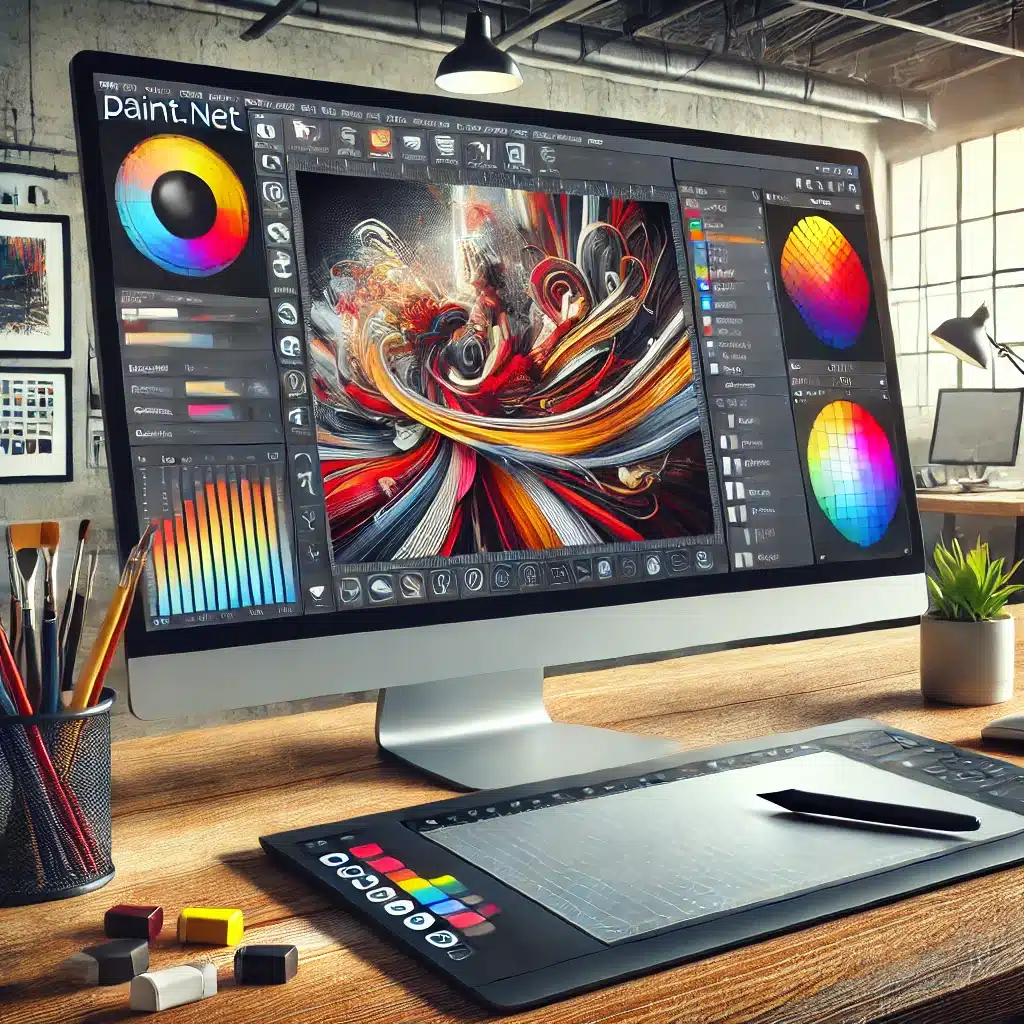
Paint.NET is a free image editor designed for Windows users who want a powerful yet user-friendly alternative to pricier software like Adobe Photoshop. Originally developed as a college project at Washington State University, Paint.NET has grown into a comprehensive tool offering a wide range of features for both beginners and experienced users. With Paint.NET, you can also learn and improve your photo-editing skills in a creative way.
Features and capabilities
- Layer-based editing: Like advanced image editors, the program supports layers, letting you work on different elements of an image independently.
- Unlimited undo: With an unlimited undo feature, you can experiment freely without worrying about losing earlier work.
- Special effects: The program includes a range of built-in effects for enhancing and editing images, including blur, sharpen, distort, noise reduction, and more.
- Plugin support: Extend the program even further with a large selection of plugins that add new effects, adjustments, and support for additional file formats. These plugins are available via the official forum.
System requirements

To run the program, your PC needs Windows 10 or a newer version. The app is optimized to take advantage of modern hardware, ensuring a fast and responsive experience.
Paint.NET is a solid choice for free photo editing

This program is an excellent choice for Windows users looking for a free and efficient image editor. With its user-friendly interface, layer support, and the ability to expand functionality with plugins, it offers many of the tools both hobbyists and professionals need.
It’s especially popular with those who need a fast, lightweight alternative to heavier editing software like Photoshop. It doesn’t require a powerful computer and launches in seconds, making it ideal for quick edits or everyday use. While it may not have every advanced feature found in premium software, it’s still highly capable and gives you essential tools like layers, effects, color adjustments, and precision tools.
One of the major advantages is its active user community, which constantly contributes new plugins and tutorials that make the program even more versatile. This means you can tailor your experience and add extra features as needed. With regular updates and a dedicated developer behind it, Paint.NET remains a stable and reliable solution for anyone who wants a free image editor without compromising on quality.
Whether you work on photo editing, digital art, or graphic design, Paint.NET offers a strong balance of ease of use and functionality — all at no cost. 🚀🎨
Download Paint.NET
To download the latest version of Paint.NET, visit the official website:
➡ getpaint.net
The program is completely free and works on Windows 10 and newer versions. It delivers a fast, user-friendly editing experience with support for layers, special effects, and plugins.
How to install Paint.NET:
- Go to the official website using the link above.
- Click “Download” and choose the latest version of Paint.NET.
- Run the installer and follow the setup wizard.
- Launch Paint.NET — you’re ready to start editing!
Need help getting started? Visit Paint.NET’s official forum for tutorials and community support. 🎨🚀
Top 10 tips for Paint.NET
- Learn to use layers — Layer-based editing is one of the program’s strongest features. Use layers to organize your image and easily edit individual elements without affecting the entire picture.
- How to save in Paint.NET — Always save your work in the program’s native format (.PDN) if you want to keep all layers and edit history. For final export, use PNG or JPEG.
- Use keyboard shortcuts — Use shortcuts like Ctrl+Z (Undo) and Ctrl+Shift+Z (Redo) for faster editing.
- Install plugins for more features — Extend the program’s capabilities with plugins that add more effects, filters, and file formats.
- Try Practical Paint.NET by Phillip Whitt — This book provides a detailed guide to mastering Paint.NET, no matter your level.
- Use special effects — Experiment with built-in effects like Gaussian Blur and Levels to enhance your images.
- Retouch photos easily — Use the Clone Stamp tool to remove unwanted objects or blemishes.
- Leverage free resources — There are plenty of free tutorials and YouTube videos to help you learn advanced techniques.
- Work in high resolution — If you’re creating digital art, start with a high resolution for better detail and easier printing later.
- Use it as a free drawing app with many features — The program isn’t just for photo editing; it’s also excellent for digital drawing with a mouse or tablet.



