

 Martin Jørgensen
Download PotPlayer and get a media player that just works!
Tired of media players that either lack features or eat up your PC’s resources? Then it’s worth taking a closer look at PotPlayer—a free, advanced media player for Windows that delivers high performance, support for a wide range of video formats, and 3D playback for your home theater.
PotPlayer is built with a focus on usability and flexibility—and it shows. You can use it as your default player and as a powerful tool for more demanding users.
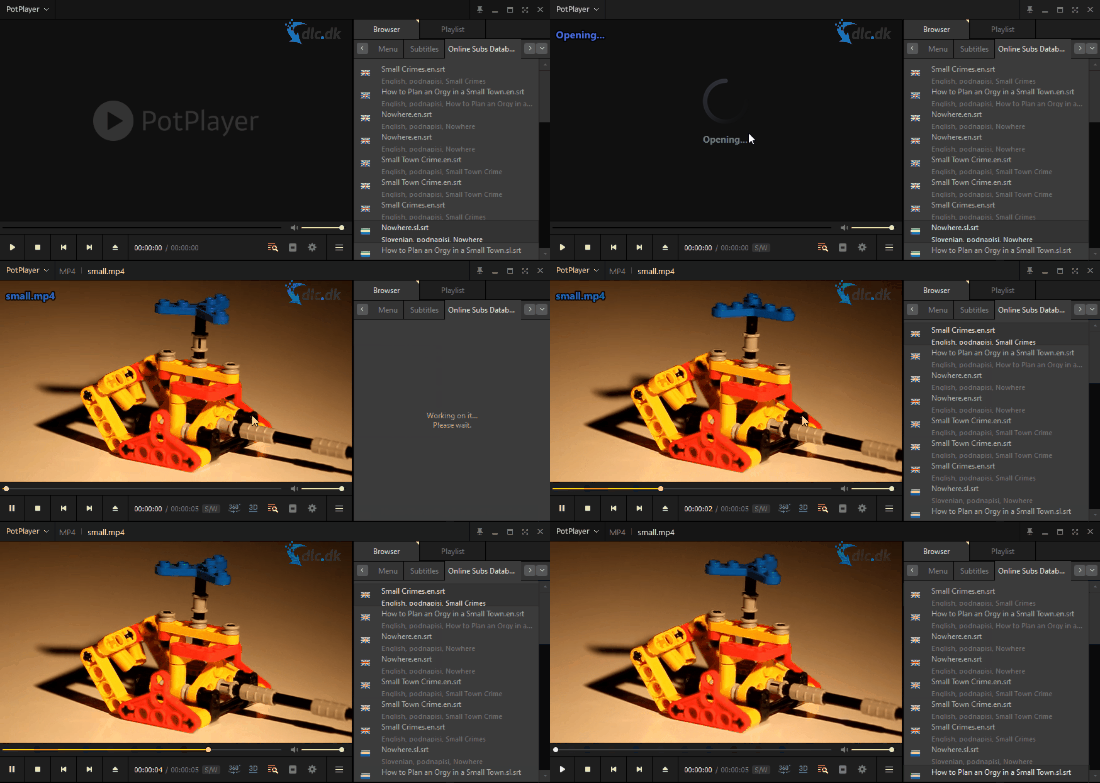
Core features are excellent
PotPlayer supports the most popular video and audio formats, including:
- AVI, MP4, MKV, FLV, MOV, WMV, MPEG
- MP3, AAC, FLAC, WAV, OGG
On top of that, the program offers very low CPU usage, making it ideal for both older PCs and laptops. It’s rare to find a media player that is both resource-friendly and extremely responsive when playing even heavy HD or 4K videos.
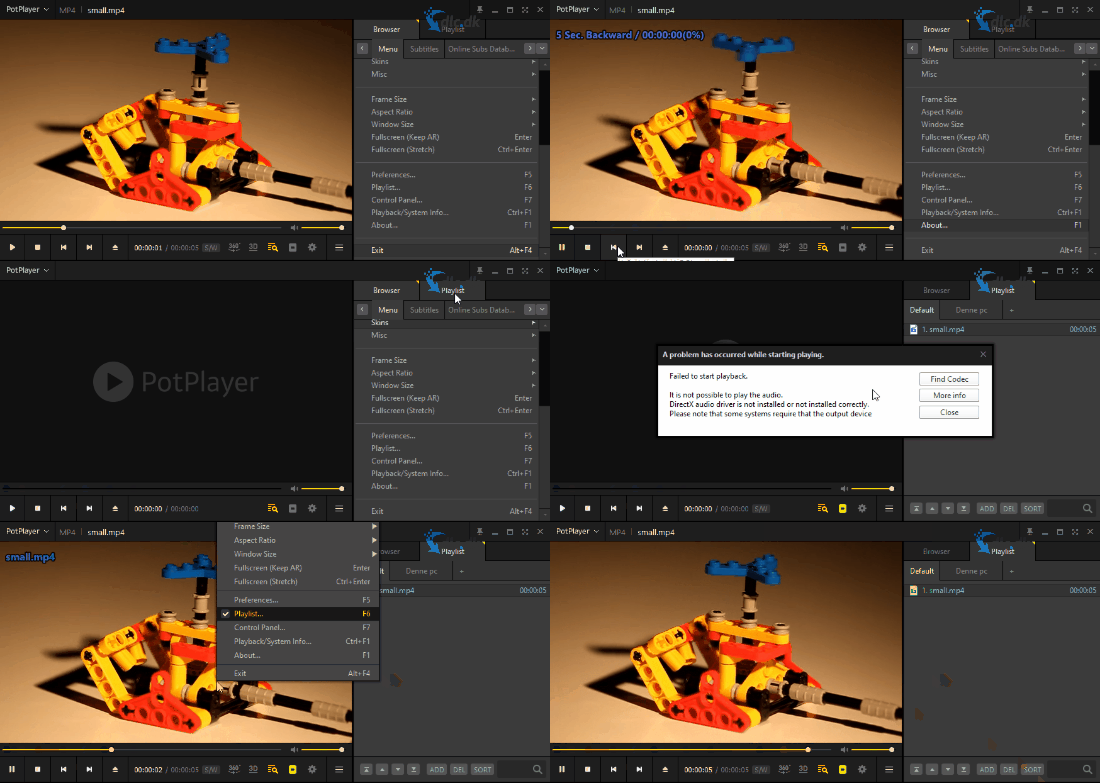
3D functionality for visual enthusiasts
A standout feature that sets PotPlayer apart from many competitors is its support for 3D video formats. If you have a compatible display and 3D glasses, you can play 3D content in multiple formats, including side-by-side, top/bottom, and anaglyph.
That makes PotPlayer ideal for home theater enthusiasts who want to get the most out of their setup.
Smart codec handling
PotPlayer comes with an impressive set of built-in codecs, but on the rare occasion you run into a format it can’t play, it still has you covered. The app automatically suggests the missing codecs and offers to download them with one click.
That means you don’t have to mess with external downloads and configurations—the whole process is handled internally and securely.
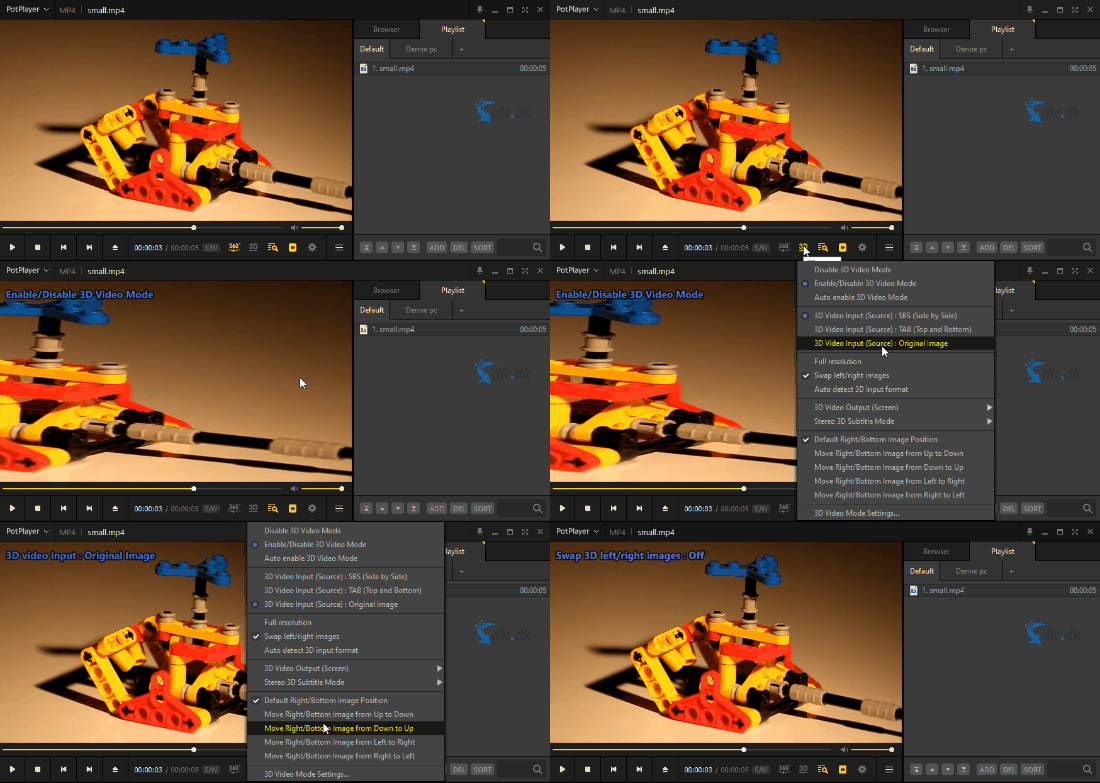
Built-in file browser and easy file navigation
PotPlayer includes a built-in file browser, making it easy to find and load videos directly from the player. You don’t have to open File Explorer and drag files in—everything happens within the same interface.
You also get a built-in playlist feature so you can organize your videos and play them in sequence—perfect for lecture series, TV shows, or music videos.
Design and interface
PotPlayer’s design is dark, minimalist, and functional—perfect for media playback. The focus is on the video itself, but you can access advanced features via right-click menus and configuration tabs.
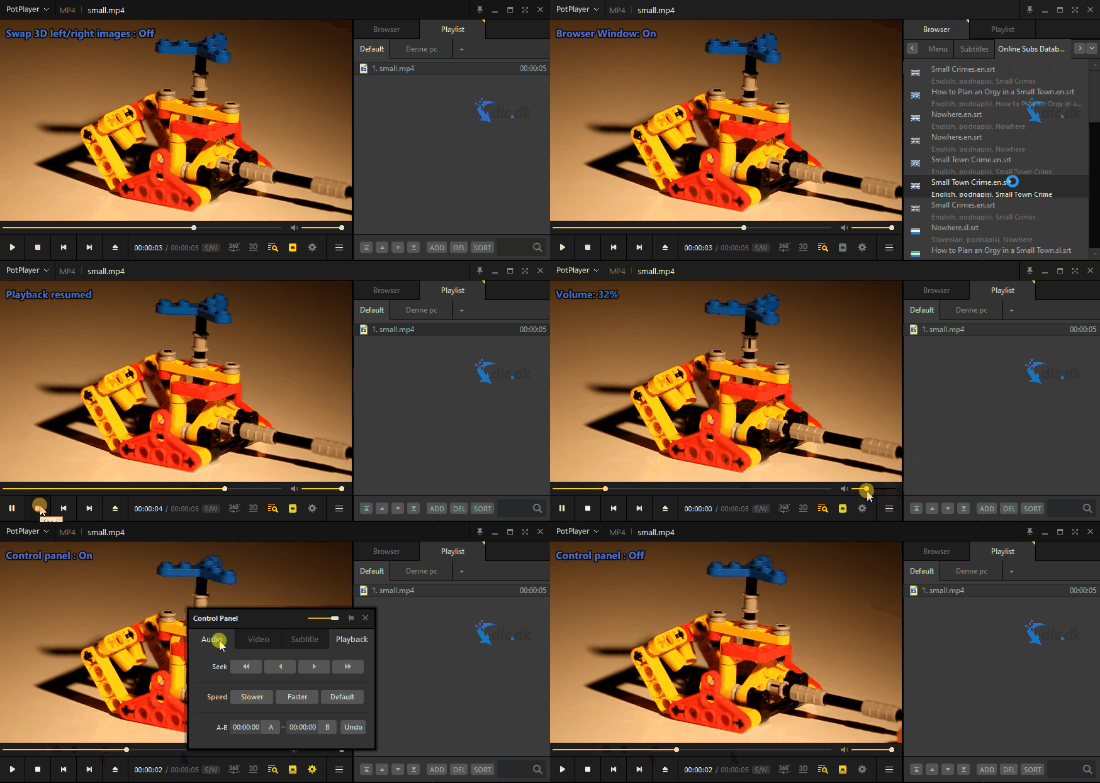
The layout also includes a “Browser” section, where you can:
- Add or download subtitles
- Switch between video sources
- Manage playlists
While the app may feel a bit complex at first, it quickly rewards you with high levels of control and flexibility.
Alternatives to consider
If you want a streaming-focused player, CherryPlayer is a great pick—it supports both YouTube and online radio stations.
If you prefer something classic and simple, VLC Media Player is still among the most reliable and stable choices—though it lacks many of PotPlayer’s advanced features.
Top five tips for PotPlayer (Danish version)
1. Use keyboard shortcuts for fast navigation
PotPlayer has a wealth of shortcuts, e.g.:Space = Play/Pause→ / ← = Seek 5 seconds forward/backCtrl + → / ← = Jump one minute
You can customize all shortcuts under Preferences > Keyboard.
2. Fetch subtitles automatically
PotPlayer can automatically download subtitles from the internet, e.g., from OpenSubtitles.org. Enable it under Subtitles > Online Subtitle Searching.
3. Record video or audio directly from the player
Under Preferences > Device you can configure webcam and screen recording as well as audio capture—perfect for screencasts or demos.
4. Use hardware acceleration (GPU decoding)
Enable DXVA, CUDA, or QuickSync for smoother playback, especially for 4K or H.265. Find it under Preferences > Filter Control > Video Decoder.
5. Play damaged or partially downloaded files
PotPlayer is known for opening and playing even partially corrupted files—like .avi files mid-download—something VLC doesn’t always handle.



