
 Martin Jørgensen
SpaceMonger makes disk cleanup easier
SpaceMonger is for anyone who wants to see exactly what’s taking up space on their hard drive without digging through endless folders. Instead of a traditional file list, the app builds a graphical map of your drive where large files and folders appear largest on screen. It’s the kind of tool that can be surprisingly helpful when a Windows PC suddenly warns that you’re running low on storage.
When we reviewed SpaceMonger, its visual approach stood out as the program’s strongest asset. You can instantly spot the biggest space hogs, making cleanup far more concrete than in File Explorer. SpaceMonger is still officially marketed as a tool to scan, map, and manage disk space on PCs, network drives, and select cloud locations with a treemap view and powerful search features.
How SpaceMonger works in practice
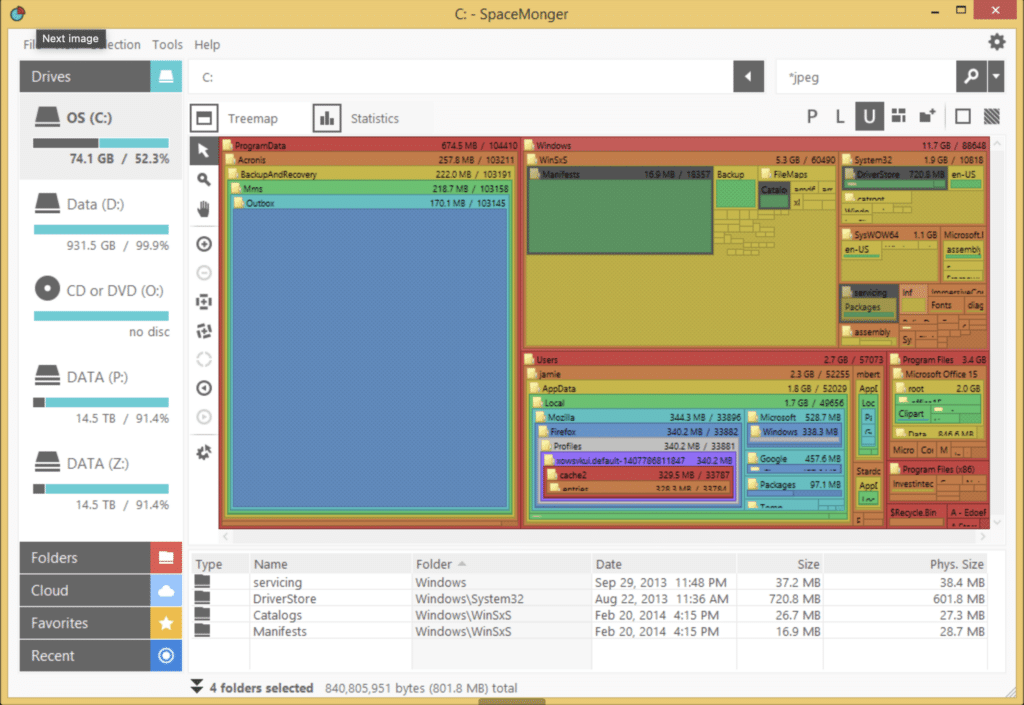
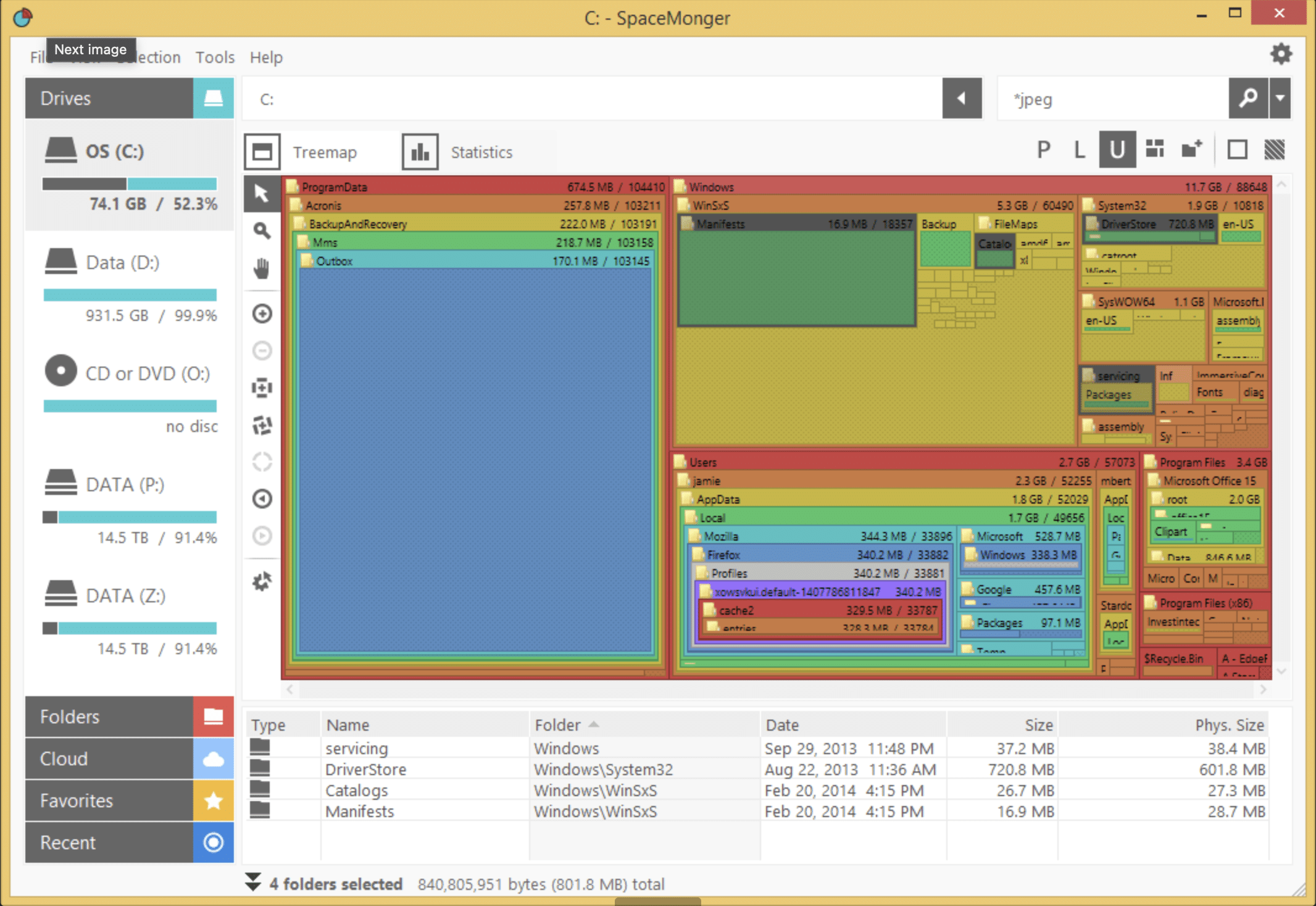
The core of SpaceMonger is its treemap view. Every file and folder is shown as a rectangle sized in proportion to the space it uses. With a single glance, you can tell whether it’s video files, old installer folders, backups, or maybe a forgotten Downloads folder that’s eating up your storage.
This is where SpaceMonger still shines. While many newer tools wrap everything in dashboards and “smart cleanup,” SpaceMonger keeps the focus on clarity. You get a more direct sense of how your storage is actually distributed. Stardock notes that the program is built to quickly locate large files and folders, search by size and type, and perform actions on the results.
Is SpaceMonger still worth using?
Yes—with a few caveats.
If you want a classic diskplads-værktøj med fokus på treemap and manual cleanup, SpaceMonger can still be compelling. It’s aimed at users who prefer hands-on control instead of pressing a one-click “clean my PC” button. That also makes it more honest than many pseudo-optimization suites that promise miracles.
Who should download SpaceMonger?
SpaceMonger is best for:
✅ those who want to find large files fast
✅ those who prefer a visual disk overview over lists
✅ those who clean up manually on Windows PCs
✅ those who manage lots of files, backups, or media archives
It’s less ideal for:
❌ those who want a modern, cutting-edge Windows design
❌ those expecting a free all-in-one cleanup suite
❌ those who want a tool clearly positioned for Windows 11
Our experience with SpaceMonger
During our review, it was easy to see why SpaceMonger still has fans. When a drive gets messy, it’s genuinely helpful to see storage usage as a single picture instead of drilling down folder by folder. It feels more intuitive, and you quickly uncover files you’d never have found manually.
That said, the app also feels like a tool from a more classic Windows era. That’s not necessarily a bad thing—it focuses on function over modern polish. For some users, that’s a plus. For others, free alternativer like WinDirStat may be a better fit, especially since WinDirStat is open source and widely available.
Top 5 SpaceMonger tips
1. Start with your system drive first
Begin with the C: drive if you’re low on space. That’s almost always where the biggest surprises hide—especially in Downloads, AppData, and old installer folders.
2. Look for unusually large folders
If a single rectangle looks suspiciously large, dive into it right away. That’s often where you’ll find old video files, ZIP archives, or leftovers from apps you thought you had removed.
3. Don't delete blindly in Windows folders
It’s tempting to clean up anything that looks big. But deleting system folders without knowing what they do can cause problems. Use SpaceMonger for visibility first, then delete carefully.
4. Use it to verify results after cleanup
After you delete large files, scan again. You’ll get a clear visual confirmation that your cleanup actually made a difference.
5. Compare with a free alternative
If you’re unsure whether SpaceMonger is the right fit, compare the experience with a free værktøj som WinDirStat. Some will prefer SpaceMongers måde at vise data, while others would rather save the money.



