

 Martin Jørgensen
Built by media lovers, for media lovers. With Windows Media Player you can play more music and video than ever.
Install or enable Windows Media Player 12
If the button doesn’t open automatically, go to Settings → Apps → Optional features in Windows.
Step-by-step:
- Open Settings → Apps → Optional features.
- Click Add an optional feature, search for Windows Media Player, select it, and choose Install.
- Restart Windows if prompted.
If you’re on an N edition of Windows
Install the Media Feature Pack via the button above, restart, then repeat the steps.
Top 5 tips and tricks for Windows Media Player 12
How to enable WMP 12 in Windows 11 and 10
Go to “Settings” → “Apps” → “Optional features” → “Add an optional feature,” then search for “Windows Media Player.” Click Install — restart and you’re ready.
Switch to Classic view
Press the ALT key and use the View menu → Classic view for a layout similar to older WMP versions. It’s more minimal and efficient.
Subtitles for movies and shows
Drag your .SRT file into WMP along with your video file. Make sure both files have the same name (e.g., movie.mp4 and movie.srt) so subtitles load automatically.
Play more formats (e.g., MKV and FLAC)
Install free codecs like K-Lite Codec Pack to extend WMP 12 so it can play many more audio and video formats smoothly.
Change WMP’s color theme
WMP 12 follows your system color theme. Switch to dark or light in Windows Settings under “Personalization” → “Colors.” This also changes WMP’s appearance.
Developed by Microsoft and, as they put it, “made by media lovers, for media lovers,” this player is built to meet the needs of people who love music and video — whether you’re into Taylor Swift, Metallica, or Beethoven’s Fifth. The point is: it plays exactly what you want to hear — or watch.
Windows Media Player is ideal for anyone who wants to enjoy their media the easy way.

As of 2025, the latest version of Windows Media Player is version 12. You get this player when you install Windows 10 or upgrade to Windows 10 from Windows 8.1 or Windows 7. You can also use this version on Windows 8.1 or Windows 7. On Windows 11, Windows Media Player (legacy) can be enabled as an optional feature.
With Windows Media Player, you can be sure you won’t miss your favorite tracks.
Windows Media Player lets you find and sync music directly from your library.
One of WMP’s strongest features is how efficiently it organizes your media library.
According to Microsoft, the newest version plays more music and video than previous releases — including unprotected songs from the iTunes library and Flip Video.
With this version, you can sync digital media files to a portable device, organize your digital media, and even purchase digital media content — and that’s just the start.
What this player can do
How to customize the look of Windows Media Player 12
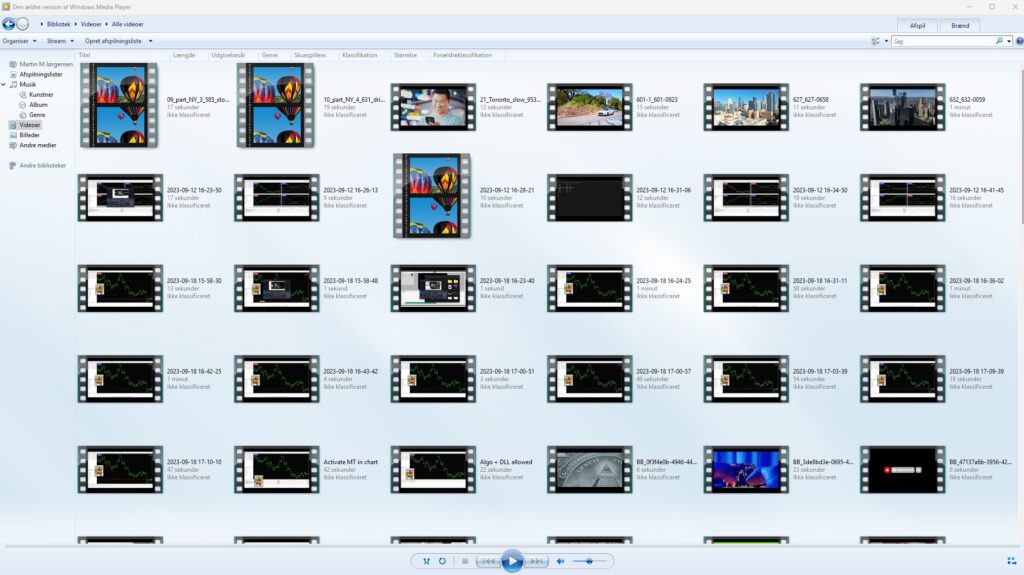
While you’re playing, the interface is clean and simple. Only the essential buttons are visible, making it easy to listen to music and watch videos without distractions.
When you use Windows Media Player, you can stream music to your devices without worrying about formats.
How to use the taskbar controls in Windows Media Player
When the app is open and visible on the taskbar, you don’t need to switch to it to hit “next” or “pause.” Hover over the WMP icon on the taskbar, and the thumbnail shows quick playback controls.
Music everywhere with Windows Media Player
Because the player supports so many audio and video formats, you can sync music, videos, and pictures — or stream media to your other devices. That means you can enjoy music anywhere: curled up on the couch with a mug of hot cocoa with whipped cream, out on a run, or commuting to work.
With this player, there can always be music in your life.
Which devices can run Windows Media Player?
As the name suggests, it’s built for Windows operating systems. Windows Media Player runs on devices that use Windows as their operating system, so you can enjoy your media anywhere.
Is Windows Media Player 12 easy to use?

Windows Media Player is genuinely easy to use.
It’s a program almost anyone can use — despite offering a lot under the hood. Thankfully, the rich feature set doesn’t come at the expense of usability.
Remember to keep Windows Media Player updated to ensure you have the latest fixes.
Windows Media Player delivers a seamless experience for watching movies and listening to music.
By choosing Windows Media Player, you get a wealth of media features that make enjoying your content easier.
Alternatives
There are many apps for playing music. Popular examples include iTunes for Windows and 1.
A modern media player
Consider Windows Media Player when you want a reliable player for your media.
Few things are as frustrating as software that isn’t updated often enough. Such apps miss new features and eventually break. Fortunately, that isn’t the case here. WMP receives ongoing fixes and improvements so it can continue to be the best version of itself — which keeps people using it.
Why choose Windows Media Player 12?
As you’ve seen above, there are many reasons to pick this player. It’s a trusted program that just works — and it’s easy for almost everyone to use. If you want a hassle-free media player, this is a solid choice you won’t regret.
The history of Windows Media Player
Windows Media Player has a long and interesting history dating back to 1991, when it launched as Media Player. Back then, it was a simple tool for playing media files on Windows 3.0.
With Windows XP, the name changed to Windows Media Player, and the software saw major upgrades in both features and design. The version we know today as WMP 12 debuted with Windows 7 and has received updates since — although it’s no longer under active feature development.
Despite that, Windows 1 remains a popular player, especially for users who value simplicity, speed, and tight Windows integration.
Anyone can use this software
Version 12 comes with Windows 10 or when upgrading to Windows 10 from Windows 8.1 or Windows 7 — and it also works on Windows 8.1 and Windows 7. It adds smart new features while staying easy to operate. With WMP, you can enjoy music and movies wherever you are — you’ll never be bored again. If you need a dependable media player, this is a great option.
Install or enable Windows Media Player 12
If the button doesn’t open automatically, go to Settings → Apps → Optional features in Windows.
Step-by-step:
- Open Settings → Apps → Optional features.
- Click Add an optional feature, search for Windows Media Player, select it, and choose Install.
- Restart Windows if prompted.
If you’re on an N edition of Windows
Install the Media Feature Pack via the button above, restart, then repeat the steps.
Top 6–10 tips for Windows Media Player 12
Windows Media Player 12 includes several visualizations you can enable during playback. Right-click inside the player, choose “Visualizations,” then pick your preferred style for a more dynamic experience.
Create custom playlists by dragging and dropping songs into the Now Playing or Library view. Save them as WPL or M3U files and organize by mood, genre, or event.
Insert a CD, open “Rip settings” at the top, and choose a format (MP3, WAV, or WMA). This creates digital copies you can play on other devices or store in the cloud.
Update album art and metadata by right‑clicking an album and selecting “Find album info.” It improves organization and makes your library look much better.
Under the “Stream” menu you can enable media sharing to stream music and movies to other devices on your home network — e.g., smart TVs, Xbox, or another PC.



