 Martin Jørgensen
Taking a screenshot in Windows can be surprisingly easy—once you know how. Whether you want to save something important from your screen, share an image of an error message with support, or capture the perfect gaming moment, there are several smart ways to take screenshots in Windows. This guide covers them all—from built-in shortcuts to advanced tools.
Quick screenshot shortcuts in Windows
Windows has several keyboard shortcuts that give you lightning-fast access to screenshots:
| Key combination | Function |
|---|---|
PrtSc | Copies the entire screen to the clipboard |
Alt + PrtSc | Copies the active window to the clipboard |
Windows + Shift + S | Opens the "Snip & Sketch" tool |
Windows + PrtSc | Saves a screenshot of the entire screen |
💡 TIP: On many laptops, you may need to hold the Fn key along with the others to activate Print Screen.
Use "Snip & Sketch" for precise snips
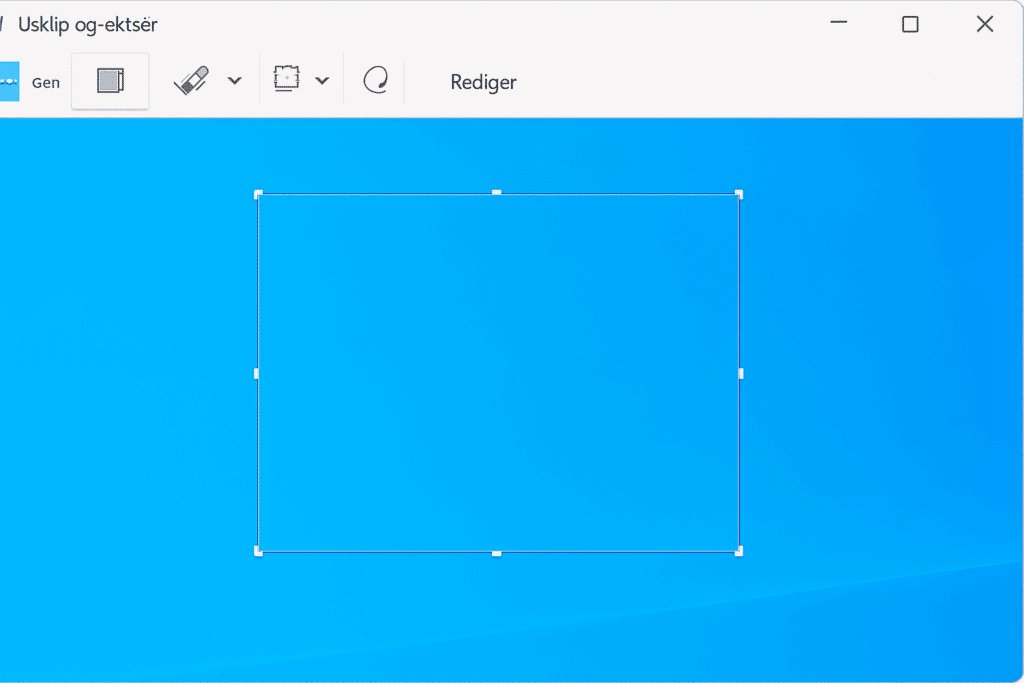
Snip & Sketch is the modern screenshot tool in Windows 10 and 11. It lets you select exactly the part of the screen you want to capture—and even draw and annotate directly on the image.
How to use it:
- Press
Windows + Shift + S - Choose between:
- Rectangular snip
- Freeform snip
- Window snip
- Full-screen snip
- The screenshot is automatically copied to the clipboard.
- Click the notification to edit and save.
You can also open the app manually by searching for "Snip & Sketch" in the Start menu.
Classic method: Using "Snipping Tool"
In older versions of Windows (and still available in Windows 11), you’ll find the "Snipping Tool."
It works much like Snip & Sketch but with fewer options. It’s still a favorite among many users, especially for simple screen snips.
Screen recording and advanced options
If you want more than just images—like recording your screen as a video—use the Xbox Game Bar:
- Press
Windows + Gand select the capture option. - Works especially well for games and software demonstrations.
For even more control, consider third-party tools (see below).
Recommended screenshot software
🔽 Here are some of the best free screenshot tools:
- ShareX – A powerhouse with tons of features, including automatic upload and editing.
- 1 – Simple, fast, and supports annotation.
- Lightshot – User-friendly and easy to share images online.
These can be better choices if you often take screenshots and need advanced features like watermarks, delay timers, and batch uploads.
Tips and tricks
📁 Save as PNG for high quality
When saving screenshots, choose PNG instead of JPG—especially if the image contains text or sharp elements like window borders and icons. PNG is a lossless format, which means you don’t lose detail. JPG compresses the file at the expense of quality—most noticeable in menus, fonts, and UI elements.
☁️ Use OneDrive, Dropbox, or Google Drive
You can set up Windows or your screenshot apps to automatically save images to a synced folder—such as OneDrive, Dropbox, or Google Drive. That gives you two big benefits:
- You won’t lose your screenshots if something goes wrong with your computer.
- You can quickly access them from other devices—like your phone, tablet, or work computer.
🖌️ Edit with Paint, Photos, or Clipchamp
After you take a screenshot, open the image directly in Paint (simple), Photos (quick crop and filters), or Windows’ newer video and image editor, Clipchamp. Here you can easily:
- Highlight with arrows, boxes, or text
- Crop away unnecessary parts
- Blur or mask sensitive information (e.g., emails or SSNs)
⌛ A delay can yield better captures
Want to capture something that requires mouse movement (like a drop-down menu)? Use the delay feature in Snip & Sketch. Open the app manually, click “New,” and choose, for example, “3 seconds.” This gives you time to open the desired menu before the screenshot is taken.
🖥️ Capture full web pages
To capture an entire webpage—including the content below the fold—use ShareX or browser extensions like “GoFullPage” (Chrome). Perfect for documentation or saving receipts and articles.
🔁 Assign your own shortcuts
Many apps, including ShareX, let you assign custom hotkeys. Handy if you take many screenshots and want an easier or less-used combo. For example, you can use Ctrl + Alt + A to activate.
🎮 Gaming screenshots without FPS drops
Screenshots in games can sometimes cause stutter or disrupt your experience. Use built-in features in Steam (F12 by default) or NVIDIA GeForce Experience, which capture without performance loss.
🔒 Don’t forget data security
If your screenshots include sensitive information—such as bank data, personal IDs, or internal documents—make sure to:
- Delete them when they’re no longer needed
- Encrypt folders containing sensitive content
- Share via secure links (not public cloud links)
🖨️ Ready to print? Use Letter layout
If you need to print your screenshot, paste it into Word and use layout tools to fit the image to a Letter page. Especially useful for documentation or attachments for support or office use.
FAQ about Windows screenshots
How do I capture a single window?
→ Use Alt + PrtSc to capture only the active window.
Where are screenshots saved automatically?
→ With Windows + PrtSc, images are saved in: C:\Users\[Username]\Pictures\Screenshots.
Does it work with multiple monitors?
→ Yes, PrtSc captures the entire desktop area—including all connected displays. Use Windows + Shift + S to select manually.
Can I capture menus or tooltips?
→ Yes, use Snip & Sketch with the delay feature (open the app manually) to capture pop-ups and menus.