 Martin Jørgensen
Windows 10 is still usable in 2026, but the days when you could ignore upgrades and count on routine Microsoft updates are over.
For many Windows users in the US, this isn’t just a technical question. It’s about the old Lenovo laptop, the home‑office desktop, the computer you use for online banking and two‑factor logins, or the tower that still runs fine but Windows 11 refuses to install on. We’ve tested this on an older Windows 10 PC ourselves, and the most annoying part isn’t that the computer stops working. It doesn’t. The hard part is figuring out what’s actually safe to do now.
Microsoft has ended mainstream support for Windows 10, but you still have several options: continue temporarily with security updates, upgrade to Windows 11, install an alternative like Linux Mint, or replace the PC.
What does the end of Windows 10 support mean?
When Windows 10 support ends, it doesn’t mean your computer suddenly goes dark. You can still boot the PC, open apps, use Chrome, Firefox, Office, LibreOffice, and browse the web.
The key point is that Windows 10 no longer receives regular feature updates and ongoing improvements like before. Over time, that makes it riskier to use, especially if the computer is used for online banking, two‑factor logins, work, email, cloud files, or kids’ school logins.
It’s a bit like driving a car that still starts every morning, but the manufacturer no longer issues safety fixes if a serious defect is found. The car works, but more and more of the responsibility falls on you.
Can you still use Windows 10 in 2026?
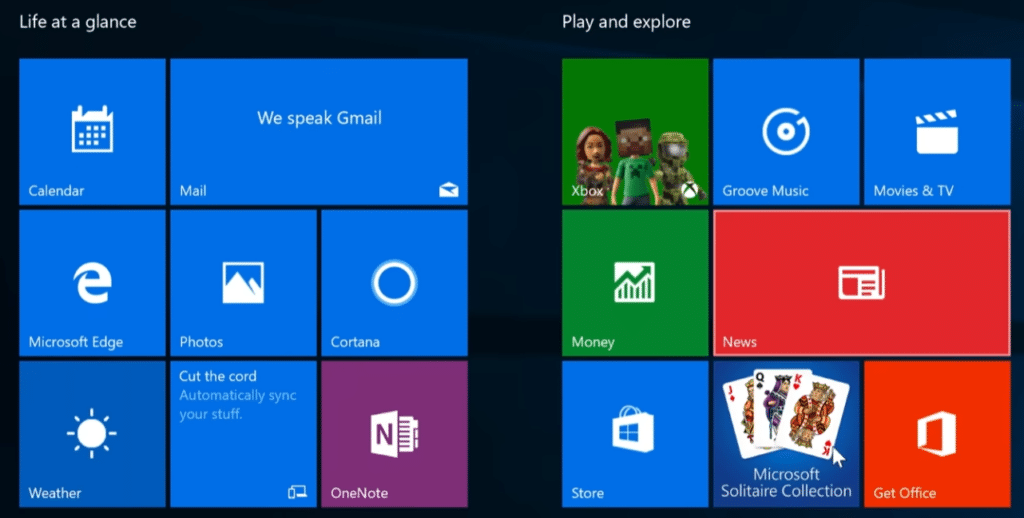
Yes, you can still use Windows 10 in 2026—but not uncritically.
If your Windows 10 PC is enrolled in Extended Security Updates and you keep your apps, browser, and antivirus updated, it can work as a temporary solution. If it doesn’t receive security updates, you should be much more cautious.
We’d think twice if the PC is used for:
✅ Online banking and two‑factor logins
✅ Work or customer data
✅ Email with sensitive information
✅ Kids’ school logins and documents
✅ Online shopping and payments
✅ Passwords saved in your browser
An old Windows 10 PC without updates can still be fine for offline use, classic games, local documents, or as a spare machine at home. But as a primary internet PC, it’s not a long‑term solution we’d recommend.
How to get security updates for Windows 10
Microsoft offers an Extended Security Updates program (ESU) that lets you continue receiving critical security fixes for a period after mainstream support ends.
It’s important to understand what ESU is—and what it isn’t.
ESU provides security updates. It doesn’t make Windows 10 new again. Don’t expect new features, modern design changes, or the same long‑term support as Windows 11. It’s a temporary bridge to give you more time to transition.
Check your Windows 10 version first
Before doing anything else, make sure your PC is updated to the latest Windows 10 release.
Here’s how:
✅ Click the Start menu
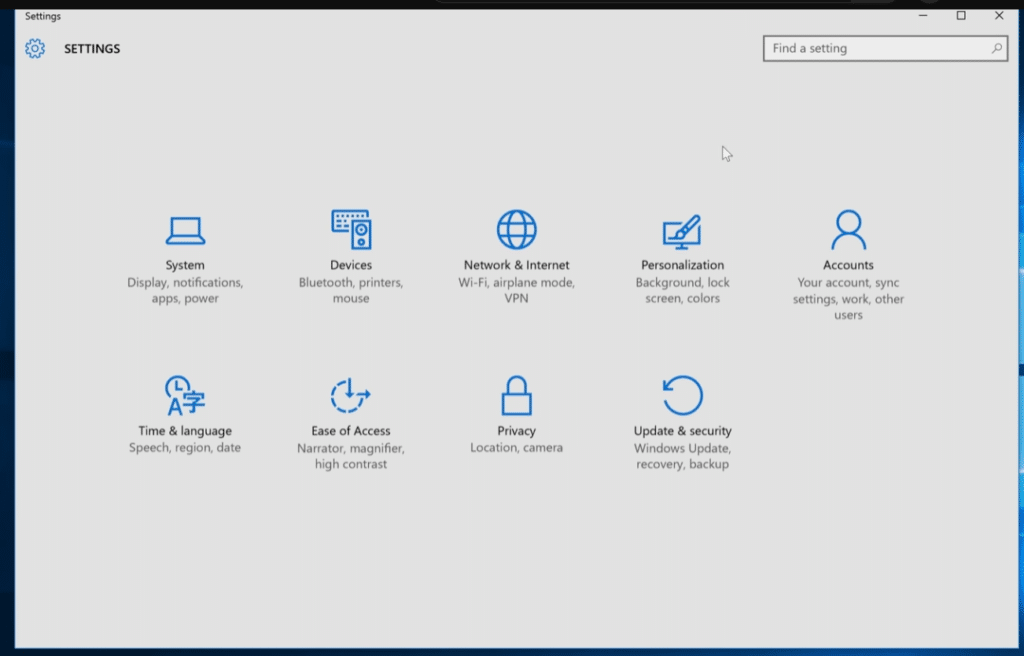
✅ Open Settings
✅ Go to System
✅ Choose About
✅ Find Windows specifications
✅ Confirm you’re on Windows 10 version 22H2
If your PC isn’t up to date, open Windows Update and install all pending updates.
Look for ESU in Windows Update
Once your PC is updated, open Windows Update and see if you’re offered enrollment in Extended Security Updates.
To check:
✅ Open Settings
✅ Select Update & Security
✅ Click Windows Update
✅ Install all available updates
✅ Look for messages about Extended Security Updates
✅ Follow the on‑screen instructions
If you don’t see the option yet, it may be because the PC isn’t fully updated, the feature hasn’t rolled out to your device yet, or you need a Microsoft account to complete enrollment.
Download Windows 10 ISO safely
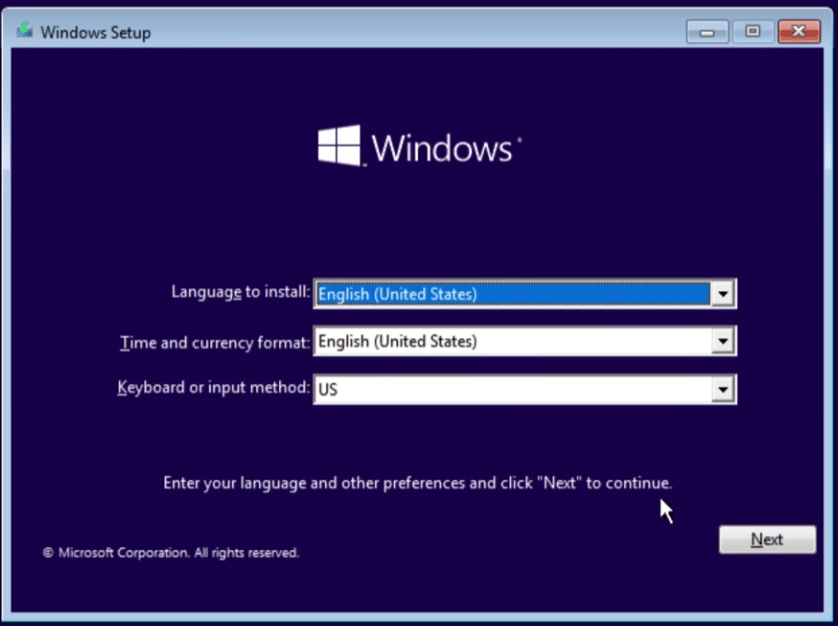
Many people still search for Windows 10 download, download Windows 10, and Windows 10 ISO. That makes sense—an installation file can be necessary if a PC needs to be reset, repaired, or reinstalled.
Our clear recommendation: only download the Windows 10 ISO from Microsoft’s official download page.
Avoid random ISOs from forums, old mirror sites, unknown download portals, or links in YouTube comments. A Windows ISO isn’t just a regular app—it’s the installation foundation for the entire operating system. If it’s altered, outdated, or tampered with, you can end up with a system that’s unsafe from the very first boot.
Before you reinstall Windows 10, always back up documents, photos, browser data, license keys, and important files. It sounds basic, but this is where things often go wrong. A clean install can be effective, but it’s unforgiving if you left something on the desktop.
Windows 10 or Windows 11 – which should you choose?
If your PC officially supports Windows 11, that’s usually the best choice. You get a newer system, longer support, and better future‑proofing.
But there’s a reason so many still use Windows 10. Many older PCs work perfectly well for everyday tasks but are rejected by Windows 11 due to requirements like TPM 2.0, Secure Boot, or CPU generation.
Here’s a practical rule of thumb:
✅ Choose Windows 11 if the PC supports it without tricks
✅ Stay on Windows 10 temporarily if you receive security updates and need more time
✅ Consider Linux Mint if the PC is too old for Windows 11 but still fast enough
✅ Buy a new PC if the machine is slow, unstable, or used for important logins and payments
We don’t recommend forcing Windows 11 onto an old PC with unofficial methods unless you know exactly what you’re doing. It can work, but you risk compatibility issues, missing updates, and a machine that’s more hassle than it’s worth.
If your PC can’t get Windows 11
Many users only discover the problem when they try to upgrade and are told the PC doesn’t meet the requirements. It’s frustrating, especially if the computer still feels fast enough.
The most common reasons are:
✅ Missing TPM 2.0
✅ Secure Boot is disabled or not supported
✅ CPU is too old
✅ BIOS/UEFI not configured correctly
✅ Too little RAM or storage
Sometimes you can fix it in BIOS/UEFI if TPM or Secure Boot is simply turned off. Other times, the hardware is just too old.
The best first step is to run Microsoft’s compatibility checker or check Windows Update, which often tells you whether the PC can upgrade.
Linux Mint can be a surprisingly good solution
If your Windows 10 PC can’t upgrade to Windows 11 but still feels fast, consider Linux Mint. It’s particularly good for everyday tasks like browsing, email, word processing, streaming, photos, and light office work.
Linux Mint feels more like a classic desktop than many expect. The Start menu, taskbar, file manager, and apps are quite familiar if you’re coming from Windows. It’s not the right choice for everyone, but on an older PC it can add several extra years of useful life.
It’s a great fit for:
✅ Older laptops
✅ Simple home‑office machines
✅ PCs used for browsing, email, and documents
✅ Users who aren’t dependent on specific Windows‑only software
✅ Families who want to avoid buying a new PC right away
The downside, of course, is that not all Windows programs work directly. If you need specific accounting software, games, hardware tools, or specialty apps, check compatibility first.
Security on Windows 10 in 2026
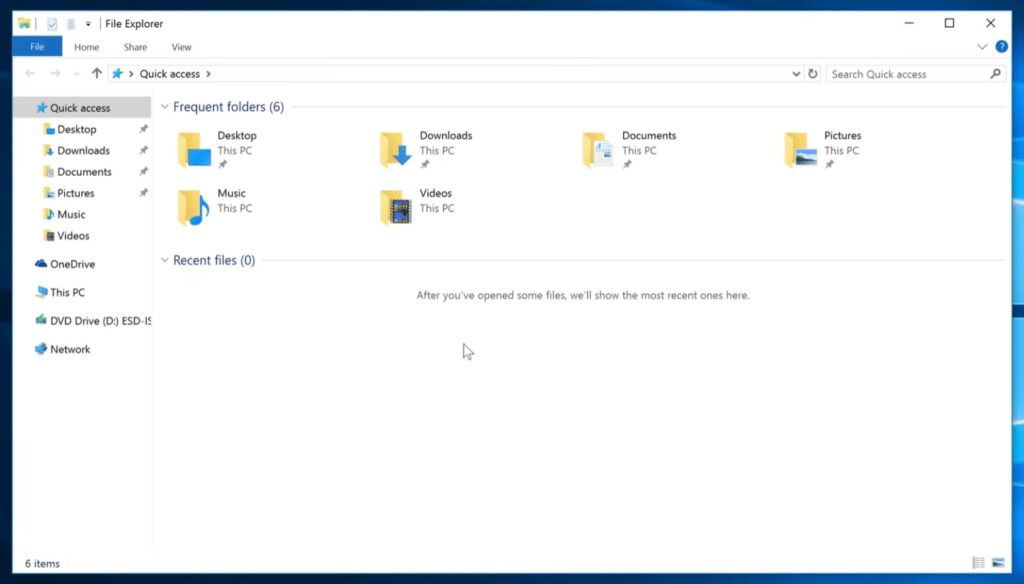
If you continue using Windows 10, tighten up your security—not with panic, but with common sense.
Start with the browser. Use a modern browser like Google Chrome, Microsoft Edge, Firefox, or Brave, and make sure it updates automatically. The browser is often the most important app on the computer because so much happens online.
Next, remove old programs you no longer use. Outdated PDF readers, driver tools, “PC optimizer” apps, old game launchers, and deprecated plugins can create unnecessary security risks.
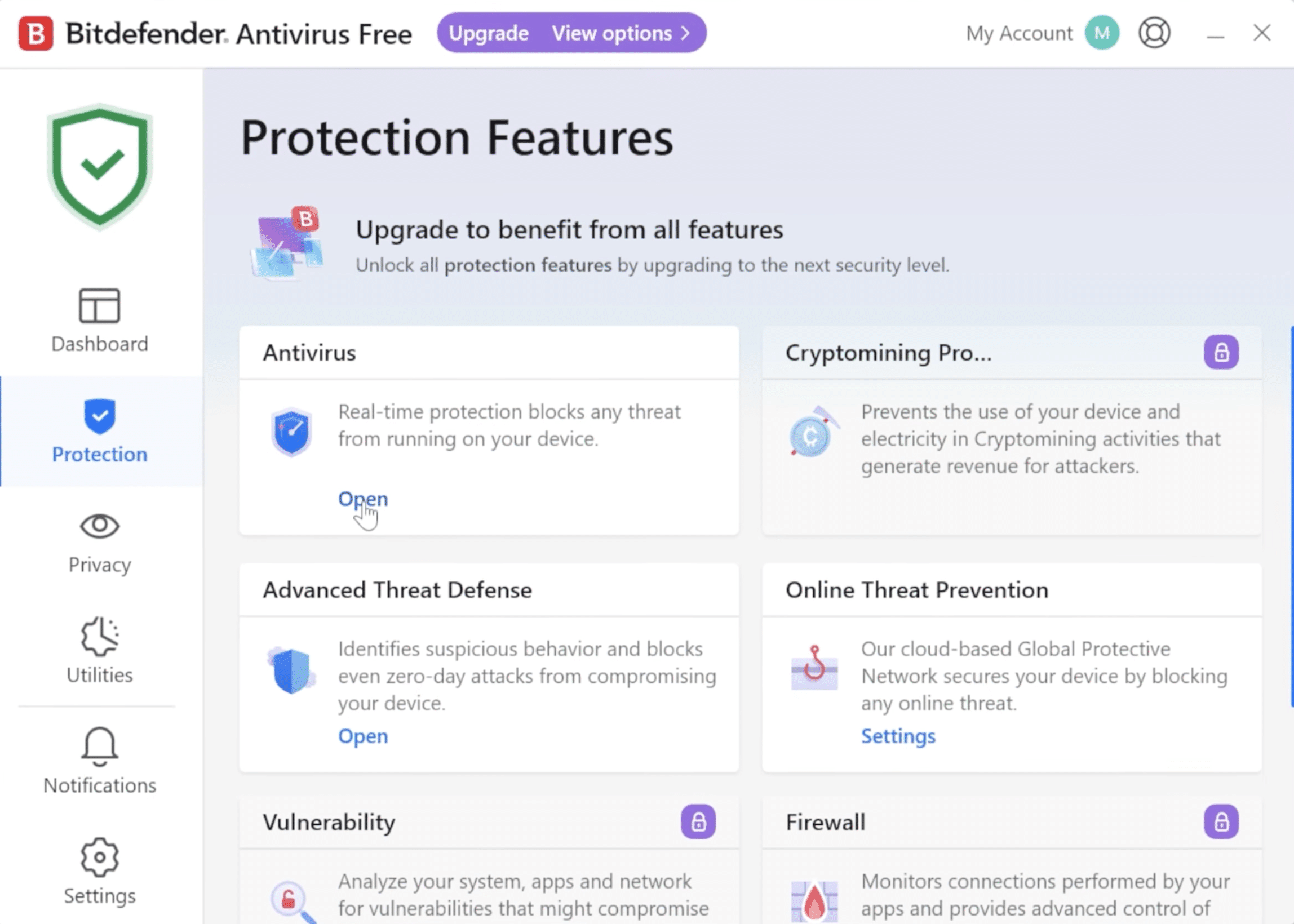
Up‑to‑date antivirus is also a good idea. Windows Security is better than its old reputation, but if the PC is used heavily online, a stronger security suite can be relevant. Most importantly, don’t install random “free cleanup tools” that promise to make your PC 300% faster. Those often create more noise than help.
Don’t use Windows 10 without a backup
Backups are boring—until you need one.
If your Windows 10 PC is old, don’t just think about malware and updates. Think about the hard drive or SSD. Older machines can fail without warning, and a Windows reinstall won’t help if the family photos, thesis, or accounting files only lived in one place.
A good minimum plan is:
✅ One backup on an external drive
✅ One backup in the cloud
✅ Automatic syncing of important folders
✅ Test that files actually open
✅ Back up before upgrading, resetting, or installing Linux
It takes a little time the first round, but it’s far less painful than losing everything.
Our recommendation for US Windows 10 users
If your Windows 10 PC still works, you don’t have to toss it tomorrow. But you shouldn’t ignore the situation either.
The best path depends on how you use the computer. For a spare machine, classic games, or simple offline tasks, Windows 10 can still make sense. For online banking, two‑factor logins, work, email, and daily web use, make sure the PC receives security updates—or start planning a move.
Our practical advice is simple: secure Extended Security Updates first, make a backup next, then decide whether your PC should move to Windows 11, Linux Mint, or retirement.
The worst choice isn’t staying on Windows 10 briefly—the worst choice is doing nothing and hoping the problem disappears on its own.
Top 5 tips for Windows 10 in 2026
1Enable Extended Security Updates
The first thing to check is whether your Windows 10 PC can enroll in Extended Security Updates. It buys you time, but it’s still a temporary solution.
2Only download Windows 10 from Microsoft
If you need a Windows 10 ISO, get it from Microsoft’s official download page. Avoid old ISOs from random sites and forums.
3Remove old programs you don’t use
Old driver packs, PDF tools, browser extensions, and “optimizer” apps can be a bigger risk than Windows 10 itself. Clean up before moving on.
4Keep your browser and antivirus updated
On an older Windows 10 PC, the browser is often the most important app. Use a modern browser and make sure antivirus and security features are enabled.
5Back up before choosing your next step
Whether you stay on Windows 10, upgrade to Windows 11, or try Linux Mint, back up first. It’s the boring step that saves you if something goes wrong.
FAQ: Windows 10 after end of support
Yes, you can still use Windows 10 in 2026, but do so carefully. If the PC receives security updates and you keep the browser, antivirus, and apps updated, it can work as a temporary solution.
Windows 10 becomes riskier over time if it doesn’t receive security updates. This matters especially if the PC is used for online banking, two‑factor logins, work, email, or payments.
Yes, but only download the Windows 10 ISO from Microsoft’s official download page. Avoid third‑party ISOs, which may be old, modified, or unsafe.
You can stay on Windows 10 temporarily if you receive security updates, or consider Linux Mint as an alternative. If the PC is used for important logins and payments, a newer Windows 11 PC may be the best choice.
Linux Mint can be an excellent choice for older PCs used mainly for browsing, email, streaming, and documents. It does require that you’re not dependent on specific Windows‑only programs.