
 Martin Jørgensen
Advanced Driver Updater – Update your drivers automatically on Windows 11
1 by Systweak Software is one of the most overlooked yet effective tools for automatic driver updates in 2026. We tested it on a standard Windows 11 PC and were pleasantly surprised by how many outdated drivers it found—even after Windows Update reported everything was “up to date.”
The program can scan, detect, and install the latest versions of your drivers automatically, saving time and reducing the risk of errors or system instability.
What is Advanced Driver Updater?
Advanced Driver Updater is developed by Systweak Software, which specializes in optimization tools for Windows. The program scans your entire system and compares your current drivers with a database containing thousands of versions. If it finds a newer, more stable driver, you can update it directly with one click.
The program works on both Windows 7, 8, 10 and 11, and it’s especially recommended for users who experience issues with audio, graphics, networking, or USB devices that suddenly stop working.
We tested the program on a laptop with Intel and Realtek components, and after the scan, the network and audio drivers were updated—and the problems disappeared immediately.
Features and user experience
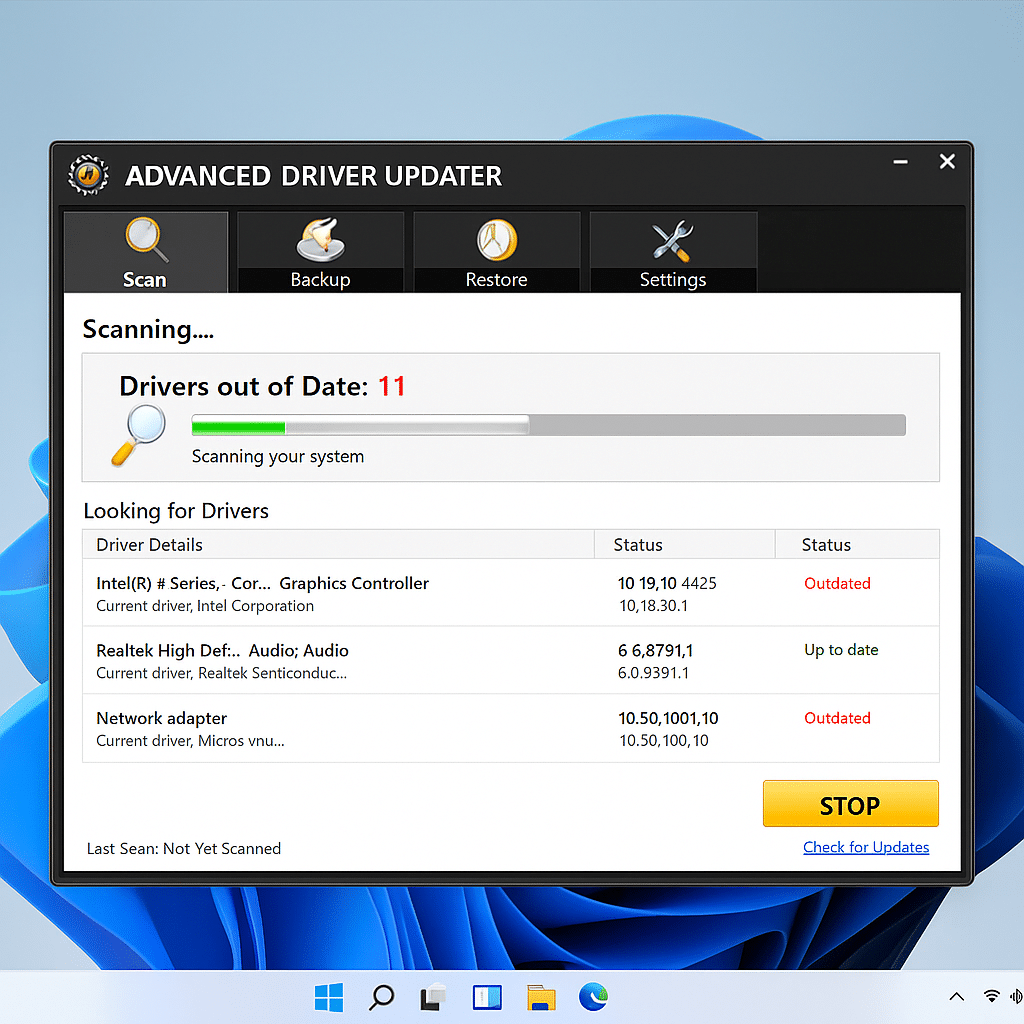
Advanced Driver Updater has a modern, easy-to-navigate interface without unnecessary ads. You’re greeted by a simple main screen with buttons for Scan now, Opdater drivere, Backup/Restore and Schedule scans.
Even first-time users will quickly find their way around.
A major plus is the built-in backup feature that automatically saves your old drivers before a new installation. That means you can safely restore if something goes wrong.
In addition, you can schedule automatic scans so the program checks for new drivers weekly—a feature we found especially useful.
Performance and security
The program prioritizes stability and safety over aggressive updating. During testing, Advanced Driver Updater only fetched drivers verified by the hardware manufacturer, and there were no conflicts or errors after reboot.
Compared to competitors like Driver Booster and Driver Genius, Advanced Driver Updater is a bit slower to download files but more stable in the drivers it selects to install.
That makes it a solid choice for anyone who prefers safety over speed.
Pricing and versions
There’s both a gratis version and a full version. The free edition can scan and show missing drivers but requires a paid license to install them automatically.
The license typically covers one PC, and Systweak often offers discounts and bundles for multiple devices.
What we experienced during testing
We installed the program on a Windows 11 laptop with older graphics and audio drivers. The scan took about 3 minutes and found 11 outdated drivers. After updating, the system felt noticeably faster, and the Bluetooth connection—which had previously failed—worked again.
Several updates did require a reboot, so plan for that.
All in all, it’s a stable tool that does exactly what it promises—without exaggeration.
Frequently asked questions about Advanced Driver Updater
Is Advanced Driver Updater safe to use?
Yes, the program is generally safe to use when downloaded from the official source. We tested it on a Windows 11 PC and the installation went smoothly. As with any driver tool, it’s a good idea to make a backup or create a restore point before major updates.
Can I use Advanced Driver Updater for free?
The free version scans your computer and shows which drivers are missing or outdated. For automatic installation and updates, a license is typically required. Still, the free version is useful as a “check” before you decide.
How do I update drivers automatically in Windows 11?
After installation, run a full scan. The program will find outdated drivers and can update them with a few clicks. You can also schedule weekly scans so you’re alerted to new driver versions over time.
What’s the difference between Advanced Driver Updater and Driver Booster?
Driver Booster often has a larger database and more extra features, while Advanced Driver Updater is typically simpler and focuses on a more straightforward workflow. The choice depends on how many settings and extras you want.
How do I back up my drivers before updating?
In the program’s settings you can enable backups so a copy of your current drivers is saved before changes. We also recommend creating a Windows restore point, so you can roll back quickly if a driver causes issues.
Top 5 tips for Advanced Driver Updater
1. Run a full scan after installation
This gives you a complete overview of missing drivers all at once.
2. Use the backup feature before updating
It ensures you can restore the system if a new driver fails.
3. Schedule automatic scans
Keep your drivers up to date without manual effort.
4. Update a few drivers at a time
That makes it easier to spot any issues.
5. Test the free version first
See if it finds relevant updates before you purchase a license.


