
 Martin Jørgensen
Fix your connection issues with a Bluetooth driver for Windows 11.
Bluetooth issues are among the most common errors in Windows 11, and the fix is often the right, up-to-date driver. This generic Bluetooth driver for Windows 11 works with most mainstream Bluetooth adapters and chipsets—both those built into laptops and external dongles.
The driver is ideal if Bluetooth has completely disappeared from your settings, devices won’t connect, or you experience instability with headsets, keyboards, controllers, and mice.
Features and usage
Automatic detection and installation
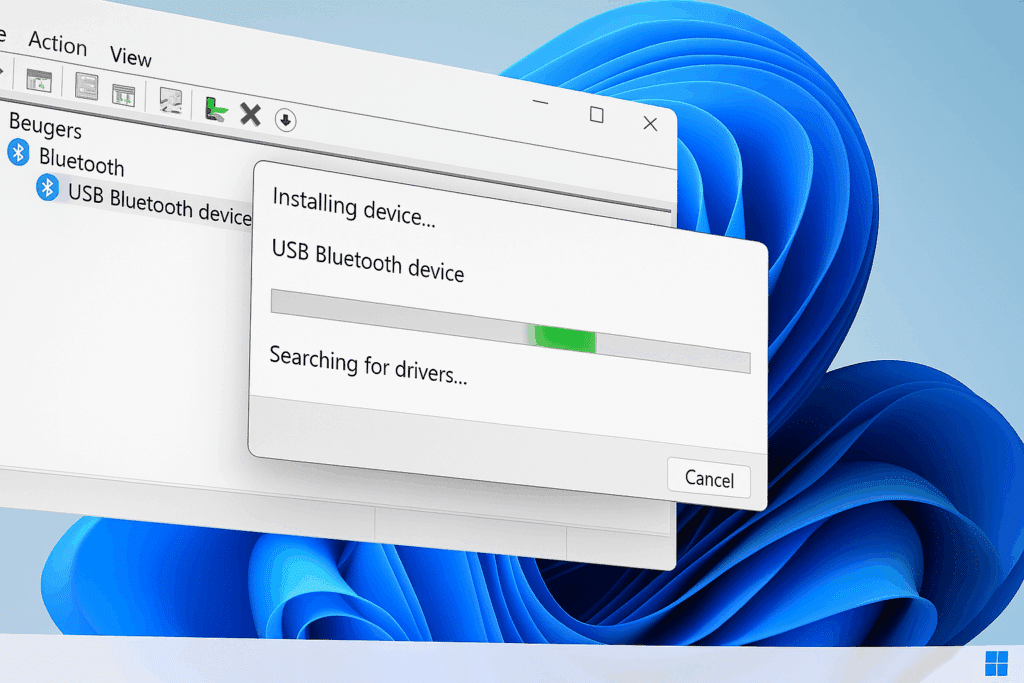
The generic Bluetooth driver for Windows 11 is designed for plug-and-play, meaning the driver installs automatically when you connect a new Bluetooth device or dongle. Windows will try to find the most compatible driver via Windows Update or its own driver database.
But in many cases—especially after system updates, hardware changes, or when using older USB dongles—the automatic installation fails, or only part of the functionality is enabled. In such situations, manual installation of the generic driver or a vendor-specific version is required to get all features working.
Supported Bluetooth profiles
To ensure functionality across many device types, the driver supports a range of Bluetooth profiles that determine what the connection can be used for:
- A2DP – Advanced audio profile for wireless headphones and speakers in stereo
- HID – Human Interface Device profile that allows input from mice, keyboards, and gamepads
- PAN – Personal Area Network profile that enables internet sharing between Bluetooth devices
- SPP – Serial Port Profile for data transfer, often used in technical equipment, embedded systems, and GPS devices
An updated driver ensures these profiles load correctly and without errors, so connected devices work optimally with low latency.
Compatibility and manufacturers
The generic driver supports a wide range of Bluetooth chipsets found in both laptops and desktops, as well as USB dongles:
- Intel Bluetooth: AX200, AX201, AX210 – typically integrated in newer laptops and motherboards
- Realtek: Bluetooth 5.0–5.3 chips, often found in budget-friendly dongles and onboard solutions
- MediaTek: MT7921 – often seen in newer AMD-based laptops
- Broadcom: BCM20702 and BCM20703 – especially common in older Dell and HP models
- CSR Harmony (Cambridge Silicon Radio): Popular in third-party dongles and audio adapters
The driver works with both built-in Bluetooth modules and external USB adapters, and it’s fully compatible with Windows 11 (64-bit). It also supports Bluetooth 4.0, 4.2, 5.0, 5.1, and 5.2, enabling faster data transfer, longer range, and lower power consumption—depending on your hardware.
Common errors—and how the driver fixes them
🔴 Bluetooth missing in Device Manager
This issue often occurs when the driver has been deleted, corrupted, or never installed correctly. It means the system doesn’t recognize the Bluetooth module at all.
✅ By manually installing the correct driver, the connection to the hardware is restored, and Bluetooth appears again under “Device Manager” and in Windows settings.
🔴 Bluetooth devices connect but don’t work
Devices like headsets, keyboards, or gamepads show as connected but don’t work as expected. This is typically due to incompatible or partially installed drivers where only some protocols are enabled.
✅ A fully supported driver ensures all relevant Bluetooth profiles (A2DP, HID, HSP, etc.) are enabled correctly so the connection actually works in practice—not just in the status area.
🔴 No sound in Bluetooth headset
A very common problem where the headset connects, but audio stays on the PC or the quality is very low. Often Windows has selected the wrong audio profile such as “Hands-Free” instead of “Stereo.”
✅ The driver ensures proper setup of the A2DP profile required for high-quality stereo audio and re-registers the device with the right settings.
🔴 Bluetooth doesn’t work after a Windows update
Major Windows updates can overwrite existing drivers with an older or more generic version, causing functional or stability issues.
✅ Reinstalling the latest Bluetooth driver restores full functionality and compatibility—often with additional improvements or fixes.
🔴 Error 43 or error code in Device Manager
This error indicates that Windows has “disabled” the device because it reports an internal error, often related to an incompatible, damaged, or incorrect driver.
✅ By removing the problematic driver and installing a clean, up-to-date version, the error code disappears and Bluetooth is re-enabled without conflicts.
Top 5 tips for Bluetooth drivers in Windows 11
Find your Bluetooth device, right-click and select “Update driver” → “Browse my computer” → “Let me pick from a list.” Then choose the generic Bluetooth driver.
Open Services (services.msc), find “Bluetooth Support Service,” and restart it. Some issues are only resolved once the service is running again after an installation.
If your device has an Intel or Realtek chipset, a vendor-specific driver can deliver better stability and performance than Windows’ generic one.
Use Device Manager or tools like DDU to remove previous Bluetooth drivers that could cause conflicts when installing a new one.
Bluetooth drivers are often rolled out via Windows Update, but check the version number and date—it’s not always the newest version you get automatically.


