
 Martin Jørgensen
Ashampoo Burning Studio Free – The best free disc burning software for Windows
If you need a simple, stable way to burn CDs, DVDs, or Blu‑ray discs, Ashampoo Burning Studio Free is one of the best options available. It’s a classic disc burning tool that still works flawlessly on modern systems like Windows 11.
We tested the latest version on a standard Windows 11 PC with an SSD and 16 GB of RAM. Installation took under a minute, and the interface was ready in English with no ads or bundled add‑ons. The app is fast, lightweight, and surprisingly modern—especially for disc burning software in 2025.
Features and options
Ashampoo 1 Free can do more than just burn files to a disc. Highlights include:
💿 Burn data, music, and videos to CD, DVD and Blu‑ray
📀 One‑click copying of existing discs
🎵 Create audio CDs with automatic conversion from MP3, WAV, and WMA
📂 Back up files across multiple discs (great for large data sets)
🖼️ Create ISO image files
🎬 Easily burn movies and projects with simple DVD menus
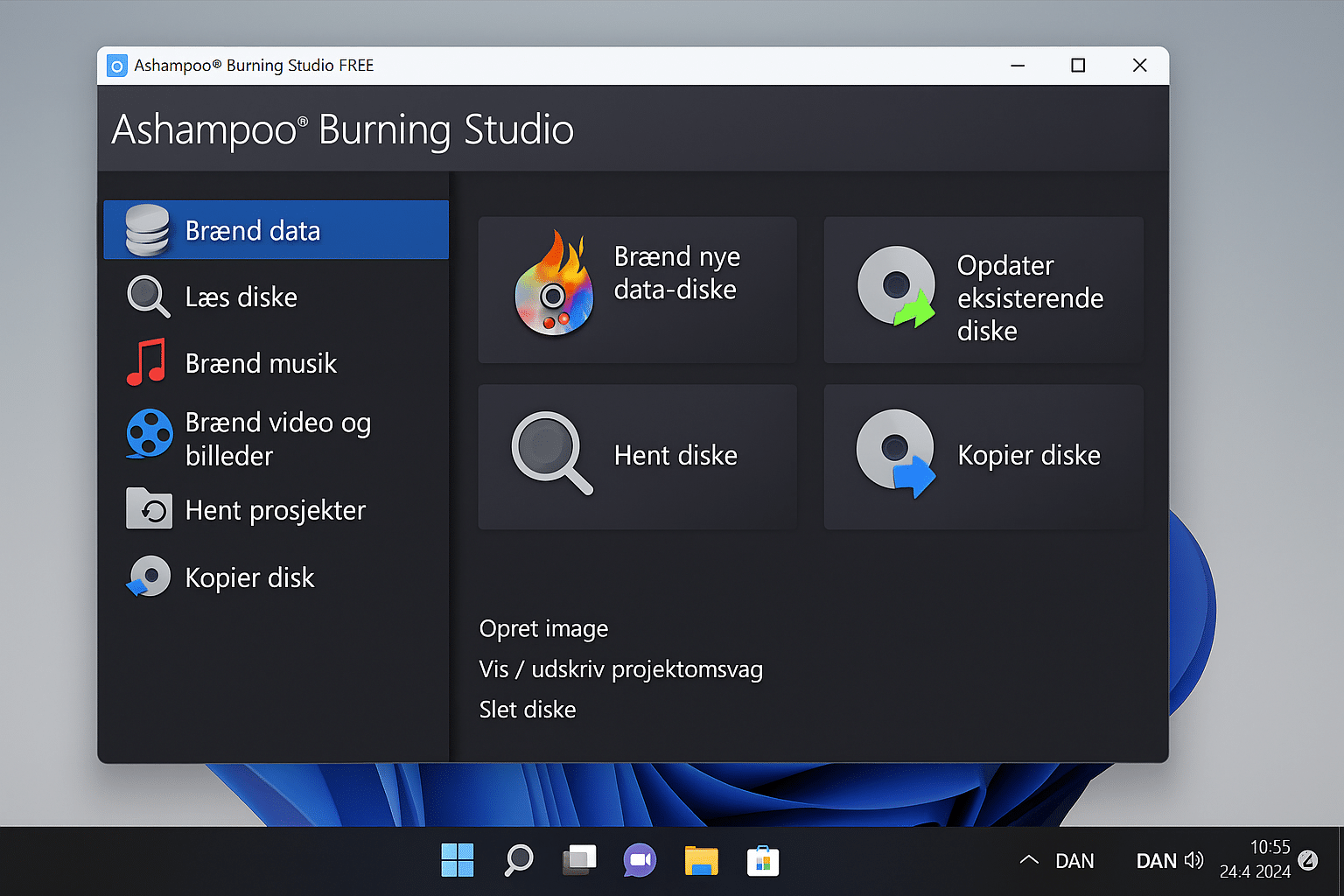
The layout is reminiscent of older Nero versions, but in a much more minimalist style. Everything is organized into clear sections so you don’t have to hunt for features.
Interface and experience
Ashampoo has long been known for user‑friendliness, and it shows here.
After installation you’re greeted by a start menu where you choose what you want to do—such as “Burn data,” “Burn music,” or “Copy disc.”
We found the program to be extremely stable, even during long burns. CPU usage stayed low (under 10%), and the software remained responsive throughout our tests. That’s not a given with free burning software.
Comparison with alternatives
Many people now use online or USB‑based solutions, but Ashampoo 1 Free is still relevant because it doesn’t require a constant internet connection and handles physical media better than modern alternatives like ImgBurn or CDBurnerXP.
A big plus is that it can automatically verify the disc for errors after burning—a feature you typically only see in paid versions.
Top 5 tips for Ashampoo Burning Studio Free
1. Use “Verify disc after burning”
Enable this option to automatically check whether files were written correctly. It prevents a lot of headaches.
2. Choose a lower burn speed
When burning important data, pick a lower speed (e.g., 4x). It reduces the risk of errors.
3. Use “Project templates”
Create and save project templates if you frequently burn the same types of content—like music or movies.
4. Create ISOs before burning
Build an ISO image of your project and save it first. You can quickly burn additional copies later.
5. Enable the English language pack
During setup you can choose English, and you can also switch the interface language later in settings.
Frequently asked questions
Yes, Ashampoo Burning Studio Free is 100% free with no time limits. You can choose to upgrade to the Pro version for additional advanced features such as video editing and cover design.
Yes, it supports CD, DVD, and Blu‑ray, so you can burn large movie files or backups without issues. We tested it on a Windows 11 PC and Blu‑ray burning worked flawlessly.
Yes, it works smoothly on both Windows 10 and Windows 11. Installation takes under a minute, and the entire interface can be displayed in English.
The Free version focuses on basic disc burning and copying, while the Pro version adds extras like video‑DVD authoring, advanced menu design, and data encryption.
Yes. For most users, Ashampoo Burning Studio Free is an excellent alternative to Nero. It’s lighter, faster, and ad‑free—ideal for everyday use on home PCs.



