
 Martin Jørgensen
Make Windows faster and easier with Ashampoo WinOptimizer Free
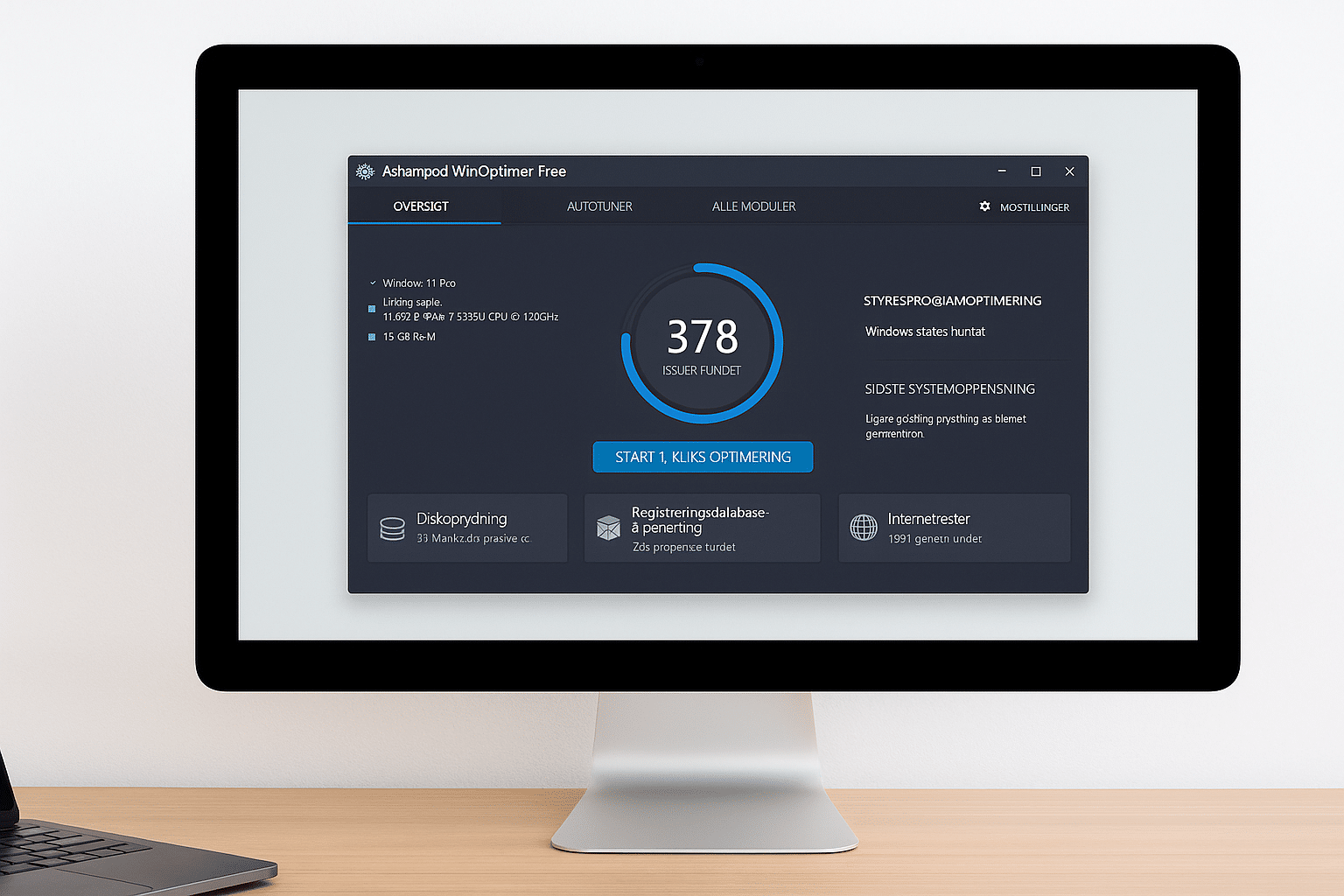
Ashampoo WinOptimizer Free is a powerful, beginner-friendly optimization tool that helps make your Windows PC faster, cleaner, and easier to manage. With just a few clicks, you can remove unwanted files, fix errors, and improve responsiveness — completely free.
Why choose Ashampoo WinOptimizer Free?
Windows has earned a reputation for getting slower and more cluttered over time. That’s where Ashampoo WinOptimizer Free comes in — a no-cost alternative to expensive system utilities. It’s designed to help everyday users regain control and tidy up without any technical know-how.
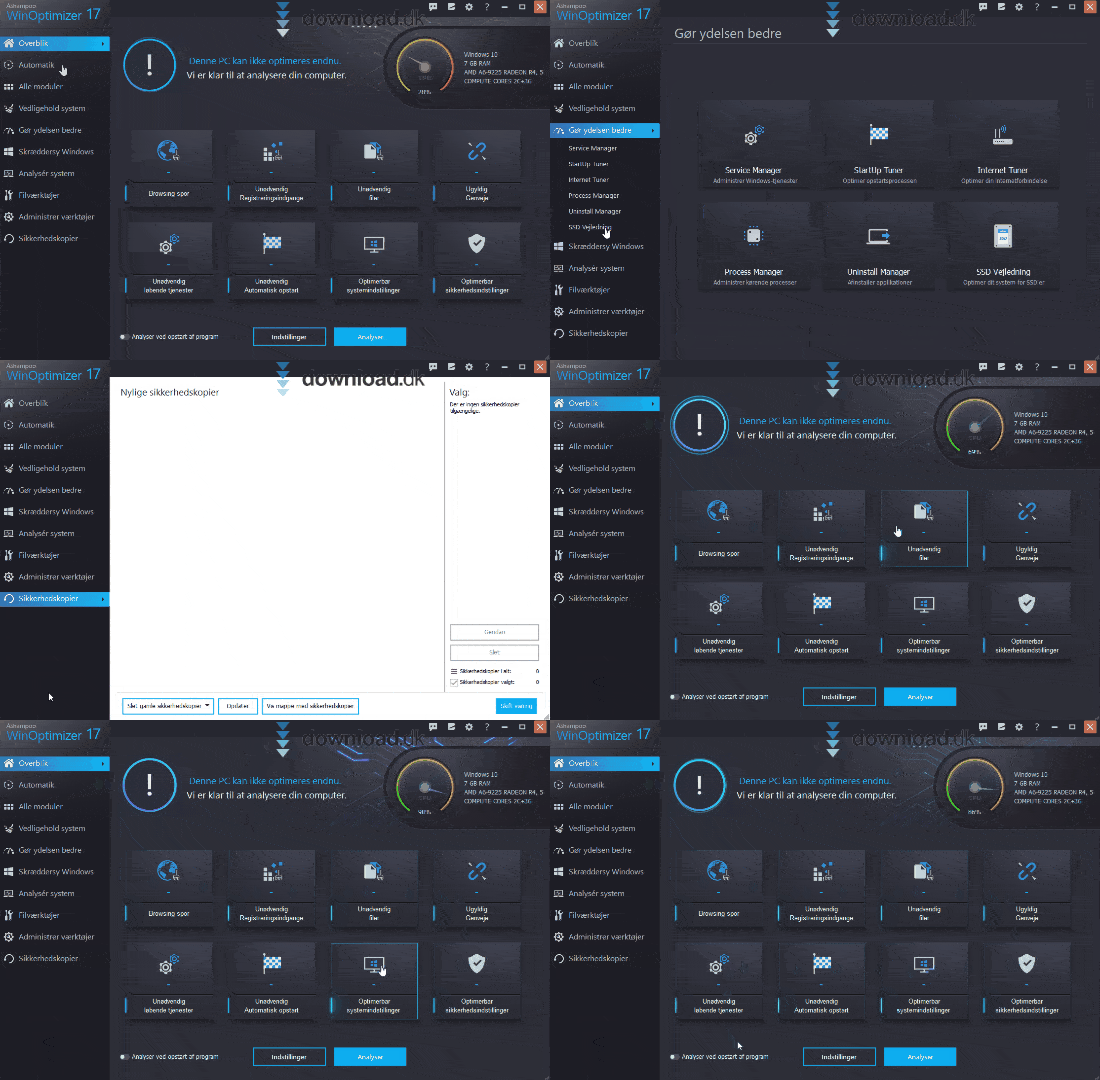
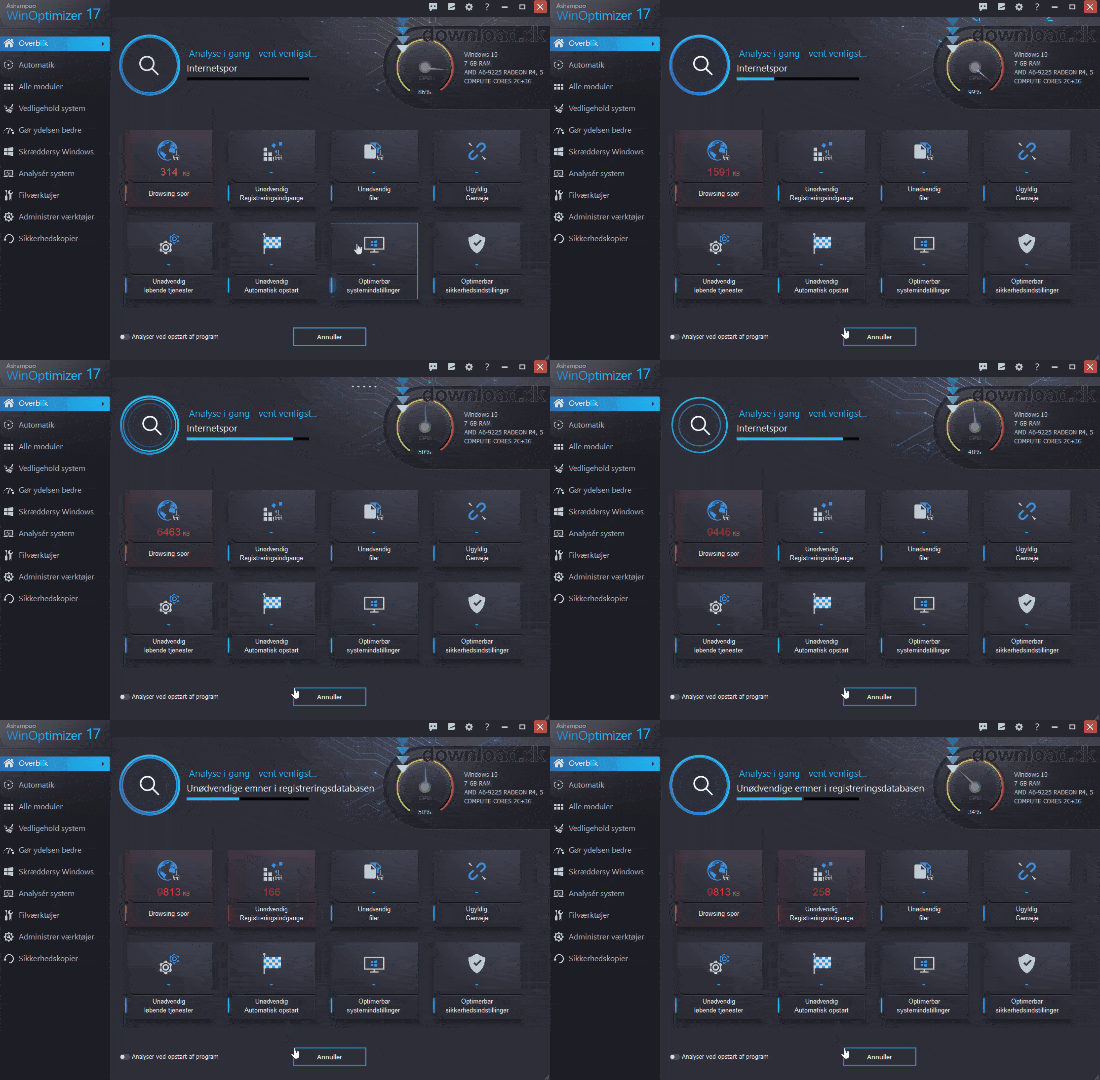
The program analyzes your PC, finds issues, and offers fixes — all presented in an intuitive interface in English.
Key features in Ashampoo WinOptimizer Free
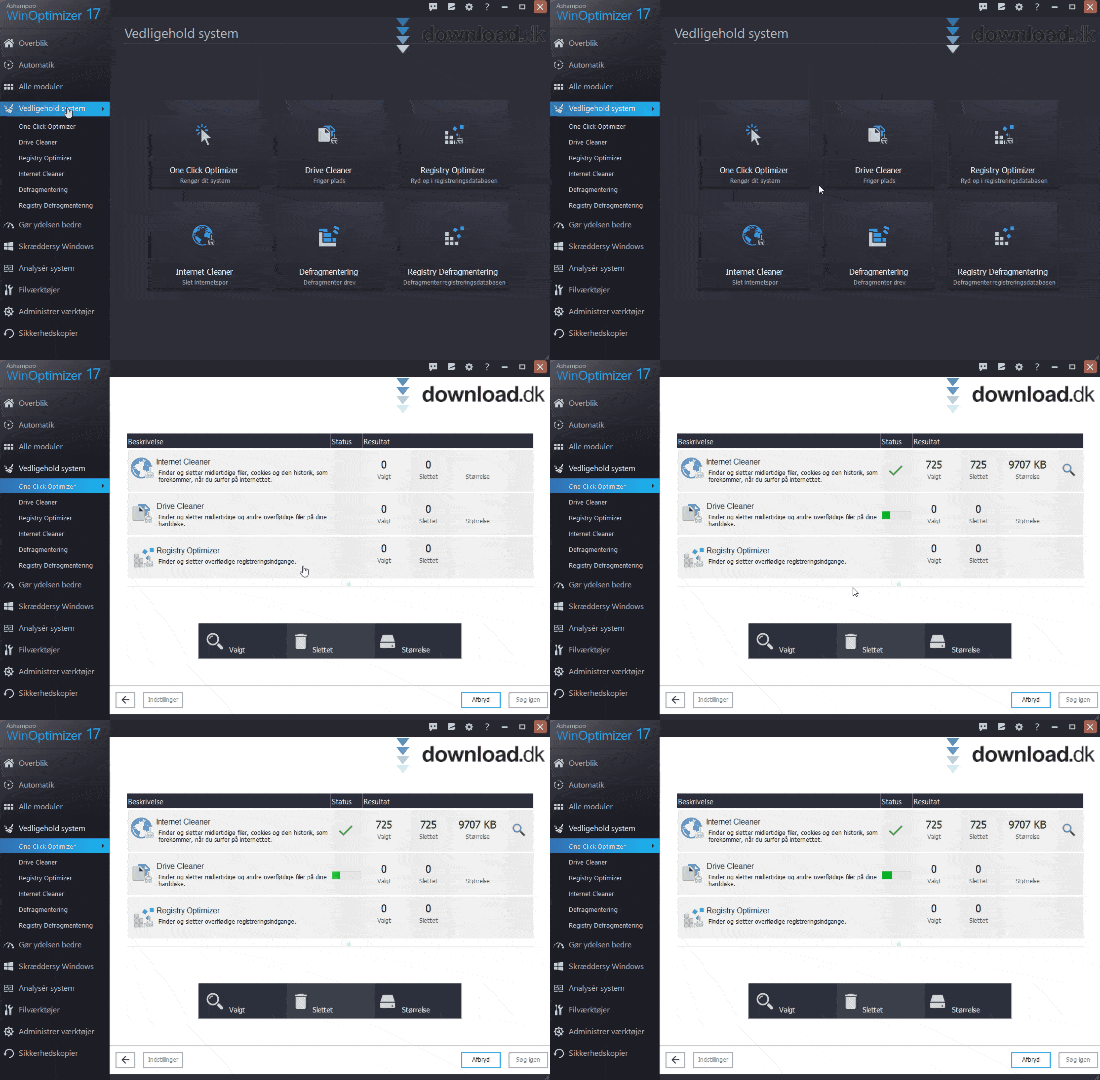
- 1-click optimization: Removes temporary files, browser data, and unnecessary leftovers.
- Disk cleanup: Find and remove gigabytes of unnecessary data.
- Startup optimization: Control which programs launch with Windows.
- System analysis: See detailed information about your hardware and software.
- Privacy protection: Disable tracking and unwanted Windows services.
All of this comes together in a single dashboard where you can easily choose what to improve.
A smoother Windows experience
Ashampoo WinOptimizer isn’t just a cleanup tool — it also gives you shortcuts to hidden Windows features that normally require advanced knowledge or manual tweaking. With the program, you can:
- Customize Windows’ look and behavior
- Remove unwanted context menu entries
- Manage scheduled tasks and services
Regular updates and English support
Ashampoo keeps WinOptimizer Free up to date, and the app features a modern design that follows Windows’ evolution. It’s available in English, and installation takes just a few minutes.
Frequently asked questions
Top five tips and tricks for Ashampoo WinOptimizer Free
1. Use 1-click optimization regularly
Start with the “1-click optimization” feature, which quickly cleans temporary files, browser data, and unused registry entries. Run it weekly to keep Windows in top shape.
2. Review startup apps
Open “Startup optimization” and disable programs that don’t need to launch with Windows. This can significantly improve boot time and make your PC feel faster right away.
3. Adjust privacy settings
Under the “Privacy” section, easily turn off data sharing and tracking from Microsoft and third‑party apps — essential if you want more control over your data.
4. Run a system analysis before and after cleanup
Use “System information” to get an overview of your PC’s health before and after optimization. It helps you see the impact of your changes.
5. Schedule automatic maintenance
Instead of opening the app manually each time, enable scheduled maintenance so WinOptimizer automatically cleans up at set times.
These tips help your PC run faster and more reliably — no IT expertise required.



