
 Martin Jørgensen
AVG Driver Updater – Get More Out of Your PC with a Single Click
AVG Driver Updater is an official tool from AVG Technologies that automatically finds and updates outdated or missing drivers on your computer. We tested it on a Windows 11 PC and found it both fast and very easy to use—especially for non-technical users.
Features and User Experience
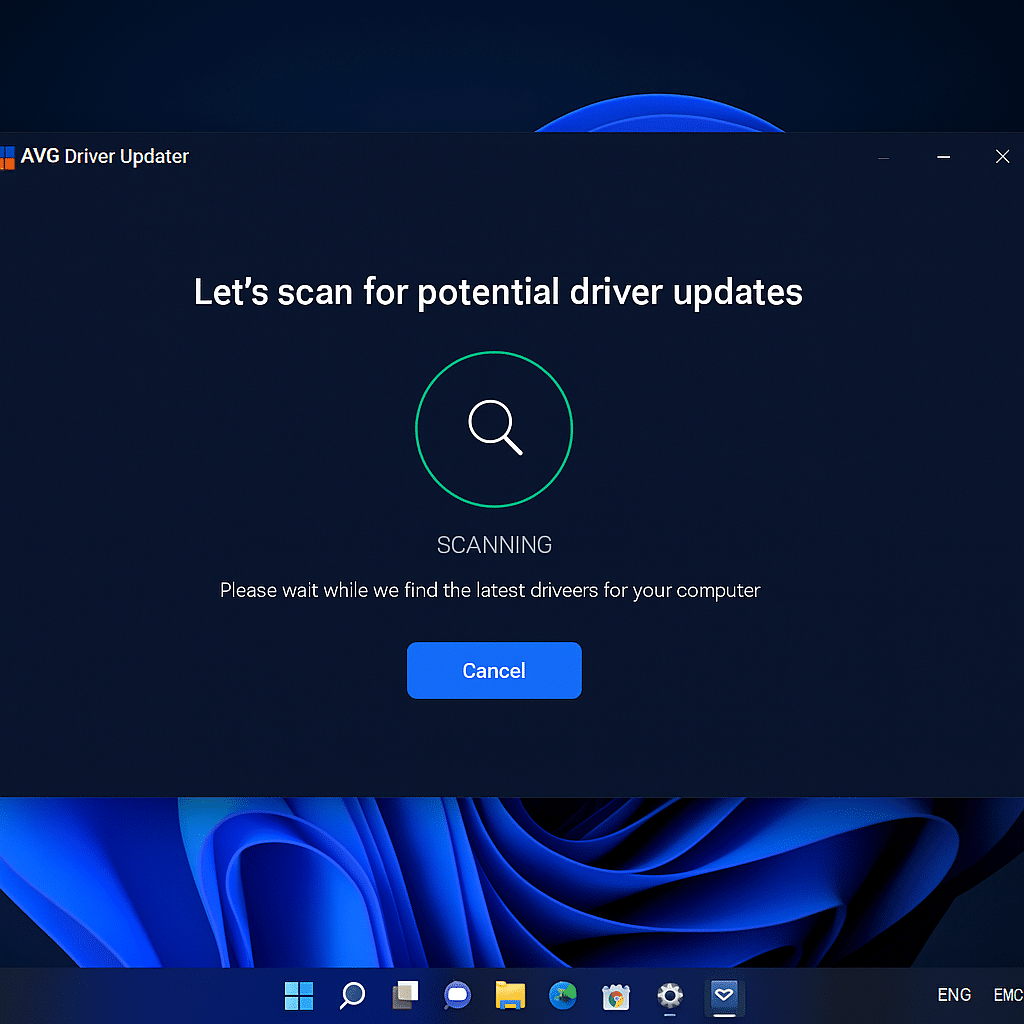
After installation, AVG Driver Updater starts by scanning your entire system. In under a minute, it found 12 outdated drivers in our test—including graphics, audio, and Bluetooth. The program then suggested updates from official manufacturer sources and handled everything automatically.
The interface is classic AVG: minimalist, easy to navigate, and marked by clear colors and icons. You can quickly choose to update everything at once or only specific drivers. It’s especially helpful that the program automatically creates a backup before changes—so you can always roll back if an update causes issues.
Speed and Precision
During testing, it took less than 5 minutes to download and install the updates, after which our system felt both faster and more stable. Boot time was noticeably shorter, and the previous minor audio driver glitches disappeared.
Compared with competitors like 1 and Driver Easy, AVG Driver Updater feels a bit more conservative: it doesn’t scan as broadly, but every update is verified. That means fewer errors and a more secure experience.
Pricing and Versions
You can try AVG Driver Updater for free, but installing all updates requires a full license. Pricing typically runs around $30–$35 per year, and the license covers one PC. If you have multiple devices, the cost adds up, but the stability and security speak for themselves.
Benefits of Using a Driver Updater
An updated driver often means:
💨 faster performance in games and apps
🔊 fewer audio and graphics errors
🔋 better power management on laptops
🧠 improved system stability
Driver updater tools like this are especially popular among users who upgrade their own hardware or want to keep older PCs running optimally with Windows 11.
AVG Driver Updater FAQ
Top 5 Tips for AVG Driver Updater
Run a full scan after the first installation
Always start with a full scan to get a complete overview of every driver—not just the ones Windows updates on its own.
Schedule automatic scans
Under “Settings,” you can have AVG scan automatically once a week. It saves time and keeps everything up to date.
Create a manual backup before major changes
Even though the program makes automatic backups, it’s smart to save your own copy before big system updates.
Temporarily disable notifications
If you’re gaming or watching a movie, you can turn off alerts temporarily so you’re not interrupted.
Keep Windows updated too
AVG Driver Updater works best when Windows itself is up to date—this helps avoid conflicts between old and new driver versions.


