
 Martin Jørgensen
Download a free text-to-speech program for Windows
Balabolka is a free text-to-speech app for Windows that can read almost any text on your computer aloud. It’s especially handy if on-screen text is hard to read, if you have reading difficulties, or if you just want emails, articles, and documents read to you while you do something else.
We tested Balabolka on a standard Windows 11 PC, and installation was quick and free of “extra offers.” The app looks a bit old-school, but it’s stable and surprisingly packed with features once you start exploring.
Features and capabilities
How Balabolka works
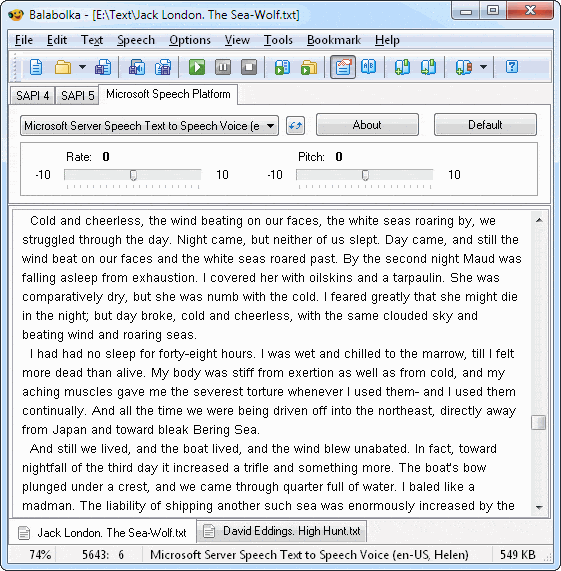
Balabolka uses the voices already installed in Windows via Microsoft’s Speech API (SAPI). That means the reading quality can vary depending on which voices you have on your PC.
Balabolka supports many languages, but there isn’t an official Danish voice built in. In practice, it still works well if you mainly need English text read aloud — and some Danish text can also be “good enough” to understand, though pronunciation won’t be perfect.
Save speech as an audio file
One of the features that makes Balabolka especially useful is exporting the narration to audio files. You can save your text as, for example:
✅ WAV
✅ MP3
✅ MP4
✅ OGG
✅ WMA
Perfect if you want to listen on the go, or if you want a quick “audio version” of notes or longer documents.
Voice settings and adjustments
Balabolka lets you adjust speed and pitch via Windows/SAPI settings. It sounds minor, but it makes a big difference: a slightly slower speed can make narration more comfortable, and small pitch tweaks help reduce monotony.
Interface and ease of use
Balabolka won’t win design awards, but everything is fairly logical. In our testing it ran reliably and feels lightweight — it doesn’t chew through resources just to read text aloud.
Top 5 tips for Balabolka
Tip 1: Turn the speed down a bit
A slightly lower speaking rate makes the narration sound more natural — especially for longer text.
Tip 2: Try more Windows voices
Installing additional Windows voices often improves pronunciation and gives you more pleasant options to choose from.
Tip 3: Save as MP3 for later
MP3 is usually the easiest format if you want to listen on your phone, tablet, or in the car.
Tip 4: Start with short sections
If you use Balabolka for “difficult” texts (e.g., long PDFs), start with shorter sections — it gives you better control over pauses and pacing.
Tip 5: Use voice settings actively
Small changes in tone/pitch can make the voice feel less robotic and easier to listen to.



