

 Martin Jørgensen
BlueStacks – Android apps and games on PC and Mac
BlueStacks is the world’s most popular Android emulator, letting you run your favorite apps and mobile games directly on PC and Mac. We tested BlueStacks on a standard Windows 11 PC and completed installation in under 5 minutes—then we signed in to Google Play and downloaded apps just like on an Android phone.
Features in BlueStacks
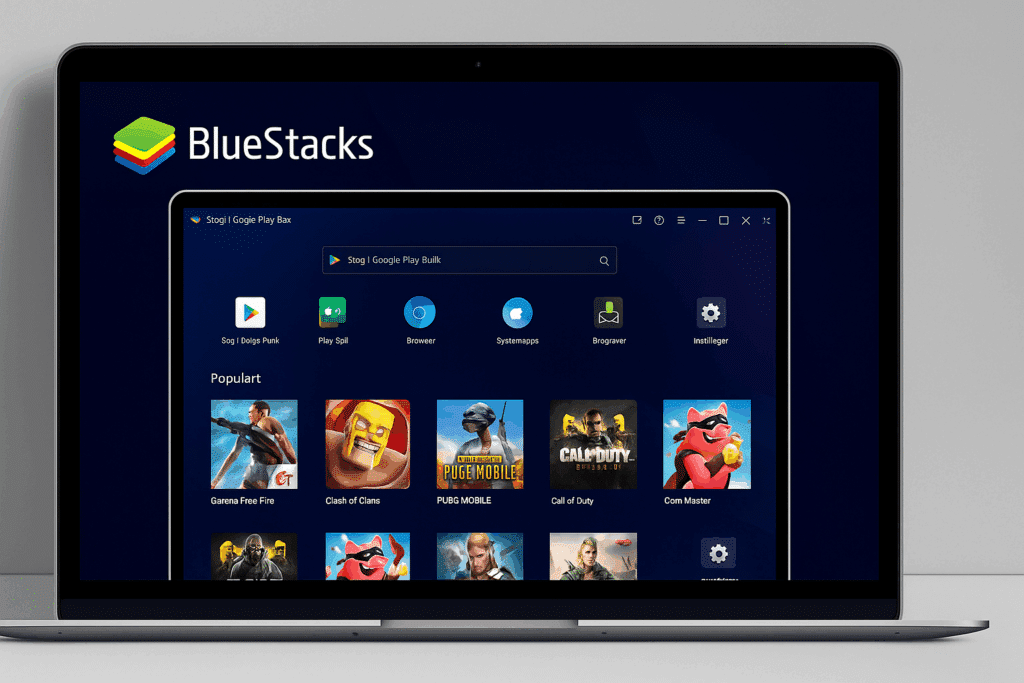
BlueStacks is especially popular with gamers because the emulator lets you play titles like Free Fire, Clash of Clans, PUBG Mobile, and Call of Duty Mobile on a big screen—with mouse and keyboard. That means better precision and faster reaction times.
The software also includes a range of handy features:
- Run multiple apps at the same time
- Keymapping for custom control layouts
- Record gameplay directly from the emulator
- Cloud sync across devices
Graphics and design
In our tests, BlueStacks supports high resolutions (up to 4K depending on your display and hardware). The interface is simple and feels like an Android tablet, which makes it easy to navigate even if you’ve never used an emulator before. We could quickly switch between apps, use multitasking, and even run games in full screen without notable issues. However, some games require tweaking the graphics settings to run perfectly smoothly—especially demanding titles like Call of Duty Mobile or Genshin Impact. We recommend setting graphics to “Balanced” or “Performance” mode in BlueStacks’ settings.
Another plus is that the emulator supports both DirectX and OpenGL, so you can optimize for your hardware. We tried both, and the difference was clear: DirectX generally delivered sharper visuals, while OpenGL worked better on older PCs. That flexibility gives BlueStacks an edge over many competitors.
Performance and controls
Although BlueStacks is optimized for gaming, it requires a fair amount of resources. On older computers the emulator can stutter, especially if you run multiple apps at once. We recommend at least 8 GB of RAM and a dedicated GPU for a stable experience.
The controls are 100% customizable, which is a big advantage in shooters and strategy games where precision is critical.
Pros and cons
It’s clear that BlueStacks targets both gamers and anyone who wants Android apps on a PC for work or school. We tested WhatsApp, TikTok, and Instagram directly in the emulator—it worked without a hitch. That said, the program can feel heavy if you’re on an older laptop.
Top 5 tips for BlueStacks
Increase CPU and RAM allocation under Settings in BlueStacks. It noticeably boosts performance, especially in heavy games like PUBG Mobile and Free Fire.
If you run multiple instances at the same time, enable Eco Mode. It saves resources and keeps all games running without overloading your PC.
Always make sure you have the latest version of BlueStacks installed. New games and features often require the newest software update.
Create your own control layouts with keymapping. It’s a huge advantage in FPS and MOBA games where quick reactions and precision mean everything.
If a game isn’t available on Google Play, you can download the APK and install it directly in BlueStacks. That opens the door to even more apps.



