
 Martin Jørgensen
EASEUS Partition Master – a complete partition manager for Windows and Mac.
In this review, we focus on EASEUS Partition Master Free and, before the download links below, outline the Free, Pro, and Mac editions.
EASEUS Partition Master is a powerful solution for managing hard drive partitions—whether you want to extend the system partition, recover deleted data, or clone an entire hard drive. The program is available as a free edition and is one of the most popular disk management tools on Windows.
Partitioning, recovery, and cloning in one place
With EASEUS Partition Master, you get three core features in one program:
- Partition Manager: Resize, move, create, delete, and format partitions—without data loss. This is especially useful for “low disk space” issues, where you can extend the C: drive without reinstalling Windows.
- Partition Recovery Wizard: Quickly recovers deleted or lost partitions—even after formatting, virus attacks, or system errors.
- Disk and Partition Copy: Used to clone partitions or entire disks—for example when migrating to a larger SSD—or to back up important data.
The software supports both MBR and GPT disks as well as hardware RAID, and it works with all modern versions of Windows—including Windows 10 and 11.
User-friendly design with drag & drop
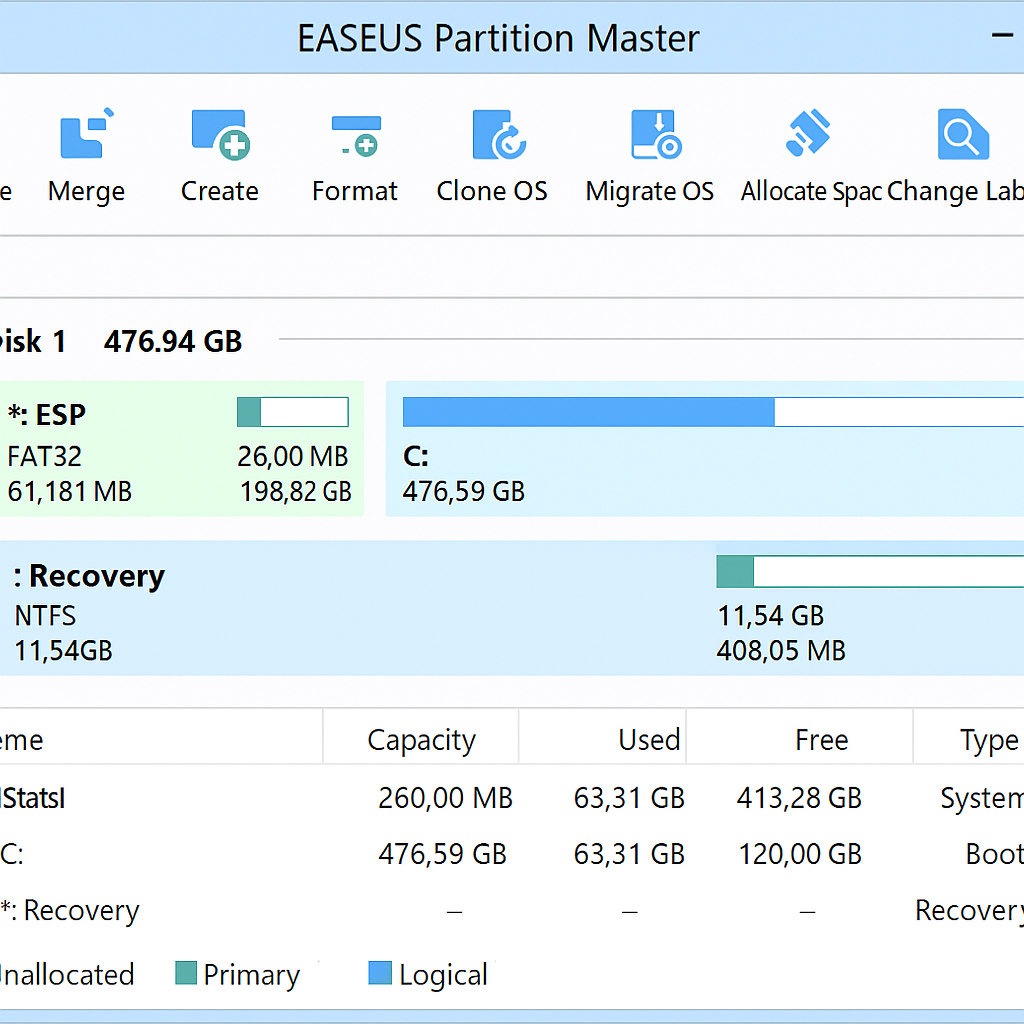
The interface in EASEUS Partition Master is clear and intuitive—even for beginners. It features a visual disk map where you can drag and drop partitions and preview changes before applying them. That makes it easy to work with complex disk setups without risk.
Free edition — what do you get?
The free edition gives you access to the basics, but some advanced options—such as migrating the OS to an SSD and cloning the system drive—require an upgrade to the Pro version. For everyday home use, the free version is often more than enough.
Worth having — especially if you work with drives
EASEUS Partition Master is a solid and well-tested tool. If you’ve lost data, are running out of space on your C: drive, or need to clone your old hard drive to a new SSD, this is one of the best free tools on the market—fast, stable, and easy to use.
Which version of EASEUS Partition Master should you choose?
When you download EASEUS Partition Master, you can choose between three versions—depending on your needs and operating system:
1. EASEUS Partition Master Free for Windows
This is the free edition, suitable for most home users. You get core features such as creating, deleting, formatting, and resizing partitions. It also supports the drag-and-drop disk map, and you can solve classic “low disk space” problems without losing data.
✅ Ideal for everyday users with basic needs
❌ Advanced features such as OS migration and system drive cloning require Pro
2. EASEUS Partition Master Pro for Windows
This edition builds on the Free version with advanced features such as:
- Migrate Windows to an SSD or another drive
- Clone the system drive
- Commercial license
- Technical support included
If you work professionally in IT, or need to move an entire operating system to a new drive, the Pro version is worth the investment.
✅ Perfect for more advanced use cases and business
❌ Paid, but available as a trial
3. EASEUS Partition Master Pro for Mac
Mac users aren’t left out—this version offers the same advanced features as Windows Pro, tailored for macOS. It supports APFS, HFS+, Fusion Drive, and more, and is suitable for both internal and external disk management on Mac.
✅ Specially built for Mac with full functionality
❌ Not available as a free version — commercial product only
Download EASEUS Partition Master Free for Windows here
Download EASEUS Partition Master Pro for Windows here
Download EASEUS Partition Master Pro for Mac here
Top five tips and tricks
- Extend the C: drive without losing data
If you’re running out of space on your system drive, use the Resize/Move function to take unused space from another partition and add it to the C: drive—without formatting or deleting data. - Recover deleted partitions quickly
Use Partition Recovery Wizard if you accidentally deleted a partition. It quickly scans the disk and shows you what can be recovered before you confirm the changes. - Stage changes before you apply them
You can queue multiple changes (such as creating, moving, or deleting partitions) before you click “Apply.” This lets you undo or adjust them before anything is written. - Use disk cloning before upgrading
Before upgrading to a new SSD or larger hard drive, use the Disk Copy feature to clone the entire system—including Windows—onto the new drive, ready to use. - Check for errors with “Check Partition”
The “Check Partition” feature can find and fix file system errors—ideal if you experience slow access, crashes, or corrupted files.



