
 Martin Jørgensen
Everything – lightning-fast search on Windows
Everything is a free Windows search tool that gives you instant access to every file and folder on your computer. Unlike the built-in Windows search, which is often slow and inaccurate, Everything indexes your entire file system in seconds and delivers real-time results as you type.
Features and search filters
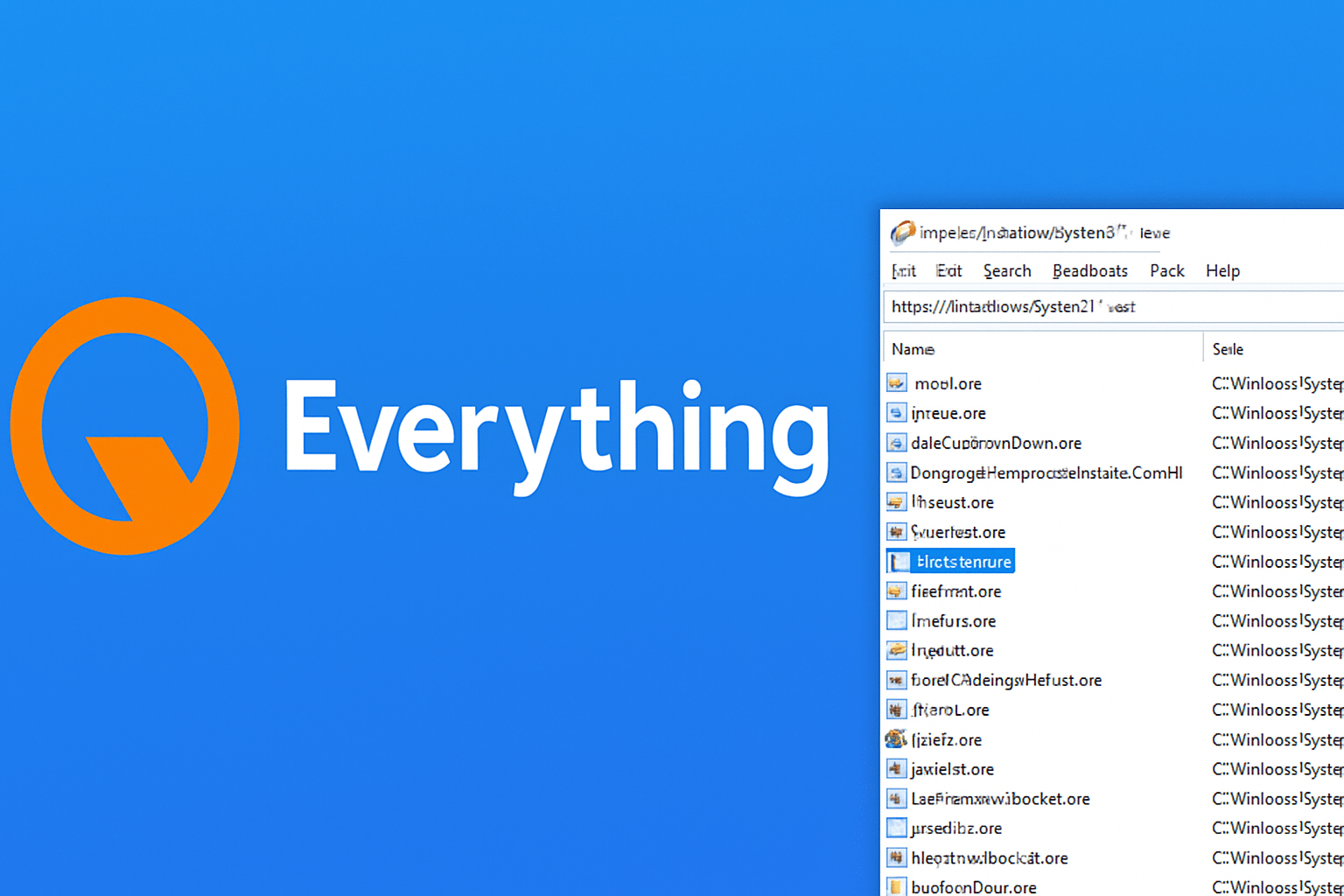
Everything uses only file and folder names (not file contents), which makes the app extremely fast. Indexing one million files usually takes under a minute, and the database then updates automatically when files are changed or added—no manual work required.
You can use plain keywords, wildcards, Boolean operators (such as NOT and OR), and filter results by type, location, filnavn, and more. That makes Everything especially useful if you work with large file collections or need quick access to old documents, images, or system files.
You can also save frequently used searches as bookmarks, which saves time if you regularly need to find specific file types or folders. Everything also supports regular expressions (regex) if you need advanced search patterns—a powerful tool for developers and technicians.
Results appear in real time as you type, and you can sort them by name, size, modified date, or location. You can quickly åbne filer, vise deres placering in File Explorer, or copy their path with a single click. You can also limit searches to specific drives or network shares.
In short, Everything gives you total kontrol over how you search and interact with your files, without compromising on speed or ease of use.
More than just a search tool
Everything can also act as an HTTP or FTP server, which means you can share your searches and results with others over the network—directly from the app, without third‑party software. This makes it ideal for offices, development environments, and tech support where multiple users need access to the same file index.
Once the server feature is enabled, coworkers or other computers on the same network can access Everything via a browser or FTP client and run searches against your index. It’s a fast, flexible way to make all or parts of a file system available—without granting full access to the machine.
You can also configure permissions and passwords so you retain control over who can view and search your index.
Everything supports exporting search results to various file formats (including CSV and TXT), which is useful for documentation, troubleshooting, or integrating with other software. Many users also pair Everything with scripts (such as PowerShell or batch) to automate repetitive tasks, like to finde og flytte bestemte filer based on name patterns.
Everything also offers command-line parameters and a comprehensive API, so you can integrate it directly into your own tools and workflows—an obvious plus for IT departments and advanced users who want maximum flexibility.
Minimalist and efficient interface
Everything’s interface is simple and distraction-free—a clean window with a search box and list view. It’s easy to understand and use, even for less experienced users. No ads, no popups, and no unnecessary animations. The focus is singular: to find your files as fast as possible.
Everything runs quietly in the background and uses almost no system resources. Even on older PCs, you’ll barely notice it’s running until you need it—and when you do, it’s ready in an instant.
The program starts in seconds, and since it doesn’t require heavy drivers or deep system changes, it works immediately after the first launch. It’s also ideal for portable setups: for example, you can run Everything directly from a USB drive without changing anything on the host machine.
For power users, Everything offers a range of adjustable settings to tailor the view, performance, and indexing—for example, choosing which drives and folders to include, or how the app reacts to changes in the file system. That way, both everyday Windows users and superusers are well served.
Top 5 tips for Everything
Use wildcards to quickly find file types
Type, for example, *.pdf or *.mp3 in the search box to show only specific file types. It’s an easy way to find every file of a given type across your entire system.
Limit searches to specific folders
By typing, for example, C:\Pictures\*.jpg, you search only within that folder. You can also combine this with other filters for even more precise results.
Save your favorite searches as bookmarks
Create a search and save it as a bookmark. You can quickly bring it up later—perfect for repetitive tasks.
Enable Everything as an HTTP or FTP server
Share search results over the network with coworkers or tech support. Go to "Settings" → "HTTP/FTP Server" and enable the feature. Ideal for office use or home file sharing.
Use keyboard shortcuts and save time
For example, press Ctrl + Shift + F to focus the search field instantly. Everything offers many shortcuts—learn them and work faster.



