
 Martin Jørgensen
Revo Uninstaller Pro — completely remove programs from your PC.
Revo Uninstaller Pro is one of the most trusted tools for fully uninstalling programs in Windows. While the standard method often leaves behind leftover files, registry entries, and folders, Revo goes further with deep scanning and advanced cleanup. This Pro version is ideal for both home users and IT professionals who want to keep their systems clean and fast.
Efficient uninstalls with deep cleanup
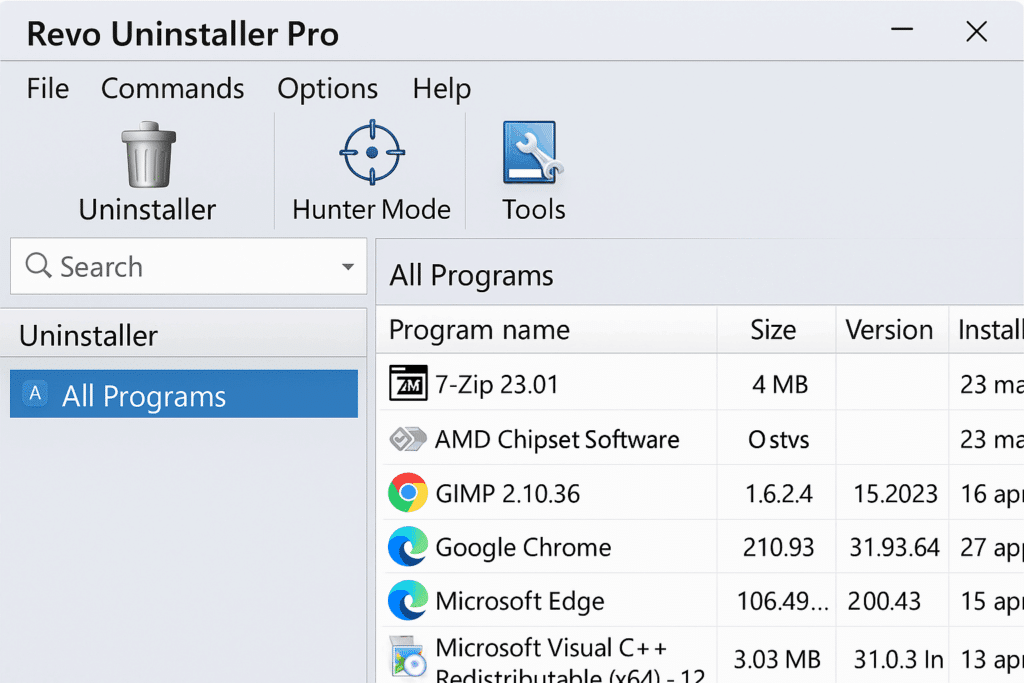
Revo Uninstaller Pro offers several uninstall modes: standard, quick, and advanced. The most popular — Advanced Uninstall — scans for leftovers so you can delete everything related to an app: files, folders, and registry entries. This makes it especially useful for programs that don’t uninstall correctly.
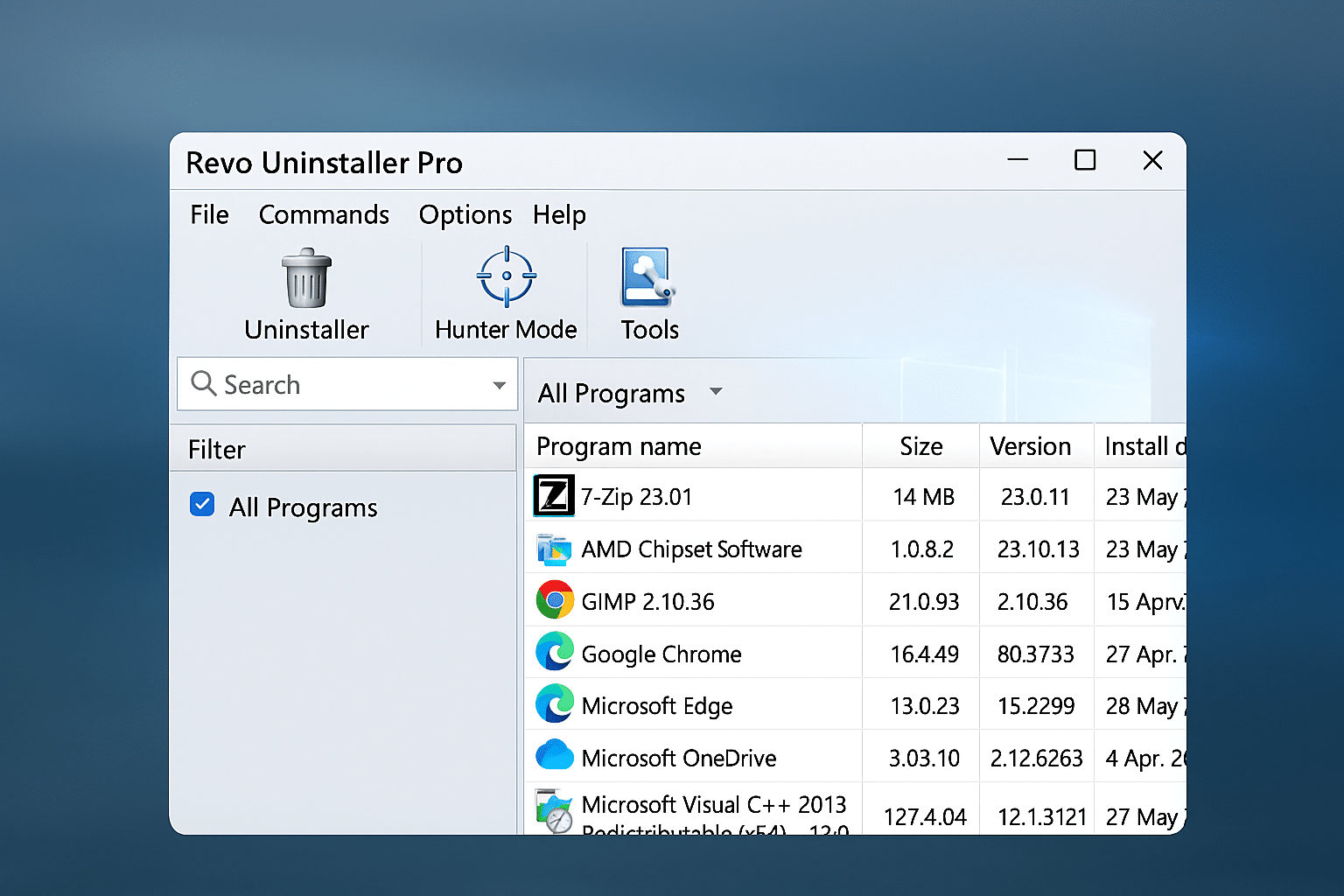
The program displays all installed apps in a clean interface with search, details like install date, version, and publisher — and even filtering options.
Hunter Mode and extra tools
One of Revo’s unique features is Hunter Mode. It’s a small “crosshair” button you can drag onto any app, process, or shortcut to terminate it, uninstall it, or search for info online. It’s particularly useful for hidden or stubborn apps.
In addition, the Pro version includes a wide range of system tools:
- Autorun Manager for startup control
- Browser Cleaner (clears data from Chrome, Firefox, etc.)
- Junk File Cleaner
- Windows Tools launcher
- Secure file deletion
Full language support and Windows 11 compatibility
Revo Uninstaller Pro is fully localized in English (and many other languages), making it much more accessible for users who don’t want to navigate technical jargon. All menus, guides, and pop-up dialogs are translated, making it easier to understand what each tool does — especially for sensitive actions like deleting items in the Registry.
The program is fully compatible with Windows 11, and it also works smoothly on Windows 10, 8.1, and 7. It supports both 32-bit and 64-bit systems, and installation is quick and easy. Thanks to technical optimizations, the app runs fast and remains stable on modern hardware.
Revo also receives regular updates to ensure compatibility with new Windows versions and updated programs, so you can be confident that even new apps and Windows changes are handled correctly. For professional users and IT support, Revo is a reliable choice for both workstations and home PCs.
Free vs. Pro — what do you get?
The free version of Revo Uninstaller covers the basics and is still better than Windows’ built-in uninstaller. But the Pro version adds:
- Complete leftover cleanup
- Batch uninstall
- Automatic backups
- Command-line support
- Real-time monitoring of new installations
- Premium support
If you’re a power user — or just tired of half-finished uninstalls — the Pro version is worth it.
Top 5 tips for Revo Uninstaller Pro
Use Advanced scanning every time
After you uninstall a program, Revo offers three scan levels. Always choose “Advanced” to find and remove hidden files, folders, and registry entries that would otherwise be left behind.
Use Hunter Mode on stubborn programs
Enable Hunter Mode and drag the crosshair over a window, process, or icon you want details about — or want to remove. It’s especially helpful for apps without a proper uninstaller or annoying background processes.
Clear browser data regularly
Use Browser Cleaner in Revo to delete cache, cookies, download history, and form data in Chrome, Edge, Firefox, and more. It improves privacy and speed — especially on older PCs.
Monitor installs with “Installation Monitor”
Turn on monitoring before installing new programs so Revo records exactly what changes in the system. That creates a complete log used to roll back and remove the program 100% later.
Uninstall multiple programs at once
With Batch Uninstall, you can select multiple programs and remove them in sequence without manually confirming every step. It’s a big time-saver when cleaning up your PC.



