
 Martin Jørgensen
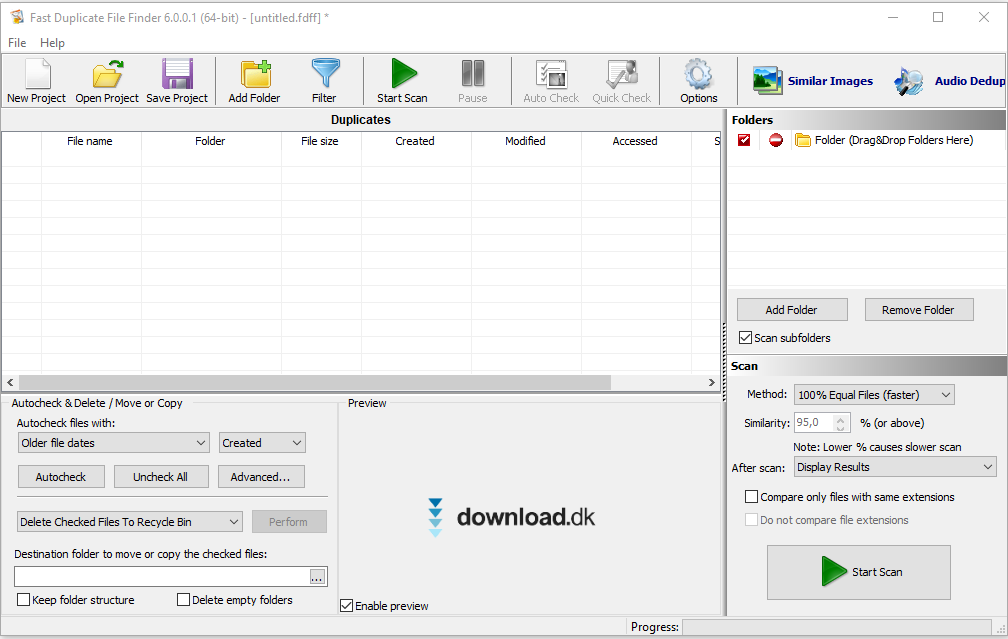
Fast Duplicate File Finder is a free program that efficiently does exactly what it promises: using a binary algorithm, it compares the content of selected folders or your computer as a whole, finds multiple copies of the same file across different locations, and helps you easily remove unwanted duplicate files.
Say goodbye to old folders filled with files you also have scattered elsewhere. We’ve all been there—needing a specific document or a photo for a presentation, downloading it again, and then realizing the filename already exists with a neat “1” (or higher) tacked on in a futile attempt to make it unique.
It’s even worse with images and videos you’ve saved from the web, often stored in obscure formats that make it nearly impossible to track down duplicates—unless you want to spend a week combing through every corner of your drive. Those excuses end here: this tool does the heavy lifting for you and frees up disk space in seconds or minutes.
This article focuses on the free version, but it’s worth noting there’s also a PRO version that requires a one-time purchase of a license key. On the program’s website, you can also see a clear side-by-side comparison of the PRO and free versions.
Fast Duplicate File Finder’s ease of use
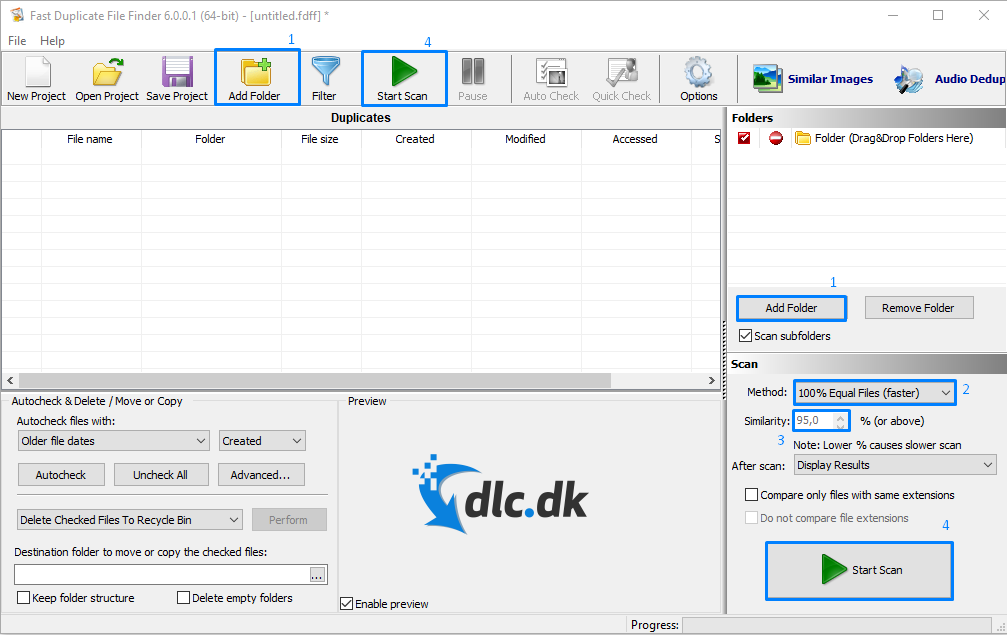
The program is very easy to get started with. You can always visit the website to read more about how it works if you’re unsure about anything. Generally, it boils down to four simple steps, illustrated in the image above.
- First, choose the folders you want included in the duplicate scan.
- Then decide whether the algorithm should look for identical files or similar ones.
- If you choose similar files, specify how similar they must be as a percentage.
- Click ‘Start scan’ and let the program do its job.
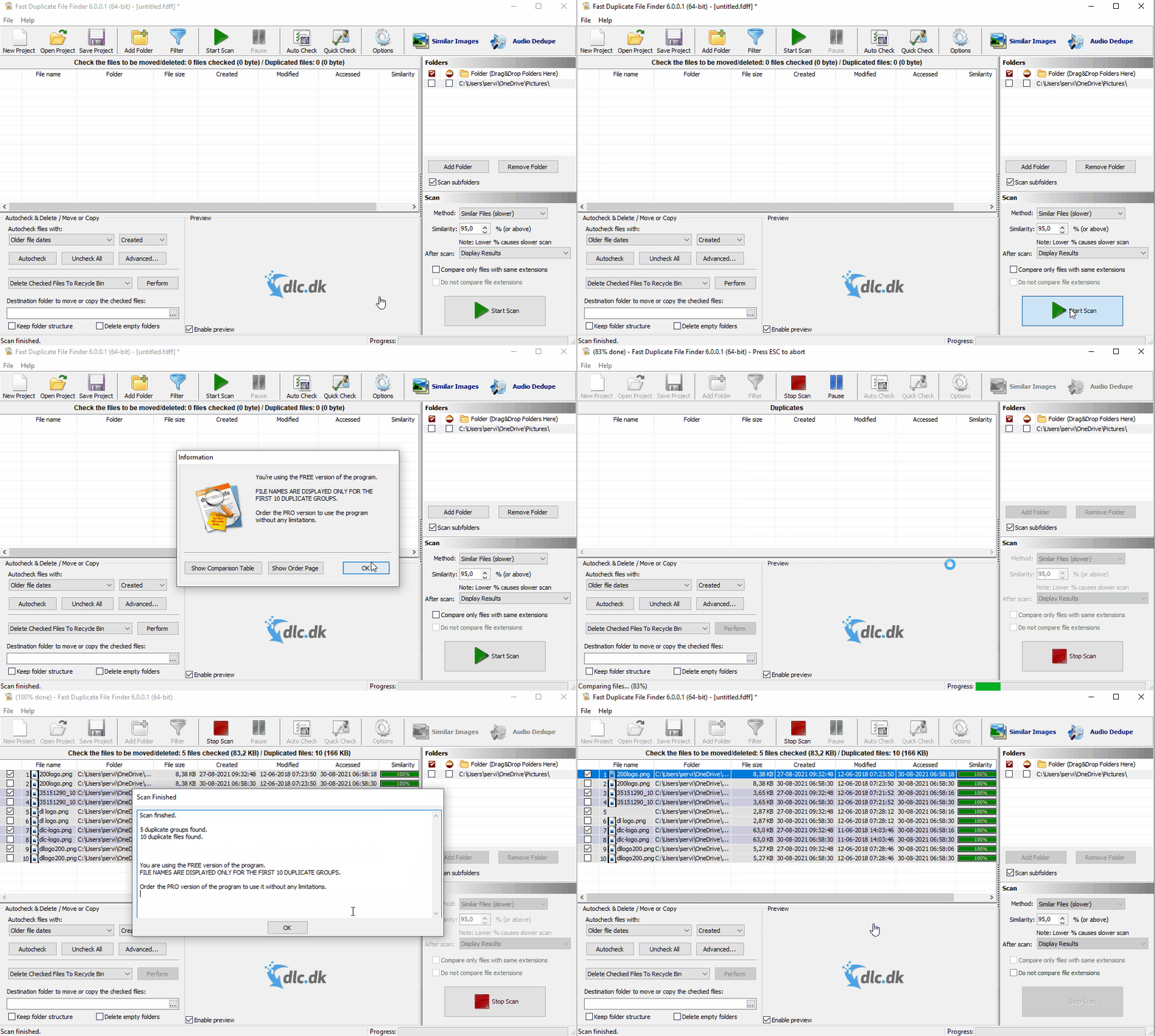
When that’s done, you’ll (likely) get a list of results showing all the files you have that are either identical or similar, depending on your earlier choice.
If you don’t see any results at first, try selecting a broader set of folders to scan. The first time we tested the program, we got no results. We then went back, added more folders to the scan, and suddenly had 10 files to review.
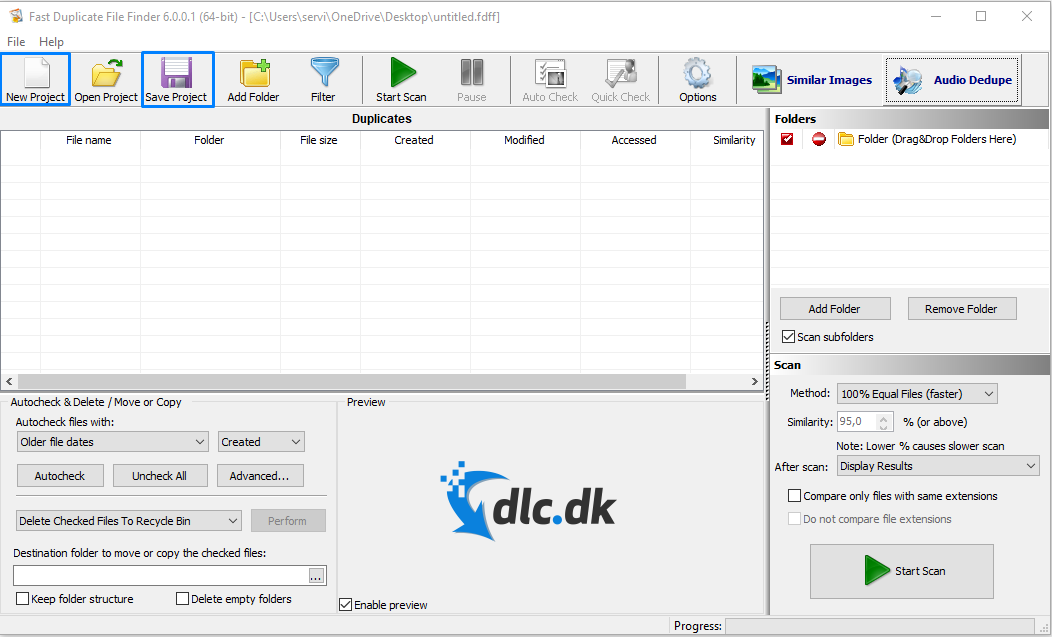
The free version also lets you save your work if, for example, you’ve run an interesting search you’d like to inspect manually later. Note, however, that only the PRO version can open previously saved projects.
Once the files are found, you can let the program automatically select which ones to delete (it chooses the oldest) by clicking ‘Auto check’. The PRO version also includes a ‘Quick check’ feature that’s more cautious than the automatic option while still being faster than reviewing every file by hand.
Only want to scan photos or maybe music?
At the top right in Fast Duplicate File Finder, you’ll find two buttons. These point to two other MindGems Inc. products that specialize in specific file types.
If you’re only interested in finding duplicate photos—which are a major storage hog, especially if you shoot high-quality videos on your phone or take lots of pictures with more professional gear such as DSLR cameras—older files can sometimes be transferred repeatedly without you even noticing.
If you’re the type who loves listening to lots of different music, or you’ve switched between audio libraries where your local files are registered, for example in Spotify or Apple Music, entire albums can easily sneak in multiple times without appearing as duplicates on your playlists.
Audio files can also be quite large—for example, if you’ve used a recorder for interviews, concerts, or other long-form audio.
In that case, we recommend MindGems’ other tool, Audio Dedupe.
Both programs are free to download and work much like Fast Duplicate File Finder.
Alternatives to Fast Duplicate File Finder
If you care about the look and feel of your tools and want something that’s still easy to use but designed with more modern UI principles, consider 1.
It works very much like Fast Duplicate File Finder, but with a more modern finish. With Auslogics, there hasn’t been as much emphasis on guided usability—possibly because the program is straightforward by nature—but it’s something to keep in mind when choosing your tool.
AutoDelete works as a program that starts up with windows when you boot your computer. You set specific rules for the program to follow. The idea is to hand over the responsibility so it can continuously keep your drive tidy by removing, among other things, duplicates.
Fast Duplicate File Finder does exactly what it should
Fast Duplicate File Finder is a solid tool that does exactly what it’s supposed to without unnecessary extras. The free version is great for everyday home users, and you can unlock more features with the PRO version’s one-time purchase license.
With four simple steps, you can point the program to the folders you want scanned. It lets you fine-tune options so the results match exactly what you’re looking for.
Fast Duplicate File Finder is fast, efficient, and reliable, though its somewhat outdated visual design holds it back a bit in a modern context where aesthetics matter to many users.



