
 Martin Jørgensen
FileRestorePlus – recover deleted files quickly on Windows
FileRestorePlus (formerly Undelete Plus) is a Windows utility that lets you recover deleted files from hard drives, USB drives, SD cards, and external storage. It’s designed for users who accidentally deleted files and want to quickly check if data can be recovered—even after the Recycle Bin has been emptied or a drive has been formatted.
We tested FileRestorePlus on a standard Windows 11 PC with both an internal SSD and a USB flash drive. Installation was straightforward and took under a minute, and the program was ready to use with no registration or complicated setup.
Recovering deleted files in practice
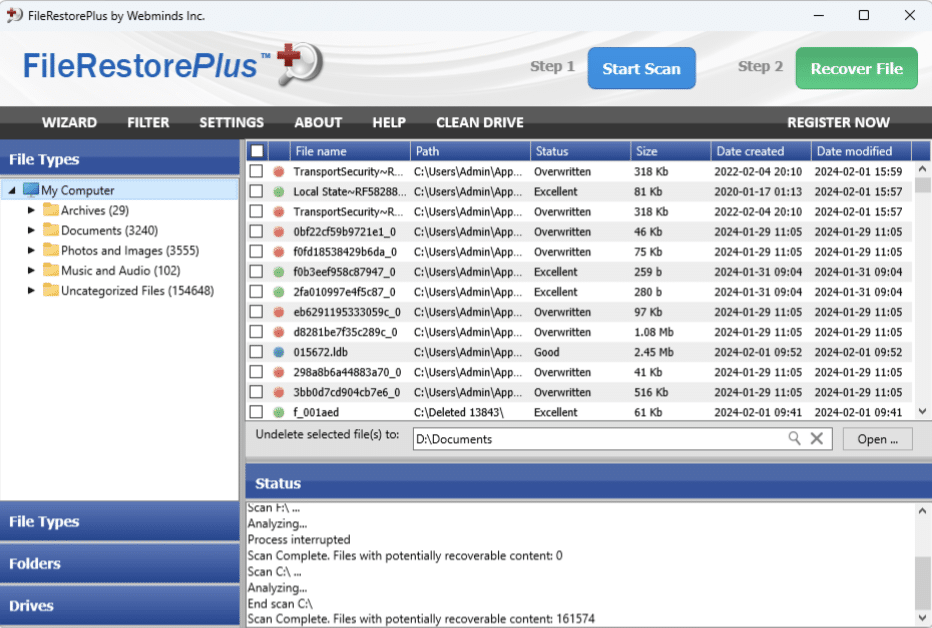
FileRestorePlus scans the file system for traces of deleted files that haven’t been overwritten yet. It supports both a quick surface scan and a more thorough deep scan, depending on how long ago the files were deleted.
In our tests, the quick scan found recently deleted documents and photos without issue, while older files required a deep scan to show up at all. It’s helpful that the program clearly indicates each file’s condition, so you can gauge the likelihood of success before attempting recovery.
Supported file systems and devices
FileRestorePlus works with the most common Windows file systems, including FAT12, FAT16, FAT32, NTFS, and NTFS5. That means it can be used on both older and newer storage media.
The program can scan:
- Internal hard drives and SSDs
- USB drives and external hard drives
- SD cards and other memory cards
That makes it useful for both home use and more professional scenarios—for example, if a camera card or a USB drive suddenly loses data.
Interface and ease of use
The interface is simple and a bit old-school, but very easy to navigate. All features are consolidated in a single window, and you’re guided step by step through drive selection, scanning, and recovery.
It’s clear the focus is on function over design. On the plus side, the program is lightweight and uses very few system resources, even while scanning, making it suitable for older or less powerful Windows PCs.
Limitations and things to keep in mind
As with any data recovery, your chances drop significantly if files have already been overwritten. FileRestorePlus can’t work miracles, and it’s best suited for recently deleted files.
It’s also important not to install the program on the drive where the files were deleted, as that can overwrite the very data you’re trying to recover.
When does FileRestorePlus make sense?
FileRestorePlus is a good choice if you:
- Accidentally deleted files and want to act fast
- Need a simple Windows tool without advanced settings
- Want a clear indication of which files can realistically be recovered
For more complex data-loss scenarios, more advanced (and pricier) tools may be necessary, but for everyday use FileRestorePlus hits a sensible sweet spot.
Top 5 tips for FileRestorePlus
Act as quickly as possible
The sooner you scan after deletion, the better your chances of recovery.
Never install on the same drive
Always install FileRestorePlus on a different drive than the one where the files were deleted.
Use quick scan first
Start with a quick scan—it often finds recently deleted files in minutes.
Check file status before recovery
File status gives a realistic picture of whether recovery is likely to succeed.
Recover to an external location
Always save recovered files to a different drive to avoid overwriting.



