
 Martin Jørgensen
Revo Uninstaller Free – fast, free, and thorough program removal for Windows.
Revo Uninstaller is a popular, free tool that lets you completely uninstall programs—even when Windows' own tool can't. With advanced scanning, Revo removes leftover files, folders, and registry keys that many other uninstallers miss.
Advanced uninstallation and deep scanning
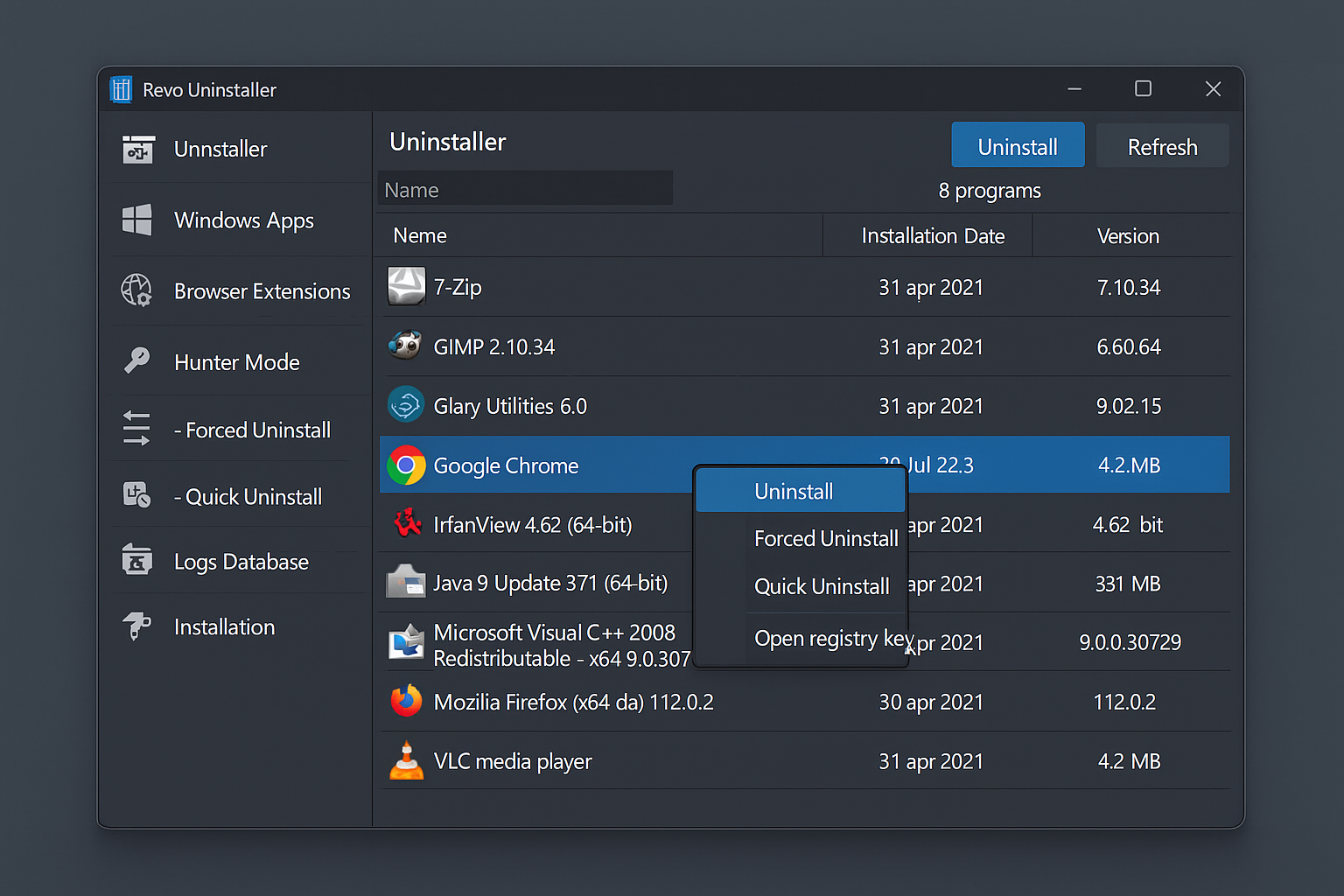
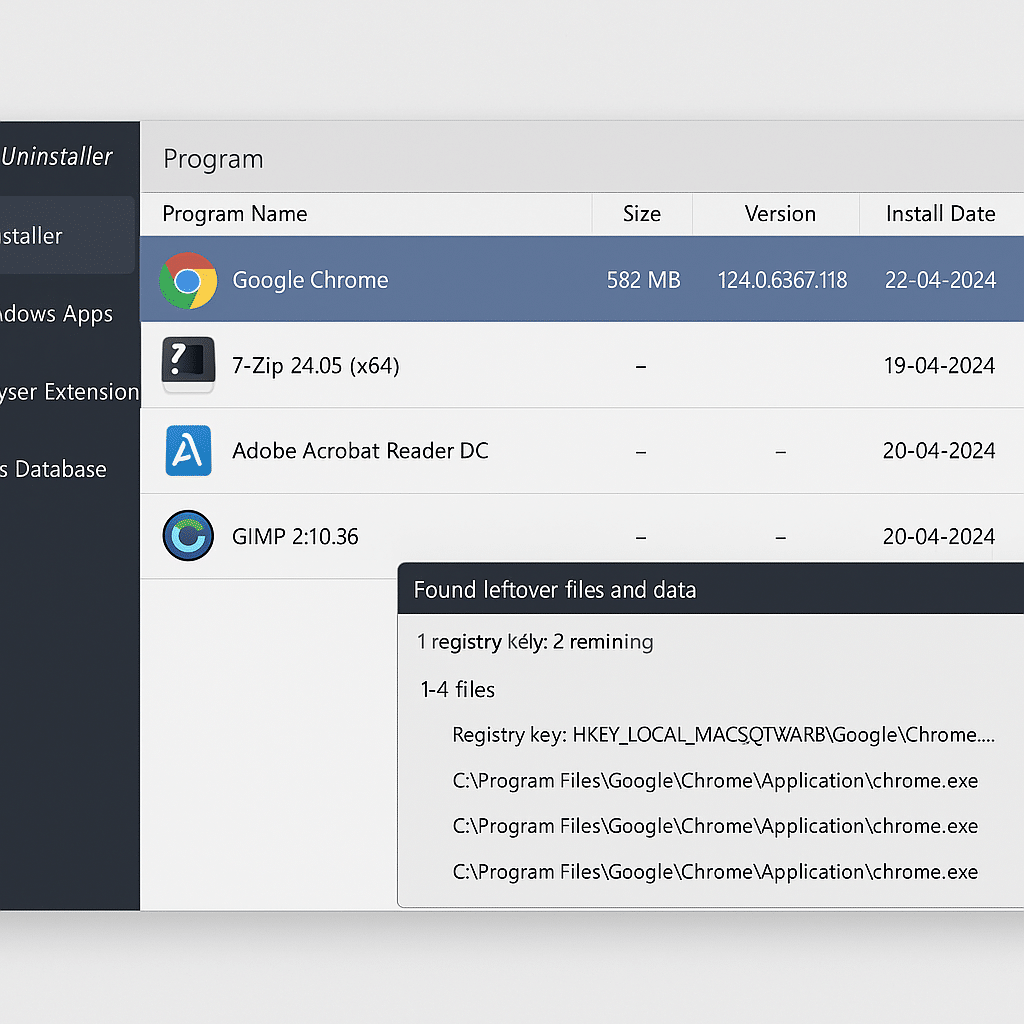
Built-in tools like "Add or Remove Programs" in Windows often leave leftovers. Revo Uninstaller first identifies the programmets data and registry keys, runs the standard uninstaller, and then scans the system for remaining files and keys. You can confirm what should be removed.
Even if a program installation fails or is interrupted, Revo can still find and clean up.
Features in Revo Uninstaller Free
The free version of Revo Uninstaller includes a wide range of tools that make it one of the best free system utilities. The combination of deep uninstalls and system maintenance makes it appealing to both everyday users and power users.
Classic and advanced uninstallation
Choose a standard uninstall that follows the program’s own method, or use advanced uninstall, where Revo scans for leftovers afterward—such as hidden folders, empty registry keys, and unused libraries. This is especially useful for programs that don’t provide a proper uninstaller.
Repair faulty installations
If an installation goes wrong, Revo can try to identify partially installed programs and safely remove them—even if no official uninstaller is available.
Remove leftover files and registry entries
After a standard uninstall, Revo can analyze your system for orphaned files and unused registry keys that would otherwise slow things down. You choose what to delete to avoid mistakes.
Startup Manager – control what launches with Windows
Take full control of which programs start automatically with Windows. Disabling unnecessary startup items reduces boot time and frees system resources.
Browser Cleaner – remove temporary internet files and history
Revo supports most popular browsers and helps clean cookies, cache, autofill, download history, and more. Great for privacy and speed optimization.
Junk Files Cleaner – free up space by deleting clutter
This tool scans for temporary files, empty folders, old log files, and other items you no longer need that still take up space.
Autorun Manager and system monitoring tools
With Autorun Manager you can disable or remove scheduled tasks, services, and system components that start without your knowledge. Revo also offers real-time logging of file system changes to analyze what an installation actually does behind the scenes (Pro version).
With all these tools, you don’t just get an uninstaller—you get a complete clean-up and optimization package for Windows, making Revo Uninstaller Free an obvious choice if you want to keep your PC clean, fast, and free of bloat.
Revo Uninstaller Pro – more features and an even deeper clean
The paid edition, 1, adds features like:
- Real-time monitoring of installations
- Forced uninstall
- Batch uninstall (remove multiple programs at once)
- Backups and System Restore
- Advanced logs database for applications
You can try Revo Uninstaller Pro gratis i 30 dage – and it’s worth considering if you frequently install and uninstall software.
An effective and reliable uninstaller
Revo Uninstaller Free is one of the bedste gratis løsninger til grundig afinstallation on Windows. It’s especially suitable for technical users and those who often install and test software, yet it’s still beginner-friendly. The Pro version is also worth considering if you want maximum control.
Top five tips for Revo Uninstaller
Use "Advanced Mode" for a thorough cleanup
After a normal uninstall, choose "Advanced" to scan for and remove leftovers—this typically removes 10–20% more.
Close background processes before uninstalling
Revo handles most cases, but running programs can lock files. Close them via Task Manager or use Revo’s "Hunter Mode".
Clean up browser data
Revo’s Browser Cleaner removes cookies, history, and temporary files from Chrome, Firefox, and more. Use it regularly for privacy and speed.
Streamline startup
Startup Manager shows which programs launch automatically. Disable what you don’t use for faster boot times.
Use "Hunter Mode" for stubborn programs
Drag and drop the target icon from Revo onto the program window, then choose to uninstall or locate related files.



