
 Martin Jørgensen
FlexClip – online video editing made easy
FlexClip is a web-based video editor that lets you create great-looking videos directly in your browser—no installation required. It’s ideal for users who want to quickly produce videos for social media, presentations, marketing, or YouTube without learning complex editing software.
We tested FlexClip on a standard Windows 11 PC and on a MacBook using Chrome. Setup was instant, and within minutes we had assembled a short video using templates. It’s clear FlexClip is built for speed and accessibility rather than deep, technical control.
Video editing right in your browser
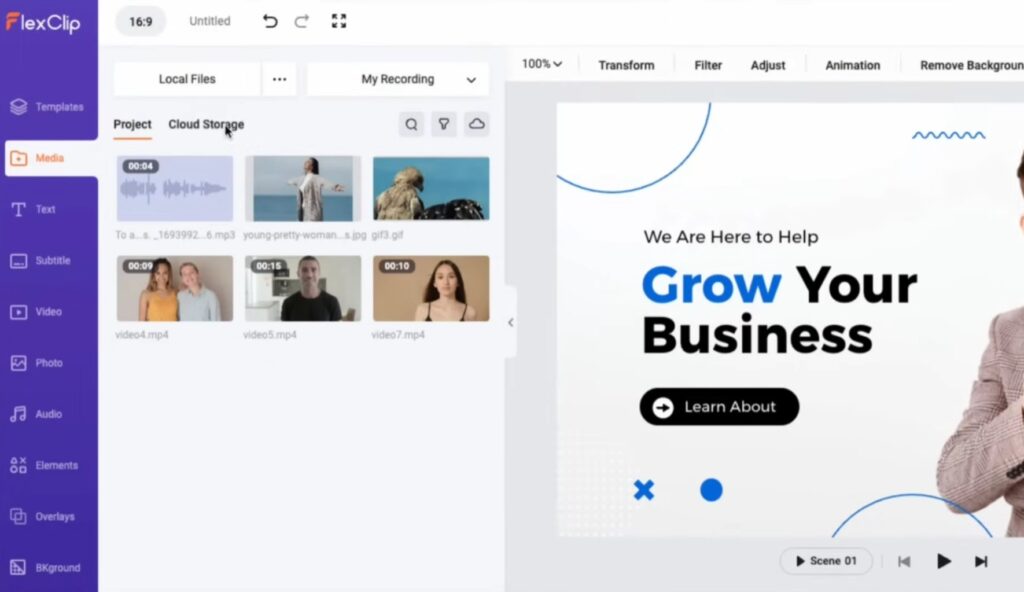
FlexClip runs 100% online. That means no software downloads, no update headaches, and no hardware requirements to worry about. Everything happens in your browser, and projects are saved automatically in the cloud.
The editing tools are intuitive:
• Drag-and-drop timeline
• Trim, crop, and combine video clips
• Add text, music, and transitions
• Use stock videos and images directly in the editor
FlexClip is especially well-suited for short-form videos, explainers, ads, and social media posts.
Templates, AI, and ready-made formats
One of FlexClip’s biggest strengths is its large library of ready-to-use templates. Simply choose a goal (e.g., Instagram Reels, YouTube intro, or a company presentation) and the tool automatically adapts the format, length, and layout.
FlexClip also includes built-in AI features, such as:
• Automatic text-to-video
• AI-generated image and video suggestions
• Fast subtitle generation
It works surprisingly well for simple productions, but you’ll quickly notice limitations with more advanced editing.
Performance and practical limitations
During testing, we experienced stable performance along with a few constraints. Projects with many layers or long timelines can feel slow, especially on older computers. The free plan also has clear limits on resolution and adds a watermark, making FlexClip’s paid plans more relevant if you need professional results.
On the plus side, the learning curve is extremely low—even for complete beginners with no video editing experience.
Who is FlexClip best for?
FlexClip is ideal for:
• Small businesses and freelancers
• Students and educators
• Marketers and social media managers
• Anyone who wants quick videos without technical hassle
If you’re looking for an alternative to Canva Video, Kapwing, or InVideo, FlexClip is a strong choice—especially if you prioritize simplicity over full manual control.
Top 5 tips for FlexClip
Use templates as a starting point
Even if you want something unique, templates save a lot of time and give you the correct format from the start.
Upload your own media early
FlexClip organizes media better if you upload your clips and images before you start editing.
Keep videos short
Performance is best with short videos—perfect for social media, less ideal for long productions.
Evaluate the AI features critically
AI tools are helpful but often need manual tweaks to match your brand voice and English tone.
Export in the right format the first time
The free plan limits export options—so decide on resolution and aspect ratio before you spend time polishing.



