
 Martin Jørgensen
HandBrake – make large video files smaller and convert DVDs and Blu‑ray
HandBrake is a free, open‑source video transcoder used to make large video files smaller, convert formats, and rip DVDs and Blu‑ray discs to digital files. It’s especially popular among users who want to convert video to MP4 or MKV without losing visible quality—and without paying for pricey alternatives.
We tested HandBrake on a standard Windows 11 PC and found the installation quick. Once you get familiar with the options, the extensive settings give you a surprising amount of control.
What is HandBrake used for in practice?
Common uses include:
- reducing the file size of large videos
- converting video to MP4 (M4V) or MKV
- ripping DVDs and Blu‑ray discs (without copy protection)
- optimizing video for mobile, TV, or streaming
- archiving movies and shows in high quality
The “Constant Quality” mode is especially compelling because you can keep high image quality while drastically cutting file sizes.
HandBrake features and capabilities
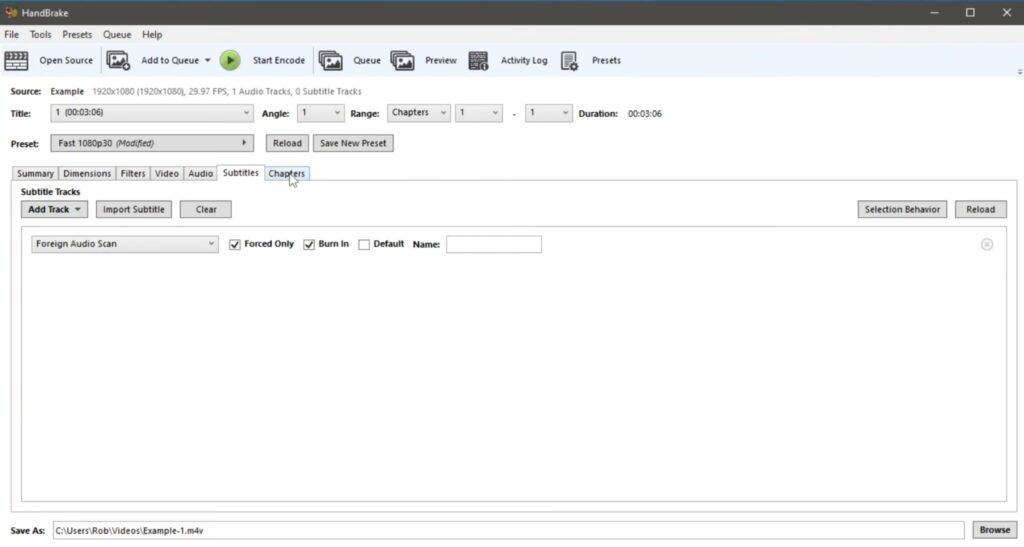
HandBrake includes a wide range of advanced—but practical—features:
- DVD and Blu‑ray ripping (no DRM)
- Export to MP4 (M4V) and MKV
- Chapter markers and metadata
- Soft and burned‑in subtitles
- Constant Quality and Average Bitrate encoding
- VFR and CFR frame rates
- Filters such as deinterlace, denoise, and grayscale
- Live preview before encoding
- Batch encoding with a job queue
- GPU hardware acceleration (where supported)
That makes the app a good fit for both beginners and more technical users.
Helpful tips before you start with HandBrake
- Use presets as a starting point—they’re better than many think
- Choose Constant Quality instead of a fixed bitrate if you want to save space
- Always test with Preview before converting long videos
- Remove unnecessary audio and subtitle tracks
- Consider GPU acceleration if your hardware supports it
Top 5 HandBrake tips
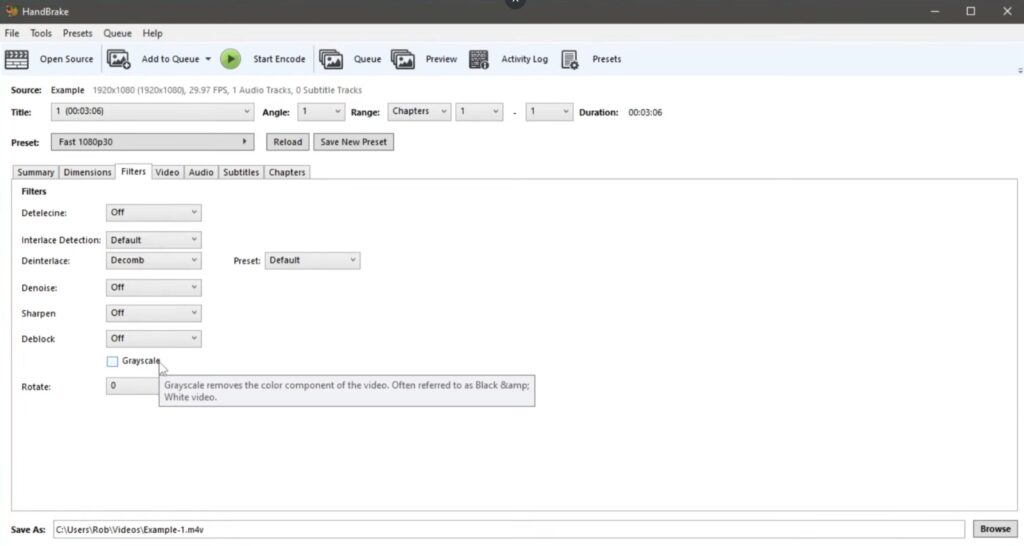
Use presets for quick conversions
HandBrake comes with a wide range of ready‑made presets optimized for mobile, tablet, TV, web, and streaming. Presets account for resolution, bitrate, codec, and compatibility, so you avoid misconfigurations. In practice, that means you can convert videos in a few clicks and still get a solid result—especially if you don’t want to tweak advanced video settings. Presets are the perfect starting point, which you can fine‑tune later as needed.
Enable Fast Decode on older PCs
If you’re using an older desktop or laptop, video conversion can get heavy fast. Enabling “Fast Decode” reduces CPU load during decoding, which can noticeably speed up conversions. It’s especially useful for large video files or batch jobs, where the time savings add up quickly. Quality impact is minimal, but the speed boost can be significant on older hardware.
Remove extra audio and subtitle tracks
By default, HandBrake often includes all audio and subtitle tracks from the source. That’s unnecessary if you only need one language. Manually removing extra audio and subtitle tracks under the “Audio” and “Subtitles” tabs can reduce file size substantially. It also makes the finished file easier to play, since you won’t have to scroll through long lists of languages and tracks you never use.
Rip DVDs to MP4 with no visible quality loss
When ripping DVDs with HandBrake, “Constant Quality” is the most effective way to preserve image quality. An RF value around 18–22 usually provides an excellent balance between quality and file size. The video keeps its visual look while taking up far less space than the original DVD, making HandBrake ideal for digitally archiving old movies and shows that would otherwise waste storage.
Use Add to Queue for batch conversion
If you need to convert many files at once, “Add to Queue” is one of HandBrake’s biggest time‑savers. You can add multiple videos, adjust settings individually, and let the app do the rest automatically. It’s especially handy for TV series, large video libraries, or when you want to run conversions overnight—maximizing your time without babysitting the process.